ChatGPT displays the message "This project could not be used for a local chat": Cause and Solution
This error message is caused by a bug in the ChatGPT desktop app for Windows, not by you. We'll explain why it appears, which solution works in which situation, and what you can avoid—based on the current status of open bug reports.
Date
Category
Author

"This project could not be used for a local chat." For weeks now, this message has been directing most people to marschfahrt.de. Here you'll find everything you need to know: what's causing the issue, which solution works in which situation, and how you can figure out in five minutes which scenario applies to you.
First, regarding the sources: OpenAI has not provided any explanation for this issue to date. All information regarding the cause comes from public bug reports in OpenAI’s GitHub repository, where users have thoroughly examined the app. We most recently analyzed these reports in full on October 20, 2026, and have indicated which details are officially confirmed and which are not. Since we work on a Mac ourselves, we’re showing the process as a diagram rather than a screenshot.
In a nutshell (as of October 20, 2026)
You haven't done anything wrong: The message is a bug in the ChatGPT desktop app for Windows, and it hasn't been fixed yet. It appears when you start a new work chat within an existing ChatGPT project. To do this, the app creates a copy of the project on your hard drive, and the app's own utilities block access to that specific folder.
The fastest way to proceed is in your browser: Open the project at chatgpt.com and start the work chat there. If you need to work locally, close any frozen utilities and try again immediately. This helps in many cases, but not all, and only lasts until the next new chat. Since early October, there’s been a second cause for this issue that the well-known PowerShell command doesn’t address. Both commands are provided below for copying.
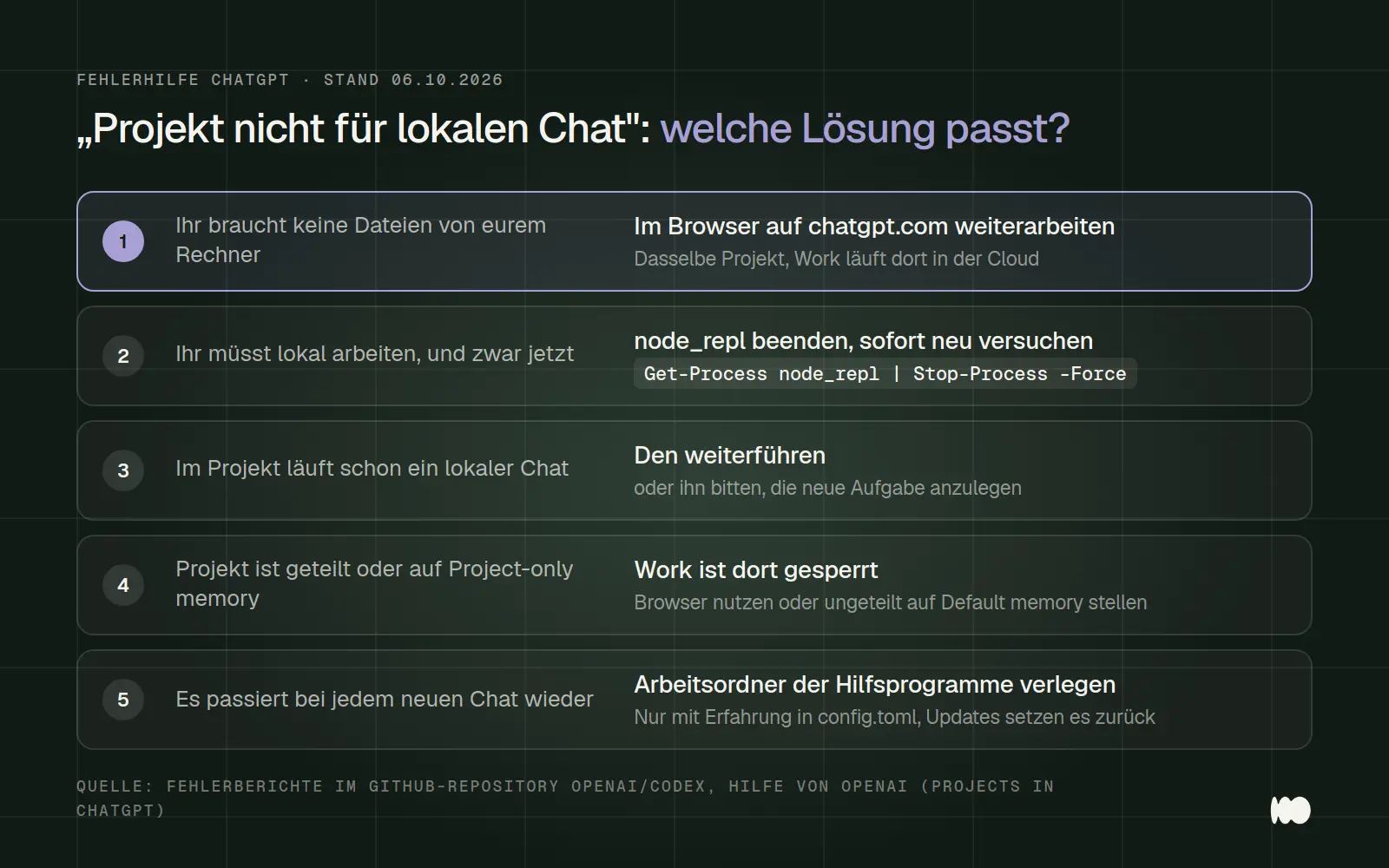
Which solution is right for your situation. The order is based on the amount of effort required: at the top are the tasks that can be completed in a minute.
Where exactly the message appears
The notification appears in the new desktop app for Windows—not in the browser or in the mobile apps. The new app combines Chat, Work, and Codex. According to OpenAI, your previous ChatGPT projects will appear there under "Projects," and from within a project, you can select "Chat" for a regular chat or "Work" for a work-related chat that draws on the project’s knowledge. Work can run locally in the desktop app, meaning it has access to files and programs on your computer.
This method typically fails: Open the project, select "Work," and start. Instead of a new chat, a message appears that reads, in the original English, "Could not use this project for a local chat." This is often preceded by a second message, originally “Could not sync ChatGPT project context,” sometimes with the heading “Error creating chat” or “Failed to create chat.” In a report from October 7, the desktop app also failed to launch when “Cloud” was selected as soon as the project was linked. In the browser, however, the same project works fine.
There are two other ways to access the same message: the "Continue with Work" button, which lets you continue an existing project chat in Work, and moving an existing local chat into the project using "Move to project." The latter is also displayed in the German interface.
According to consistent reports, the following still work: the same project in the browser and in the iPhone app, existing local chats within the project, and new local work chats outside of a project. Some users also report that the first local chat in a project still works, but the second one fails. This is consistent with the cause.
Why This Happens
The app creates a copy of each project on your computer and replaces that copy every time you start a new chat. The copy is located at %USERPROFILE%\.codex\.chatgpt-projects\, with a subfolder for each project whose name begins with "g-p-". These subfolders contain the project's instructions and files so that a local chat can work with them.
When data is exchanged, the app renames the entire folder, and Windows prevents this from happening as long as a program is running in that folder. Several users have independently verified this using tools such as Process Monitor. A local chat begins, and the app launches supporting programs that run in the project folder. The next time a chat starts, the app attempts to rename the folder; Windows reports an access conflict, and the app displays only a brief message. The log simply states that the synchronization in the file system failed—i.e., stage=filesystem.
Since early October, there have been two types of utility programs. node_repl.exe was already known. Around October 5, a process called cua_repl was added—a utility from the included “unified-computer-use” plugin that the app uses for computer control. It runs on Windows as node.exe, starts without its own working folder in the project folder, and passes this folder on to the node_repl process it launches. Users have reported this in reports #45596 and #48534.
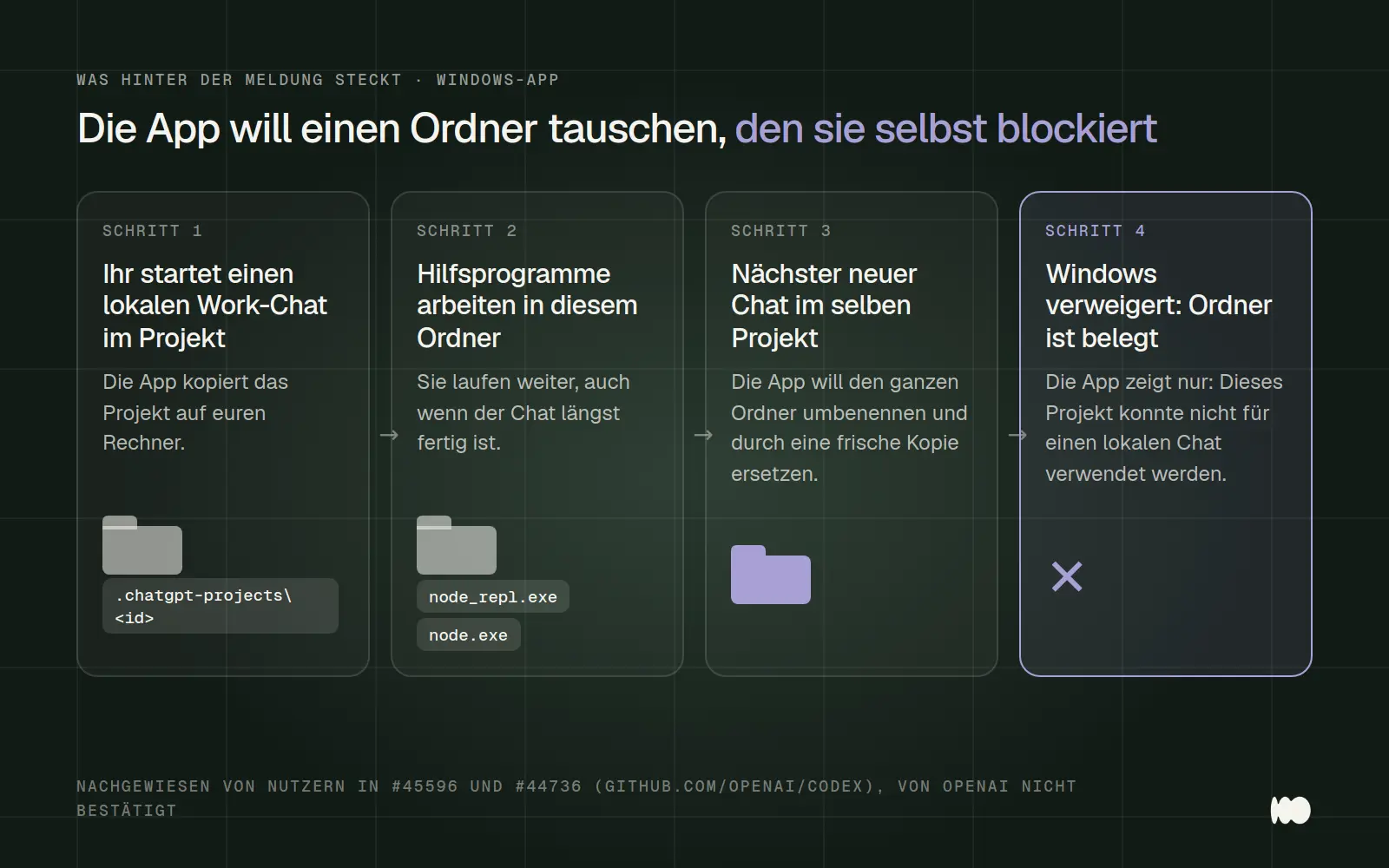
The process behind the issue, as documented by users in the open bug reports #45596 and #44736. OpenAI has not officially confirmed this. Since October, cua_repl (node.exe) may also occupy the folder instead of node_repl.exe.
That's why reinstalling the app or resetting Windows doesn't help either. The problem lies in the way the app manages its own folders. Every new local chat restarts the support programs, and by the time the next chat starts, the lock is back.
In five minutes: What kind of case are you dealing with?
Go through these checks one by one before you make any changes. Each step rules out a possible cause, and the solution lies right where the problem occurs.
1. Is the project shared or set to "Project-only memory"? If so, according to OpenAI, Work is generally not available there; see Solution 4. This is the only officially documented reason.
2. Does a local Work Chat start outside the project? If not, you have a different problem, such as a lack of permissions in the company workspace or an outdated app. In that case, the solutions in this post won't help.
3. Does Work open chatgpt.com in the browser within the same project? If not, the issue is with the account or the workspace, not this error.
4. Did you see the message “Could not sync ChatGPT project context” earlier? If so, it’s most likely the familiar issue with the locked folder.
5. Are there any node_repl or cua_repl processes running? Terminate them using the commands from Solution 2 and try again immediately.
6. Does the error reappear in the next new chat? If so, the pattern is confirmed. The only way to make this a more permanent solution is to use the custom work folder for advanced users; in everyday use, you’ll need to use the browser.
7. If none of that works: Do not delete the folder or reinstall the app; instead, continue working in your browser and report the error. Instructions on how to do this can be found in the FAQ section.
Solution 1: Continue working in the browser
Open the project on chatgpt.com and start the Work chat there. Work runs in the cloud in your browser; you don’t need a local copy of the project. The browser is really key here: According to a report from October 7, selecting “Cloud” in the desktop app also failed as soon as the project was linked. Work chats that you start in the browser or on your phone will then also appear in the desktop app, according to OpenAI, where you can continue them.
The catch: In the cloud, Work doesn't have access to your local files and programs. If you're currently using Work for that purpose—such as to edit files on your computer—it's not a full-fledged replacement. But it's sufficient for research, drafts, and anything else that's part of the project anyway.
Solution 2: Close the frozen utility programs
This will specifically close the utilities that are locking the project folder and immediately restart the chat. Make sure no tasks are currently running in Work beforehand, or they will be interrupted. Open the Start menu, type "PowerShell," and launch it.
First, `node_repl`. The first line shows whether any such processes are running; the second line terminates them:
If that doesn't help, cua_repl may be the culprit. It runs as node.exe and isn't detected by the first line. However, don't simply terminate all node.exe processes—they may include programs that have nothing to do with ChatGPT. These two lines search only for node.exe processes that contain "cua-repl" in their command line, display them, and then terminate them:
If you don't have the commands, you can use Task Manager. Press Ctrl, Shift, and Esc at the same time, switch to the Details tab, and end the process for node_repl.exe. For cua_repl, right-click the column headers to show the "Command Line" column, and then end only the node.exe processes that contain "cua-repl" in their command lines.
Expect to have to repeat this every time a new chat starts in the project, and expect that it won’t always work. The next local chat restarts the support programs. On October 9, new support programs took over the folder immediately after the previous ones closed, and the new attempt still failed. On October 16, the lock returned the next time the support programs were launched. Solution 2 is a quick fix for day-to-day use, not a permanent repair.
Solution 3: Continue existing chats or start new ones outside the project
Existing local chats in the project are still active—feel free to use them. Here’s a tip from the OpenAI forum, which is described there as reliable: Ask someone working on an existing task in the project to create the new task for you. This bypasses the process where the app tries to replace the folder.
If you don't absolutely need the project context, start the local work chat outside of the project. According to several reports, this works without any issues. However, the project's instructions and files will then be missing. If you need them, copy the most important instructions into the first message and re-upload the files to the chat.
Afterward, do not move the chat to the project in the Windows app. The "Move to project" function fails there, with reports showing the same error message, and in a report from October 13, assignments made in the Windows app were later reverted. If you want to assign a chat to a project, do so in the browser; the assignment will remain there.
Solution 4: Check the project's save mode
Projects set to "Project-only memory" mode generally do not allow Work. This is the only officially documented reason for the restriction. OpenAI's help documentation briefly states that ChatGPT Work is not available in this mode. Shared projects always run in this mode and cannot be switched to another mode, even if all other members have been removed.
Here's how to check: Open the project, click the three-dot menu, then select "Project settings," and look under "Memory." If it says "Project-only memory" and the project isn't shared, reset it to "Default memory " and click "Save." Give the change some time to take effect: According to OpenAI, it may take a few hours for the change to take effect. Also keep in mind that ChatGPT will then use external data within the project. For shared projects, the browser is your only option.
In corporate workspaces, the admin can also restrict access. Working locally in the desktop app is controlled by the "Work Local" permission, while tasks in the cloud are controlled by the "Work Cloud" permission. These permissions are granted separately. Users who can use Work in the browser but not locally should check with the admin first. After a new permission has been granted, OpenAI recommends waiting a bit until it has been applied to all members.
For Advanced Users: Move the Working Folder for the Utility Programs
Die dauerhafteste Umgehung legt fest, dass die Hilfsprogramme in einem eigenen Ordner arbeiten statt im Projekt. Dafür gibt es in der Konfigurationsdatei %USERPROFILE%\.codex\config.toml die Einstellung cwd je Hilfsprogramm, in der offiziellen Konfigurationsreferenz als mcp_servers.<id>.cwd beschrieben. Ein Nutzer hat in Fehlerbericht #44736 genau beschrieben, wie er sie für node_repl und weitere Hilfsprogramme gesetzt hat. Zeigt der Eintrag auf einen Ordner außerhalb von .chatgpt-projects, ließen sich bei ihm wieder mehrere Chats hintereinander anlegen.
Für cua_repl liegt die Einstellung an anderer Stelle. Das Plugin bringt seine eigene Datei .mcp.json mit, unter %USERPROFILE%\.codex\plugins\cache\openai-bundled\unified-computer-use\<Version>\. Laut Bericht #45596 genügt dort unter mcpServers beim Eintrag cua_repl eine Zeile "cwd" mit einem Ordner außerhalb von .chatgpt-projects. Prüfen lässt sich das mit codex mcp list --json. Weil jede neue Plugin-Version in einem neuen Versionsordner landet, müsst ihr die Zeile nach jedem Update erneut setzen.
If you've integrated your own MCP servers, check them first. Even servers you've added yourself that don't specify a cwd will also start up in the project folder and lock it.
Stay away from this if you're not familiar with configuration files. The app overwrites some of these settings on its own when it starts up, and several reports have indicated that they disappeared again after updates. An incorrect entry can also prevent any local tasks from starting at all. Back up the files beforehand and expect to have to fix them after every update.
What Doesn't Help
Don't bother with drastic measures—none of them have been shown to work in any report we're aware of. These include: fixing or reinstalling the app, resetting Windows, logging out and back in, and creating a new project. One user tested this with a newly created, empty project and confirmed that the error occurs there as well.
Do not delete the .chatgpt-projects folder. It won't help, and the project copies may contain results from your local tasks that you would otherwise lose.
Do not download any "unlockers" from forums. On the OpenAI forum, a user is distributing a tool as a ZIP file via a file-hosting service that is supposed to fix the error. It does not come from OpenAI, no one has verified it, and you’ll be giving an unknown program access to your computer and your account.
Even the update alone hasn't fixed the issue yet. According to reports, the bug has occurred in all reported versions since July, most recently on October 16. It is not mentioned in the release notes for app version 26.1007, dated October 8. For the newer version, 26.1013—which has been appearing in reports since mid-October—there are no release notes yet, and neither a confirmation nor a contradictory report has been issued.
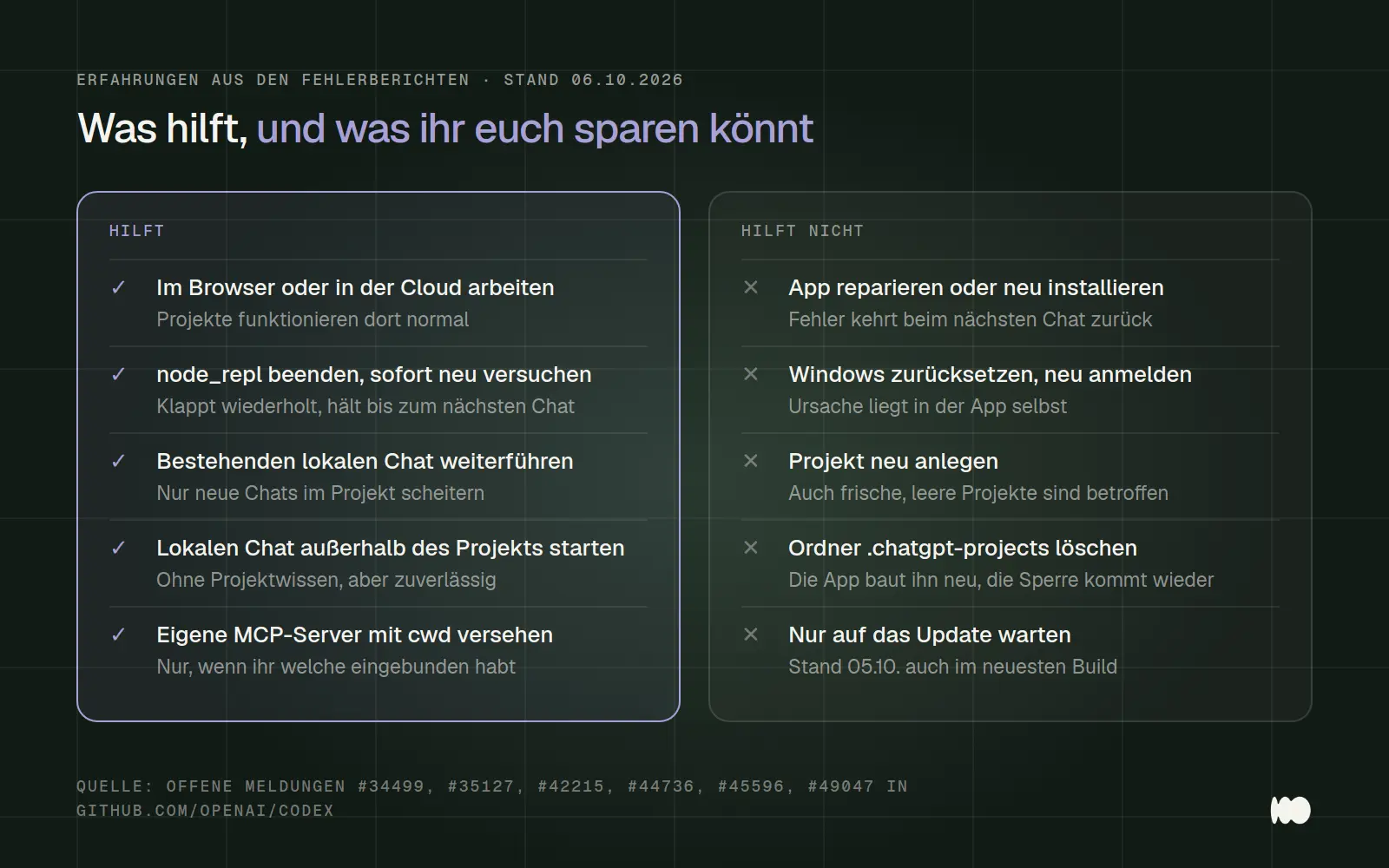
What helps and what doesn't, according to the bug reports. This information is based on the open issues in the GitHub repository openai/codex, including #34499, #35127, #42215, #44736, #45596, and #49047.
Similar Messages and What They Mean
"Could not sync ChatGPT project context": This message often appears right before the main message and has the same cause. The same solutions apply.
"Failed to create chat": This message appears when you exit a project chat via "Continue with Work," along with the main message. The same solutions apply here as well.
“Couldn’t load this ChatGPT conversation,” plus missing projects: reported since mid-October via the Windows app; the log shows a Cloudflare check that the app fails. Everything works in the browser. This is a different error, but the workaround is still to use the browser.
Error when writing to Documents\ChatGPT: If Windows antivirus software is using controlled folder access, the app cannot write to the default project folder in Documents. Move the working folder to a different location.
Error messages with WSL: Users who have switched the app to the Linux subsystem may encounter specific errors when creating projects. OpenAI recommends in its documentation that projects be stored in the Windows file system.
The language doesn't matter. The same message appears in English, Italian, Russian, and Korean, and the cause is the same in every case.
Does this also apply to the Mac?
To date, this exact error message has only been reported on Windows. All 18 error reports regarding this issue in OpenAI’s GitHub repository come from Windows computers, and the cause is related to the way Windows locks folders. On October 13, however, a Mac user reported a similar issue for the first time: A Work chat in an existing project won’t start; according to the user’s report, the message “Could not start the chat in the local chat” appears, though it works outside the project. It remains unclear whether the underlying cause is the same. For now, the same workaround applies on Mac: use Work in a browser or outside the project.
Has the error been fixed?
No, as of October 20, 2026, it is still open. The oldest report is dated July 21, 2026. A search for the English text in the GitHub repository turns up 18 reports, all of which are open. OpenAI employees have not responded to any of them. One of the reports has been marked “Papercuts 2026” since July 29, indicating that it is classified as a minor but annoying bug. Nothing has changed since then.
How to tell if the fix worked: After updating the app, start two work chats in a row within the same project without closing any processes first. If the second one works, the issue has been resolved for you. When comparing with reports, make sure to use the correct version number: The version shown in the app’s “About” dialog—for example, 26.930.61225—is different from the package version in the Microsoft Store—for example, 26.930.3930.0.
Frequently Asked Questions
Will my files be lost? No, as long as you don't delete anything. The project files are stored in the cloud; the local copy is just a mirror. Still, don't delete the .chatgpt-projects folder, because it may contain results from local tasks.
Does it depend on the model? A single report from September noted that investing using one model failed, while it worked with another. No one has confirmed this, and the model selection has changed since then—for example, OpenAI withdrew GPT-5.5 for Codex on October 14 for users logged in via ChatGPT. We wouldn't count on it.
Is OpenAI working on this? There are no public indications of this other than the announcement from July.
How do I report the bug so that it gets through? According to the OpenAI documentation, type a slash into the input field in the app and select the feedback option; then you can enter the session ID. You can also create an issue in the GitHub repository openai/codex, but be sure to check for an existing one first.
I need a lot of new chats in the project every day—is there a permanent solution? Right now, the only option is the browser. Moving the work folder helps longer than closing the processes, but it disappears after updates.
What Has Changed and What That Means for You
October 20, 2026: New evaluation of all 18 open reports. Since early October, cua_repl has also been locking the project folder, and terminating node_repl doesn't always help. For you, this means: If the first command doesn't work, try the second one from Solution 2, and if in doubt, use the browser.
October 13, 2026: First similar report from a Mac, plus project assignments from the Windows app that are being rolled back. For you, this means: Make project assignments in the browser.
October 7, 2026: The error also occurs in the desktop app when "Cloud" is selected, as soon as the project is linked. For you, this means that the only workaround is to use a browser.
October 5, 2026: MCP servers you run yourself that do not specify a cwd also lock the project folder. If you have such servers set up, you should check them first.
September 28, 2026: Even regular cloud projects and newly created, empty projects are affected. For you, this means: It’s not because of your project content.
July 21, 2026: First error report from the Windows app.
Date of this version: October 20, 2026. For more information on working with projects, storage, and Work, see our ChatGPT guide.
AI in Action: Without Getting Stuck on Error Messages
Mistakes like these show just how quickly AI tools are changing right now and how much time it takes to keep up. We set up AI tools and automations so they run reliably in your day-to-day operations, and we explain to your staff what they can do if something does go wrong. Related: Using ChatGPT the Right Way · Performance: AI and Automation
If you contact us via our contact form, we'll respond within 24 hours—personally and without a sales pitch.
More Articles
© Marschfahrt Studio
Practical knowledge on web design, SEO, AI, and conversion optimization. Based on real projects, without any marketing spin.