How to Use ChatGPT Effectively: Keyboard Shortcuts, Commands, Pricing Plans, and Templates to Copy
Slash commands, keyboard shortcuts, tone controls, temporary chat, projects, skills, and pricing in euros: all with real screenshots and templates you can copy.
Date
Category
Author

Most people use ChatGPT like a search engine with an answer feature: type in a question, get a response, move on to the next chat. But the interface now includes a whole toolbox of features that hardly any guide mentions: a command menu accessible via the slash key, keyboard shortcuts for almost everything, a tone control slider, a chat without a history, tasks that run automatically, and skills that save your workflow.
This guide shows you exactly that, with screenshots from our own ChatGPT account on the Plus plan—exactly as you’ll see it on your screen. The templates and commands are provided in boxes for copying. We display the pricing plans directly from OpenAI’s pricing page, with prices in euros. The screenshots are from October 20, 2026; we last checked the models, quotas, and help pages on November 4, 2026.
In a nutshell (as of November 4, 2026)
Three simple steps will get you further than any new prompt. First: Write some good custom instructions—our template is provided below for you to copy. Second: Learn five keyboard shortcuts, starting with ⌘ K or Ctrl K for the command menu. Third: Under Data Controls, turn off “Improve the model for everyone” when working with company data. To get tasks instead of answers, use the toggle at the top to switch to “Work.”
Chat or Work: The Most Important Button Is Right at the Top
Use Chat for questions and text, and Work for anything that’s supposed to result in a finished file or completed task. The toggle is located in the center above the input field. According to OpenAI, Chat is “for fast, conversational assistance,” while Work is “an agent designed for longer, multi-step work and finished deliverables.” In Work mode, ChatGPT works with your files and plugins, opens its own browser, and asks for confirmation before performing any important actions.
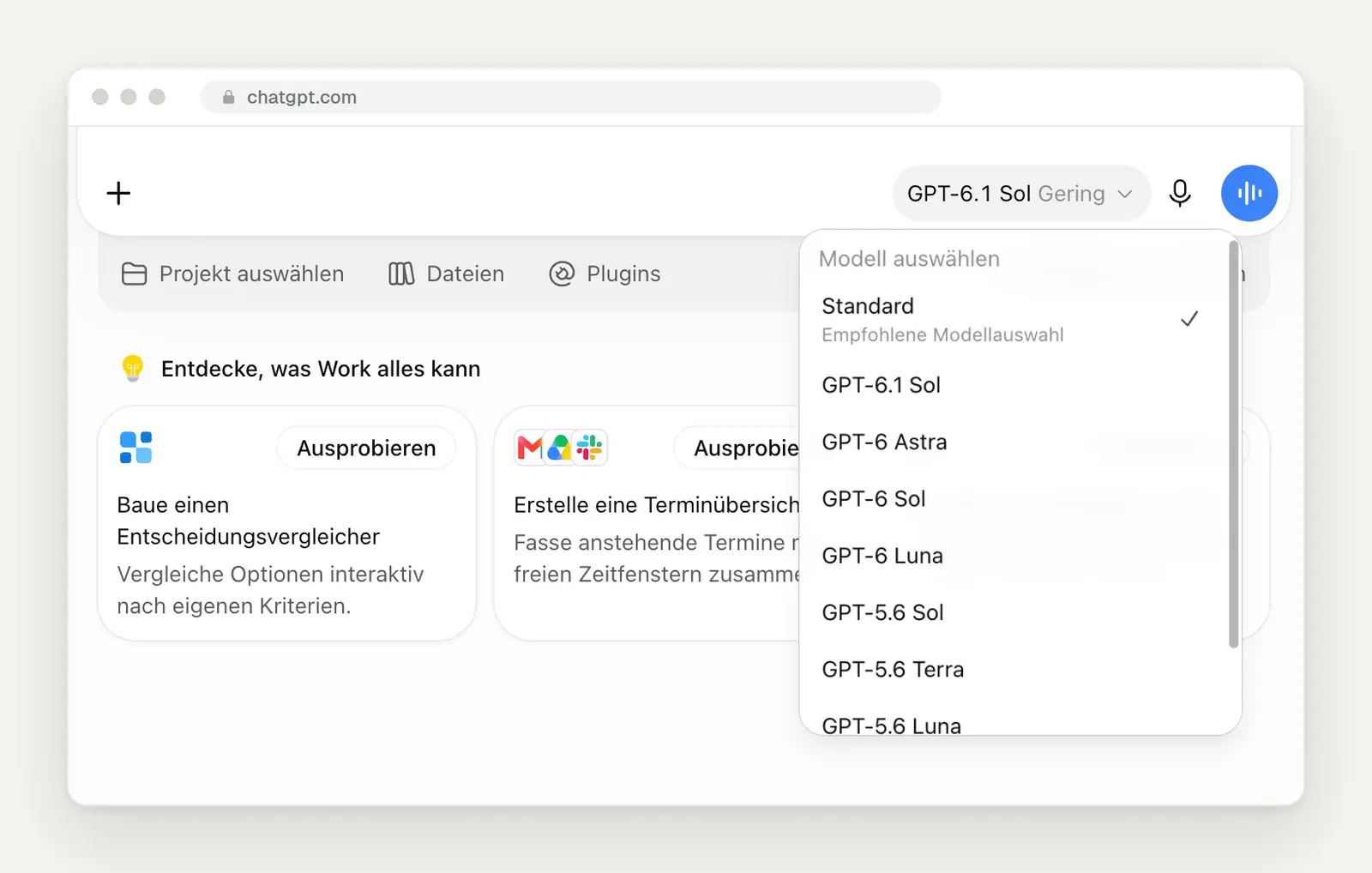
Work mode with model selection. "Standard" is the recommended setting; below that are Project, Files, and Plugins.
In Work, leave the model selection set to "Standard." Our default is GPT-6.1 Sol. Since October 26, GPT-6.1 Terra has also been available, and some Plus accounts now have Terra as the default instead of Sol. The top-of-the-line GPT-6 Astra model uses up your quota much faster: OpenAI estimates that for Plus accounts, every five hours of use results in 5 to 45 messages with Astra, 15 to 160 with GPT-6.1 Sol, and 35 to 285 with GPT-6.1 Terra. Reserve Astra only for the most challenging task of the day.
In the chat, you've been able to choose between GPT-6 and GPT-5.6 Sol since October 7. The Work models aren't available there. Click the slider on the right side of the input field, then click the arrow next to the level, and the model selection will appear. GPT-6 is the default and is the right choice for almost everything.

Model selection in the chat: GPT-6 is the default setting, with GPT-5.6 Sol listed as an alternative below it. Recorded on October 20, 2026, in our Plus account.
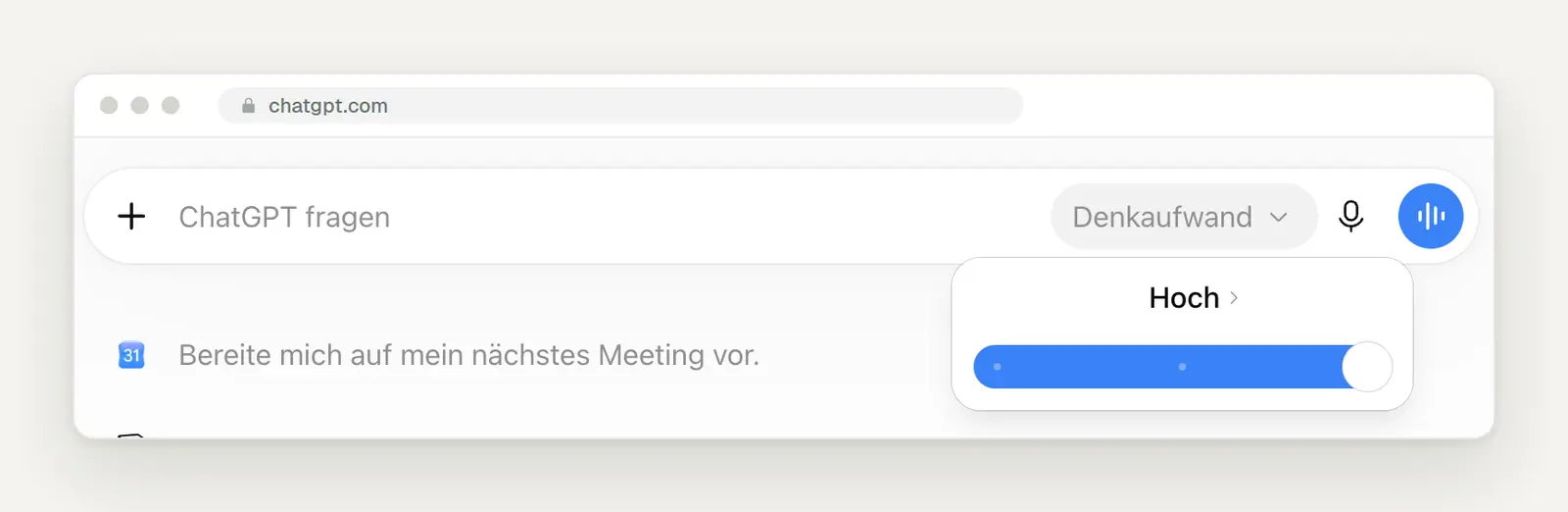
You can adjust the level of mental effort using the slider. “High” is the highest setting in the Plus plan; the levels above that are only available in more expensive plans.
Set the thinking level yourself; adding “think more thoroughly” to the prompt won’t help. According to OpenAI, the fast level in Plus and Pro no longer automatically increases, and requests like “think harder” won’t change the level either. For contracts, calculations, and research, you should therefore set the slider to High beforehand.
Correct ongoing Work tasks instead of canceling them. In the desktop app, under Settings> General> Follow-up behavior, you can specify what happens to a message you send while ChatGPT is still working. With "Steer," it is incorporated into the current task; with "Queue," it waits until the task is complete. Pending messages appear above the input field, where you can still edit or delete them.
The Plus Menu: All Tools in One Place
Click the plus sign on the left side of the input field before you write a long prompt. Here, you can choose what ChatGPT should use: your own photos and files, files from the library, a project, or Deep Research for a detailed report with sources. If you select the tool in advance, you’ll get better results than if ChatGPT has to guess on its own.
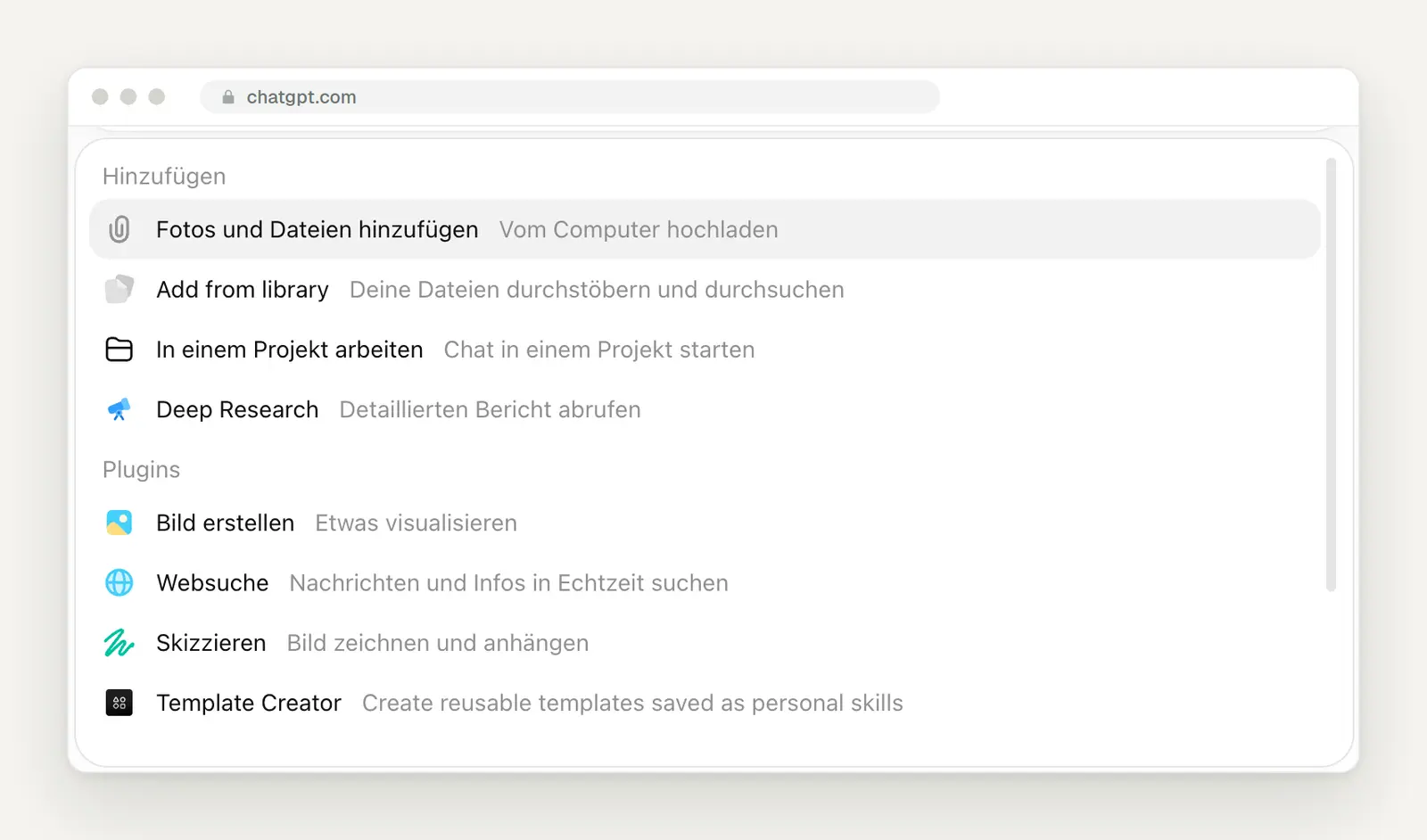
The top section of the Plus menu: Files, Library, Project, and Deep Research.
Scroll down in the menu to see the plugins you can use right away. For us, these are Create Image, Web Search, Sketch, Template Creator, Presentations, PDF, and Documents. With Presentations and Documents, you create actual files instead of just text in the chat; with Sketch, you can draw something and attach it directly. At the very bottom, you’ll see “Type to search plugins”: Just type the name of a plugin instead of searching for it.
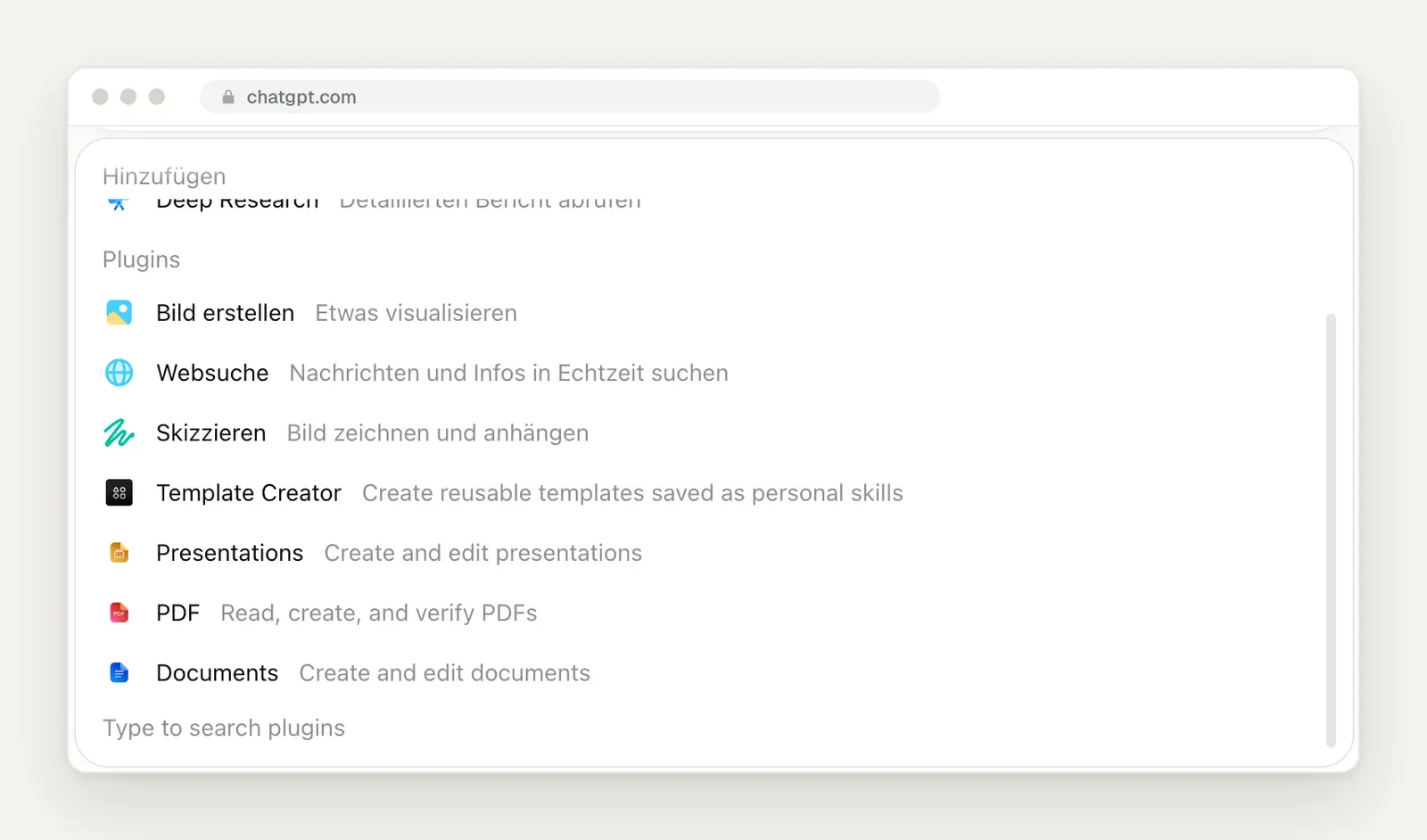
The bottom section of the Plus menu, which lists all the plugins available directly in the chat.
The Slash: Commands Directly in the Input Field
Type a slash into the empty input field, and ChatGPT will show you what you can do without a mouse. In the normal chat, for example, the options include “Start your own GPT,” “Dictate,” “Feedback,” “Work on a project,” and “Switch models.” The selection changes depending on the view: In a second attempt, ChatGPT showed us only three of the five entries.
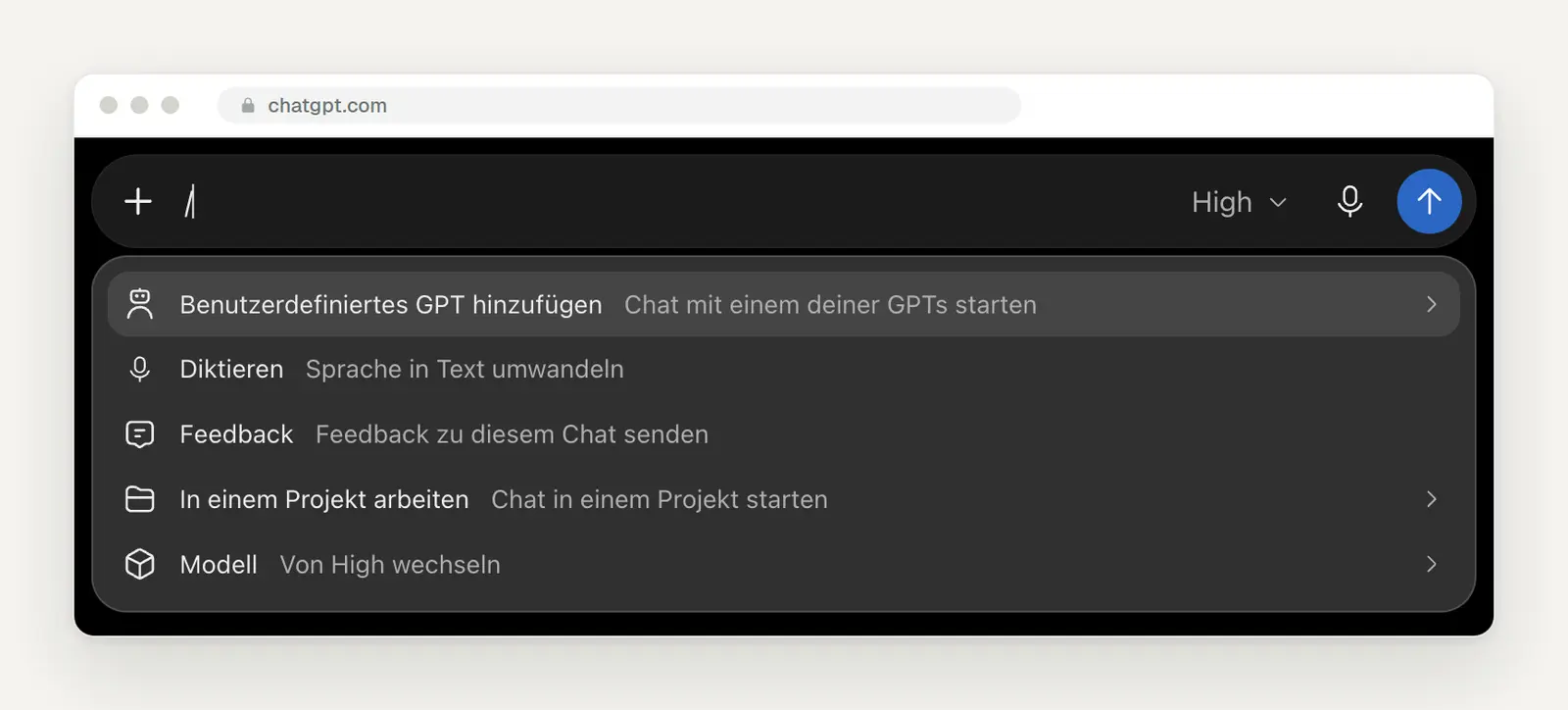
The slash menu in the chat, shown here in dark mode.
Call up your skills in Work directly using the slash. In Work mode, all the skills you've installed are listed in the same menu under "Skills." According to the documentation, you can also call up skills using a dollar sign. This turns a long, repetitive sequence of instructions into a single command.
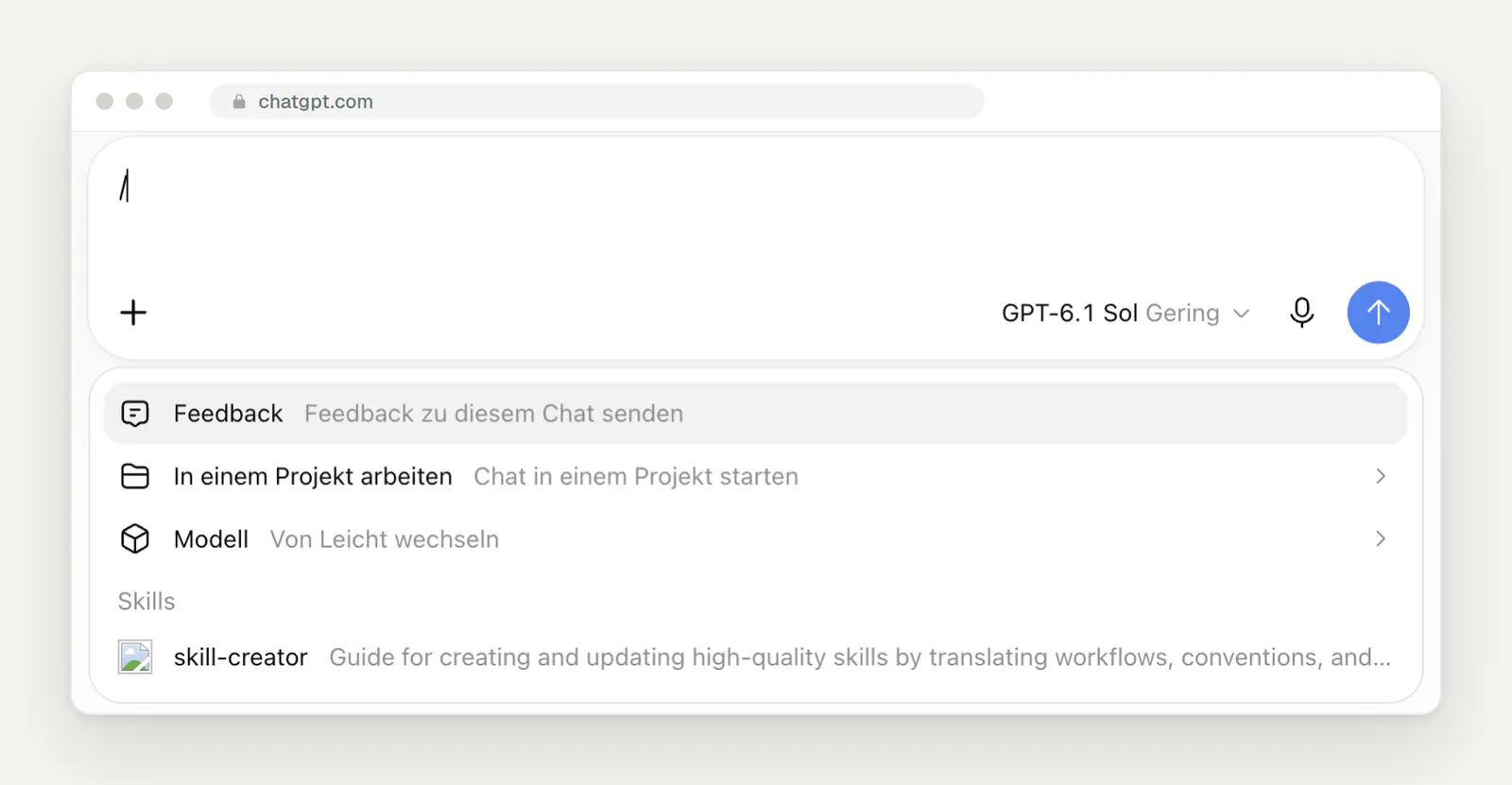
The slash menu in Work with the "Skills" section. So far, we've only installed the skill-creator.
The desktop app offers many more commands. OpenAI lists these, among others, for the ChatGPT desktop app's input field; however, according to the documentation, the selection depends on which features you've unlocked. Most of them are intended for Work and Codex:
Combine /plan and /goal for larger tasks. According to the documentation, you first use /plan to work with ChatGPT to determine exactly what should happen, and then use /goal to set that result as a permanent goal. You’ll then see the progress above the input field and can pause, change, or delete the goal.
Tidy things up right from the input field with the new commands. Since October, /rename renames the chat, /pin pins it, and /archive moves it to the archive. Use /usage to view your usage and billing before your quota runs out. /chat selects a chat without a project before you start a new one.
Keyboard Shortcuts That Are Really Worth It
Press ⌘ / or Ctrl / to open the list of all keyboard shortcuts. You can also find it by going to the account menu in the lower-left corner, then selecting " Help" and "Keyboard Shortcuts." You can change or disable any shortcut there: Click on the combination and press the new keys.
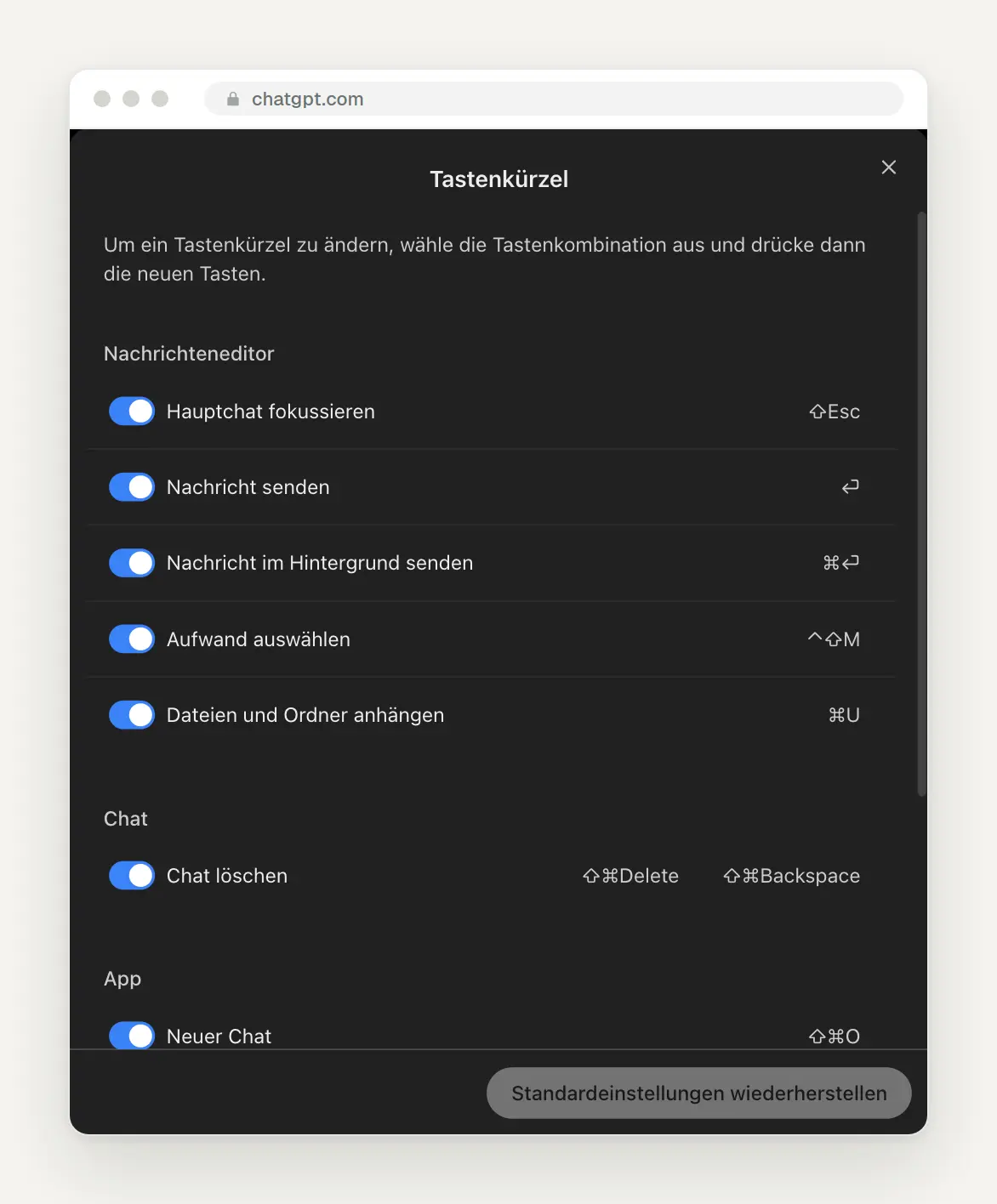
The keyboard shortcut overview in the browser on a Mac. Each shortcut can be disabled or remapped.
These shortcuts save the most time in everyday use. The list comes from the ChatGPT desktop app’s documentation; the lines for appending text and sending in the background are taken from the shortcut overview in the browser. Not all of them work in the browser; the overview above shows which ones are active for you.
Set up the chat search yourself. According to the documentation, there is no default shortcut for searching across all chats, but you can assign one under Settings> Keyboard Shortcuts. This is especially helpful if you work with old chats frequently.
Send ChatGPT the window you currently have open. In the desktop app, press both ⌘ keys at the same time; on Windows, press both Alt keys. OpenAI calls this an “Appshot”: ChatGPT receives an image of the frontmost window and its text, including the portion outside the visible area. Under Settings> Appshots, you can specify whether the image goes into the current chat or a new one. This lets you show an error message or a settings page instead of typing it out. According to the documentation, with Google Docs, Gmail, and Sheets, only the visible portion may be captured in some cases.
Enables the Enter key to create a line break. Otherwise, if you paste long templates, you’ll end up sending incomplete prompts. In the desktop app, go to Settings> General to choose whether the Enter key sends a line break or if you need to press ⌘ Enter or Ctrl Enter instead.
Personalization: Tone, Writing Style, and Memory
Adjust the tone once and for all, instead of writing “keep it short” in every chat. Under Settings> Personalization, choose a base style—we recommend “Professional”—and adjust warmth, enthusiasm, emojis, headings, and lists individually. If you tone down the emojis and headings, you’ll get responses that can be copied into an email without any editing.
Set “Visual Responses” to “Simple” if you need text you can reuse. Since October 7, ChatGPT—powered by GPT-6—has often responded with charts, comparisons, and small calculators instead of continuous text. This is useful for decision-making, but not for an email to a customer. You’ll find this setting in the “Personalization” section, next to the tone controls. According to OpenAI, these elements don’t disappear entirely even with the simpler setting.

The tone controls in Personalization. A new feature is “Visual Responses,” which includes the “Standard” and “Simple” settings.
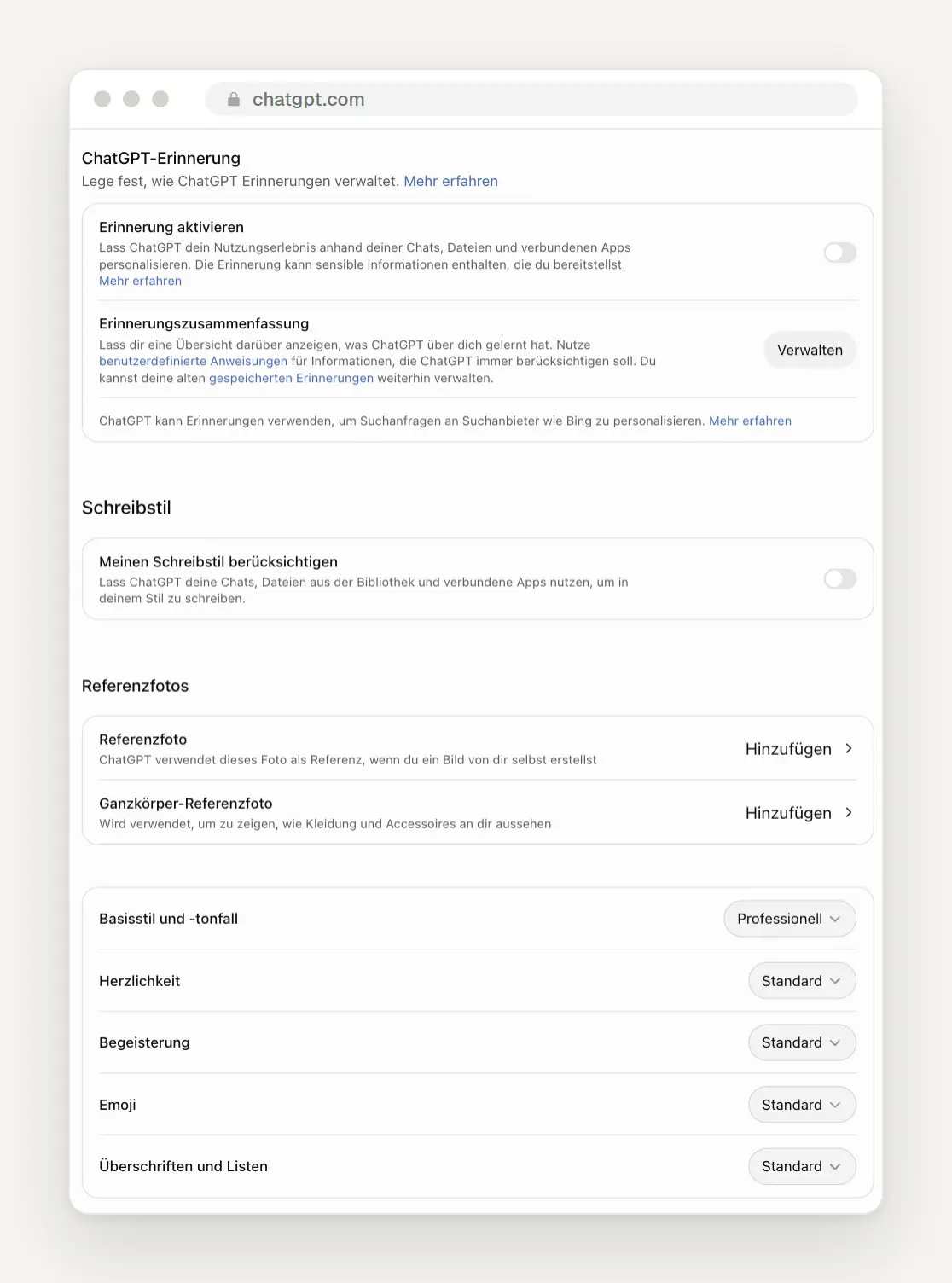
Personalization: memories, writing style, reference photos, and the tone controls.
Turn on “Take my writing style into account” if you want ChatGPT to write texts on your behalf. Then, based on this setting, ChatGPT will use your chats, files from your library, and connected apps to write in your style. In Work, there’s a second step: On the Work home screen, you’ll see the “Learn My Writing Style” card. There, connect your Mail or Docs apps and confirm by clicking “Use writing style.” According to the documentation, setup isn’t complete without this step.
Check where ChatGPT gets its information about you. Under " Memory Summary" and "Manage," you can see what ChatGPT has learned. Below a personalized response, the " Sources" section (originally labeled "Sources") also shows which chats, memories, or files influenced the response. There, you can specifically delete or correct an outdated entry—such as an old price—instead of clearing the entire memory.
Check the switches at the bottom of the page. “Quick Answers” provides short answers based on general knowledge; according to the description, these are not personalized and do not draw on your memories. “Search Library” was turned off for us. If you store your documents in the library, you should turn it on. “Connector Search” allows ChatGPT to automatically search connected sources such as Gmail or Drive.
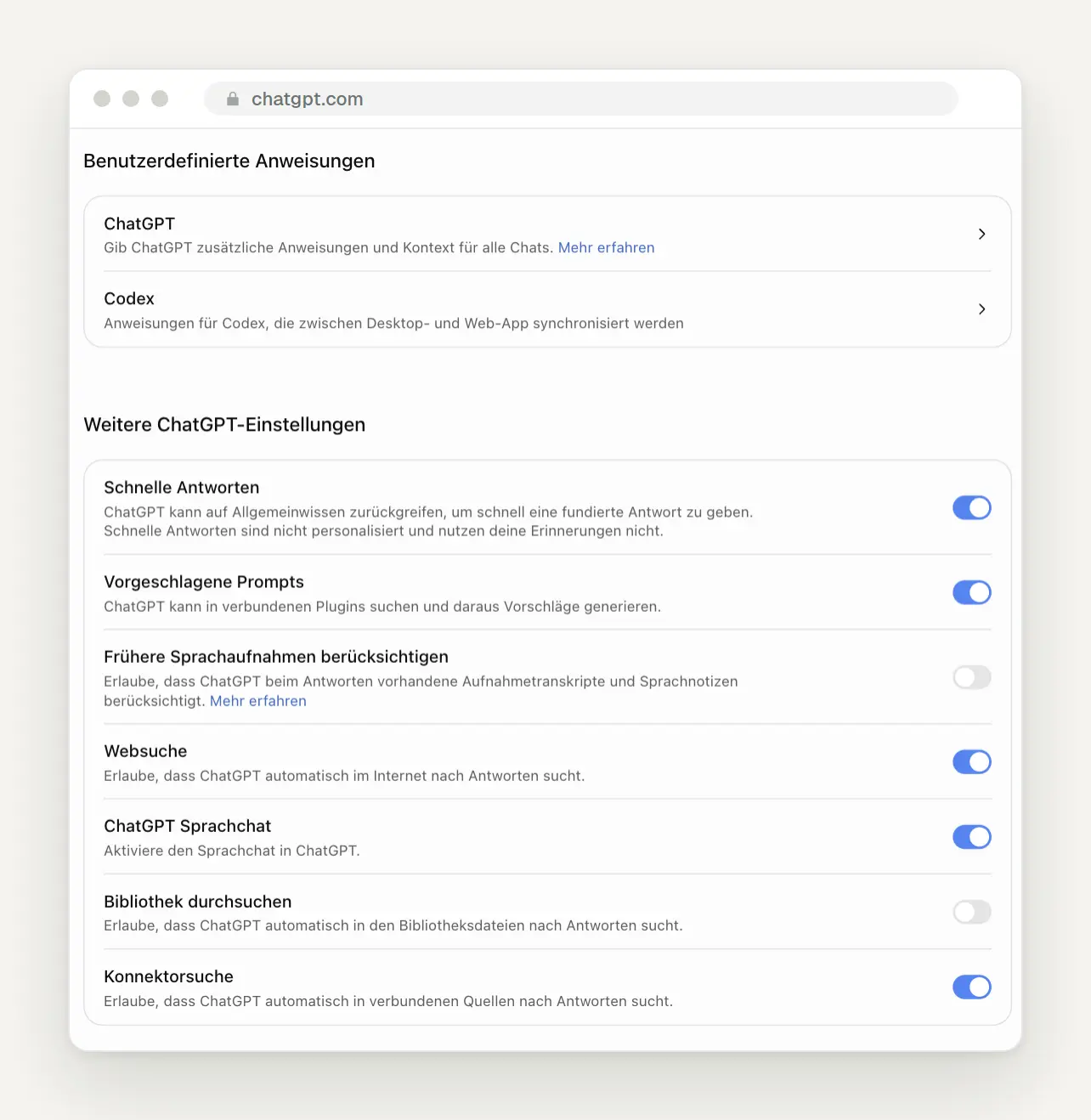
Custom instructions, separate for ChatGPT and Codex, and the other toggles.
Custom Instructions: Our Template to Copy
Be sure to fill out the instructions for ChatGPT carefully the first time, as they apply to every chat. You’ll find them under “Personalization” in “Custom Instructions, ChatGPT.” According to OpenAI, the Plus, Pro, Business, and Enterprise plans allow up to 5,000 characters, while the Free and Go plans allow 1,500. We use this template as a starting point with clients; simply replace the parts in square brackets:
Write rules that can be tested, not just wishes. “Respond professionally” doesn’t change much, but “First, the answer in two sentences; then, the reasoning” does—immediately. Test the instructions using three typical tasks from your everyday life and refine them where the answer doesn’t quite fit yet.
Projects: one folder per topic with its own instructions
Create a project for each recurring topic, not for every conversation. A project bundles chats, files, and its own instructions that apply in addition to your general ones—such as “Quotes,” “Social Media,” or “Client Müller.” You create it in the sidebar; you can find the instructions within the project by clicking the three dots and selecting “Project Settings.” According to our research of the help section, Plus allows up to 25 files per project.
Pay attention to the storage mode when sharing. Shared projects always run in “Project-only memory” mode; in this mode, ChatGPT only has access to the project’s content and not your other chats. According to OpenAI, Work is not available in this mode. For unshared projects, click the three dots, go to Project settings, then switch between “Default memory” and “Project-only memory” under Memory, and click Save. According to OpenAI, it may take a few hours for the change to take effect. “Project-only” is useful for client projects to prevent content from spilling over into other chats; for Work, you’ll need “Default.”
Temporary Chat: Ask Questions Without Leaving a Trace and Get an Honest Second Opinion
Open a temporary chat for sensitive or one-time questions. You can do this by clicking the icon in the top right corner, using ⌘ ⇧ N in the desktop app, or directly via this address, which you can bookmark:
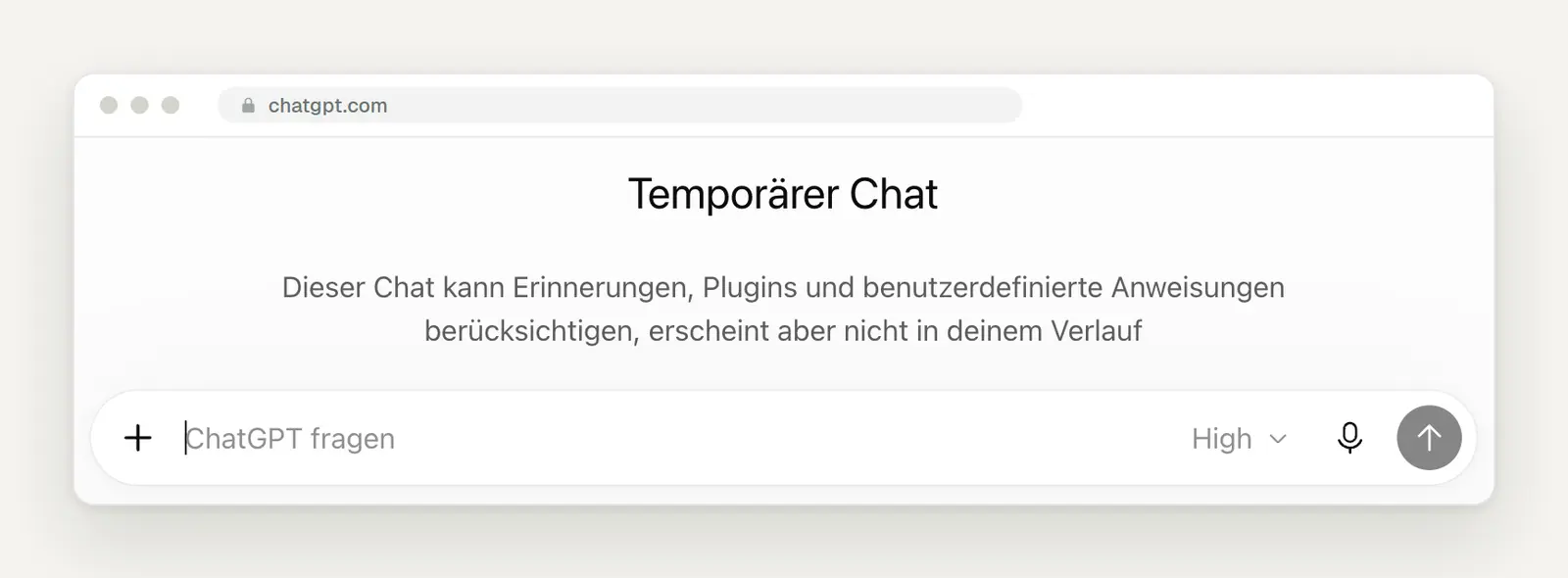
A temporary chat does not appear in the chat history. At the bottom of the screen, ChatGPT notes that OpenAI may retain a copy for up to 30 days for security reasons.
Set it to "Not personalized" in the top-right corner if you want an unbiased response. You can only do this before sending your first message; you can't change it once the chat is underway. Then the chat will ignore your reminders, plugins, and custom instructions. This is ideal for proofreading your own text: With your instructions, ChatGPT knows your style and is forgiving; without them, it reads like a stranger.
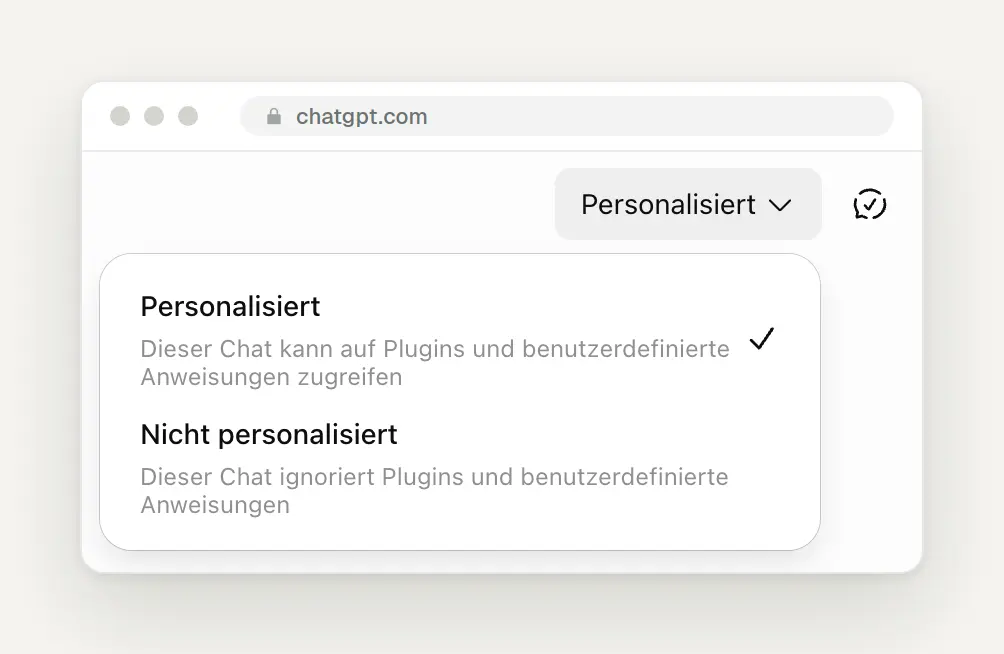
The toggle between "Personalized" and "Not personalized" in the temporary chat.
Speaking Instead of Typing: Dictation, Voice Chat, and Recordings
Dictate long prompts instead of typing them. The microphone on the right side of the input field records your voice; the text appears in the field for you to review and isn't sent immediately. For a detailed task description, this is usually faster than typing and provides more context in the prompt, because you tend to cut things out less when speaking. You can turn this feature on or off under Settings, Voice, Enable Dictation.

Voice settings: "Voice and Language" for voice chats at the top, and "Dictation" below that.
Please select a new voice for voice chats in German. According to OpenAI, new voices—including ones for German—have been available since October 15; we’ve included a note about this on our homepage. You’ll find the selection at the very top under “Voice.” In the desktop app on Windows, you’ll need to set your own keyboard shortcut for voice chat; there is no longer a default one.
Upload meeting recordings directly instead of transcribing them. In the paid plans, ChatGPT accepts audio files up to 512 MB, including MP3, M4A, WAV, and FLAC. Video files are not supported. When used with our “Meeting Minutes” template below, you can generate decisions, action items, and an email to all participants from a recording. OpenAI notes that transcripts may contain errors, so be sure to double-check names and numbers.
Planning: Tasks That Run Automatically
Let ChatGPT handle recurring research tasks on its own. Under "Schedule" in the sidebar, you can set up tasks to run daily, weekly, or at a specific time; the results will be sent to you as notifications. ChatGPT even suggests tasks there, such as a daily news roundup or price alerts.
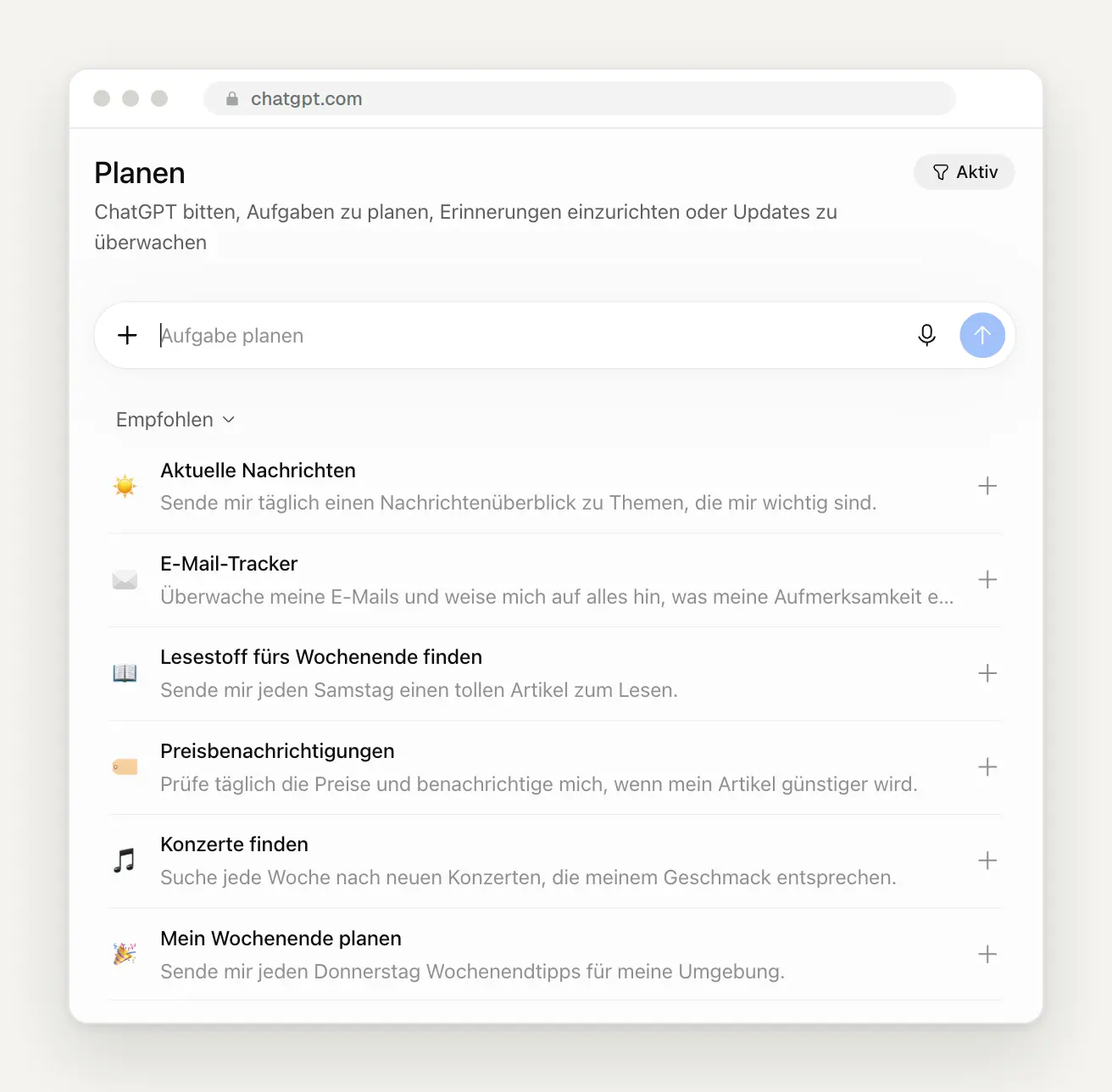
The "Plan" section with suggestions. Click "Active" in the upper right corner to see which tasks are currently in progress.
Check your active tasks for GPT-5.5. As of October 14, GPT-5.5 has been disabled in Codex for users logged in with ChatGPT. If a task is still set to use it, switch it to Standard or GPT-6.1 Sol. And be careful when cleaning up: According to OpenAI, deleting the chat associated with a scheduled task will pause that task.
Have tasks respond to events, not just to specific times. In Work, you can set up a task that starts when a new Gmail message arrives, a new message appears in a Slack channel, or there’s activity on a pull request on GitHub. The task will then include a trigger, a condition, and a prompt. For Slack, @ChatGPT must be in every monitored channel. According to OpenAI, you can only create and edit these tasks in the browser or the mobile app—not in the desktop app—and they aren’t available in the Free or Go plans.
Share proven tasks with your team. Using the menu for a scheduled task, you can share it; the recipient will then schedule their own copy, which runs with their own permissions and apps. Chat history, reminders, and login credentials aren’t included, but the instructions are provided in full. Be sure to read them over one more time before sharing.
Plugins and Skills: Connect ChatGPT to Your Tools
Connect only the plugins you need every week, and grant them only the permissions they need. On the Plugins page in the sidebar, under “Popular” you’ll find Gmail, Google Drive, and GitHub, and under “New and Notable” you’ll find Adobe, Canva, Shopify, and Figma. A connected plugin applies to Chat, Work, and Codex at the same time, so when connecting one, it’s worth checking carefully whether ChatGPT is allowed to read only or also send messages.
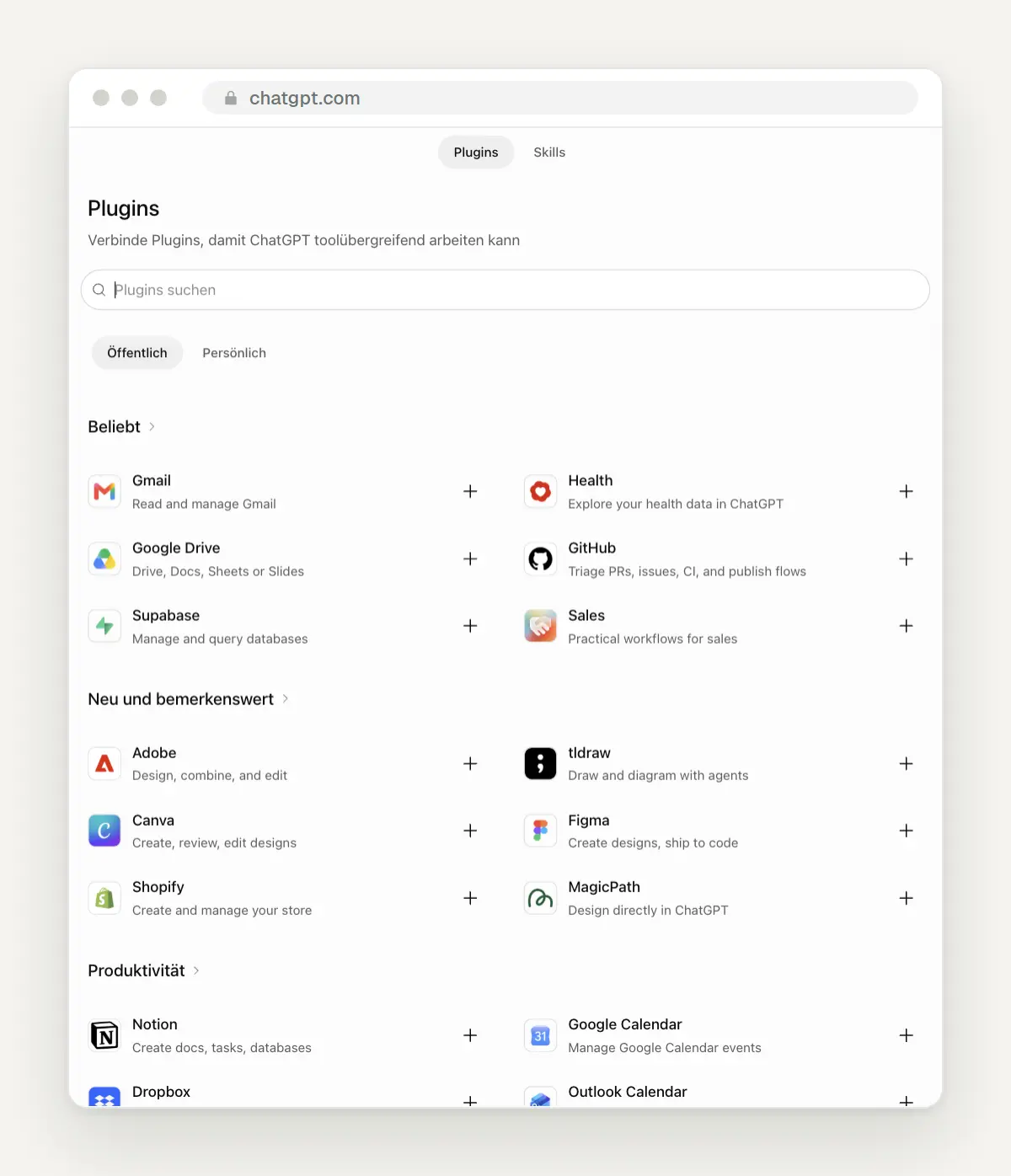
The plugin page with the "Public" and "Personal" tabs; at the top is the link to the skills.
Save recurring workflows as a skill. A skill is a saved set of instructions that ChatGPT can use on its own for relevant tasks, or that you can call up using the slash key. The easiest way to create one is with the Template Creator from the Plus menu or the skill-creator: Describe how you would normally complete a task, and let it generate a skill from that.
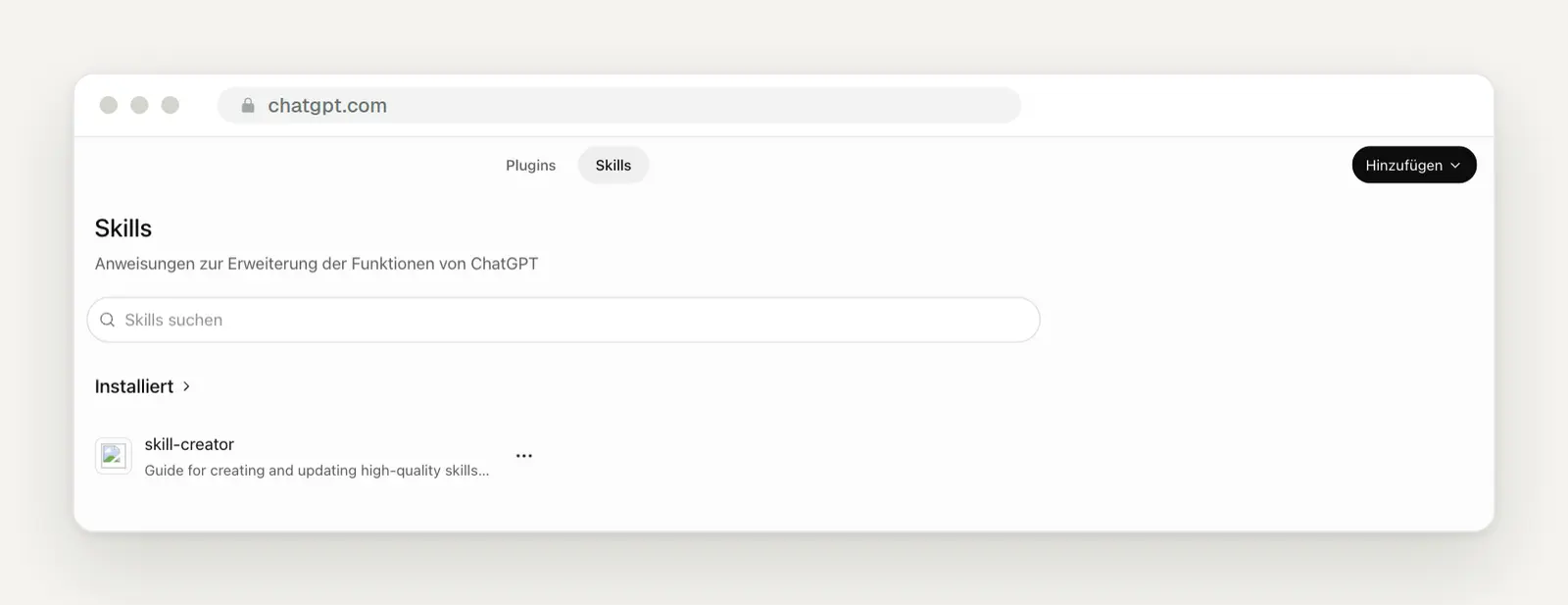
The Skills page. Click "Add" in the upper-right corner to create new skills.
Migrate your own GPTs before December 11. OpenAI will be discontinuing custom GPTs on that date and is offering the option to migrate them to plugins via " My GPTs" > " Migrate to plugin." The instructions will be migrated along with the skill, knowledge files, and associated apps. You’ll need to reconfigure your custom Actions, model selection, and permissions. Only the published version will be migrated, so be sure to publish all drafts beforehand. Once migrated, a GPT becomes read-only.
Build new tools directly as plugins. To do this, use the Plugin Creator in the plugin directory: install it, start a chat with @plugin-creator, and describe what the plugin should do. Later, open the plugin under "Plugins," select "Edit Plugin," and describe in the chat what changes you want to make. According to the pricing page, Go, Plus, and Pro users can create and share plugins.
The pricing plans, as you see them on OpenAI
For most self-employed individuals and small businesses, the Plus plan for 23 euros per month is sufficient. That’s what it says on OpenAI’s pricing page, which you can access from the account menu by selecting “Upgrade Plan,” including 3.67 euros in VAT. The Go plan costs 8 euros, but according to the pricing page, it may include ads. Pro is available in three tiers: Pro 100 costs 103 euros and Pro 500 costs 510 euros per month, each including VAT. We checked the pricing page again on October 20, 2026, for the Plus and Pro plans.
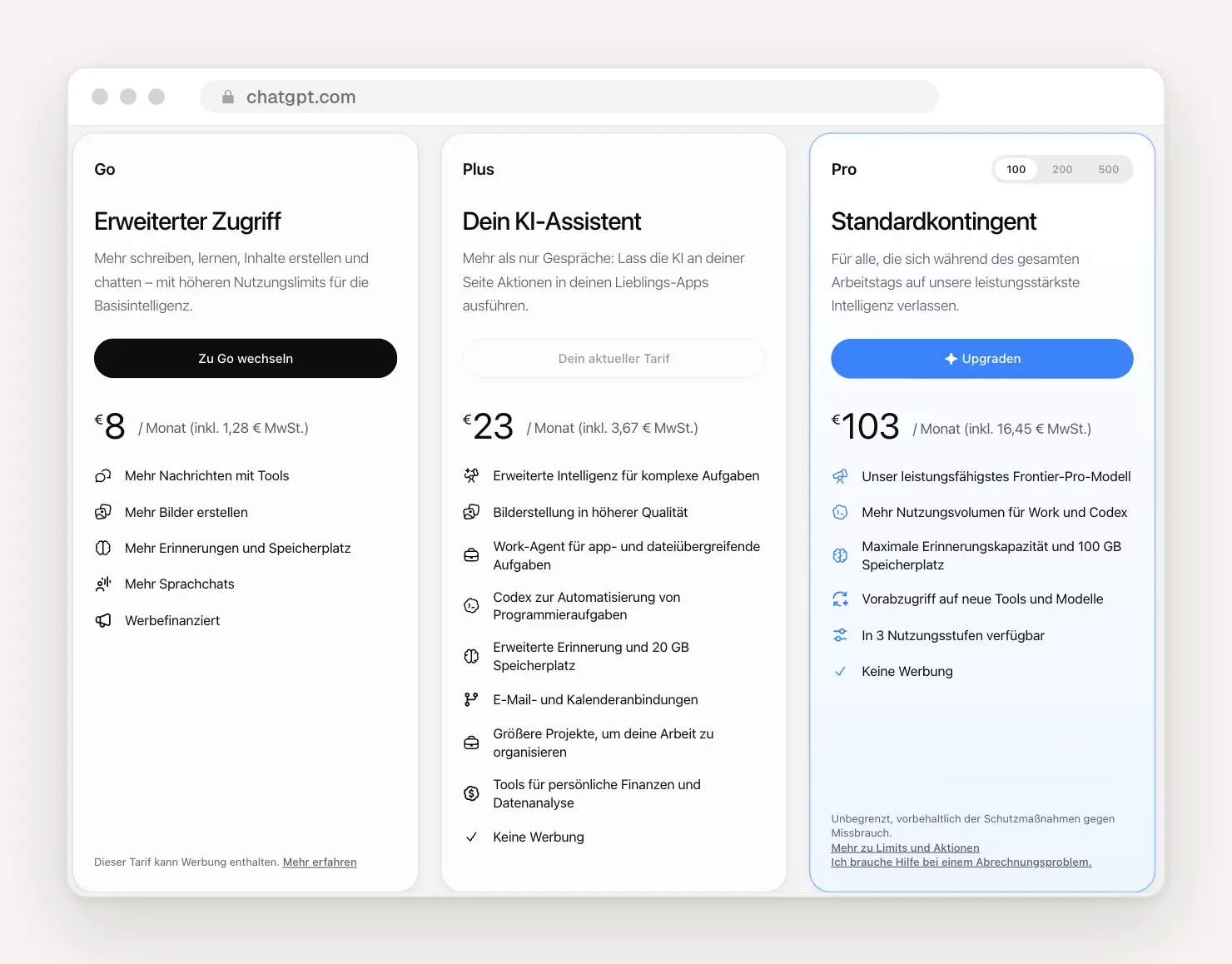
The individual plans on OpenAI's pricing page, listed in euros. For the "Pro" plan, you can switch between 100, 200, and 500 in the upper-right corner.
Switch to Business as soon as more than one person starts using ChatGPT for work. According to the pricing page, the Business plan is designed for teams of 2 to 200 employees and costs 21 euros per user per month when paid annually, instead of 26 euros; the Premium license costs 105 euros instead of 130 euros. The pricing page does not specify whether these prices include or exclude VAT. The most important difference is listed there: “By default, no training with your business data.”
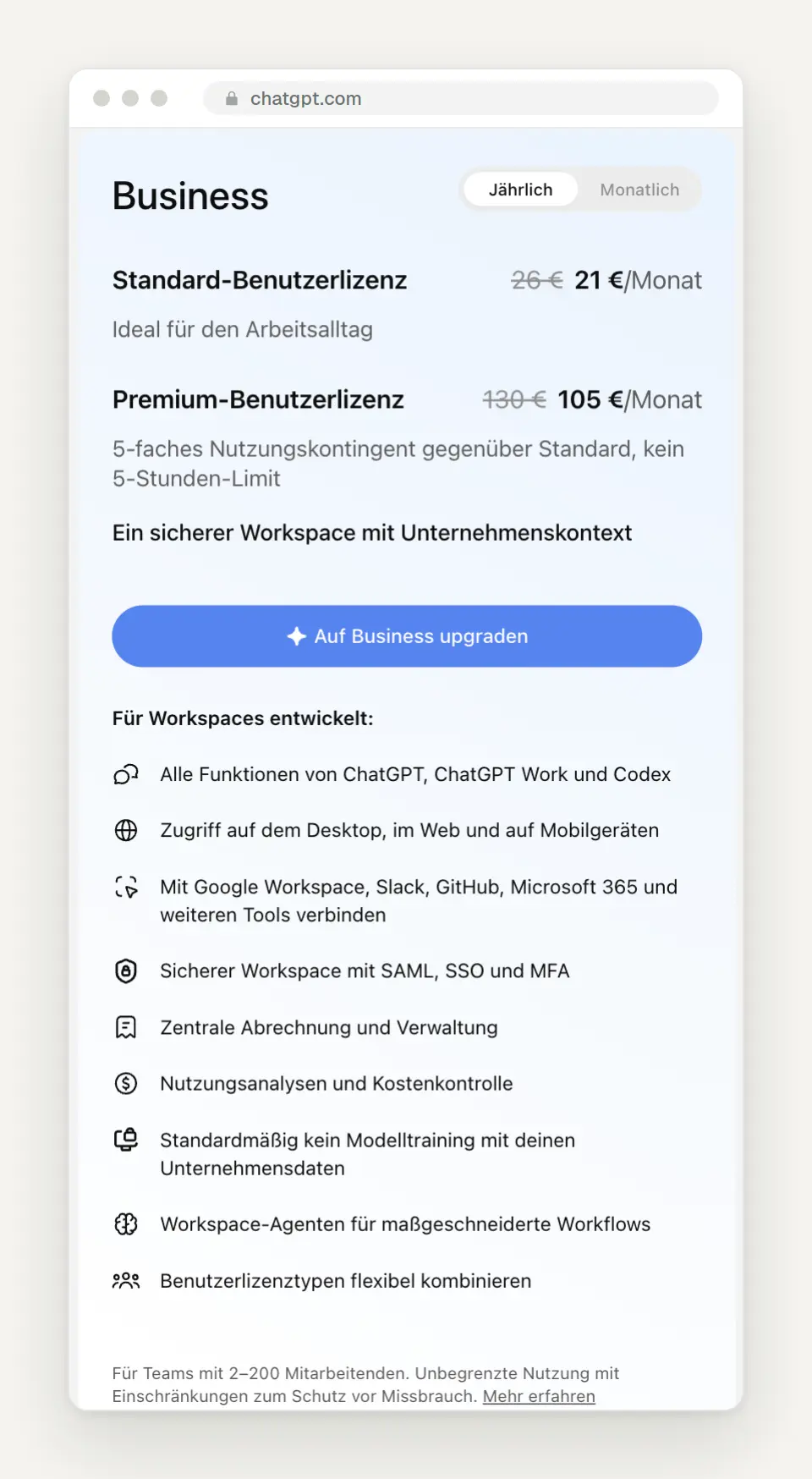
The Business plan on the pricing page: two license types—annual or monthly—with centralized management and no model training.
Do not share a Plus account among multiple employees. OpenAI’s terms of service do not allow you to share login credentials with others; furthermore, reminders and instructions get mixed up, and everyone can see each other’s chats. The Business plan costs barely more per person than the Plus plan and clearly defines permissions, billing, and data protection.
Privacy in Five Clicks
In private plans, turn off model training when you’re working with customer data. Under Settings> Data Controls , you’ll find the toggle labeled “Improve the model for everyone.” It was turned on in our account; that’s the default setting. When turned off, OpenAI generally no longer uses your chats for training, with the sole exception of sessions using Daybreak. On the same page, you can export your data and manage shared links.
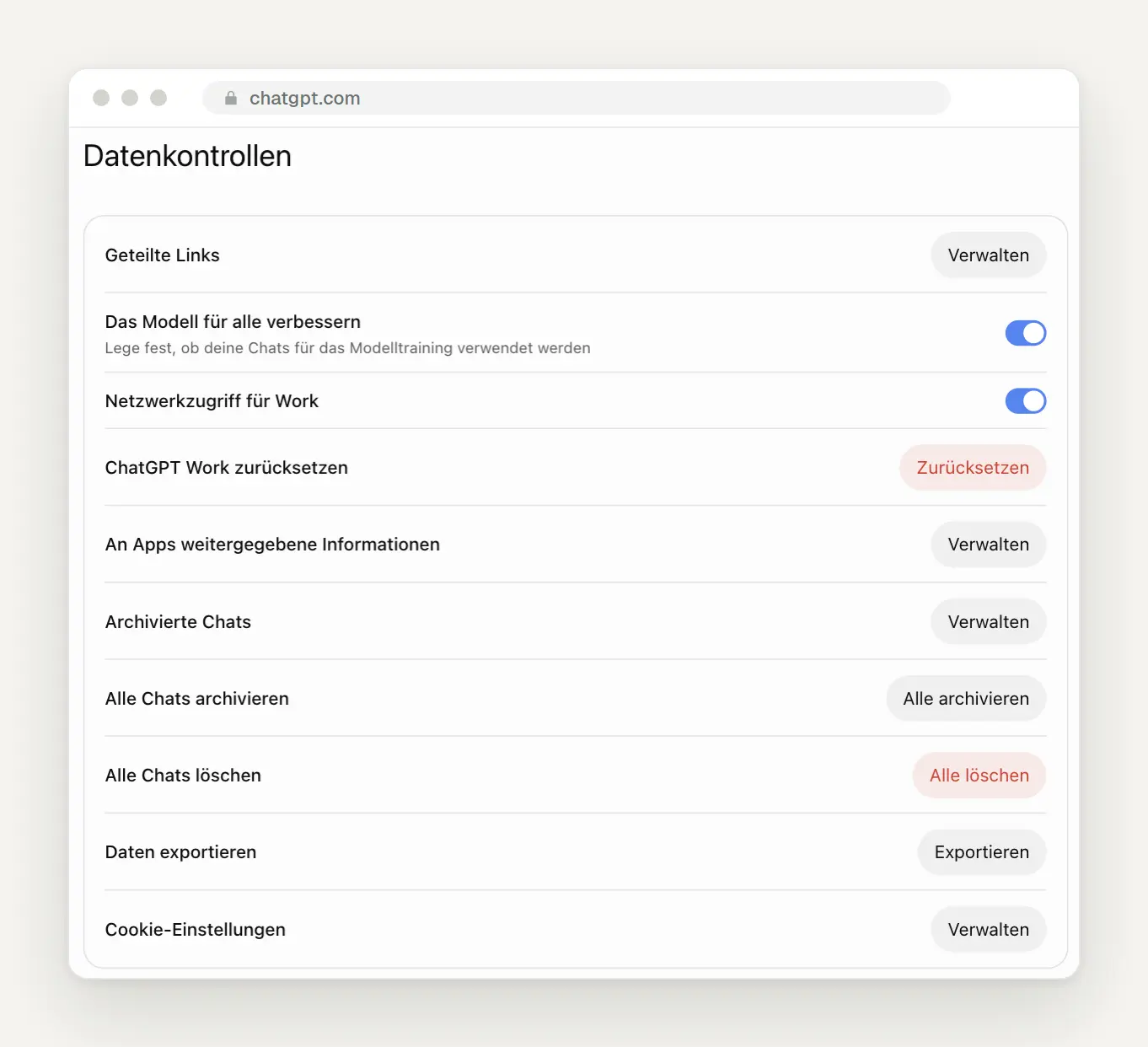
Data controls. The second toggle determines whether your chats will be used for training.
Use the Privacy Center as a checklist. You can find it under the account menu, Help, Privacy Center. It explains all the settings for ads, chats, and data usage and provides direct links to them. Also, check under Settings, Security and login, Security history to see if anyone else has logged in.
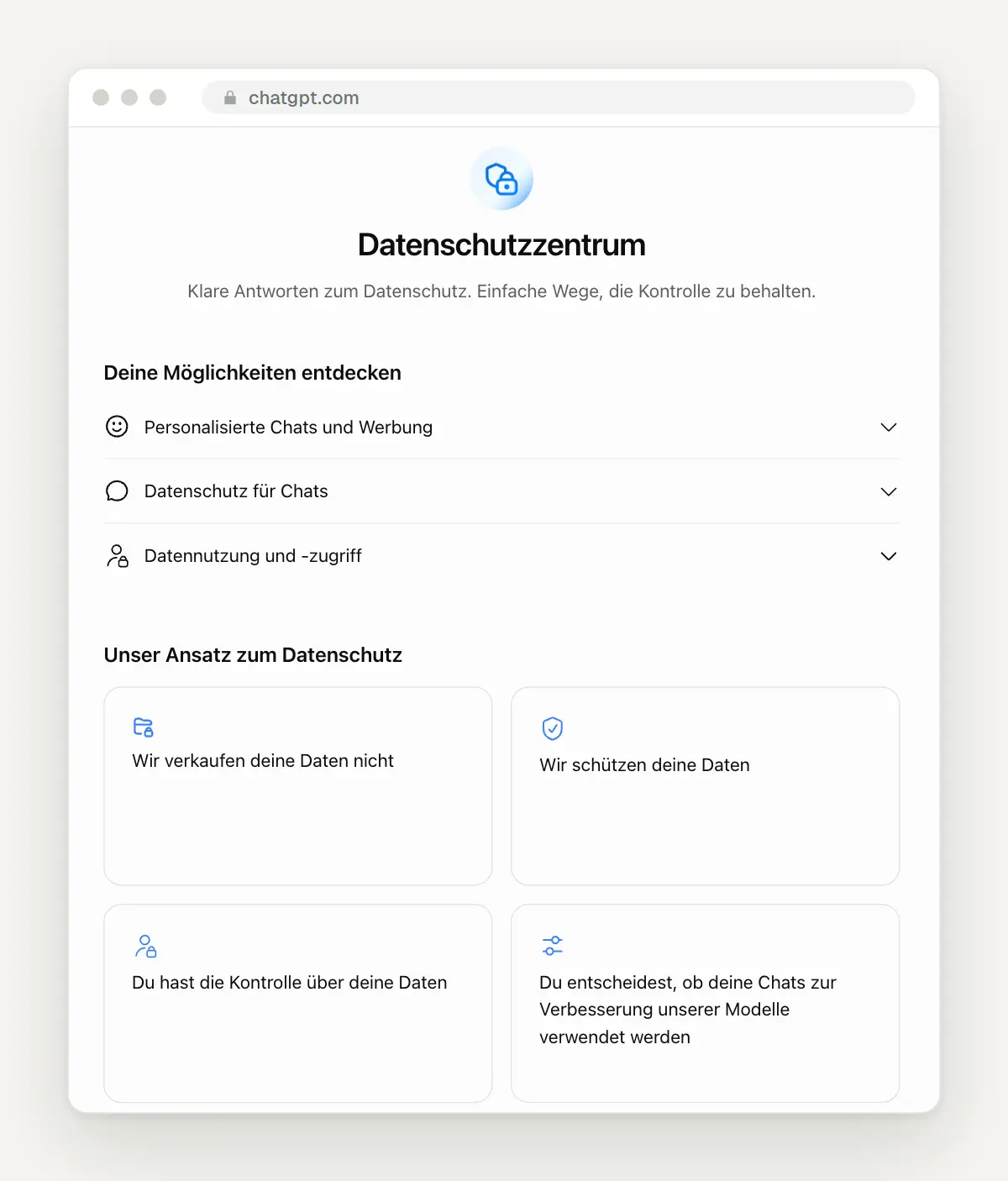
The Privacy Center, which includes three sections on chats, advertising, and data usage.
Here's How to Write Prompts That Get It Right the First Time
Include five elements in every major request: goal, context, constraints, format, and a check. These are exactly the building blocks OpenAI recommends in its guide to formulating prompts. The objective specifies the desired end result. The context provides information that ChatGPT cannot know on its own, such as details about your customers or a file. The constraints specify what must not happen. The format defines the length and structure. And the verification criterion tells ChatGPT how to determine on its own whether the answer is correct.
Let ChatGPT ask questions first, then write. For an unclear task, add the phrase “Ask me up to three follow-up questions before you start.” This costs one round and often saves you several rounds of revisions. For larger tasks in Work, /plan takes care of this step.
Revise your response in the same chat instead of starting over. Be specific about what isn't working: "Shorter, no introduction, prices in a table." If a chat has stalled, start a new one and include the best version so far as a starting point.
Six prompt templates we use every week
Copy the templates, replace the square brackets, and save the good ones as skills. Each template gives ChatGPT a role, a clear task, and a fixed format—that's the whole trick.
Template 5 also works directly with a recording. Attach the audio file instead of inserting a transcript, and replace the first sentence with “Here is the recording of our meeting.”
If You Run Into Problems: Error Messages and Help
Report errors directly from the chat using the slash command "Feedback." The report will then be sent to OpenAI along with the corresponding chat; in the desktop app, the command is /feedback. We’ve written a separate post explaining the cause and solutions for the common error message “This project could not be used for a local chat” in the Windows app. You can find out what OpenAI has recently introduced—from Dots to ChatGPT Space—in our overview of the new features from DevDay 2026, and learn what Dots can do in everyday use in ChatGPT Dots Explained.
Frequently Asked Questions
Which model should I use? In Chat, GPT-6 with the "Medium" setting for everyday use and "High" for anything where mistakes can be costly. In Work, use the "Standard" setting; use Astra only when necessary.
Can I enter customer data into ChatGPT? With personal plans, you can only do so if you’ve disabled model training—and even then, only as little as necessary. For team collaboration involving customer data, use the Business plan; according to the pricing page, OpenAI does not train the model using your data by default. You should consult your data protection officer to determine whether you also need data processing agreements.
How do I get answers without graphics or calculators? Set the "Visual Answers" personalization option to "Simple" and also reduce the use of headings, lists, and emojis.
What will happen to my own GPTs? OpenAI will disable them on December 11, 2026. Before then, migrate them to plugins via My GPTs and reconfigure your actions and permissions accordingly.
Is Pro worth it? Not for most businesses. Pro mainly provides a higher quota for Work and Codex. Since October 29, OpenAI has doubled this quota for Pro 100 and Pro 500. If you regularly hit the limit, use the /usage command to check beforehand what’s using up your quota.
Why does my interface look different from the screenshots? OpenAI rolls out updates gradually, and the labels alternate between German and English. If in doubt, search for the term using ⌘ K or Ctrl K.
What Has Changed and What That Means for You
November 4, 2026: Models, quotas, and help pages have been reviewed. For you, this means: Work now features GPT-6.1 Terra with the largest quota, the Pro quota for Work and Codex has been doubled, and you can select “Not personalized” in a temporary chat before sending your first message.
October 20, 2026: A new review of the entire guide. For you, this means: The Windows shortcuts for switching between Chat, Work, and Codex are Alt 1, 2, 3, and your own GPTs will bring associated apps along when you move.
October 15, 2026: New voices for voice chat, including German. For you, this means you'll need to select a new voice.
October 14, 2026: GPT-5.5 has been disabled in Codex for users logged in with ChatGPT. For you, this means: Switch any tasks that were still set to use it to the standard version.
October 7, 2026: GPT-6 replaces the "Latest" entry in chat; responses now often include charts and calculators. For you, this means: Choose your own thinking level and set "Visual Answers" to "Simple" for text-based tasks.
September 29, 2026: GPT-6.1 Sol becomes the recommended model in Work. For you, this means more tasks per quota without having to make any changes.
September 21, 2026: The Privacy Center explains all privacy topics in one place and provides links to the settings; the toggles themselves remain in the settings. For you, this means: go through it once and check the model training.
September 11, 2026: OpenAI announces that it will discontinue its own GPTs as of December 11. For you, this means migrating your own GPTs to plugins in time.
Date of this version: November 4, 2026. The ChatGPT interface changes frequently; we review the screenshots and prices regularly and update this post.
Do you want ChatGPT to work effectively for you?
Clear instructions, a few projects, and two or three skills turn ChatGPT into a tool that fits your business. That’s exactly what we set up with businesses—from the first skill to the automation of entire workflows. Related: ChatGPT Updates from DevDay 2026 · Performance: AI and Automation
If you contact us via our contact form, we'll respond within 24 hours—personally and without a sales pitch.
Sources
We reviewed the features, quotas, and pricing in the OpenAI Help Center and on the OpenAI pricing page, and tested the user interface in our own Plus account. As of November 4, 2026.
More Articles
© Marschfahrt Studio
Practical knowledge on web design, SEO, AI, and conversion optimization. Based on real projects, without any marketing spin.