The Google Business Profile: Set It Up, Verify It, and Get Inquiries From It
The main category and the name field determine visibility and blocking, and eleven types of additions are prohibited in the name field. This guide walks you through all the fields, using Google's own wording and omitting the numbers that appear everywhere but cannot be verified anywhere.
Date
Category
Author

“We have the most reviews in the area, yet we’re still ranked seventh on the map. What is the top-ranked business doing differently?” The question came from the owner of a plumbing company with nine employees, who has been maintaining his profile for years. He’s not doing much wrong. He’s just filled out two fields that Google interprets differently than he thinks.
The Google company profile isn't just a brief overview; it's a set of rules. If you know the rules, you can get much more out of the same ten minutes spent maintaining it. This post goes through the fields in the order they come up in day-to-day operations and explains for each one what should be included, what Google explicitly prohibits, and what happens if you do it anyway.
All information is taken from Google’s own help center and the Business Profile Reference for Developers, accessed on September 24, 2026. Where Google does not specify otherwise, the same applies here. We’ve already written a short version for small businesses in our post about business profiles for small businesses.
In a nutshell (as of September 2026)
Set the main category after the phrase “This business IS …,” not after “This business HAS ….” This is Google’s own rule of thumb, and the category is one of the few factors that Google explicitly states affects “your ranking in Google’s local search results.” If you select a specific category, the more general categories will be automatically included. Everything else in this post follows the same logic: Enter what applies, and leave out what you’d just like to have.
Confirmation: Google decides which route you'll get, not you
Don't bother trying to find the most convenient verification method—you can't choose it. Google states explicitly: "The available verification methods are automatically determined by Google and cannot be changed." According to the Help Center, the options offered depend on your business type, public information, region, and business hours, and Google sometimes requires you to complete multiple verification steps in sequence.
There are two ways to verify your site immediately, and both are underrated: verifying a website that’s already confirmed in Google Search Console and bulk verification. If you already have your domain in Search Console, you should do this before your first verification attempt, because Google explicitly states that this is a case in which a profile is verified immediately.
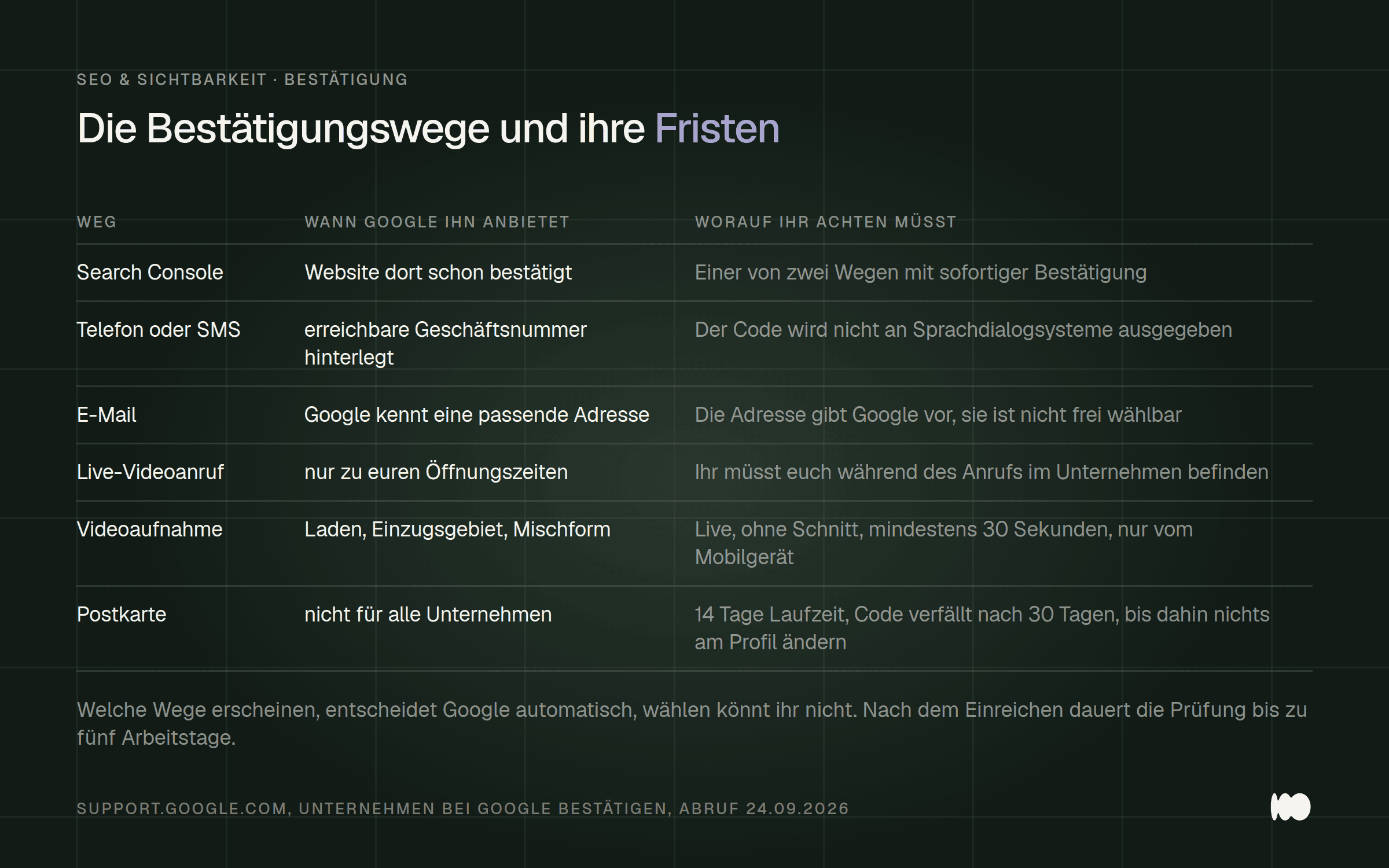
The confirmation methods, with their hard numbers. The postcard is the slowest method and has the most pitfalls.
While you're waiting for the postcard, there are two mistakes that will set everything back. First: "Do not change your company's name, address, or category in your company profile. Otherwise, the code we sent you won't work." Second: "Do not request a new code," because doing so will cause the old one to expire. So if you click impatiently, you’ll end up prolonging the very thing you were trying to speed up.
Every reception desk should have this rule posted: “Google will never ask you for your verification code. Do not share your verification code with anyone, not even with people who manage your business profile.” Anyone who calls you asking for the code is not Google—and it’s not your agency either.
The verification video: filmed live, at least 30 seconds long, uncut
Plan the video as if it were a tour and record it in one take, because Google rejects pre-recorded footage. The requirement is stated verbatim in the Help section: “You must record the video live, as pre-recorded videos are not allowed.” It must be “an unedited, unique, and complete recording without interruptions,” at least “30 seconds” long, and both the recording and the upload must be done via a mobile device from within the profile itself.
The video must show three things, and businesses regularly fail on all three counts. Google itself lists the reasons for rejection: “The business name is not visible in the exterior view,” “The surrounding area is not visible,” “There is no proof that you are authorized to operate the business.”
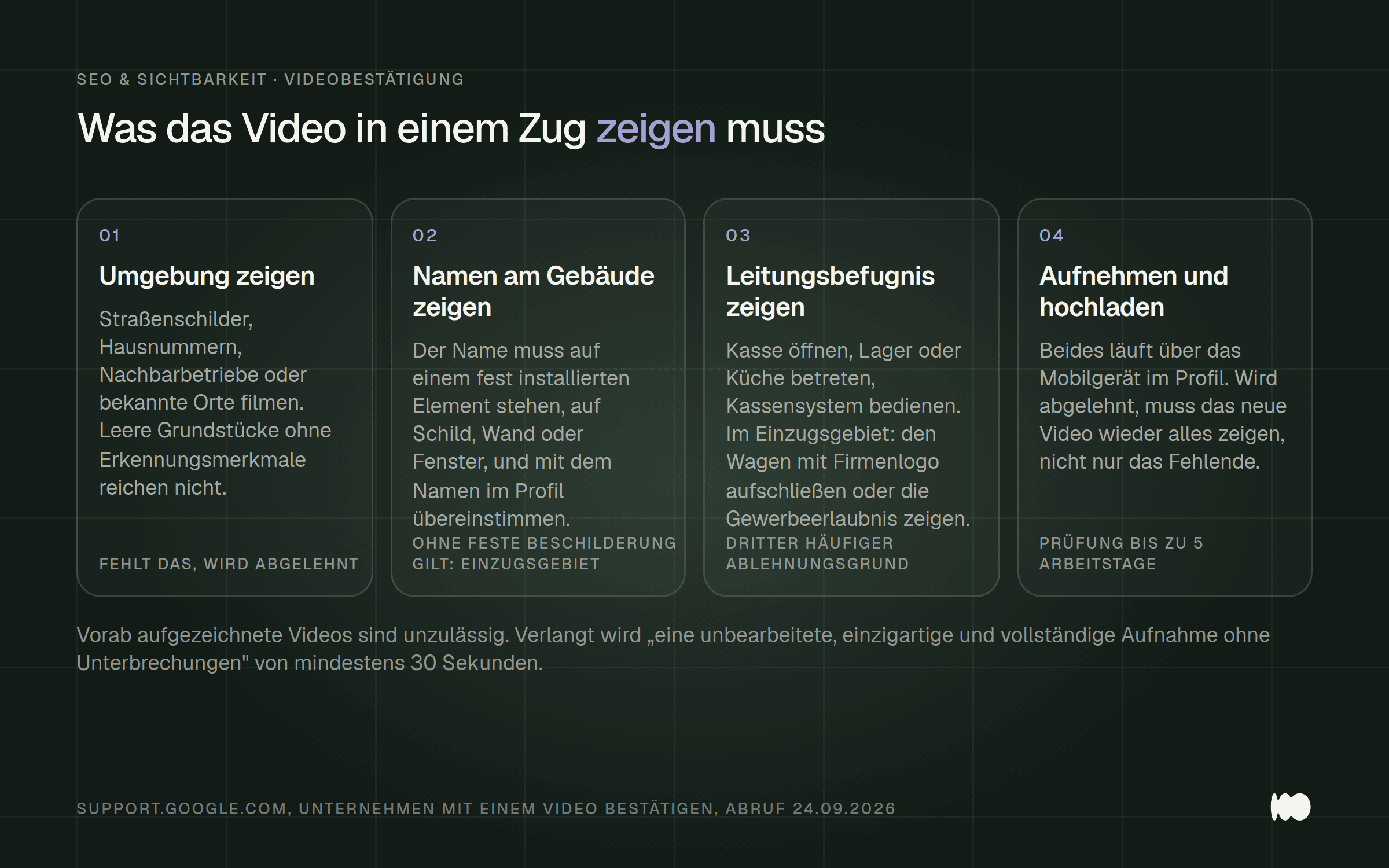
What must be shown in the four sections of the video, broken down by brick-and-mortar store and operations within the catchment area.
The name must be “clearly visible on a permanently installed element, such as a sign, a wall, or a window,” and it must match the profile name. This is exactly where a fancy profile name backfires: If the building says “Müller Plumbing” and the profile says “Müller Plumbing Emergency Service Cologne 24h,” the two don’t match.
Here’s a detail that can cost you a lot of time if you’re not aware of it: If the video is rejected, the second recording must include “all the information you showed in your first video” again, plus whatever was missing. So you don’t just resubmit the missing snippet—you have to film the entire tour all over again. You can find the list of errors on your mobile device under “View Issues.”
The "Main Category" is the most important setting in the entire profile
Select the category that matches the statement “This company IS …,” not “This company HAS ….” This rule of thumb comes directly from Google itself and is included in the guidelines for presenting your business. It may sound obvious, but it still eliminates half of all incorrect categorizations: A painting company that maintains scaffolding is not a scaffolding rental company.
Google is unusually clear about the impact: “The categories you select affect your ranking in Google’s local search results” (support.google.com, Manage Business Category, accessed September 24, 2026). In addition, there’s a mechanism that many people aren’t aware of: If you select specific categories, you automatically get the general categories as well. Google’s own example: If you select “golf resort,” Google automatically adds “resort hotel,” “hotel,” and “golf course.”
In addition to the main category, up to nine additional categories are allowed, and the order matters: “If you specify multiple categories, the category in the first field is considered the main category.” Google explicitly urges users to be selective: “Select as few categories as possible to describe your core business” and “Do not simply use categories as keywords.”
Two things that can be frustrating in everyday life: You can’t create your own categories—you have to use the catalog. And changing a category can send you back to the verification process, because “if you select a new category or edit an existing one, you may have to verify your business again.” So don’t change the main category right before a week of vacation when no one is around to open the mail.
Here's how to do it: Edit your profile, then click " Edit" next to "Business Category," select the " Primary Category " field, add "Additional Categories" if needed, and then click " Save." Afterward, set a reminder for 30 days and check to see if the category is still there.
The name field: the most common reason profiles are blocked
The name field should contain exactly the name that appears on your door, and nothing else. Google states this as a requirement: “For your business, consistently use the name that you also use outside of Google—for your store, your website, your stationery, and when communicating with customers.” And right after that comes the penalty: “You are not allowed to add unnecessary information to a business’s name. Failure to comply may result in the suspension of the corresponding business profile.”
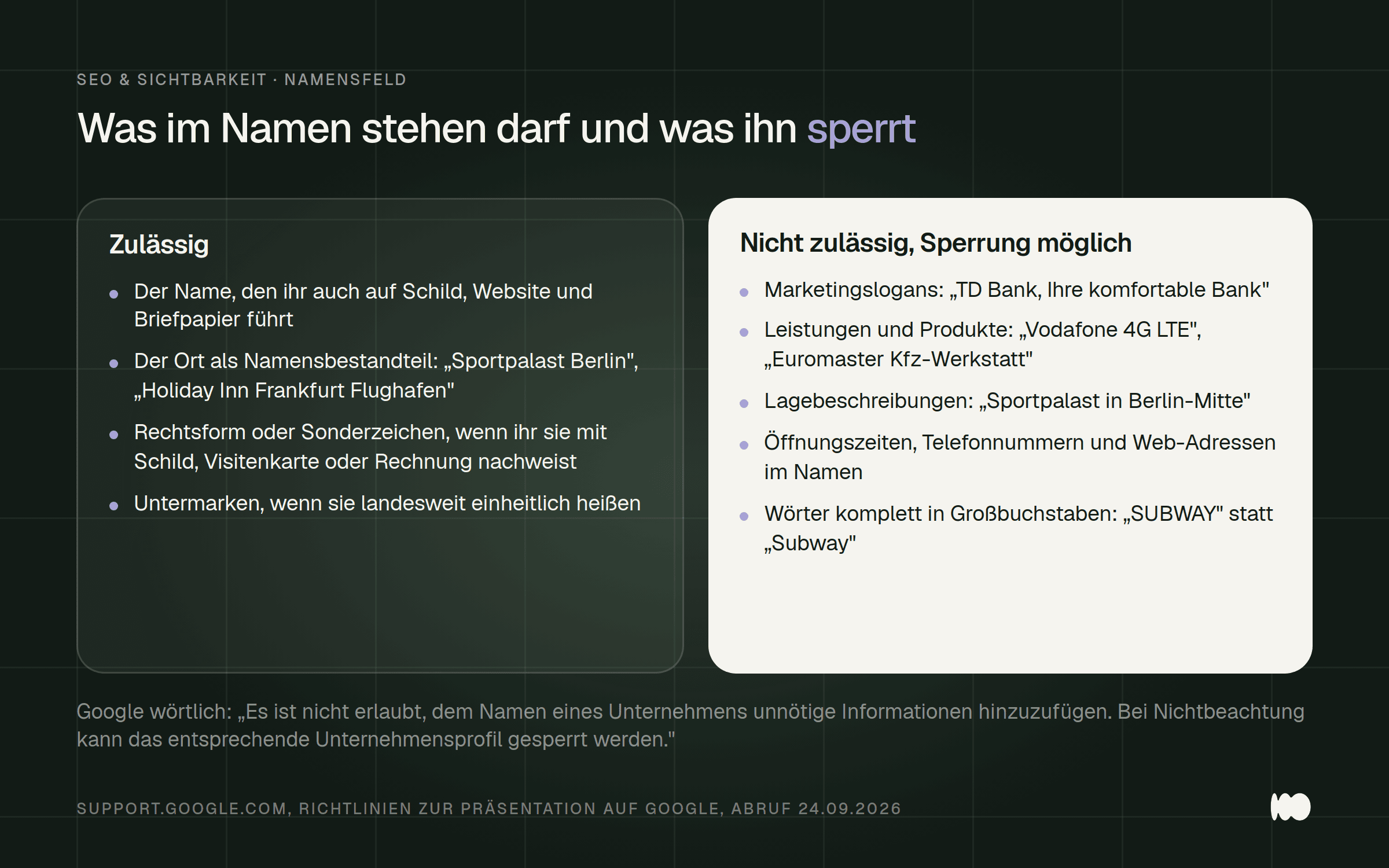
The list of prohibited terms from Google's guidelines, with Google's own examples. On the left is what may be blocked; on the right is the acceptable version of the same name.
Mentioning a location is not prohibited across the board, and this is precisely where most people go wrong. Describing the location is prohibited, but using the location as part of the name is permitted. Google’s own examples: “Sportpalast in Berlin-Mitte” is not allowed, while “Sportpalast Berlin” is allowed. The same applies to “Holiday Inn Frankfurt Airport” and “University of Bonn.” So if your business has always been called “Müller Sanitär Cologne,” you can list it that way.
There is a workaround for legal forms and special characters that hardly anyone uses. Google states: “If you want to include special characters or legal designations in the name of your business profile, you must provide proof (e.g., signs, business cards, invoices) showing that these elements are part of your business name.” So if you want to include “GmbH” in the name, have a photo of your company sign ready instead of simply typing in the designation without explanation.
Services and Attributes: The Fields That Answer Search Queries
List each service as a separate entry instead of grouping them under a general category. Google matches search queries with these entries: “When users in your area search Google for a product or service you offer, that offering may be highlighted in your profile.” In the Maps app, users can find the complete list under “Services.”
The suggestions are based on your category; Google’s example is a plumbing company that is offered “Faucet Installation” or “Toilet Repair.” You can add any missing items yourself: Edit Services, then Add More Services, then Add Custom Service. You can enter a price and description for each service, and multiple services can be grouped together.
There’s a pitfall in the free-text field: “Avoid vulgar language, nonsensical content, personal information, prices, or phone numbers in the names of custom services.” So the price belongs in the price field, not in the name of the service. According to Google, violations will be automatically rejected.
The two fields next to it are used less frequently than many people assume. The menu editor is “available only to businesses in the food and restaurant industry.” And products are region-specific: Google explicitly lists the U.S., Canada, the United Kingdom, and Ireland, which is why the item appears as “Products (limited availability)” in the profile editor. In Germany, therefore, the service editor is your tool, not the product catalog.
Go through all the attribute groups thoroughly, because individual attributes are used in specific search queries. Google states: “If you add certain attributes, your business may appear in search results for locations with those attributes.” That’s the whole point: If you’ve checked “Wheelchair-accessible entrance,” your business may appear in a search result where a profile without that checkmark is missing.
You can't set everything yourself. Google makes a clear distinction: "Certain factual attributes, such as these seating arrangements, can be edited directly by you. In contrast, subjective attributes—such as whether your business is popular locally—are based on the opinions of Google users." You don't have control over the subjective attributes, but you do have control over the factual ones.
Here’s how: Edit profile, then More, then Edit next to the attribute category, select Yes or No for each attribute, then Save. Be patient: “Reviewing your changes usually takes about 10 minutes, but can take up to 30 days.” And check the groups every six months, because Google itself points out that attribute names change over time.
A 750-character description, and three things that aren't allowed in it
Write the description as if it were for someone who doesn't know you yet, and omit any numbers that suggest a discount. The field literally accepts "up to 750 characters" and appears in the "About the Company" section of your profile. Google expressly prohibits three types of content: low-quality or distracting content, advertisements for special promotions and low prices, and links. Regarding the latter, the Help section is unequivocal: “Links of any kind are not permitted.” HTML is also not allowed there.
Google's examples of prohibited price promotions include "50% off everything" and "Delicious sandwiches for only €2." So if you want to include your promotional price, use a " Deal" post for that, not the description.
Hours of Operation: The Seven-Day Limit That Determines Your Visibility
Keep this number in mind: seven days. Until then, a closure should be listed under “Special Hours.” Beyond that, Google requires the label “Temporarily Closed”—literally: “If your business is closed for more than seven days, during the off-season, or indefinitely, label it as ‘Temporarily Closed.’ If it’s closed for up to seven days, set special hours.”
This choice has consequences that are rarely considered when a business is on vacation: “In general search queries, businesses that are temporarily closed may appear in the results after those that are open.” So if you take a three-week summer break and mark your business as closed correctly, you’ll slip down in the rankings for general searches during that time. That’s the price you pay for providing accurate information, and it’s less than the frustration of making a wasted trip.
For holidays, Google provides a guideline that almost no one follows: “You should confirm the opening hours for legal holidays, even if they don’t differ from regular business hours.” So it’s not just about updating any changes, but also about actively confirming what remains the same. Two minutes before each holiday period is enough.
One field is often overlooked: Additional Hours. This allows you to specify times for specific services; Google lists delivery, takeout, drive-thru, and pickup. Two rules to keep in mind: You can’t set them until your regular business hours are in place, and they should generally remain “a subset of your main business hours.”
Photos: The Dimensions That Cause Uploads to Fail, and Why Your Cover Photo Gets Overwritten
Upload only images that are at least 250 by 250 pixels in size—preferably 720 by 720. Google explicitly specifies these dimensions, along with the JPG or PNG format and a file size between 10 KB and 5 MB. For videos, the maximum length is 30 seconds, with a file size of up to 75 MB and a resolution of 720p or higher. Anyone who uploads their cell phone video unedited usually fails to meet the half-minute limit.
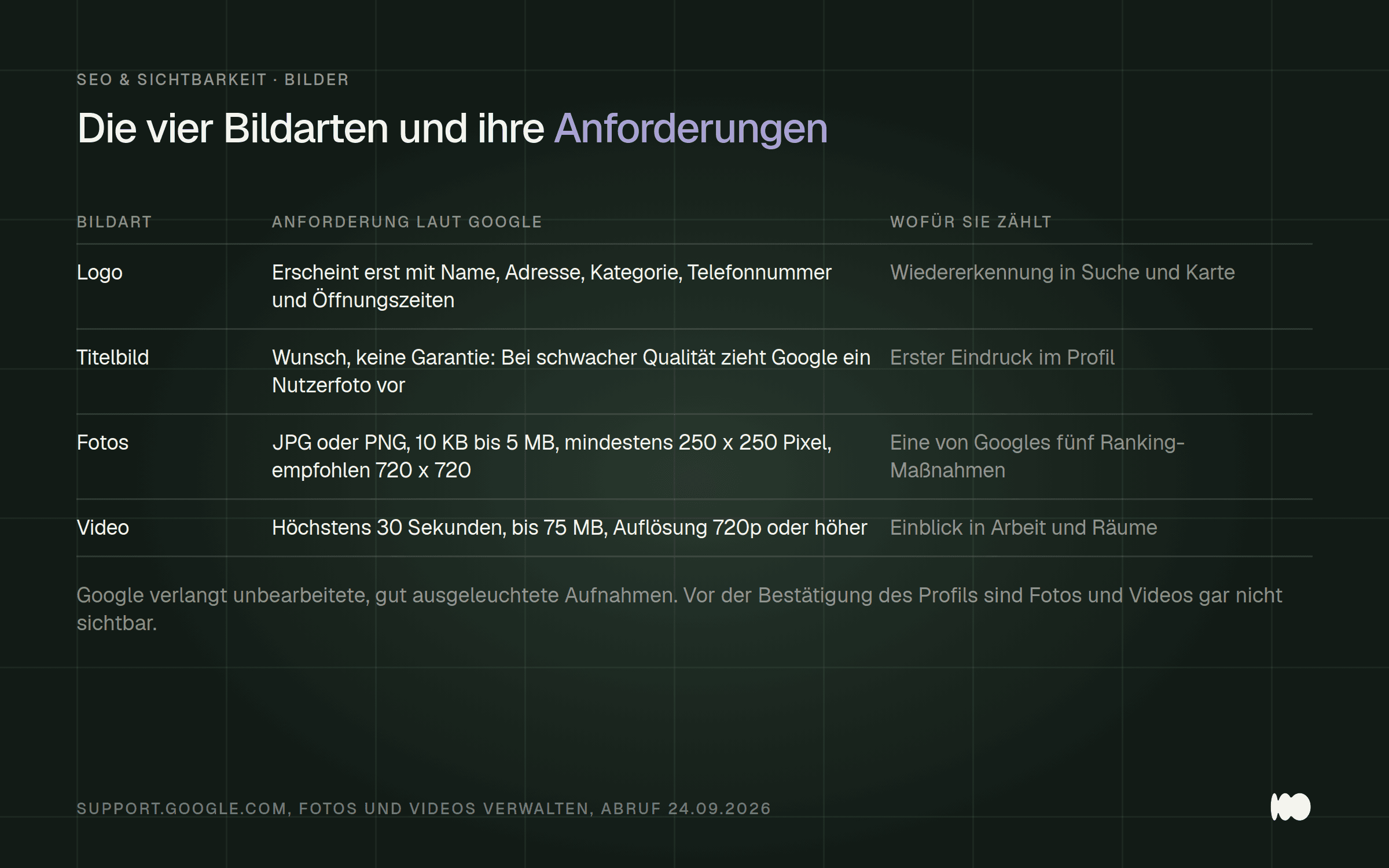
The three types of images in a profile and what Google requires for each. The logo does not appear until five required fields in the profile have been filled out.
Two points that regularly cause confusion. First, the logo does not appear automatically: The profile must include a name, a valid location with an address, categories, a phone number, and business hours. Second, the cover photo is a suggestion, not a guarantee. Google reserves the right to use a user-provided photo instead “if your cover photo is of poor quality or if other sources indicate that it is not the best photo to represent your business.”
Links, Phone Numbers, and Posts: Where Agencies Regularly Get It Wrong
Link to the page that contains that exact location, and do not use a redirect number. Google expressly prohibits both: “Do not provide URLs that redirect users to landing pages (e.g., social media pages) (redirect URLs). Also, do not use redirect phone numbers that do not connect users directly to your business.” The tracking phone number from the campaign therefore does not belong in the profile.
Two things happen without any action on your part. Google automatically adds social links to some profiles, and third-party providers include order and booking links that you didn’t create. Both of these can be addressed: For third-party links, the rule is that “service providers must remove third-party links from your profile within 5 days of receiving a removal request,” and if you disable the “Accept orders through my profile” option, all delivery and ordering options—including those from third parties—will be hidden.
Never include the phone number in the post text; instead, use the button. Google removes posts with unverified contact information: “To prevent fraud and abuse, we may remove posts with unverified contact information. This includes phone numbers, email addresses, and social media handles.” The verified number is displayed behind the “Call Now” button anyway.
There are three types of posts in the profile: News, Offers, and Events. Offer and event posts have their own time frames with start and end dates. Posts can be scheduled, prepared, and repeated using the “Schedule This Post” feature —for example, weekly or monthly—which reduces the effort required for an entire season to just one evening.
At this point, a word about what’s written in how-to guides but can’t be verified. The widely cited rule that posts expire after seven days isn’t mentioned in either the German or English versions of the current Google Help. Nor are there any character limits for post titles and post text, or specific image dimensions for post images. We’re noting this here instead of repeating a number that no one checks anymore.
No physical store: the address must be listed, and 20 areas is the limit
If you do not receive customers at your address, you must remove the address from your profile. This is not a recommendation, but is stated as such in the guidelines: “If you do not receive customers at your business address, please remove the address from your business profile.” Google cites the example of a plumber who works from a private address and explains it simply: “The address in your business profile is publicly visible.”
Here's how to do it: Edit your profile, go to " Location," click the edit icon next to " Company Location," then uncheck the box next to " Show company address to customers." There's one side effect you should be aware of: After that, the profile will only show the service area, and "if you don't specify one, a service area will be selected for you." So be sure to enter it yourself before Google does it for you.
There are two strict limits regarding catchment areas. “A maximum of 20 catchment areas is allowed,” and there is no provision for a radius: “It is not possible to specify a radius around your business as a catchment area.” The system uses cities, ZIP codes, or regions. Google specifies that the boundaries should be “no more than about a two-hour drive” apart.
And Google clearly puts an end to the temptation to create a separate profile for each city: “Businesses without a fixed location within a service area can only create one profile for the entire area in which they operate.” A second profile is only permitted if there is actually a branch office there with its own service area and its own employees.
How Google Determines the Order, and What You Can Do About It
Stop looking for the secret to the number-one spot and focus on completeness instead. Google lists three criteria, and that’s it: “Local search results are primarily based on relevance, distance, and popularity.” And in the same article, there’s a sentence that contradicts every provider of “guaranteed ranking” packages: “A better local ranking on Google cannot be guaranteed, even for a fee.”
Of these three, distance cannot be influenced, and popularity can only be influenced indirectly. That leaves relevance—in other words, how well your profile matches a search query. This is exactly what Google’s own advice targets: “Businesses with complete and accurate information are more likely to appear in local search results.” Completeness here isn’t just a nice-to-have; it’s the only lever you can actually control.
In this article, Google lists five steps, each with its own subheading: Verify your business, keep your information up to date, respond to reviews, add photos and videos, and—for retailers in supported countries only—add products. This is the only official list of priorities that exists. Anyone who works through this list has done everything that’s documented.
In your profile, there's an indicator called " Profile Strength" that shows which fields are still empty. That's the quickest to-do list you can get.
Getting Reviews: More Is Allowed Than Many People Think, But Some Things Are Still Forbidden
You may actively ask for reviews, but you may not choose whom to ask. Google explicitly allows reminding customers and even recommends using your own link or QR code for this purpose. What is prohibited is: “Preventing or prohibiting negative reviews, or specifically asking customers for positive reviews.” The popular landing page that directs satisfied customers to Google and dissatisfied customers to a contact form is therefore a violation of the guidelines.
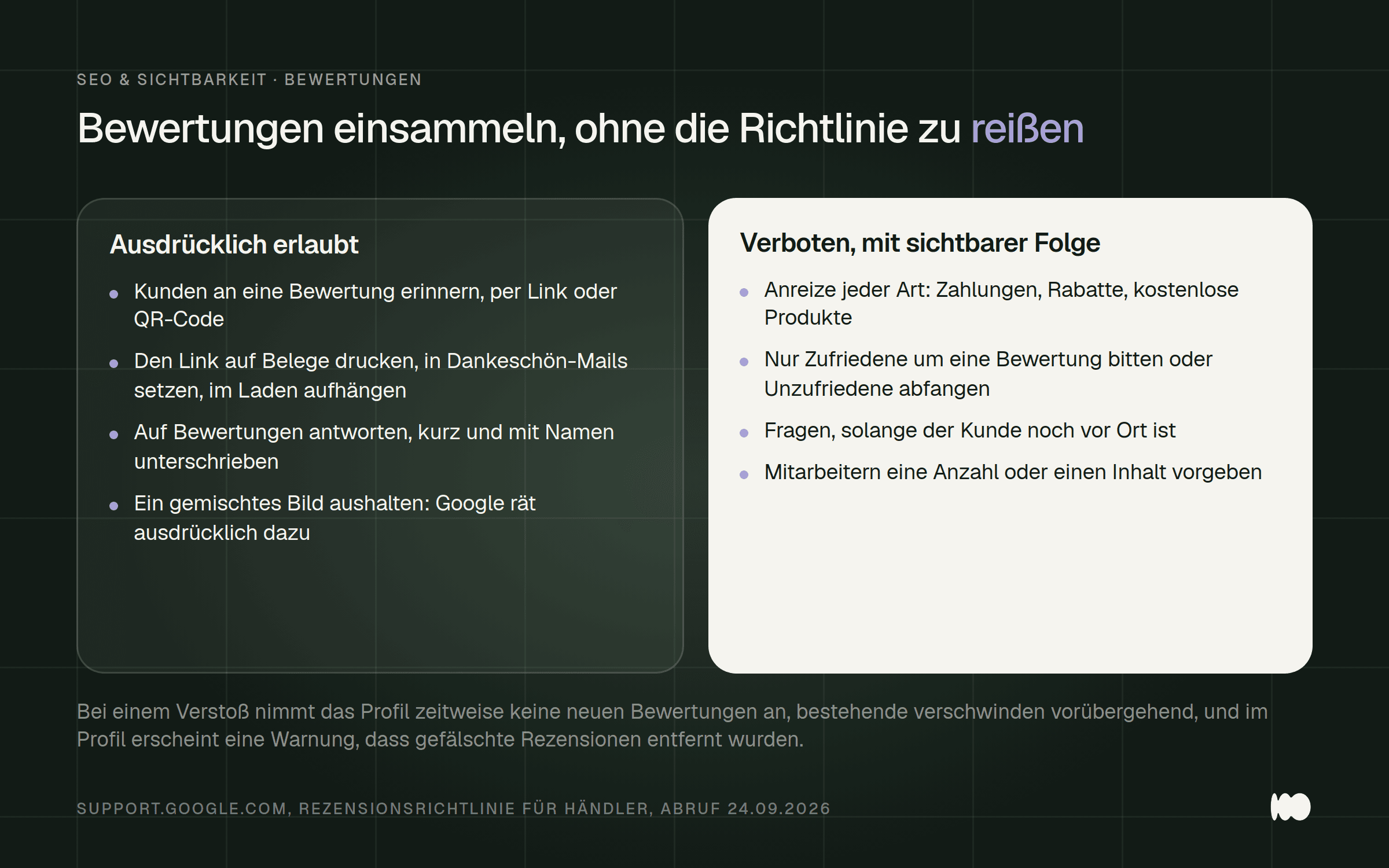
What is permitted when collecting reviews and what Google expressly prohibits, along with the relevant wording from the guidelines.
Three other prohibitions regularly catch businesses off guard. Incentives of any kind are prohibited—including payments, discounts, and free products—and Google refers to this elsewhere as “strictly prohibited.” You are not allowed to ask customers while they are still on the premises. And you may not set a quota for your employees or dictate what they should say. So a fundraising campaign that offers a bonus to the team violates the rules in two ways.
The consequences of a violation are painfully obvious: The profile will not accept any new reviews for a certain period of time, existing reviews will temporarily disappear, the reviews in question will be removed, and a warning will appear on the profile stating that “fake reviews have been removed.” Your customers will see this warning.
Here’s how to generate the official review link: Go to your business profile, read the reviews, then click “Get More Reviews.” Google itself suggests printing it on receipts, including it in thank-you emails, adding it at the end of a chat conversation, or displaying it as a QR code in your store. There’s one catch: “Currently, QR codes for reviews can only be created in a computer browser.” You won’t be able to do it from your phone.
Reply and Report: Google is listening, and you have exactly one chance to object
Respond briefly, sign your name, and offer to meet in person. These three points are included in Google’s own guidelines for responding: “Keep your response brief and simple,” “Sign your response with your name or initials,” and the advice to ask the reviewer to contact you in person, by email, or by phone.
There are two technical details you need to be aware of. First, Google reviews every response before it appears—usually within ten minutes, but in some cases it can take up to 30 days. Second, the reviewer receives a notification. So the response isn’t just a public announcement for strangers; it’s a direct line of communication back to the customer—and that’s exactly why it’s more worthwhile in the case of a bad review than a good one.
Report only what violates a guideline, not what annoys you. Google is unusually direct about this: “Don’t report reviews that you don’t like but that don’t violate our guidelines.” You can report any review, but only those that violate the guidelines will be removed. The review process “usually takes several days.”
You will then see one of three statuses: Decision Pending, Report Reviewed with No Policy Violation Found, or Escalated with a note to review the emails. If the decision goes against you, you have exactly one chance: “If you disagree with the decision, you may file a single appeal.” You should therefore be very careful in crafting your justification.
There’s a peculiarity in Germany that hardly anyone knows about. Google displays a notice on profiles when reviews have been removed following a defamation complaint, showing a range instead of an exact number and referring to the last 365 days. Google attributes this to the legal situation in Germany and the lower thresholds for such requests here. So if you see such a notice on your own profile, you haven’t done anything wrong.
And the scenario that no one expects until it happens: If there’s a wave of negative reviews followed by a demand for money, Google states unequivocally, “Do not give in to the blackmailers or pay them.” There’s a dedicated form for reporting blackmail against a merchant. Gather evidence beforehand—that is, the message containing the demand and the list of suspicious reviews.
Read the statistics carefully before drawing any conclusions
Don't mistake the number of views for reach; it counts people, not views. Google defines this clearly: "This metric indicates how many unique visitors have viewed your profile" and "A user can only be counted once per day. Multiple visits by a user on the same day are not counted." Comparing this number to impressions from an ad account is like comparing two different things.
The same applies to the search terms that many consider the most interesting to track. These figures are reported monthly, with a delay of up to five days, and for small search volumes, Google does not display an exact value but only a threshold. A small business with fifty searches per month therefore often sees lower numbers than expected. This is not an error, but intentional.
The metrics that track actions are useful: directions, calls made via the call button, website clicks, and bookings. These are the metrics against which changes to a profile can be evaluated. A verified profile is required, because “performance data is only available for verified business profiles.”
Roles, Permissions, and What Really Happens When an Account Is Suspended
Assign an agency the role of Administrator, not Owner, because the difference comes down to exactly two permissions. Google’s own permission table lists 22 permissions, and administrators lack only two of them: adding and removing users, and deleting the profile. Both roles are allowed to do everything else, from editing the address to responding to reviews.
Each profile has “multiple owners, but only one primary owner,” and only the primary owner may transfer ownership. Anyone selling their business must do so: Google explicitly states that this ensures “all your business information, such as reviews, is retained.” Creating a new profile would leave the reviews behind.
The restriction that regularly causes issues during account transfers: “If you become the owner or administrator of a profile, you must wait seven days before you can manage certain profile features.” This applies to deleting and restoring the profile, removing other owners, and transferring primary ownership. So don’t plan to switch agencies on the same day you deactivate the old account.
One more detail about the change: Deleted users can no longer make any changes, but “your responses to reviews, posts, comments, and other actions will remain on the business profile.” So whatever the old agency wrote will still be there and needs to be reviewed. And anyone who works with location groups should know that a user added to a group can “access all current and future profiles in the group.”
Don't file an appeal until your profile is in good standing, because Google reviews the status, not your intent. The prerequisite is stated explicitly in the Help section: "Your profile must comply with all guidelines." If you correct the name only after filing an appeal, you'll prolong the process.
A clarification we learned ourselves during our research: The distinction between “soft suspend” and “hard suspend”—which is common in SEO circles—does not appear in Google’s Help Center, neither in the German nor in the English version. Google recognizes three statuses—blocked, disabled, and restricted—and distinguishes between profile-level actions and account-level restrictions.
The account level is the more serious issue: “If a merchant’s account is restricted, all business profiles linked to it will be suspended.” In that case, there’s a specific order of steps you need to follow: first, file an appeal against the account restriction via the “My Accounts” page; only then can you have the individual profiles reactivated.
When it comes to the appeal itself, there’s a deadline that many people stumble over: “Once you’ve opened the form for supporting documents, you must submit it within 60 minutes so that it can be attached to the appeal.” So make sure to have your business registration, business license, tax certificate, or a utility bill ready as a file beforehand. Your name and address must match those in your profile.
Two restrictions during the review: “Do not create a new company profile for the same company while your appeal is being reviewed” and “Do not file multiple appeals for the same issue.” The decision may take up to five business days. If the appeal is denied, you may request a re-review by providing additional evidence.
One advantage that businesses in Germany have—but rarely take advantage of—is that, for the United Kingdom and the European Economic Area, rejected profile changes and restricted media can be contested through the appeal tool. In the rest of the world, this can only be done through customer support. Additionally, in the EEA, Google refers users to an out-of-court dispute resolution body under the Digital Services Act.
Conclusion: today, this week, later
Today, you'll review exactly two fields: the name and the main category. The name could make or break your entire profile, while the category determines which search results you'll appear in. Both can be done in ten minutes and don't require checking with anyone.
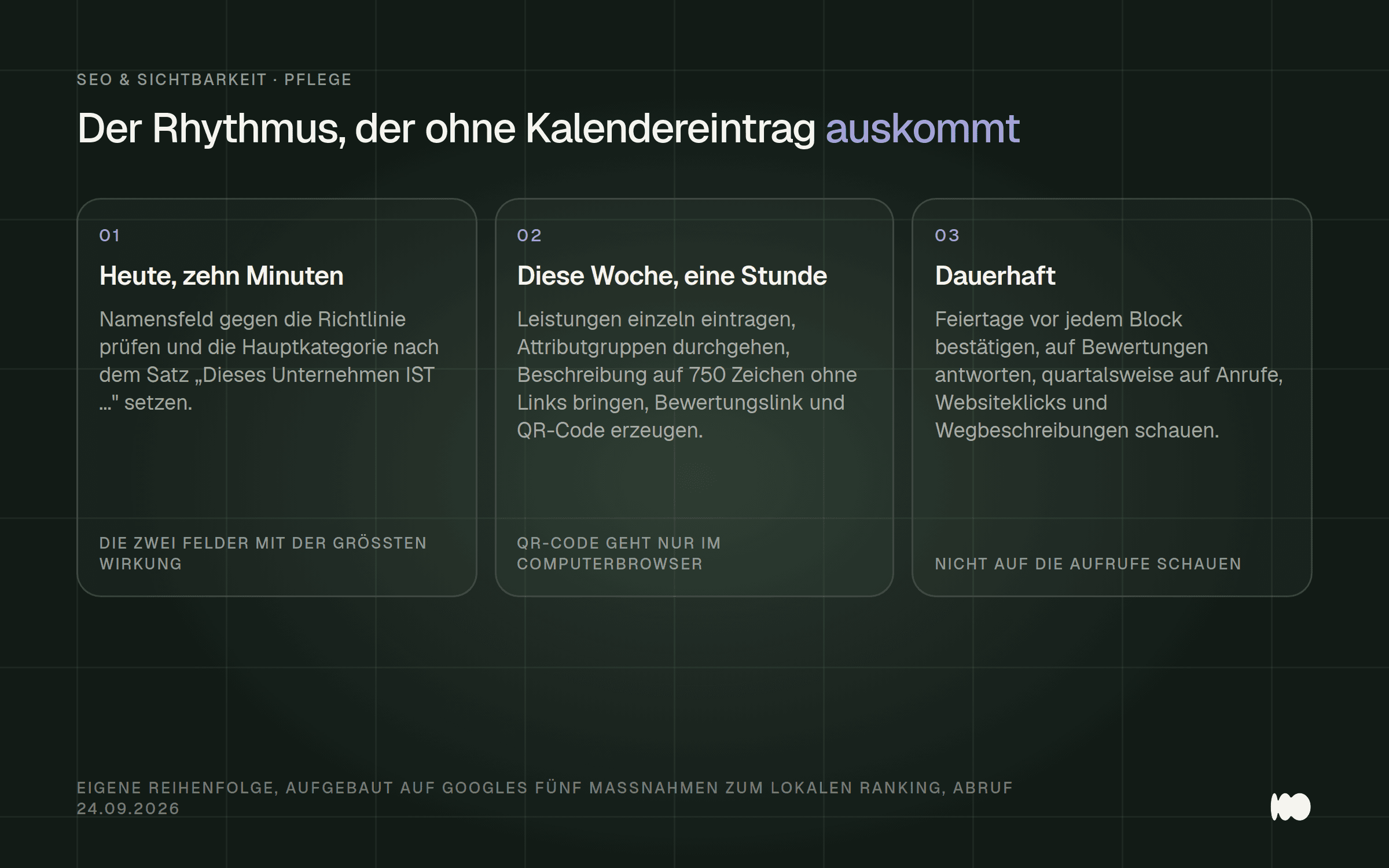
A care routine that doesn't require a calendar entry: three steps today, three this week, three on an ongoing basis.
This week, you’ll tackle the tasks that require some work but only need to be done once: enter services individually instead of grouping them, go through the attribute groups thoroughly one time, limit the description to 750 characters (excluding links and price promotions), and generate the review link—including the QR code—in your browser and place it where your customers can see it.
Later on—and this is a permanent practice—three things remain: confirm the holidays before each block, even if nothing changes; respond to reviews—briefly, with your signature, and by offering a way out; and review the performance data once a quarter, but focus only on calls, website clicks, and directions, not on page views.
If there’s one thing you should invest more time in than anything else, it’s the photos. They’re the only element in your profile that makes an immediate impact, has no 30-day review period, and is explicitly cited by Google as one of the five steps to improving your local ranking. We’ve even taken on profiles at our studio where every field was neatly filled out, but the only image was a photo of a letterhead taken from a copier.
What Has Changed and What That Means for You
April 16, 2026: Google now sends email warnings to account holders before unauthorized changes to their profile go live. This requires a verified and actively used profile. For you, this means: Someone needs to check the email address where these warnings are sent. At the same time, Google automatically pauses new reviews when it detects suspicious spikes in reviews and displays a public notice. If you see this notice, it’s not a penalty against you.
June 8, 2026: The business profile can be linked to Google Analytics. Seven metrics will then be tracked in GA4—including calls, directions, website clicks, and bookings—over a rolling six-month window. For you, this means you can finally see what a map click triggers on the website, instead of comparing two separate sets of data. The link is located in Analytics under “Product Links.”
June 10, 2026: Profile management via the Gemini app is available everywhere—except here. Google has integrated profile management into the Gemini app, including drafts for review responses and scheduled posts. However, the help article explicitly excludes the European Economic Area and the United Kingdom, and even outside those regions, it applies only to users with exactly one profile. For you, that means: You’ll read about it but won’t be able to use it here.
May 15 and July 10, 2026: Google has, for the first time, laid out the guidelines for AI responses. This guide contains the only official statement regarding business profiles in generative responses, and it’s cautious: A well-maintained profile “may help” you gain visibility there. For you, this means: There’s no special trick for AI searches that anyone could sell you. It’s the same work as described above.
July 23, 2026: The European Commission has imposed a fine of 890 million euros on Google, 460 million of which are for favoring its own services in search results. The decision specifically cites results related to shopping, hotels, transportation, and sports, and Google has been ordered to cease the violation. The changes that will result from this have not yet been announced. For you, this means: There may be some changes to local search results in Europe, but don’t make any changes based on assumptions until the changes are visible.
Date of this version: September 25, 2026.
Do you want to know what's missing from your profile right now?
Write to us, and we’ll take a look and let you know which three fields will be most effective for your business. We’ll also check whether your profile and your website tell the same story, because together, they determine whether a map search result turns into an inquiry. We’ve analyzed exactly how this works for a small business in the Cologne Small Business Website Report, which surveyed 734 businesses.
A quick message via our contact form is all it takes—a link to your profile is enough to get us started. We’ll respond within 24 hours, personally and without any sales pitch.
More Articles
© Marschfahrt Studio
Practical knowledge on web design, SEO, AI, and conversion optimization. Based on real projects, without any marketing spin.