Getting the Most Out of Claude: Models, Commands, Skills, Claude Code, and Pricing for Reference
Effort controls, slash commands, projects, skills, connectors, Incognito, Claude Code with all the important commands, and pricing in euros: complete with real screenshots and templates to copy.
Date
Category
Author

Most people use Claude like a particularly good chat window: type in a message, get a reply, move on to the next chat. But there’s now a whole toolbox hidden beneath the input field: a slider for the level of complexity, a command menu accessible via the slash key, skills that save your workflows, connectors to Gmail and Drive, an incognito mode, and—with Claude Code—a tool that works directly within your files.
This guide shows you exactly that, with screenshots from our own Claude account on the Max plan—so you’ll see it just as it appears on your screen. Commands and templates are provided in boxes for copying, and we display the pricing plans directly from Anthropic’s pricing page with prices in euros. The screenshots are from October 20, 2026; we last checked the plans, models, and help pages on November 4, 2026.
In a nutshell (as of November 4, 2026)
Three simple steps will get you more results right away than any new prompt. First: Keep the model set to Opus 5.5 and control the quality based on the effort you put in, not by using the most expensive model. Second: For each recurring topic, create a project with its own set of instructions; you’ll find a template below. Third: Under Privacy, turn off “Help improve our AI models” if you’re working with customer data. If you work with files and folders instead of text, use Claude Code.
Model and Effort: the two controls below the input field
Leave Opus 5.5 selected; it’s the right model for almost everything. To the right of the input field, you can choose between four models. According to Anthropic, Opus 5.5 performs on par with the top-of-the-line Fable 5.1 model for most tasks, but costs 40 percent less to run than its predecessor. Fable is only worth it for truly difficult tasks; in the Pro plan, Fable is available only with additional usage credits. Sonnet 5.5 is faster and conserves your usage quota. For short questions, Haiku 5.5 is sufficient; as of October 7, it also features a cost control slider for the first time. Under “More Models,” you’ll find older models such as Opus 5 and Sonnet 5. Anthropic removed Haiku 4.5 from the selection on October 29, 2026; since then, existing Haiku 4.5 chats have continued to run on Haiku 5.5.
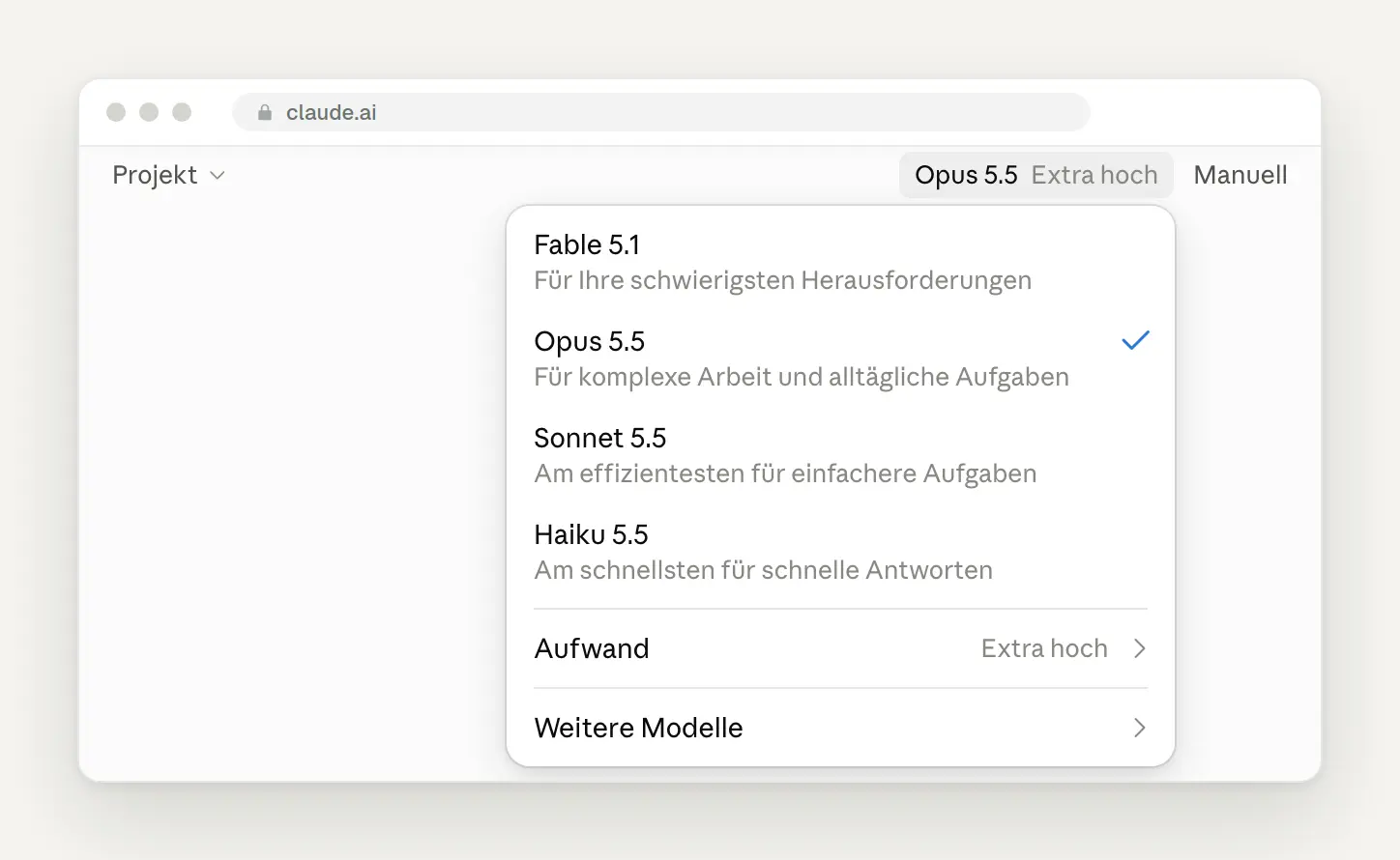
The model selection below the input field in Haiku 5.5. Below that are the effort estimates and the older models. Captured on October 20, 2026, in our Max account.
Adjust the effort level, not the model. The effort level determines how thoroughly Claude thinks before responding. The default and recommended setting is “Medium.” According to Anthropic, “Low” and “Medium” are sufficient for routine tasks and help stretch your quota, while “High” offers the best balance of quality and speed. According to the interface, “Maximum” costs four times as much in usage or more—it’s only worth it for a truly tricky question.
Step up the effort just for that one tricky question. According to Anthropic, any change takes effect starting with the next response, even in the middle of a chat. So start with “Medium,” switch to “Extra High” for the calculation or the contract clause, and then switch back. That way, your quota will remain the same for the rest of the day.
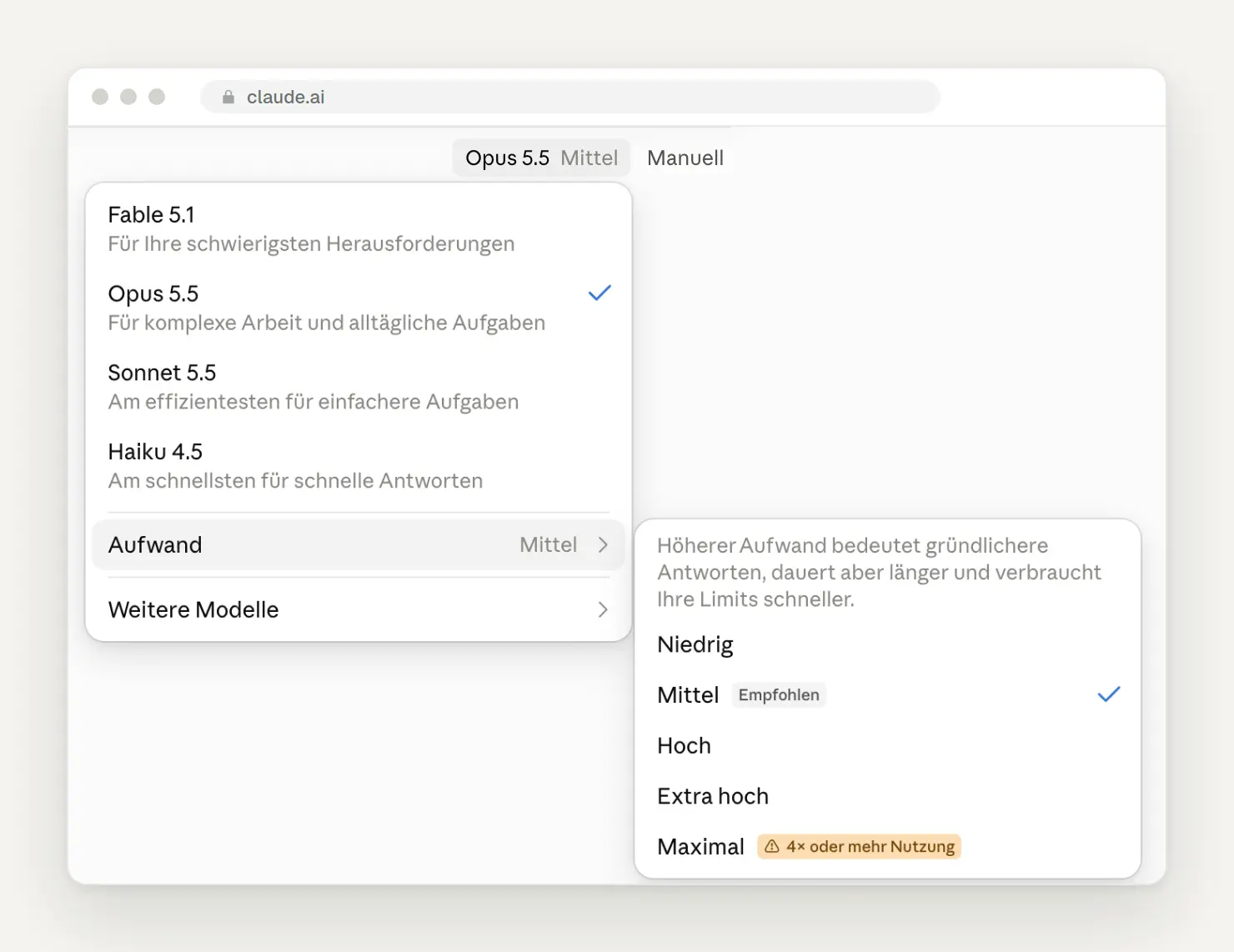
Five levels of intensity. The interface itself warns that "Maximum" uses up the limits four times as fast.
Set the permission to “Manual” while Claude is working with your accounts. Next to that is the permission mode. In “Manual” mode, Claude asks for permission before using a new tool or opening a new website. "Auto" runs through tasks automatically and only pauses if something seems unsafe. Anthropic itself recommends that you stay involved and review the process when working on tasks with real-world consequences, such as sending messages.
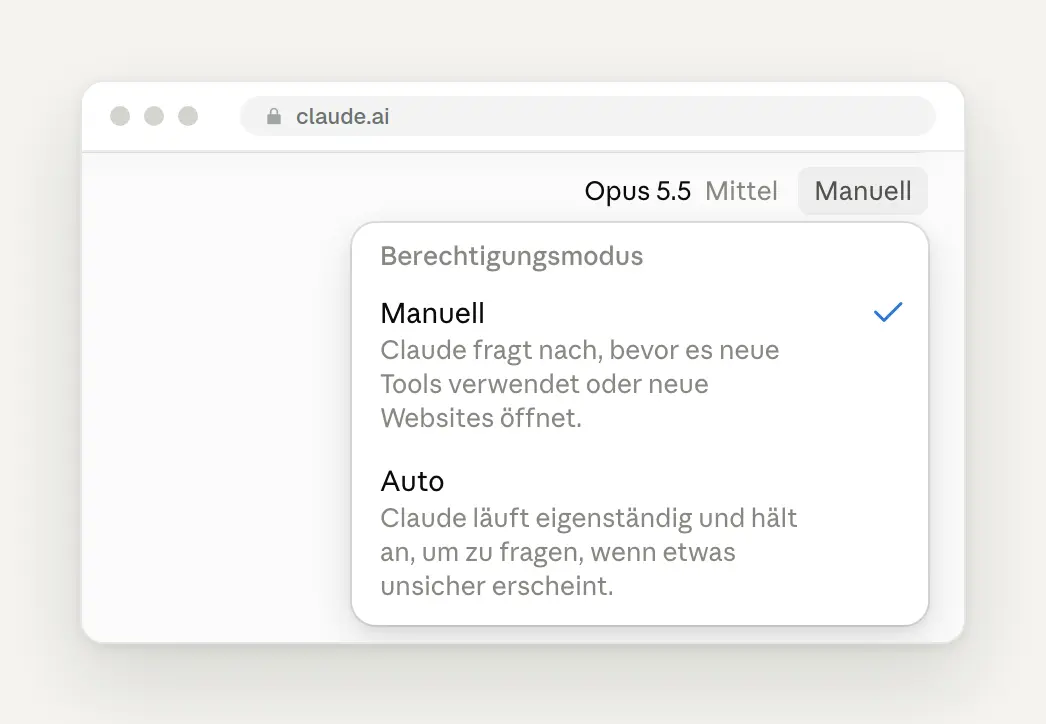
The authorization mode below the input field: "Manual" prompts for authorization every time a new tool is selected; "Auto" prompts only when in doubt.
The Plus Menu: Files, Skills, Connectors, and Research
Click the plus sign on the left side of the input field before you write a long message. There, you can attach files, select skills and connectors, start a search using sources, and turn off memory access for this chat. The checkmark next to “Memory” indicates whether Claude is accessing your memories in this chat. According to Anthropic, if you want to turn off memory access for a chat, you must do so before sending the first message.
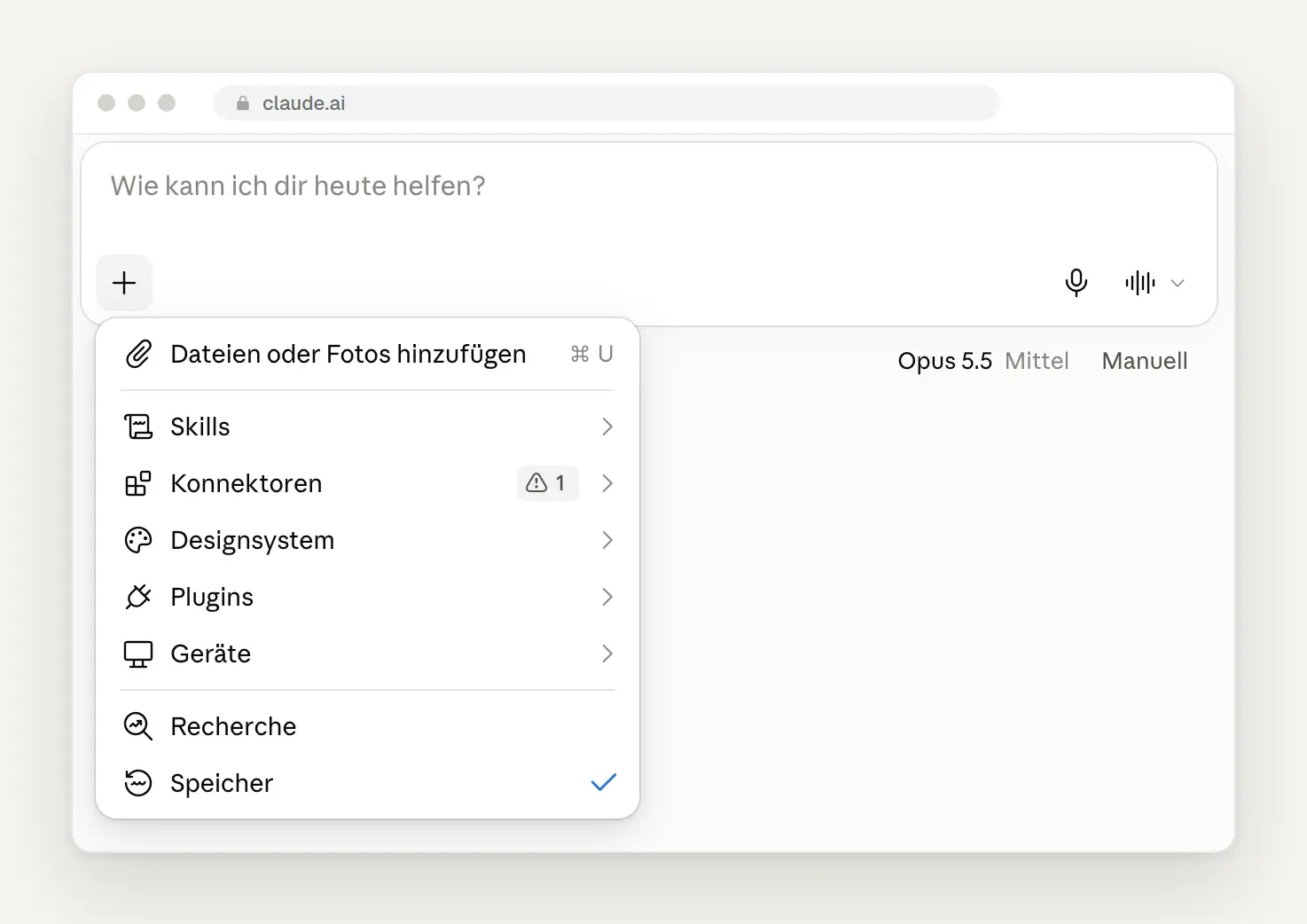
The Plus menu. You can also attach files using the keyboard shortcut ⌘ U.
In each chat, enable only the connectors you currently need. Under “Connectors,” you’ll find all connected services, with a toggle switch for each one. According to Anthropic, tools and connectors are “token-intensive,” so every enabled service consumes tokens, even if you’re not using it. At the very bottom, under “Tool Access,” you can specify whether Claude should always keep the tools ready or load them only when needed.
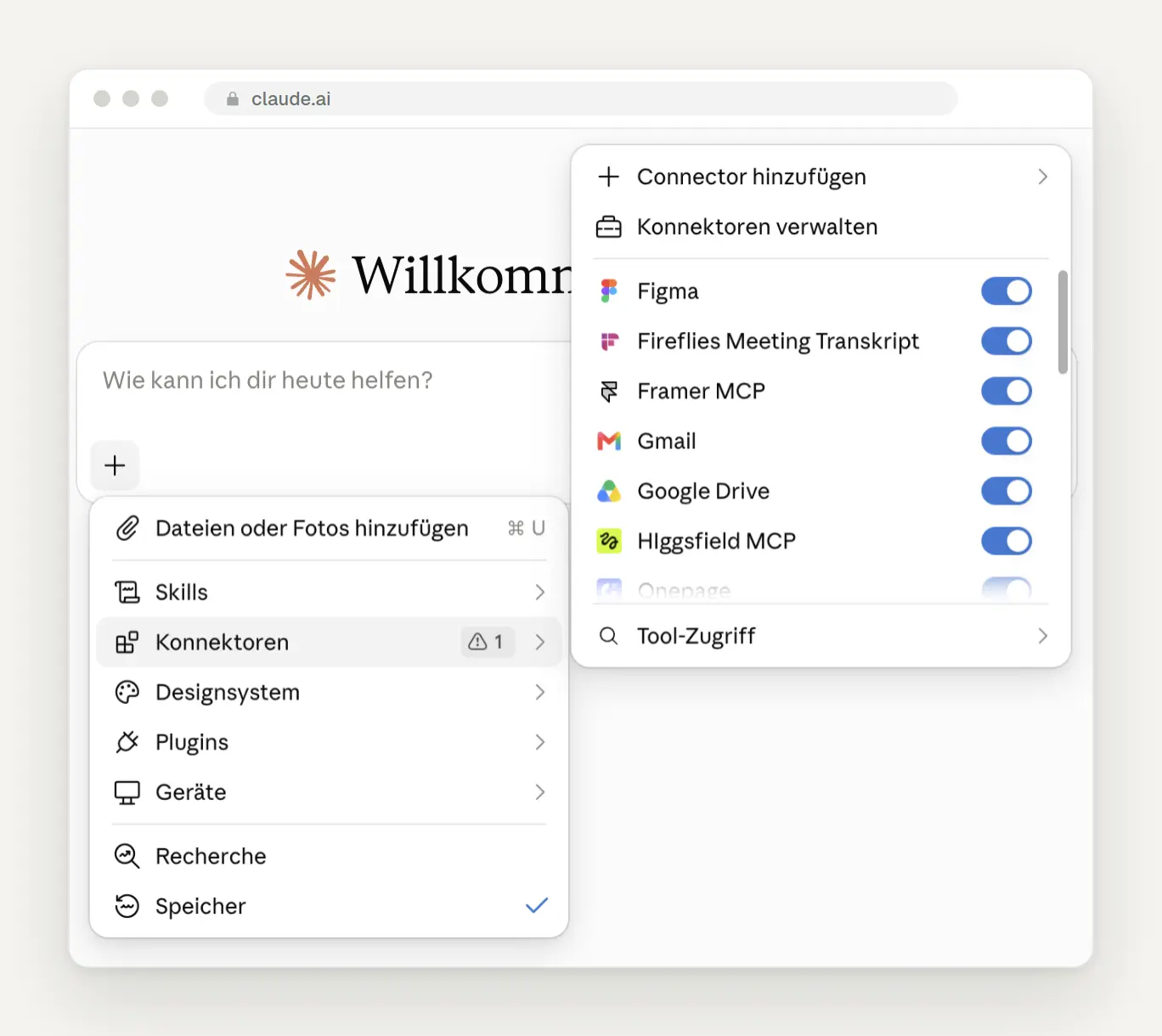
Connectors can be turned on or off for each chat. We have Figma, Gmail, and Google Drive connected, among others.
The Slash: Commands Directly in the Input Field
Type a slash into the empty input field, and Claude will show you everything you can access without a mouse. At the very top are “Add Files” as well as the “Doc,” “Slides,” and “Design” templates for finished documents, presentations, and designs. Below that are all the skills you have installed. If you keep typing after the slash, Claude filters the list—so “/sli” is enough for slides.
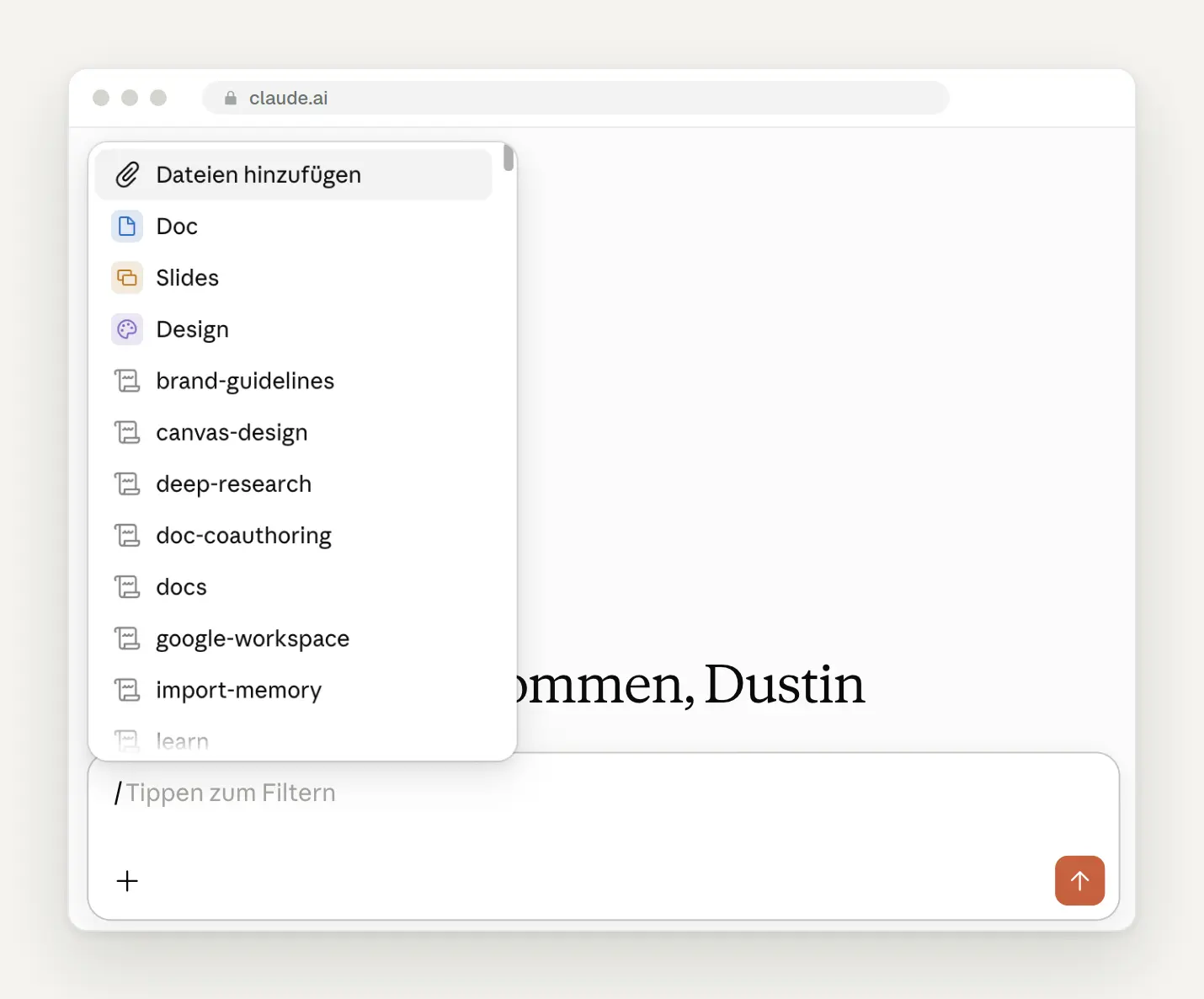
The slash menu containing the Doc, Slides, and Design templates and the installed skills.
Anthropic explicitly lists these commands in the help section. Since the new interface was introduced, there is no longer a separate button for web searches; Claude searches on its own when it's helpful. For an in-depth search with sources, use the first command:
Type "Search the Web" if you want Claude to look up the latest information. This tip comes from Anthropic itself. Conversely, you can also disable the search feature if you want Claude to work only with your documents.
Create presentations directly as Google Slides files. According to Anthropic, as of September 16, the Doc, Slides, and Design templates are included in every plan, including Free. They are currently available only in Enterprise as a beta feature. A presentation you create via /slides can be exported directly as an editable Google Slides file. Short animated explainer videos via /motion, on the other hand, are only available in the Team and Enterprise plans.
Keyboard shortcuts: the few that actually exist
There is no official list of keyboard shortcuts for Claude in the browser. Anthropic only documents a few, mainly for the desktop app on Mac. We have confirmed the following in the interface or in the help section:
Set up Quick Entry however you like. In the Mac desktop app, you can set the keyboard shortcut under Settings, General, “Quick Access Shortcut.” According to Anthropic, Quick Entry isn’t available on Windows yet. There is no official list of Windows shortcuts for the app.
Projects: one folder per topic with its own instructions
Create a project for each recurring topic, not for each conversation. A project groups together chats, files, and specific instructions, such as “Quotes,” “Social Media,” or “Client Müller.” You can create it in the sidebar under “Projects.” The Free plan allows for up to five projects, and each file can be up to 30 MB in size.
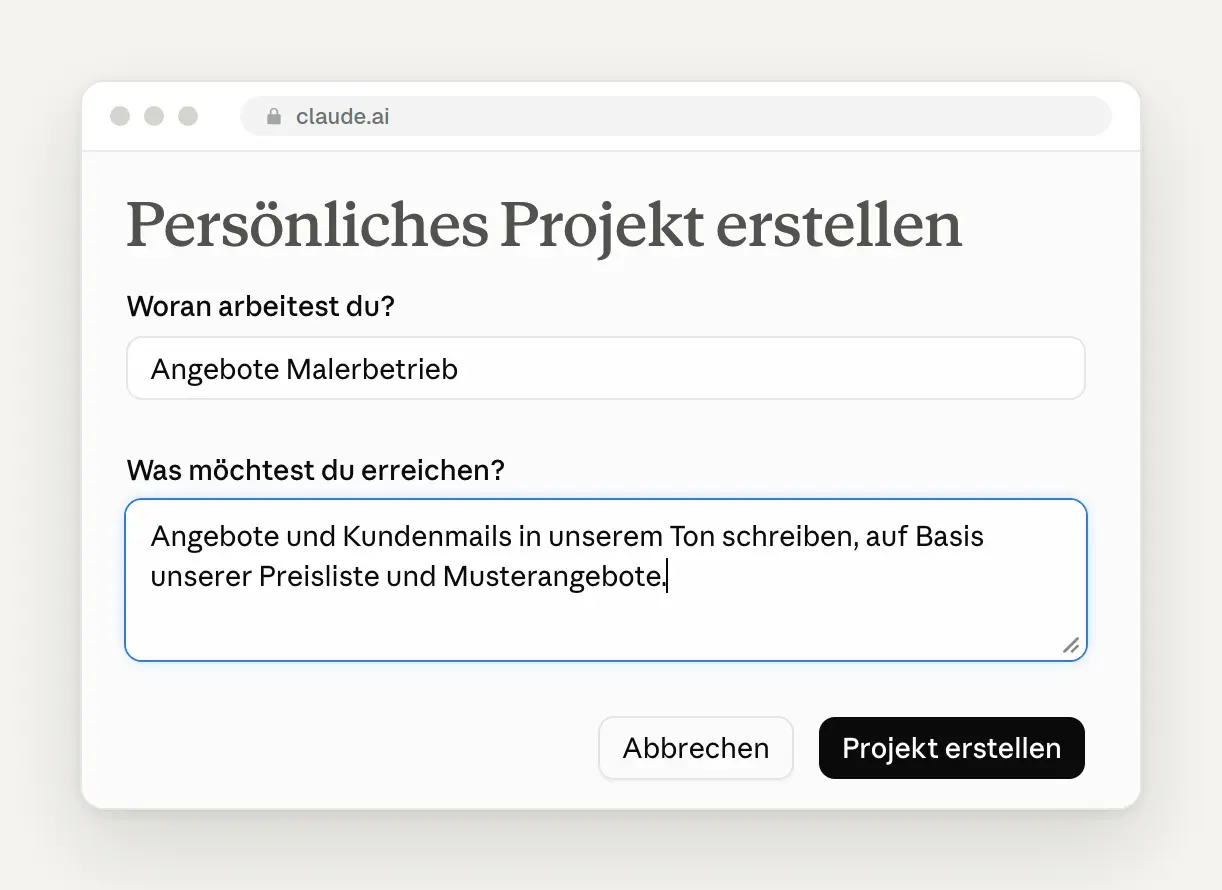
Create a new project—here's an example for a painting business.
Put everything you want Claude to know in each chat into the project knowledge. According to Anthropic, chats within a project do not share context except through the files and text in the project knowledge. Give the files descriptive names and mention them by name in the prompt. Keep the project instructions brief; details about individual tasks belong in the chat. Here’s what instructions for a “Quotes” project look like, which we use as a starting point with clients:
Don't come back with ten short questions after a break. According to Anthropic, project content is cached, and these questions count for less when reused. After a longer break, this cache expires, and the first message counts in full again. So be sure to bundle your questions into a single message.
Isolate client projects from the rest of your account. According to Anthropic, each project has its own memory. Using the toggle labeled “Use account memory” in the Help section, you can completely separate the project from your account on the project page. Then, in the “Client Müller” project, Claude won’t know anything from your other chats, and conversely, nothing from the project will end up elsewhere.
Skills: Your Work Style as a Building Block
Saves every process you explain to Claude more than three times as a skill. According to Anthropic, a skill is a folder containing instructions, scripts, and materials that Claude loads on its own when appropriate tasks arise. You can find them in the sidebar under " Customizations," then "Skills." Under "Discover," you'll find pre-made skills from Anthropic and other providers; under "My," you'll find your own.
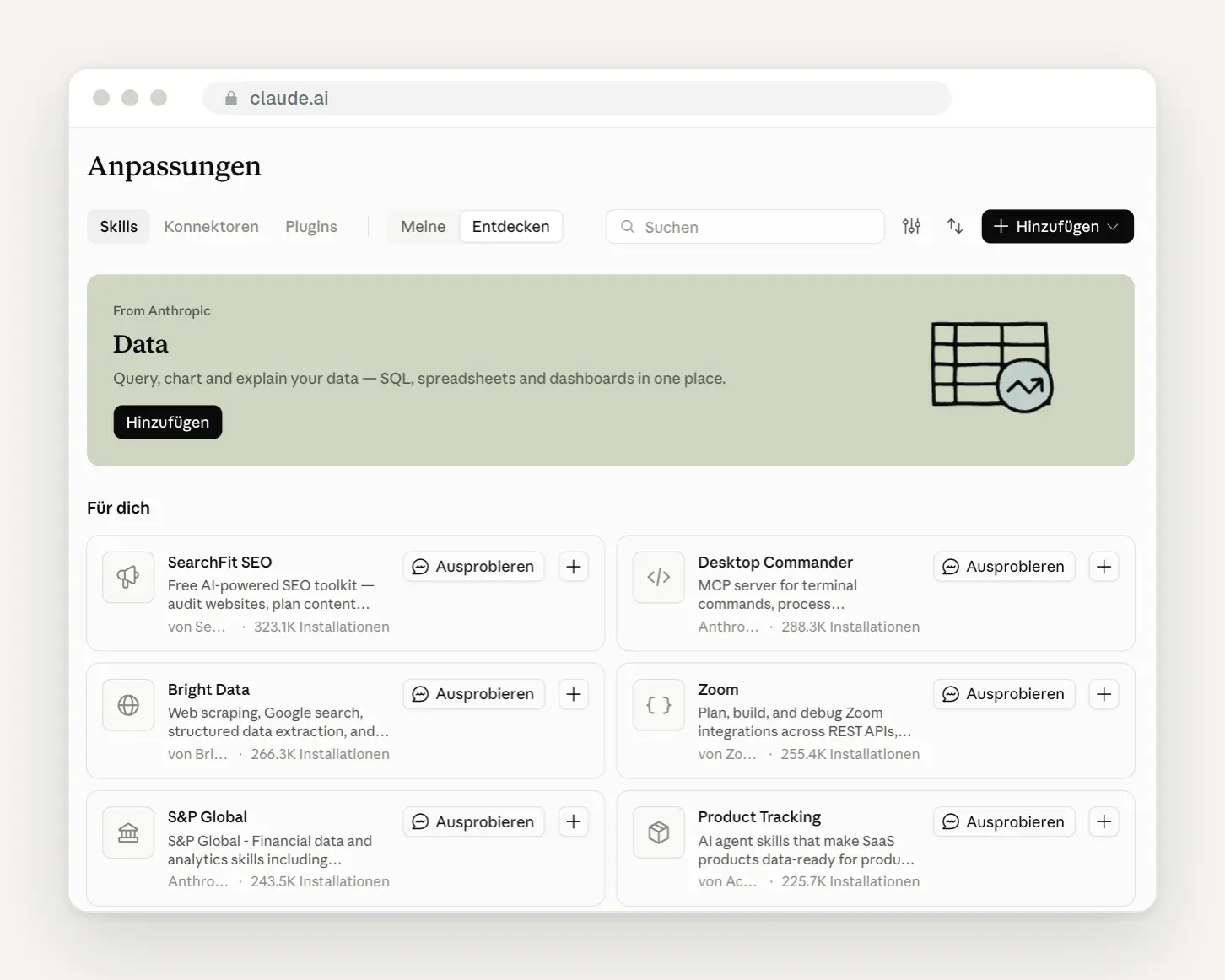
The skills under "Customizations." Click "Add" in the upper-right corner to create your own.
Let Claude write the skill instead of building it yourself. Using the "Add" option , you can upload a ready-made skill, write one yourself, or create it while chatting with Claude. The third option is usually the best: You describe your workflow, Claude asks follow-up questions, and builds the skill.
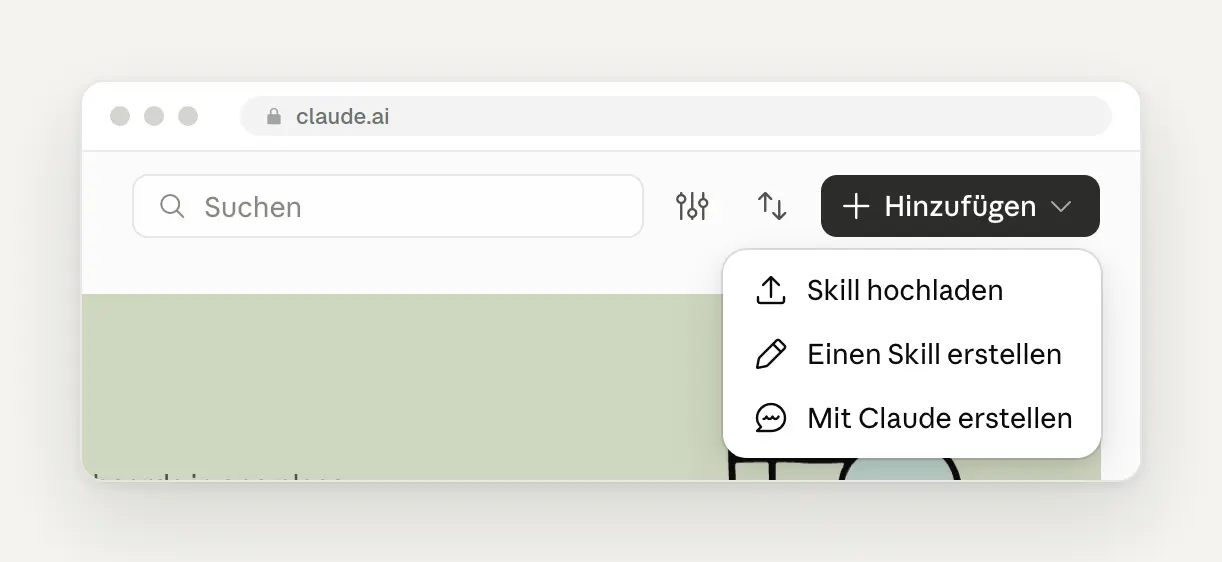
Three ways to create your own skill: upload one, write it yourself, or create it with Claude.
Pay attention to the description of your own skill—it determines everything. According to Anthropic, Claude only reads the field description, to determine whether to load the skill. It can contain up to 200 characters, and the name can be up to 64 characters long. If you're writing the code yourself, start the file SKILL.md like this:
For skills to run at all, code execution must be enabled. You can find the toggle under Settings, Features, “Code Execution in the Cloud and File Creation,” in the new “Create and Edit Files” settings view. This same toggle allows Claude to generate real Excel, Word, PowerPoint, and PDF files.
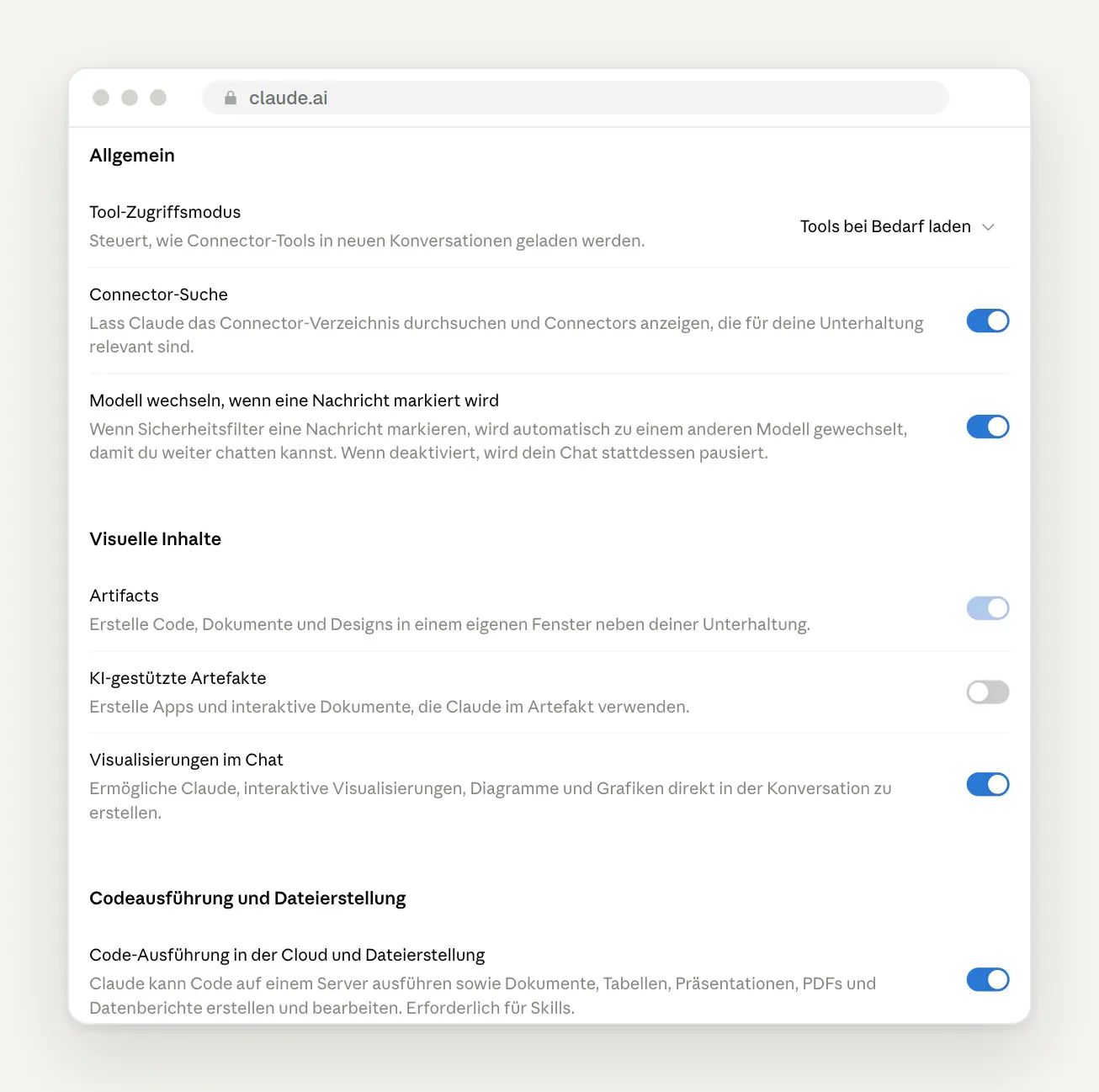
The options in the settings. At the very bottom is the toggle switch required for Skills and file creation.
Connectors: Connect Claude to your tools
Connect only the services you need every week. Under " Customizations" > "Connectors," you'll find several thousand connectors, with the most popular ones—such as Google Drive, Gmail, Google Calendar, Canva, Microsoft 365, and Notion—listed at the top. According to Anthropic, Claude inherits your permissions: If you aren't allowed to see something within the service itself, Claude won't be able to see it either.
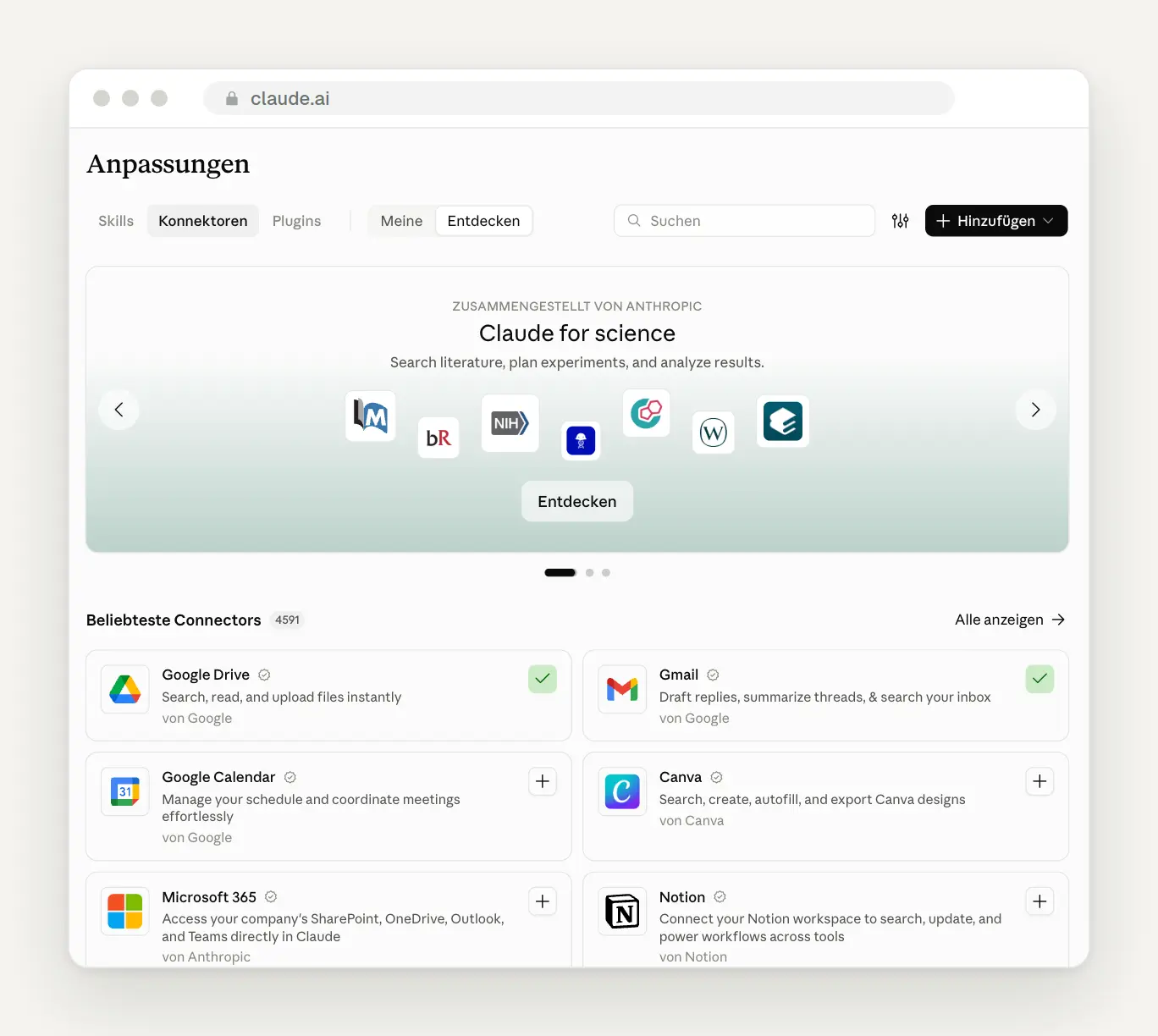
The Connectors Directory. A green checkmark indicates which services are already connected.
Only connect to connectors from providers you trust. You can also connect your own servers by clicking “Add” —exactly one in the Free plan. Anthropic recommends that you carefully read the requested permissions for each connection. According to the Help section, Claude also asks for permission before booking, purchasing, or reserving anything in a connected service.
Reminder: What Claude remembers about you
Once a month, check what Claude has saved about you. Under Settings, Your Claude (still called “Memory” in the older view), use “Search and reference chats” and “Generate memory from chats” to specify whether Claude is allowed to search through past chats and create memories from them. Below that, you’ll see the saved topics and can correct any inaccuracies. You can also tell Claude directly in the chat: “Remember that we always list prices as net and gross.”
Have Claude forget specific items instead of deleting everything. In the list of saved topics, open a topic and edit or delete it individually—for example, an old price or a previous role. You can also tell Claude in the chat what to forget. According to the Help section, the search feature for past chats is only available on paid plans.
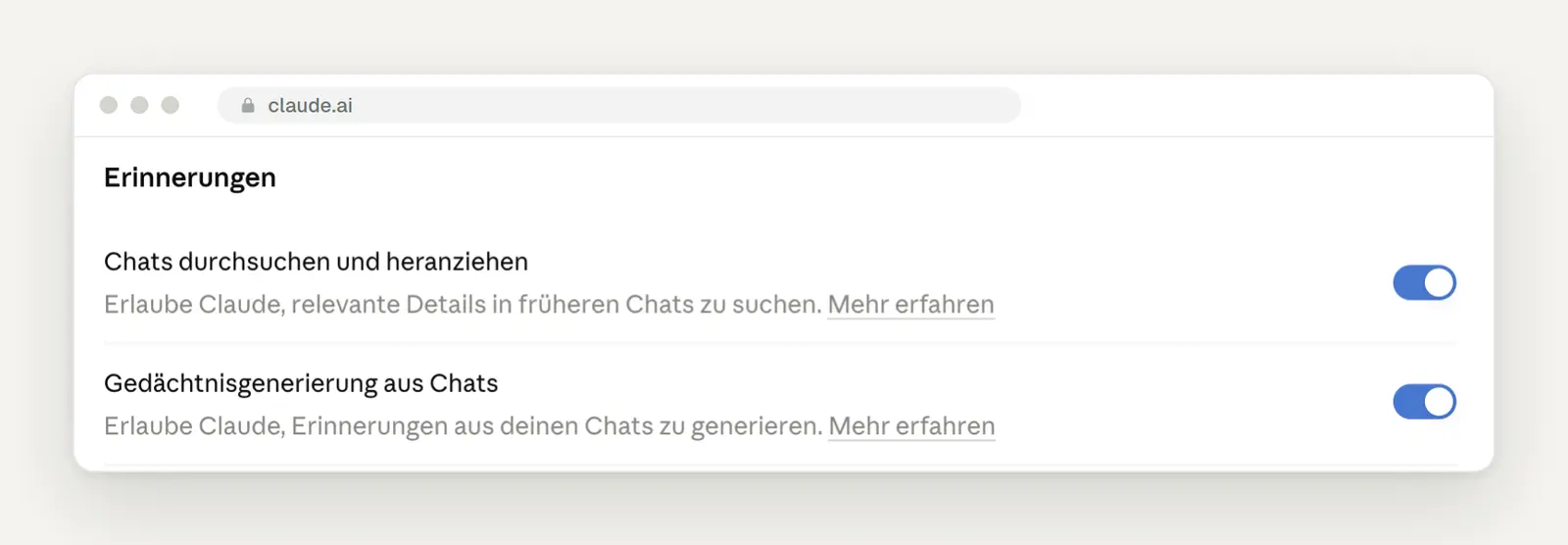
The two switches for reminders. By default, Claude does not save sensitive topics such as health.
Take your memories from ChatGPT with you. On the same page, you'll see "Import memories from other AI providers." Claude will give you a prompt to paste into ChatGPT, and then you copy the response back. That way, Claude doesn't have to relearn everything ChatGPT already knows about your business.
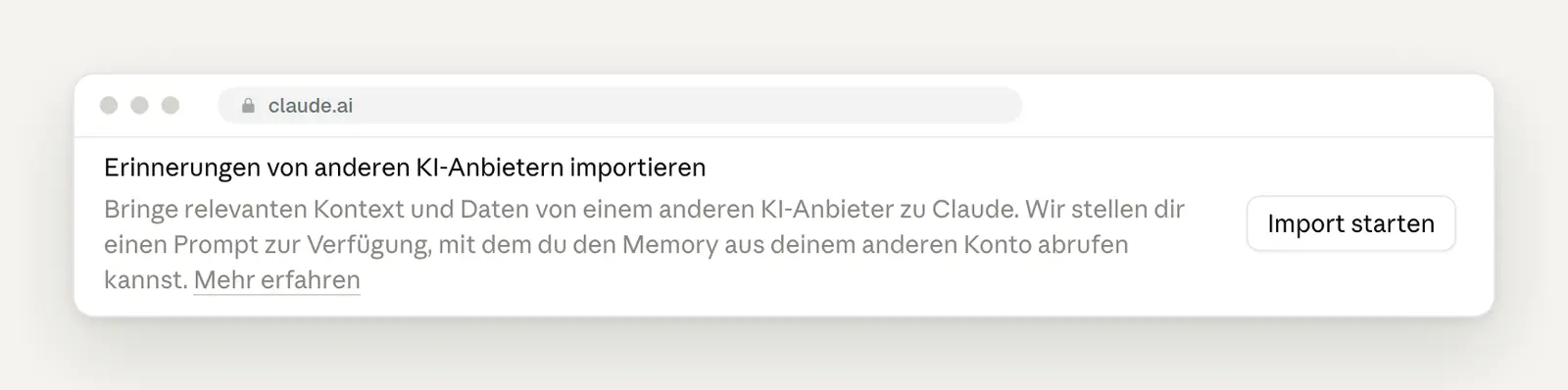
Importing from other AI services. According to Anthropic, this feature is still in the experimental phase.
Incognito: Questions Without a Trace
Open an incognito chat for sensitive or one-time questions. You can do this by clicking the ghost icon in the upper-right corner or by pressing ⇧ ⌘ I. The chat won't appear in your chat history or memory, and it won't be used for training. According to the Help section, Anthropic still retains it for 30 days. Incognito mode is only available outside of projects.
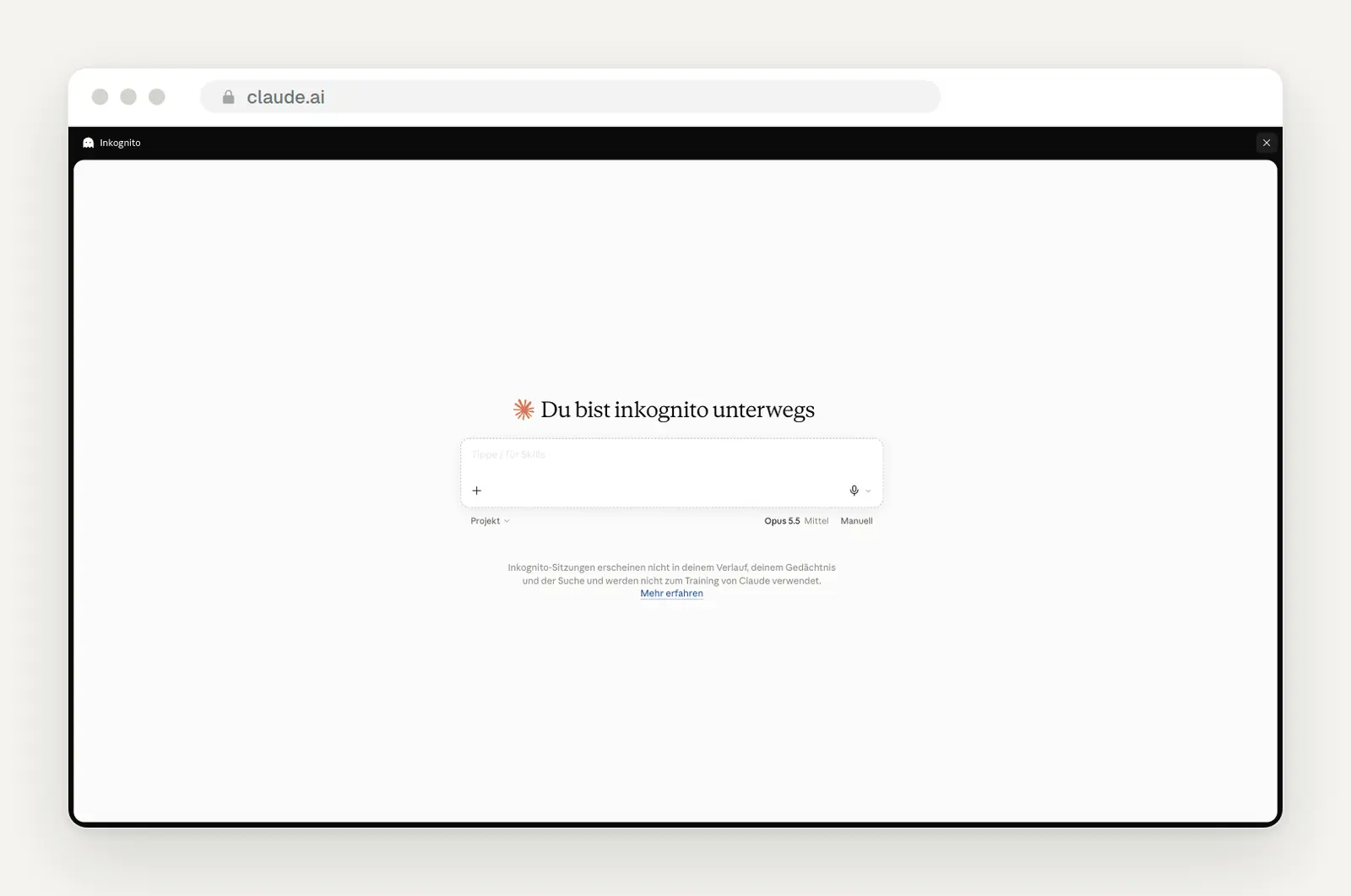
An incognito chat can be identified by its black border.
Use Incognito to get an honest second opinion. Without your context, Claude doesn’t know your style and reads a text like a stranger would. And for short emails, Claude displays the result as a finished draft with a subject line that you can copy or open directly in your email program. Here’s what it looked like for us:
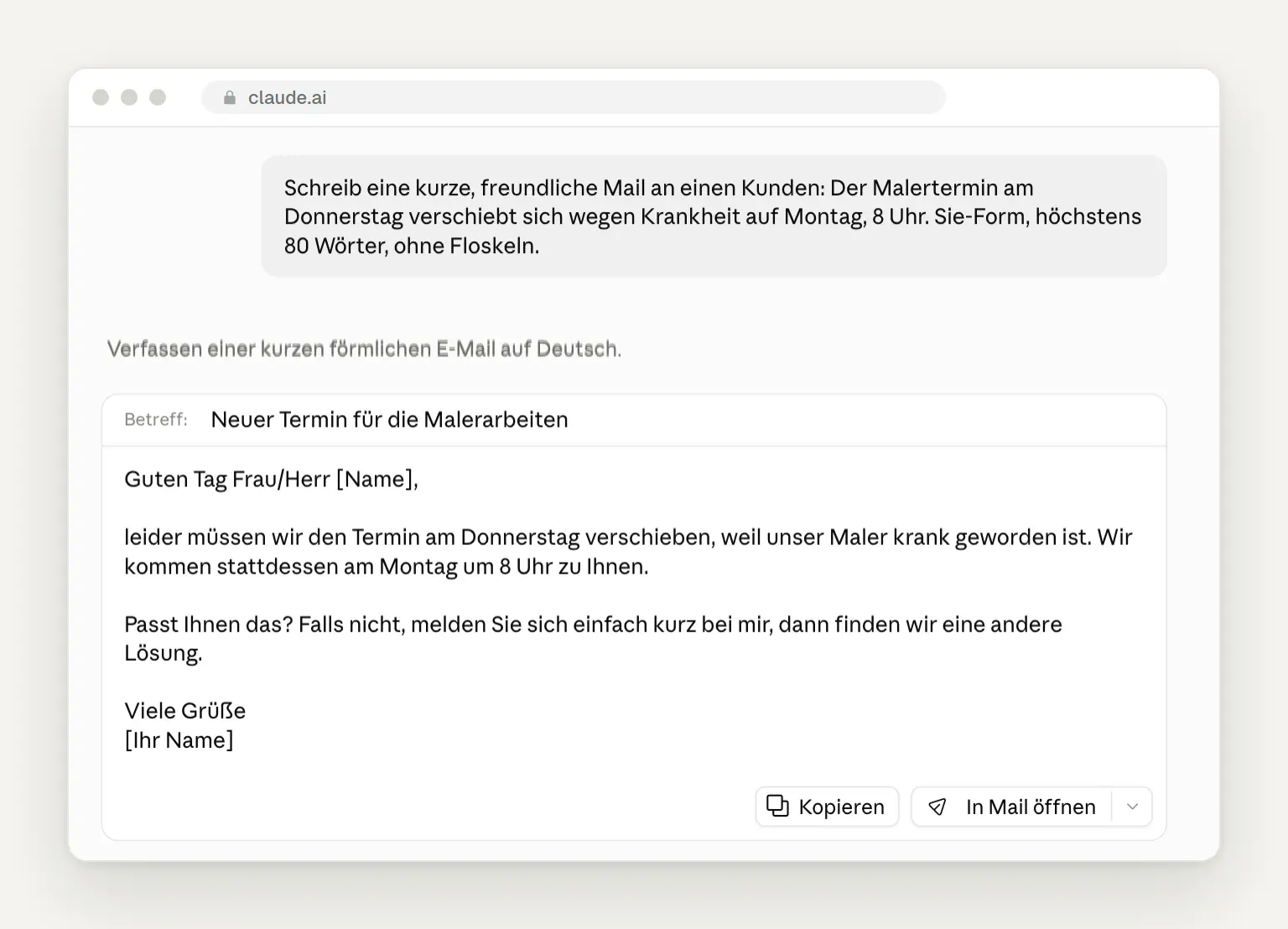
A rescheduled appointment as a completed email draft, with "Copy" and "Open in Mail."
Usage and Limits: How to Make Your Allowance Last Longer
Check the "Settings" > "Usage" section before you start a big task. According to Anthropic, each plan has a five-hour window that begins with your first message; after that, the limit is fully available to you again. Paid plans also have a weekly limit that resets once a week at a set time. In the Ultra plan, the five-hour limit does not apply to verified accounts. Anthropic does not specify fixed message counts. Chat, Desktop, Mobile, and Claude Code all draw from the same pool.
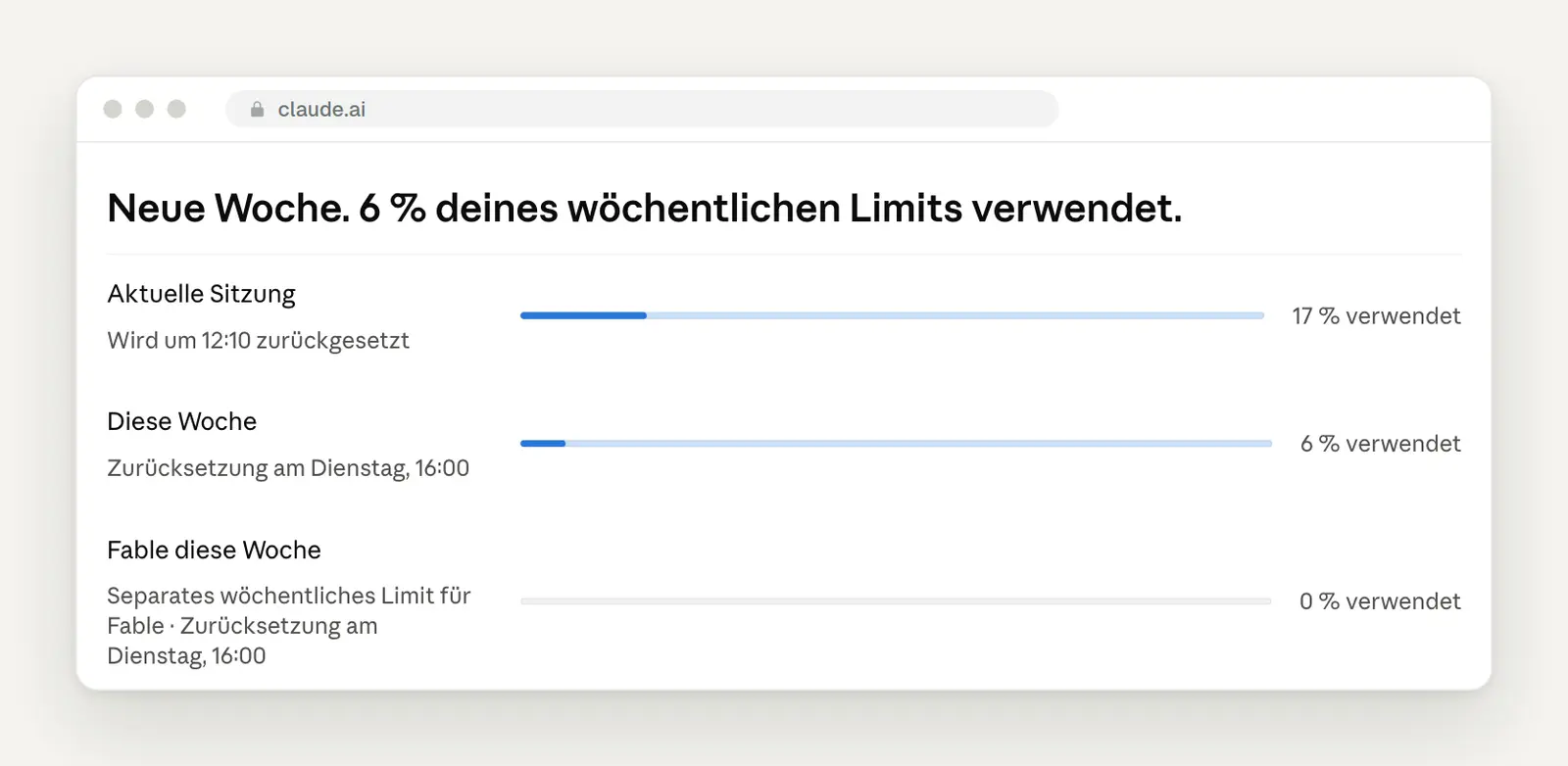
The usage display: current session, week, and how much of your Fable quota you've already used. According to Anthropic, Fable is allowed to use no more than half of the weekly limit; all models draw from the same pool.
According to Anthropic, these four habits save the most time. Start a new chat for a new topic instead of piling everything into one long thread. Send texts and questions in batches instead of in lots of small messages. Turn off connectors you don’t need. And let them know if you just want a short answer and not a finished file.
Redeem the limit reset before you run out of room, not after. Under Settings> Usage, in the Resets section, you'll find the button labeled "Reset for free." According to Anthropic, you can redeem it before reaching the limit, but only in the browser or the desktop app—not in the mobile app or Claude Code. An unused reset expires on the specified date.
The rates, as you see them on Anthropic
For most self-employed people, the Pro plan is sufficient at 18 euros per month, or 15 euros with annual billing. That’s what it says on Anthropic’s German pricing page—excluding taxes, so VAT is added. Compared to the Free plan, Pro includes, among other things, unlimited projects, Claude Code, Claude in Chrome, and additional models. The Max plan costs 90 euros and offers five times as much usage as Pro. The previous tier with twenty times the usage has been called Ultra since the end of October: $200 per month, ten times as much weekly usage as Pro, and no five-hour limit for verified accounts. Since October 7, Max has also included a monthly credit of $100 for the Claude interface, while Ultra includes $200. In Team, there is a $20 credit per Standard seat and a $100 credit per Premium seat, for a combined maximum of $500. This credit does not apply to Claude Code. This allows small automations via the API to run at no additional cost. We verified the euro prices again on October 20, 2026, on the pricing page.
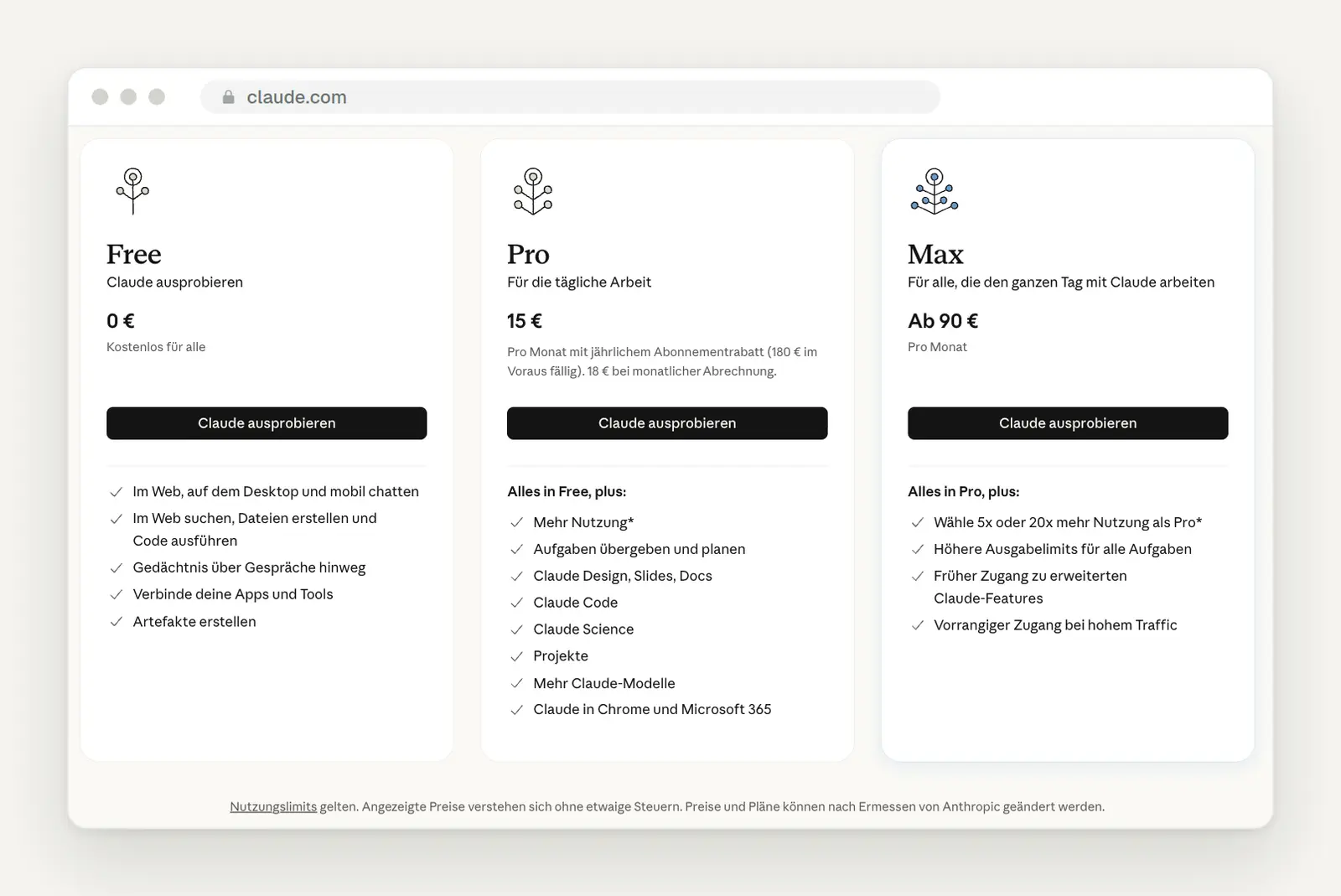
Pricing for individuals on claude.com, listed in euros. Source: claude.com/de/pricing
Switch to Team as soon as more than one person starts using Claude for work. Team is designed for 2 to 150 people. A Standard plan costs 18 euros per year or 21.04 euros per month; a Premium plan, which offers five times the usage, costs 90 euros or 105.23 euros, respectively. These plans also include centralized billing, access to connectors, and shared projects. And according to Anthropic, the Team plan does not train on your content by default.
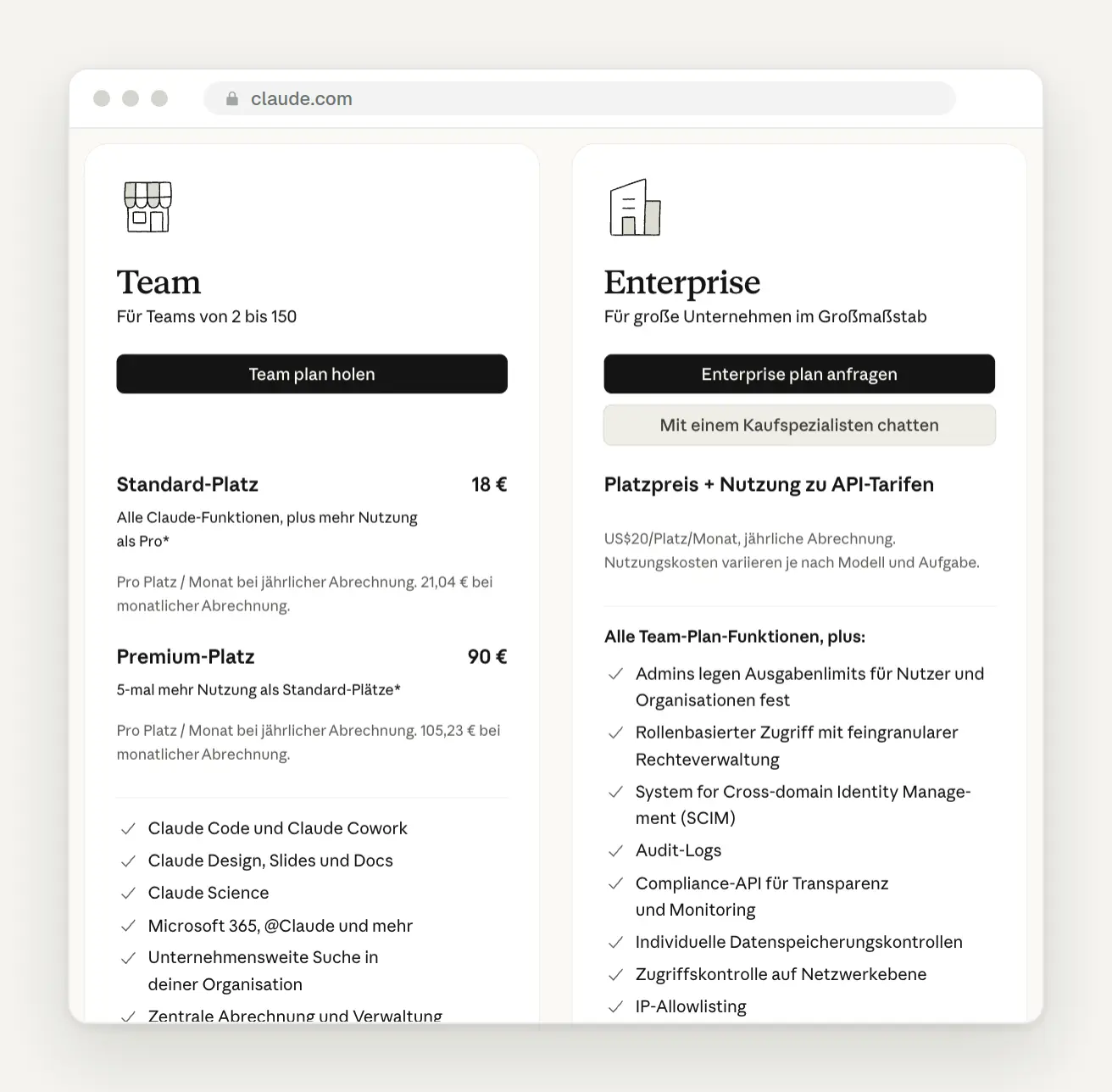
Team and Enterprise on the pricing page. Enterprise also charges based on usage. Source: claude.com/de/pricing
Privacy in Three Clicks
In the personal plans, turn off model training when you're working with customer data. Under Settings> Privacy, you'll find the "Help improve our AI models" toggle. It was turned on in our account. When turned off, Anthropic will no longer use your new chats and Claude Code sessions for training. On the same page, you can export your data and manage shared chats.
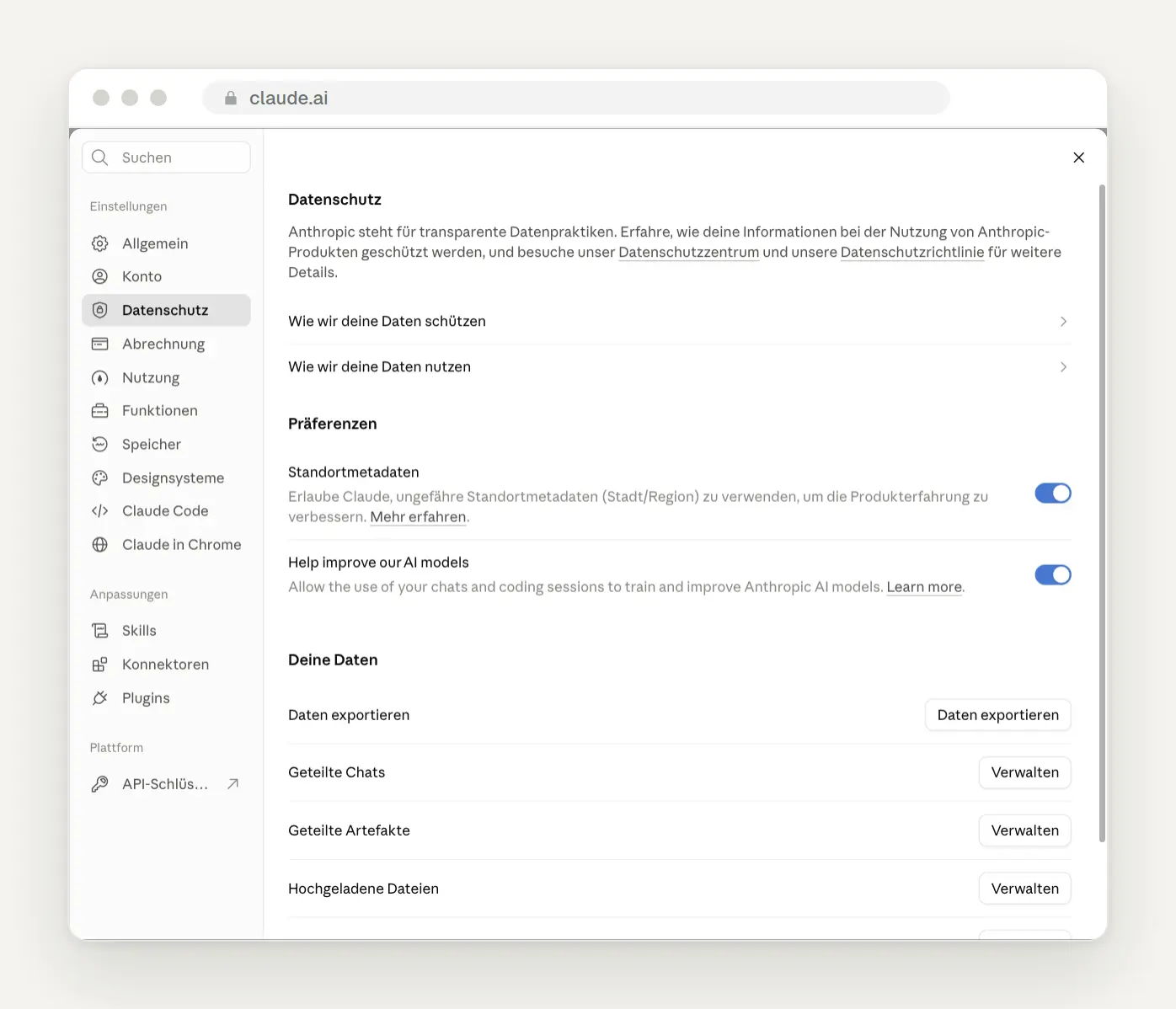
Privacy settings. The second toggle controls how your chats are used for training.
Do not give thumbs up or down on chats containing customer data. According to Anthropic, a rating saves the entire conversation for up to five years, separate from your account, even if training is turned off.
Assign a reviewer for consultation topics. Anthropic’s new Terms of Use will take effect on November 12, 2026. According to Anthropic, anyone using Claude for clients in fields such as healthcare, law, or finance must, as before, have a qualified professional review the results and must inform the relevant parties that AI was involved. A new addition is a separate section prohibiting covert campaigns involving artificial activity—such as through fake accounts—which explicitly applies to business use as well. This was already prohibited before; the prohibition was simply scattered across several sections.
Claude Code: If you want Claude to work directly in your files
Use Claude Code whenever you're working with folders, files, or a website. Claude Code reads and modifies files directly on your computer, executes commands, and checks the results on its own. It runs in the terminal, in the desktop app, in VS Code, and in the browser. It's not included in the Free plan, but it is included starting with the Pro plan.
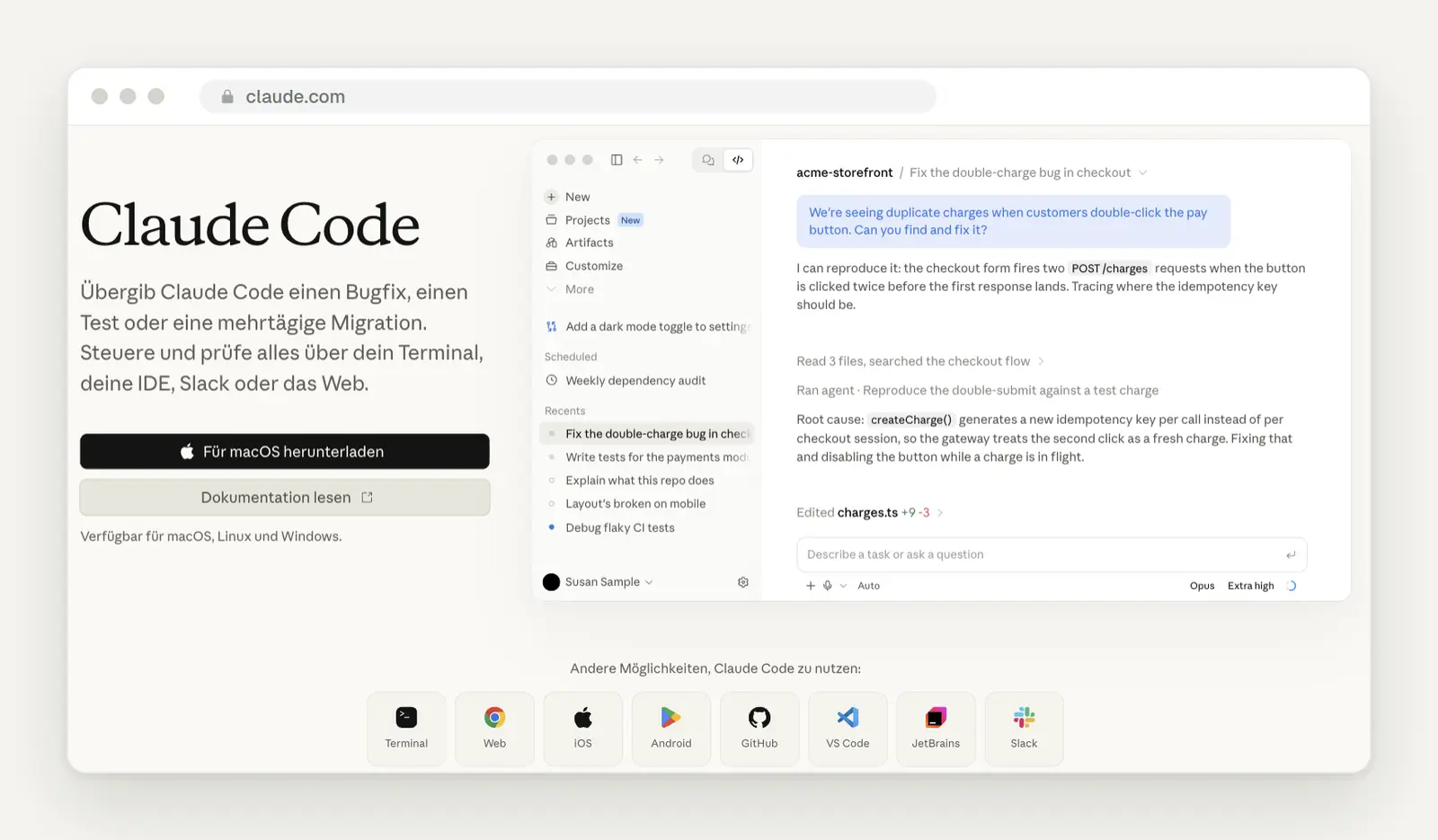
Claude Code on Anthropic's product page, shown here in the desktop app. Source: claude.com/de/product/claude-code
Install Claude Code with a single command. Open the Terminal—on a Mac, search for “Terminal” using Spotlight—and enter the command for your system. This command comes from Anthropic’s official guide. If you’ve never used the Terminal before, read our guide to the Terminal first.
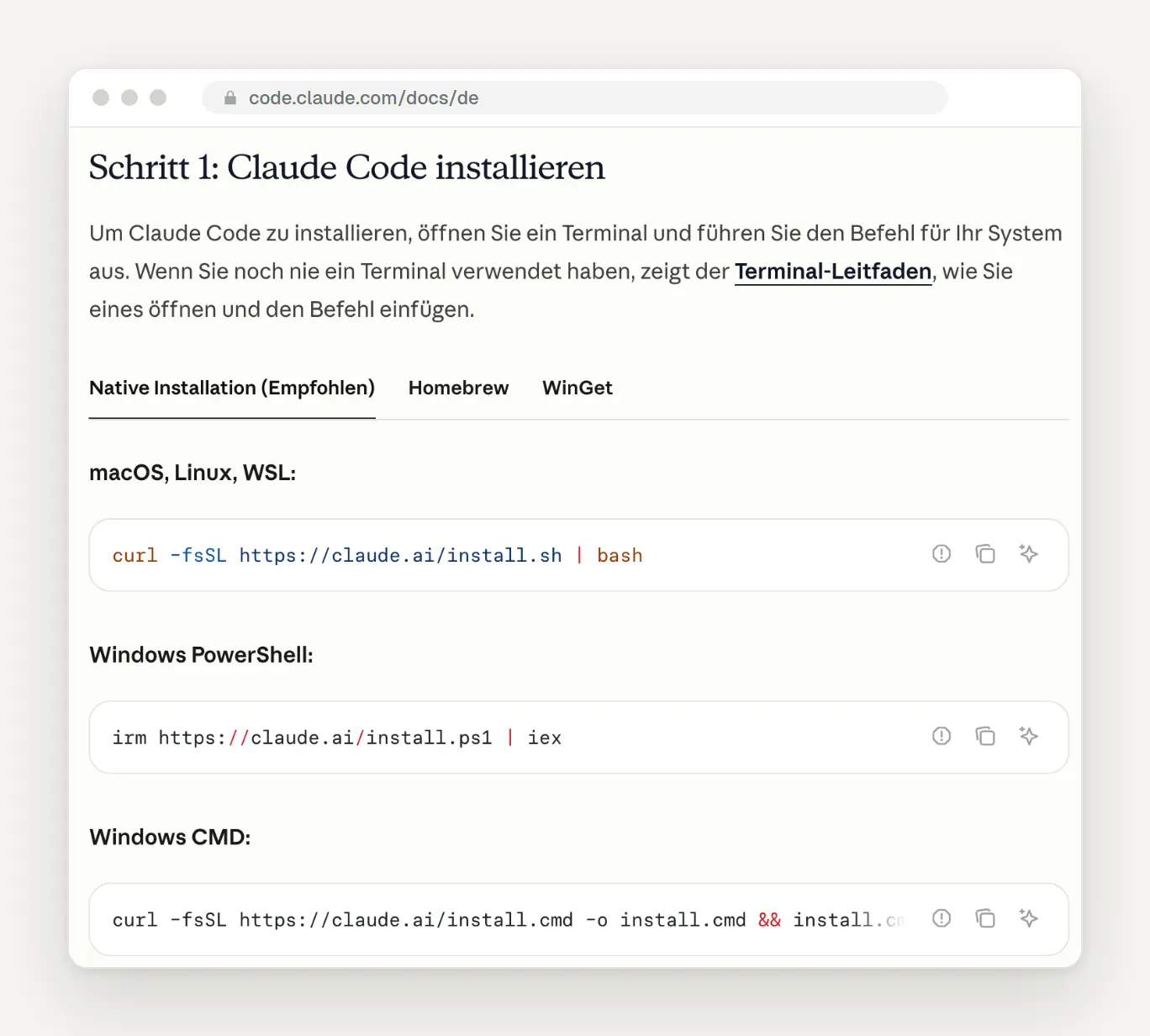
Installation instructions from the official German manual. Source: code.claude.com/docs/de/quickstart
For Mac and Linux:
For Windows in PowerShell:
Always launch Claude Code from the folder in question. In the Terminal, navigate to your project folder and type claude. The first time, Claude Code asks if you trust the folder, and then logs in with your Claude account. You'll need these commands in your daily work; each line can be copied individually:
Claude Code's slash commands that make everyday life easier
Type a slash in Claude Code, and you'll see all the commands. The official list now includes over a hundred entries. These are enough for everyday use, sorted by when you need them:
Setup:
While working:
Check, rewind, continue:
Use /btw for follow-up questions. If you need to know something quickly while you're in the middle of a task—such as the name of a command—ask the question using /btw. It doesn't weigh down the conversation; Claude stays focused on the task at hand.
If you've made two unsuccessful corrections, start over. In its practical tips, Anthropic recommends that after more than two corrections to the same problem, you should /clear Start a new session and refine the prompt. According to Anthropic, a clean session with a well-crafted prompt is almost always better than a long session full of corrections.
Only compress the part you no longer need. Press Esc twice or /rewind Opens the list of previous messages. Select one and have the summary start from there or end there. If you'd rather control the process yourself, specify what's important when summarizing:
Delegate research tasks to subagents. Write, “Use subagents to find out how ….” The investigation will then run in its own context, and your main session will stay streamlined. This is worth doing before asking Claude to search for something in a large folder.
Do not simply resume old sessions after a long break. Since October 19, Claude Code in Pro, Max, and Ultra has been issuing a warning when resuming an old session would use up a significant portion of the five-hour limit. In that case, it’s better to start a new session and reference the old one. To help you find it later, name your sessions with /rename offer-mueller a name, claude -r It then displays them in the list.
Keyboard Shortcuts and Modes in Claude Code
Start by learning Esc and Shift+Tab—that’ll help you get the hang of Claude Code. Esc stops Claude without discarding your work so far, allowing you to change course. Pressing Esc twice when the field is empty opens the menu for undoing. Shift+Tab switches between modes. The list is taken from the official documentation:
While working, keep an eye on the status bar below the input field. It shows how much Claude is allowed to do without asking for confirmation. According to Anthropic, since the end of September, Claude Code has been launching in “auto mode on” for all pricing plans; a second model then checks every action in the background. Anthropic itself states that this does not guarantee security. For client projects, we recommend first switching to “plan mode on” using Shift+Tab: Claude will review everything, suggest a plan, and make changes only after you give the go-ahead.
Set the startup mode yourself when working with customer files. Interactive sessions start in Auto mode; calls with claude -p from scripts since October 16 in manual mode. Anyone who wants to start in manual mode should enter this in their personal settings file ~/.claude/settings.json In a project's configuration file, Claude ignores the values for "Auto" and for bypassing all prompts, so a project can no longer grant itself additional permissions.
⏸ Manual mode on: Claude just reads; he asks about every change.⏵⏵ Accept edits on: Claude modifies files in the project folder without asking for confirmation.⏸ Plan mode on: Claude reads and plans, but doesn't make any changes. Exception according to Anthropic: Anyone who uses Claude code with--dangerously-skip-permissionsOnce it has started, it no longer has any protection, even in Plan mode.⏵⏵ Auto mode on: Claude operates without prompting; a test model halts risky actions. Fixed prompting rules remain in effect.
CLAUDE.md: What Claude Knows About Your Project in Every Session
Create a CLAUDE.md file in each project folder; this is the project configuration file for Claude Code. Claude reads the file at the beginning of each session. The fastest way to create it is with /init, Claude then looks through the folder and writes a draft. Anthropic recommends keeping it under 200 lines. For a small website, it looks something like this:
Just tell Claude what he needs to remember. The old abbreviation with the hash symbol has been discontinued since December 2025. Today, for example, you might write, “Tell CLAUDE.md that we always use the formal ‘Sie’ form,” or open the file with /memory. Rules that apply to all your projects belong in the file ~/.claude/CLAUDE.md in your user folder.
Create your own slash commands as a skill. A file .claude/skills/daily-report/SKILL.md in the project results in the command /daily report. With disable-model-invocation: true The skill only starts when you activate it:
Securing the Claude Code: Locking, Guidelines, and Rules
Locks files containing Claude's login credentials. In the project's configuration file, .claude/settings.json, she forbids Claude from reading the files that contain passwords and keys. That way, none of that information accidentally comes up in conversation:
Sign up to get notified when Claude is waiting for you. Using what is known as a "hook," Claude Code executes a command when certain events occur. This entry in ~/.claude/settings.json Displays a notification on the Mac whenever Claude needs permission. If nothing appears, allow the Script Editor to send notifications in System Preferences under Notifications.
Retrieve the most important rules after summarization. When Claude Code summarizes a long session, details get lost. A hook triggered after summarization simply outputs the rules again; Anthropic describes this exact pattern in its guide to hooks:
Keep the CLAUDE.md file short and put special rules in separate files. Rules that apply only to certain files come next .claude/rules/, for example texte.md with a specification of which files it applies to. Claude will then only load it when it reads matching files. Anthropic recommends keeping the CLAUDE.md file under 200 lines.
Let Claude sort through the follow-up questions himself. The command /fewer-permission-prompts It searches previous sessions for harmless read commands—which it always allows anyway—and suggests a whitelist based on that. Anyone using Auto Mode can configure it with /auto-mode-setup It depends on your own company: Claude reviews the project and the minutes from the last meetings and suggests what actions can be taken without further consultation. The changes won't be saved until you confirm them.
Six prompt templates that work especially well with Claude
Provide Claude with context as you would for a new, very smart employee. That’s how Anthropic puts it, along with the golden rule: If a colleague with no prior knowledge could understand your prompt, Claude can too. The templates incorporate two tips from the official guide: Place long documents at the top and the question at the end—according to Anthropic, this improves the quality of the answers by up to 30 percent. And if you include examples, you should use three to five of them.
1. Quote from Notes
2. Review a long document
3. Write in our style
4. Research Using Sources
5. Excel Instead of Text
6. Change Instead of Suggest
7. Claude interviews you
Apply the description in a new session. Anthropic recommends this approach for larger tasks: first let Claude answer, then build with an empty context and the completed SPEC.md.
Specify clearly whether you want Claude to make suggestions or take action. Anthropic notes that when asked, “Can you suggest changes?” Claude tends to make suggestions rather than make the changes itself. If you want the final version, write “Revise” or “Change,” as in Example 6.
Frequently Asked Questions
Which model should I choose? Opus 5.5 with “Medium” effort for everyday use, “Extra High” for individual difficult questions. Haiku 5.5 for many short tasks, and Fable only if Opus can’t handle it.
Can I enter customer data into Claude? For personal plans, only if model training is disabled and only as sparingly as possible. For team work, use Team. Check with your data protection officer to see if you need additional data processing agreements.
Is Claude Code included in the subscription? Yes, starting with Pro. Claude Code draws from the same pool as the chat, so it's worth taking a look at /usage.
Claude or ChatGPT? Both can handle most tasks. For long documents, texts, and working with files, we use Claude; the reasons are explained in our article about using Claude in everyday work. You can find out how to set up ChatGPT in our ChatGPT guide.
Why does Claude Code issue a warning when resuming a session? Because resuming a long, old session uses up a lot of quota. Restart the session and refer to the old one.
What Has Changed and What That Means for You
November 4, 2026: Plans, models, and help pages have been updated. Since late October, the former "Max" tier—which allowed 20x usage—has been renamed "Ultra," with no five-hour limit for verified accounts, and on October 29, Haiku 4.5 was removed from the model selection. For you, this means: If you’re constantly hitting the limit with Max, you should now compare Max and Ultra, and the settings for reminders and files now have English names in the new view.
October 20, 2026: The entire guide has been reviewed again, featuring a new screenshot of the model selection and updated euro prices. For you, this means: Haiku 5.5 instead of Haiku 4.5, and new sections on hooks, locks, and startup mode in Claude Code.
October 19, 2026: Claude Code issues a warning about resuming expensive old sessions. For you, this means it's better to start over after a long break.
October 16, 2026: claude -p starts in manual mode. For you, this means: Scripts that expect "Auto" need --permission-mode auto.
October 14, 2026: Claude Code automatically consolidates long sessions that remain inactive for about an hour, and /usage provides tips on how to save power. For you, that means lower power consumption if you leave Claude Code running during lunch. If you want to keep the full history, turn off “Idle compaction” as of October 16 in /config from.
October 8, 2026: Presentations will be moved directly to Google Slides. The standalone claude.ai/design will close on December 14, 2026. For you, this means: If you have design systems there, migrate them beforehand. In addition, the new Terms of Service will take effect on November 12.
October 7, 2026: Haiku 5.5 is released; Max and the team receive a monthly API credit. For you, this means: completing short tasks with Haiku 5.5 and running small automations using the credit.
October 6, 2026: New Cowork tasks run in the cloud on Pro and Max. Local folders continue to be accessed through the desktop app as long as it’s open, but are processed on Anthropic’s servers. For you, this means that you can use Claude Code to work on customer data that shouldn’t leave your computer.
September 28, 2026: Sonnet 5.5 is released; according to Anthropic, it’s over 30 percent faster. Since then, Claude Code has been launching in Auto mode across all pricing plans. For you, this means: make sure to check the mode before working on client files.
September 22, 2026: Opus 5.5 is released, the five-hour limits are raised, and every subscription receives a limit reset that you can redeem yourself. For you, this means more work per quota without having to change anything.
September 16, 2026: Chat and Cowork merge into a single interface, along with the Doc, Slides, and Design templates. For you, this means you no longer have to decide in advance whether to chat or assign a task.
Date of this version: November 4, 2026. Claude’s interface changes frequently; we regularly review screenshots and prices and update this post. To learn why we use Claude ourselves in the studio, read our post “Why Claude Is Currently the Best AI for Our Day-to-Day Work.”
Should Claude really be working with you guys?
A few good projects, two or three skills, and the right connectors turn Claude into a tool that fits your business. That’s exactly what we set up with businesses—from the first skill to the automation of entire workflows. Related: How to Use ChatGPT Effectively · Services: AI and Automation
If you contact us via our contact form, we'll respond within 24 hours—personally and without a sales pitch.
Sources
We reviewed the features, limits, and pricing in the Help section, the documentation, and on Anthropic's pricing page, and examined the user interface in our own Max account. As of November 4, 2026.
More Articles
© Marschfahrt Studio
Practical knowledge on web design, SEO, AI, and conversion optimization. Based on real projects, without any marketing spin.