The Terminal for Non-Developers: How to Work Safely in the Command Line
A fake Cloudflare CAPTCHA instructs you to enter a command in Windows Terminal and disguises it with colored status messages: This is how Microsoft described the TerminalFix campaign on August 28, 2026—a campaign that, according to the BSI, compromised the network of a German government institution in August. This post highlights the keys, shortcuts, and configuration files that’ll help you work faster in the terminal, as well as the six questions you should ask yourself before pasting anything.
Date
Category
Author

“I’ve had this black window open for three weeks now, and I’m somehow getting by. But I type every command twice, and every other time I’m afraid I’ll break something.” That’s what the office manager of an electrical company with 24 employees told us; she’s been using an AI tool in the terminal since early September. She isn’t doing anything wrong. She just lacks the muscle memory that turns typing into work.
That’s exactly what this post provides: keys, commands, two configuration files, and the security rule that has become even more urgent since this summer. This isn’t a beginner’s guide—we assume you know how to open a terminal window and what the `cd` command does. If you’d rather stick to your browser, you’ll be better off checking out our post on using ChatGPT in your daily work routine.
All information is taken from the manuals for zsh, PowerShell, Apple, man7.org, nano, vim, and tmux, as well as from the documentation for the three AI tools and from Microsoft, BSI, and CISA, accessed on September 19, 2026. For more information on what else these tools have to offer, see our article on how to use Claude effectively.
In a nutshell (as of September 2026)
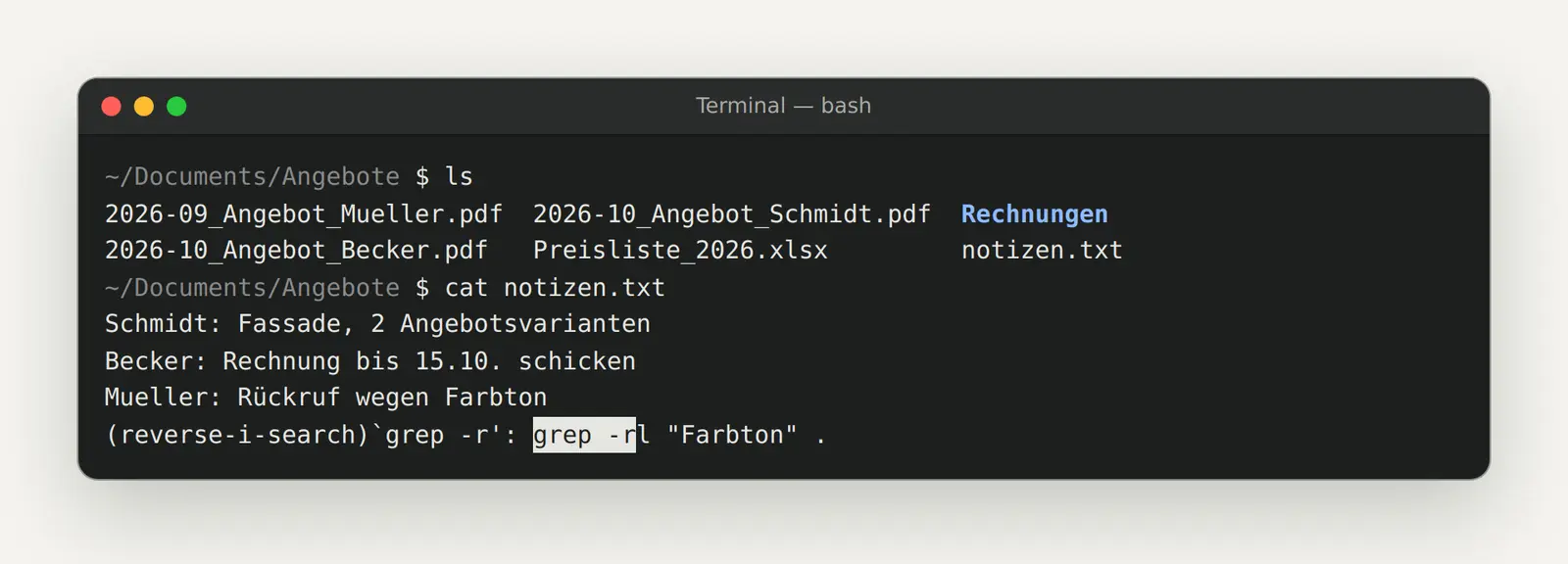
Get used to Ctrl+R—starting today. zsh calls this “history-incremental-search-backward,” and PowerShell calls it “ReverseSearchHistory”: Type three characters from a command you used the day before yesterday, and the entire line reappears. That saves you from pressing the up arrow twenty times. And here’s the rule that underpins the rest of this post: Don’t paste a command that a website tells you to paste.
The scam that's now targeting your terminal
A page that asks you to paste a command into the terminal to prove you’re human is an attack. On August 28, 2026, Microsoft described a campaign called TerminalFix that works exactly this way: A fake Cloudflare Turnstile CAPTCHA appears on compromised websites, and when users click on it, a PowerShell command is silently copied to their clipboard. The on-screen instruction then tells users to open Windows Terminal or PowerShell and paste the command.
The camouflage is built into the output. According to Microsoft, the command generates “reassuring, color-coded Cloudflare-themed status messages” in the terminal output. Anyone used to seeing an installation spit out lines of text and turn green at the end will see exactly what they expect.
The difference from 2025 is the target. In CISA and FBI Alert AA25-203A dated July 22, 2025, the predecessor scam, ClickFix, still directed victims to the Run dialog, where a Base64-encoded PowerShell process would launch. The Run dialog accepts a single line, while Windows Terminal accepts multi-line scripts. This is aimed at anyone who enters commands there on a daily basis anyway.
The fact that this is not just a minor American news item is stated in the BSI cybersecurity alert dated September 4, 2026. In August 2026, the BSI was informed that the network of a government institution had been compromised, and the analyses align with TerminalFix. According to the BSI, ransomware was also installed, and data was leaked to be used as leverage. Microsoft does not list macOS as affected here.
The countermeasure is simple: redirect instead of executing. Microsoft’s own installation guide shows the pattern `curl -s -L $uri > powershell.tar.gz`, which downloads the file instead of piping it into a shell. Read the file, verify the checksum using Get-FileHash (default SHA256) or sha256sum, and only then run it. Microsoft’s advice to organizations: Train your staff to recognize fake verification pages that prompt users to enter commands.

Six questions to consider before inserting, each with supporting documentation: Microsoft’s TerminalFix analysis dated August 28, 2026; the BSI alert dated September 4, 2026; and the CISA/FBI alert AA25-203A dated July 22, 2025.
Edit the line without using the mouse
Four keys replace the mouse: Ctrl+A goes to the beginning of the line, Ctrl+E goes to the end, Ctrl+W deletes the word to the left of the cursor, and Ctrl+L clears the screen. In zsh, these are set by default to beginning-of-line, end-of-line, backward-kill-word, and clear-screen. In addition, Ctrl+U selects the entire line, Ctrl+K moves to the end of the line, and Esc B or Esc F move back or forward one word, respectively.
In PowerShell, these same functions are located elsewhere because PSReadLine maps them differently: the beginning and end of a line are at Pos1 and End; moving back and forward one word are Ctrl+Left and Ctrl+Right; deleting a word is Ctrl+Backspace and Alt+d; and discarding a line is Escape. You can use Get-PSReadLineKeyHandler to see how they're mapped on your system.
One Windows quirk is a constant source of frustration: Ctrl+C doesn't always cut the text. PSReadLine assigns the key to CopyOrCancelLine, which works as follows: "If text is selected, copy it to the clipboard; otherwise, cancel the line." If nothing happens, text is still selected in the window: deselect it, then press the key again.
Two commands are worth setting up right away—both belong in your profile. `Set-PSReadLineOption -PredictionSource History ` enables suggestions from your history, which are turned off by default. `Set-PSReadLineKeyHandler -Key UpArrow -Function HistorySearchBackward ` turns the up arrow into a prefix search: You type "git," press the up arrow, and see only your "git" commands.

Fourteen keyboard shortcuts for the command line, each with their assignments in zsh and PowerShell, according to Zsh-Line-Editor, Apple keyboard shortcuts, and about_PSReadLine (accessed September 19, 2026).
Never type the same thing twice
!! repeats the last command, !$ retrieves its last argument, and ^old^new corrects a typo. zsh calls this "history expansion": "Refer to the previous command. By itself, this expansion repeats the previous command." The most common scenario in everyday use: A command fails due to insufficient permissions; you type sudo !!, and it runs.
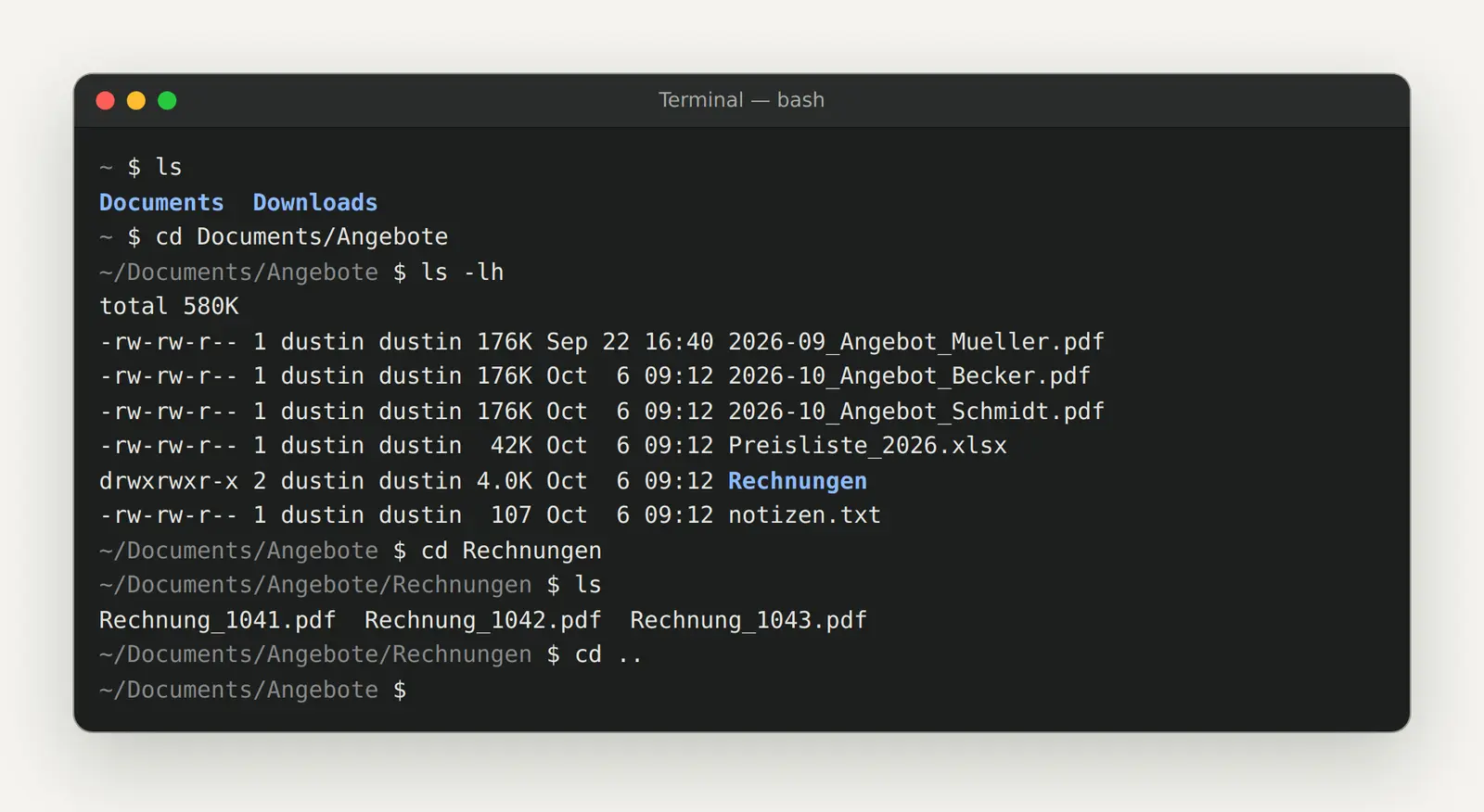
!$ is the second big time-saver—according to the manual, “the last argument.” After typing `ls ~/Documents/offers-2026`, typing `cd !$` takes you directly to that folder without having to type the path twice. `!string` retrieves the most recent command that starts that way, and `!grep ` retrieves your last search.
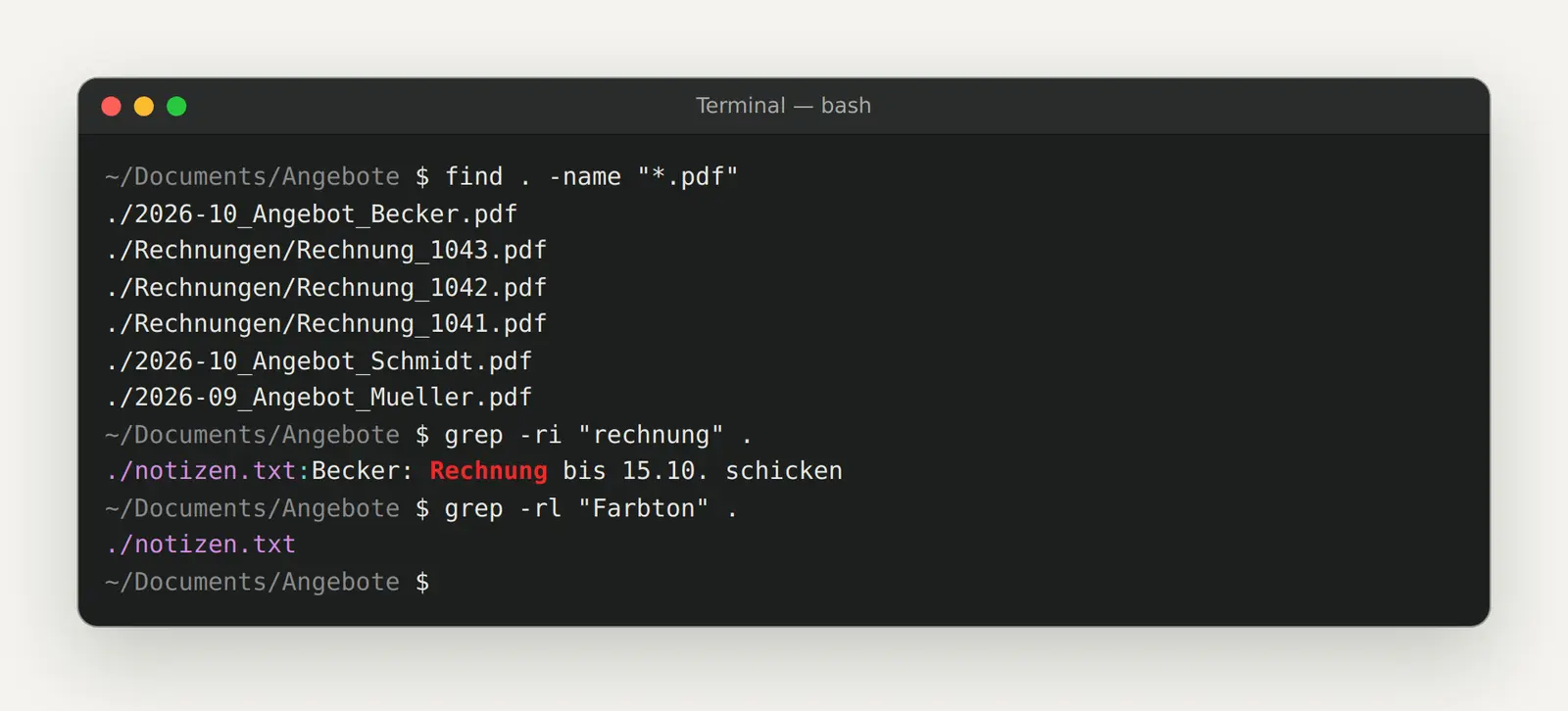
For typos, there's ^foo^bar, which, according to the manual, "repeats the last command, replacing the string foo with bar." A failed grep -rin "rechung" . becomes the correct command with ^rechung^rechnung —in twelve keystrokes instead of forty.
There is no documented equivalent for this in PowerShell; the !! syntax is not supported there. You can retrieve the last command using the up arrow; for the last argument, use YankLastArg ( Alt+.); and the prefix search ( F8 ) replaces !string. Set two goals for yourself this week: sudo !! and cd !$.
Abbreviations That Stick
Two files permanently store your shortcuts: ~/.zshrc on the Mac and the file specified by $PROFILE in PowerShell. Apple describes the first one as follows: “.zshrc is equivalent to .bashrc and runs for each new Terminal session.” Everything in that file takes effect starting with the next window, or immediately if you run ` source ~/.zshrc `. If you log in via SSH, you’ll also need the `.zprofile`, which “runs at login, including over SSH.”
Three lines are enough to get started: alias ll='ls -lah', alias gs='git status -sb', and alias ..='cd ..'. The alias without any arguments displays everything that's already set up on your system.
In PowerShell, the process is more involved. An alias created with `Set-Alias` is only valid for the current session and becomes permanent only in the profile, whose path is stored in `$PROFILE` and, on Windows, points to `$HOME\Documents\PowerShell\Microsoft.PowerShell_profile.ps1`. It is created with ` if (!(Test-Path -Path $PROFILE)) { New-Item -ItemType File -Path $PROFILE -Force } ` and opened with ` notepad $PROFILE`.
Eine Grenze steht so in der Dokumentation: „You can't create an alias for a command with parameters and values." Wir haben das zwei Abende lang nicht geglaubt und immer neue Anführungszeichen probiert. Der vorgesehene Ausweg ist eine Funktion, auf die das Alias zeigt: function CD32 {Set-Location -Path C:\Windows\System32} und danach Set-Alias -Name Go -Value CD32.
Unlike in zsh, the procedure is as follows: "To apply the changes, save the profile file, and then restart PowerShell." If the profile causes issues, start with `pwsh -NoProfile`; if that doesn't work at all, the execution policy is often set to " Restricted." Create three shortcuts today, not thirty.

Ready-made lines for both files, taken from the zsh manual, Apple's notes on .zshrc and .zprofile, and Microsoft's documentation on Set-Alias and about_Profiles (accessed September 19, 2026).
PATH and Environment Variables, and Why Credentials Don't Belong There
Login credentials do not belong in environment variables because every child process inherits them. Microsoft puts it this way: Environment variables “are inherited by child processes, such as local background jobs and the sessions in which module members run.” This means that a key stored in your shell is also present in every script, every background job, and every AI tool that you launch from it.
We had an API key stored in our .zshrc file via an export command because that was the quickest way to set it up. We didn't notice it until a tool displayed it in an error message that ended up in a shared log. Now it's stored in its own file with chmod 600.
The history is the second place where secrets end up. Microsoft is transparent about this: “The history may contain sensitive data, including passwords. PSReadLine attempts to filter out sensitive information.” Lines containing “password,” “asplaintext, ” “token,” “apikey,” and “secret” are filtered—this is a heuristic, not a guarantee—and the history file is stored in plain text at $Env:APPDATA\Microsoft\Windows\PowerShell\PSReadLine. In zsh, the HIST_IGNORE_SPACE option helps by removing lines from the history whose first character is a space.
There are separate files for information that is private to you: Claude Code stores personal settings in .claude/settings.local.json; private project notes belong in CLAUDE.local.md; "add CLAUDE.local.md to your .gitignore so it isn't committed."
The PATH is the most common cause of "command not found" errors. zsh describes PATH as "an array (colon-separated list) of directories to search for commands"; view it with ` echo $PATH`, and add ` export PATH="$HOME/bin:$PATH"` to your .zshrc file. In PowerShell, it’s called $Env:PATH; on Windows, it’s separated by semicolons, and elsewhere by colons. You can list all variables with ` Get-ChildItem Env:`. To set a variable that persists beyond the current session, use `[Environment]::SetEnvironmentVariable('Foo', 'Bar', 'Machine')`.
Two small details that can otherwise take up an entire morning: On macOS and Linux, the names are case-sensitive; “$Env:Path and $Env:PATH are different environment variables on non-Windows platforms”; and starting with PowerShell 7.5, $env:TEST = $null actually removes the variable. Go through your .zshrc and profile files today and look for lines containing KEY, TOKEN, or SECRET.
Find and Search
grep searches content, find searches for files, and together they replace every search function in the file manager. The command we type most often is `grep -rin --include="*.md" "price list"`: recursively through all subfolders with `-r`, ignoring case with `-i`, with line numbers via `-n`, and only in Markdown files. The period at the end denotes the directory to search.
Five additional switches cover almost everything. -l outputs only the filenames instead of the matching lines, -c counts them, -v reverses the logic (“Invert the sense of matching”), -w finds only whole words, and -C 3 displays three lines of context. For characters with regex meaning, there is -F, “fixed strings, not regular expressions.”
`find ` searches by attributes rather than content. `find . -type f -name "*.log" -mtime -7 ` finds all log files from the last seven days; `-iname ` ignores case; `-maxdepth 1 ` keeps the search shallow. For `-delete `, follow this procedure: first run the command without the switch, review the list, then append the switch.
Zusammen werden die beiden stark. find . -type f -name "*.md" -exec grep -l "Angebot" {} + sammelt alle Markdown-Dateien und übergibt sie gebündelt an grep, wobei {} für den Dateinamen steht und + alle Namen an einen Aufruf hängt. Die Pipe verbindet dagegen zwei laufende Befehle, denn dort „the standard output of the first command is connected to the standard input of the next"; die Kurzform |& ist „shorthand for 2>&1 |" und nimmt Fehlermeldungen mit. Sucht heute einmal etwas, das ihr sonst klickt.
Redirect: The Trap That Overwrites Files
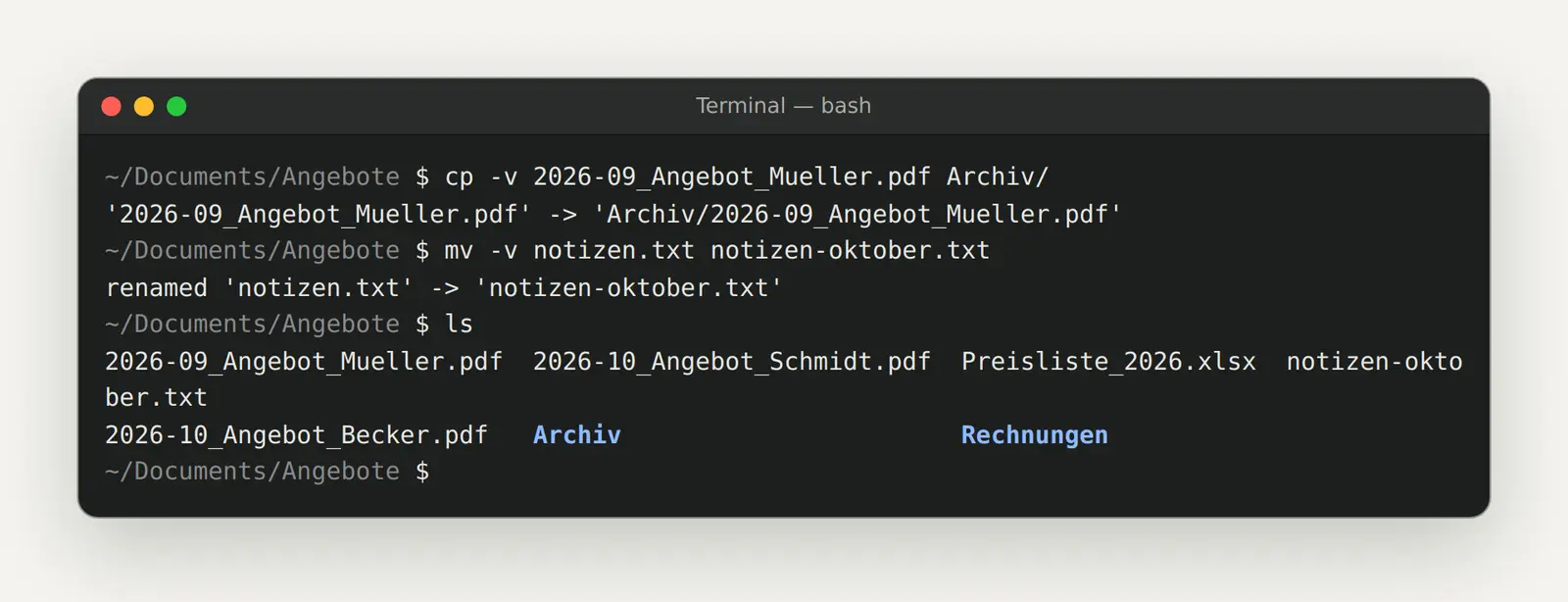
A single > overwrites the target file; two >> append to it, and the difference costs data. zsh describes it matter-of-factly: If the file exists and the CLOBBER option is not disabled, it is “truncated to zero length.” No confirmation prompt, no trash can.
It cost us a log entry: In an alias, > was used instead of >>, and the runtime summary for an export—which had been accumulating for weeks—became a four-line file after the next run. Since then, we’ve made it a rule to always use >> for anything that’s logged.
zsh has a safeguard for this: the NO_CLOBBER option. If it is set, the overwrite operation aborts with an error; if you still want to overwrite the file, you can force it using >|. PowerShell does not have this safeguard: “The redirection operators that do not append data (> and n>) overwrite the current contents of the specified file without warning.”
Eine zweite Falle ist lautlos. In PowerShell ist > kein Vergleichsoperator: if (36 > 42) { } vergleicht nichts, sondern legt eine Datei namens 42 mit dem Inhalt 36 an. Verglichen wird mit -lt und -gt. Prüft eure Aliase heute auf einzelne Größerzeichen, die auf eine Datei zeigen, die ihr behalten wollt.
When a command hangs
First press Ctrl+C, then use `kill` with the PID, and only use the 9 if nothing else works. Ctrl+C sends a SIGINT (signal 2), which a program can intercept and use to shut down properly; Apple refers to the equivalent as “Break (equivalent to Control-C): Command-Period (.)”. If that doesn’t work, you’ll need the process ID.
You'll find them in a second window. `ps -ef ` lists all processes using the standard syntax, while `ps axu ` uses the BSD syntax, where `a` removes the restriction to local processes, `x ` selects processes with a terminal, and `u` selects the "user-oriented format." On Windows, `Get-Process ` provides the same information.
Using `kill` without a switch is the correct first attempt: “If no signal is specified, the TERM signal is sent.” The manual states that TERM is preferable to KILL because a process can set up a handler for it, “in order to perform cleanup steps before terminating in an orderly fashion.” `kill -9 ` deprives the process of this opportunity, since SIGKILL cannot be caught, blocked, or ignored.
Once, we took a shortcut: An import got stuck, someone immediately ran ` kill -9`, and what was left was a half-written CSV file that the nightly batch job in the morning treated as complete. It wasn't until three days later that we noticed the discrepancy in the numbers.
In Windows, there is no gentle intermediate step. Stop-Process is implemented using the Kill method of the System.Diagnostics.Process class, and Microsoft states: “Kill causes an abnormal process termination and should be used only when necessary.” By default, it behaves like `kill -9 ` and can take down dependent services; “In an extreme case, stopping a process can stop Windows.” Therefore, use ` Stop-Process -Id 3952 -Confirm -PassThru` so you can see in advance what you’re targeting.

The four stages of a pending command, with signal descriptions from man7.org (kill(1), signal(7)) and Microsoft's warning regarding Stop-Process and Process.Kill (accessed September 19, 2026).
Sessions that are still in progress
Run anything that takes longer than five minutes in a named tmux session. `tmux new -s export ` starts it; pressing Ctrl+B and then d detaches you, and the process continues even if the connection is lost. You can reconnect with ` tmux attach -t export`, and `tmux ls ` shows what’s currently open.
The controls follow one rule: first press the Ctrl+B prefix, then a single key. To open a new window, press c; to move forward and backward, press n and p, respectively; to access windows 0 through 9, press their corresponding numbers; to rename a window , press ,; and to rename the session itself, press $. To view a list of all key bindings, press Ctrl+B and then ?.
Use % to split the screen left and right, and " to split it top and bottom; switch between them using the arrow keys or the o key. The most commonly used shortcut here is z: it zooms the current area to fill the entire window and back again. Close areas with x and windows with &.
One detail only becomes apparent when everything comes together. Claude Code has assigned Ctrl+B to send tasks to the background, which is why he explicitly notes, “Tmux users press twice.” So if you’re using Tmux, press it twice. Create a session today for your most frequently run command.
Rights in Moderation
chmod 600 for every file containing access data; chmod +x only for scripts you've read beforehand. The numbers are added together: read is 4, write is 2, execute is 1, and the three positions represent the owner, group, and everyone else. chmod 600 .env means that the owner has read and write permissions, and no one else has any permissions. chmod 755 script.sh is the standard setting for a script, and chmod 644 file.txt is the standard setting for a text file.
If you don't want to memorize the numbers, use the symbolic notation: u stands for the owner, g for the group, o for everyone else, and a for all users; + adds permissions, - removes them, and = sets the specified permissions exactly. `chmod +x install.sh ` is the first step after downloading a script—and therefore the perfect time to read it first.
sudo runs a command as a superuser, and the window of time afterward is a bit of a hassle: “By default, the sudoers policy caches credentials on a per-terminal basis for 5 minutes.” For five minutes, every subsequent sudo command in that terminal will run without prompting for a password—even one issued by a script. sudo -l shows you beforehand what you’re actually allowed to do.
This leads to a simple step that costs nothing: `sudo -k ` “invalidates the user’s cached credentials for the current session.” From now on, type this immediately after every installation you’ve initiated with `sudo`.
Configuring the AI Tools
The rules are enforced by the tool, not by the model. Anthropic puts it this way: “Permission rules are enforced by Claude Code, not by the model. Instructions in your prompt or CLAUDE.md shape what Claude tries to do, but they don’t change what Claude Code allows.” A sentence in all caps in an instruction file is therefore a request. What you want to apply should go in the settings file.
All three tools use the same levels: one file for you, one for the project, and one for the instructions. Claude Code reads ~ / .claude/settings.json, .claude/settings.json, and, for personal settings , .claude/settings.local.json; Codex CLI reads ~/.codex/config.toml and, within the project , .codex/config.toml; Gemini CLI reads ~/.gemini/settings.json and, within the project folder , .gemini/settings.json. When it comes to settings, the more specific file takes precedence; the configuration files, on the other hand, are concatenated.
The approval modes determine how often you’ll be prompted. Claude Code supports the following modes: default (referred to as “Manual” in the CLI), acceptEdits, plan, auto, dontAsk, and bypassPermissions. You can toggle between them using Shift+Tab (or Alt+M on Windows). The documentation includes the following warning for the last mode: “Only use this mode in isolated environments like containers or VMs.” Codex separates prompts and sandbox settings: ` approval_policy ` can be set to “on-request” or “never,” and ` sandbox_mode` can be set to “read-only, ” “workspace-write” ( the default ), or “danger-full-access.” The Gemini CLI offers ` general.defaultApprovalMode ` with options “default, ” “auto_edit,” and “plan, ” though YOLO can only be enabled via the command line.
If you have "untrusted" in an older config.toml file, change it now: Codex has deprecated this value; "on-request" and "never" are now valid.
Trusting a folder is what ties it all together. In Claude Code, `permissions.allow ` and `permissions.additionalDirectories ` only take effect after you’ve confirmed the trust dialog for that folder, while ` deny ` and ` ask ` remain unaffected. When you first launch Gemini CLI, it asks “Trust folder,” “Trust parent folder,” or “Don’t trust,” and the last option enables Safe Mode. Codex explicitly advises keeping the project boundary as the default rather than extending access to external repositories.
Quitting and resuming properly saves you the most repetition. You can exit Claude Code by pressing Ctrl+D twice within 800 milliseconds; on Unix, pause it with Ctrl+Z and bring it back with `fg`; then continue with `claude --continue ` or `claude --resume`. Codex supports /quit and codex resume --last, while Gemini CLI supports /quit and --resume. Open your user file today and check which release mode you’re working in.

The same five questions regarding the three tools: the Claude Code documentation, the Codex CLI configuration, and the Gemini CLI settings (accessed September 19, 2026).
If you're stuck
You exit nano with Ctrl+X, and vim with :q! followed by Enter. These are the two moments when most people close the window. In nano, ^X means “Close buffer, exit from nano”; before that, you’ll be asked if you want to save; ^O means “Save as”; ^S saves; and ^G displays the help menu. In nano’s notation, the tilde (~) represents the Ctrl key, and M- represents Alt or Cmd.
Here's a nano quirk: ^C doesn't cut anything there; instead, it reports the cursor position. Use M-U to undo, ^K and ^U to cut and paste a line, and ^F to search (as of version 8.0).
In Vim, the colon makes all the difference. :q exits if no changes have been made; :q! exits even if changes have been made; :wq saves and exits; and :x saves only if changes have been made. ZZ and ZQ are the shorthand forms without the colon, and :wqa does it all at once.
If the output is garbled, Ctrl+L will help—in zsh, PowerShell, and Claude Code: “Use this to recover if the display becomes garbled.” In the macOS Terminal, there are two levels of this: Option+Cmd+R for a soft reset and Ctrl+Option+Cmd+R for a hard reset. If a command doesn’t work, you’re usually in the wrong folder: `pwd ` shows the working directory; in PowerShell, use ` Get-Location`. Write down `:q! ` and Ctrl+X on a piece of paper.

Six dead ends and their respective solutions, based on the nano and vim manuals, Apple's keyboard shortcuts, and Claude Code's key reference (accessed September 19, 2026).
Eight simple steps that'll save you from having to repeat things every day
These eight are in the same manuals as everything else so far—just not on the first page. Four come from the manuals for the tools you’re already using, and four from the documentation for the AI tools; all are current as of September 19, 2026. Each one saves you a click, a restart, or an explanation you’d otherwise have to type a second time.
In PowerShell, $PROFILE | Select-Object * displays each profile variant along with its path, and there is more than one. On Windows, yours is usually located at $HOME\Documents\PowerShell\Microsoft.PowerShell_profile.ps1; on Mac and Linux, it’s at ~/.config/powershell/Microsoft.PowerShell_profile.ps1. If a shortcut doesn’t survive a restart, it’s almost always in one of the other versions, and this single command puts an end to the search.
Instead of scrolling through the output of `ps -ef`, you can build the output yourself: `-o` selects the columns, `--sort` sorts them, and `ps -eo pid,comm,%cpu --sort=-%cpu ` puts the top consumer at the top. That’s the difference between a quick glance and searching through a hundred lines. On Windows, there’s a trap to watch out for: there, ` kill` is just an alias for `Stop-Process`, just like `spps`, and therefore always the hard way.
Two grep options come in handy when the list of hits gets too long: -o outputs only the match instead of the entire line, turning a search into a list, and --exclude=GLOB excludes file types you don't want. For ` find `, it’s ` -size`: `find . -type f -size +100M ` lists the large files that are taking up space on your hard drive in a single command. Once you’ve searched for space-eaters this way, you’ll never install a cleanup program again.
In tmux, pressing Ctrl+B followed by [ puts you into copy mode, where you can scroll back through output that has long since scrolled off the screen; Ctrl+B followed by ] pastes what you copied. And for anything that doesn't have a shortcut, pressing Ctrl+B followed by : opens the tmux command line, where you can type tmux commands directly. For years, we used the mouse for this and regularly ended up copying the adjacent area when working with split windows, because the mouse cursor spans both areas.

Eight tips for advanced users in ten lines, each showing what they save, according to man7.org, Microsoft's documentation, the tmux wiki, and the documentation from Claude Code and Codex CLI (accessed September 19, 2026).
In Claude Code, Esc Esc brings up the Rewind menu, allowing you to revert to an earlier state of the session instead of having to explain everything all over again after taking a wrong turn. Ctrl+O opens the Transcript view and shows what the tool actually did just now, and Ctrl+R searches the history backward here as well—this time, your prompts. Together, these three shortcuts save you from the most common time-waster with these tools: having to repeat what you’ve already said.
If the same session needs a second directory, you can append it with /add-dir, or at startup with --add-dir. We store texts and templates in two repositories, and before we knew this, we had to open a new session every time we switched between them. This preserves the context of the current session, and that’s exactly where the time savings come from—not from the keystrokes saved.
Codex CLI accepts three commands during a running session: /approvals, /status, and /model. This allows you to change approvals and models while you're working, instead of having to end the session, open config.toml, and start over from scratch. Checking the status with /status before a long run takes just two seconds and prevents you from working with the wrong settings.
Your allow and deny rules in Claude Code also apply when a redirection is used instead of an editor: For > file, >> file, and 2> file, the tool checks “your Edit allow and deny rules, protected paths, and the working directories”; since version 2.1.269, it also checks the targets of tee. This is the rule that catches a mistake by the tool before it overwrites a file. Today, add the one file there that must not be overwritten under any circumstances; you can open the rules with /permissions.
Conclusion: today, this week, later
Today, ten minutes is all it takes to do three things. Fetch the next command with Ctrl+R instead of pressing the up arrow twenty times, create three aliases, and go through your .zshrc or PowerShell profile once to check for credentials.
This week, we’ll cover the two things that really matter when it counts. Discuss the TerminalFix rule as a team, and then go over the sharing modes and trusted folders for your AI tools. Both together will take half an hour.
Next, the rest follows in this order: !! and !$, then grep and find for the searches you’ll still be clicking on today, then tmux for everything that runs in the background, and finally the permissions with chmod and sudo -k. If you don’t want to set this up on your own: We’ll configure the terminal, shortcuts, and permissions in a single session and write a page of house rules to go with it. To see what this kind of setup looks like on a tight budget, check out our article on how small businesses can make effective use of AI.
What Has Changed and What That Means for You
Six data points from the last fifteen months are changing the way you work—not just a list of features.
September 15, 2026: Gemini CLI v0.60.0 explicitly prompts you when extensions make changes to your environment and hardens the sandbox, paths, and OAuth. For you, this means: Extensions no longer silently change your environment, but you must read the prompt.
September 8, 2026: The documentation for PowerShell 7.6.6 lists PSReadLine 2.4.5 and states that the macOS package is notarized and signed by Microsoft. For you, this means you can verify the installation on a Mac without bypassing Gatekeeper.
September 4, 2026: The BSI reports that in August, the network of a government institution in Germany was compromised via the TerminalFix scam, resulting in a ransomware attack and a data breach. For you, this means: The checklist to review before inserting anything should be part of your onboarding.
August 28, 2026: Microsoft describes the TerminalFix campaign, which lures victims into Windows Terminal or PowerShell. For you, this means: Multi-line scripts are running with disguised, colored output, and anyone who works with the terminal professionally is the new target audience.
June 15, 2026: The BSI lists ClickFix in its profiles of current botnets as a fake “I’m not a robot” prompt. For you, this means: The method of distribution has been officially documented, and the correct response is to close the tab.
July 22, 2025: In AA25-203A, CISA and the FBI describe the ClickFix scam, which uses a fake CAPTCHA to trick victims into opening the "Run" dialog. For you, this means: The basic scam is old; only the point of injection has changed.
We keep this post up to date. Date of this version: September 19, 2026. We will update this post with any changes that occur since then.
Want to know where the risk lies in your terminal?
Tell us in three sentences which AI tool you use, on which system, and who else has access to the computer. We’ll let you know which three settings you should change and which of your daily commands should be turned into shortcuts. Please use the contact form. We’ll respond within 24 hours—personally and without any sales pitch.
More Articles
© Marschfahrt Studio
Practical knowledge on web design, SEO, AI, and conversion optimization. Based on real projects, without any marketing spin.