ChatGPT displays the message "This project could not be used for a local chat": Cause and Solution
This error message is caused by a bug in the ChatGPT desktop app for Windows, not by you. We'll explain why it appears, which solution works in which situation, and what you can avoid—based on the current status of open bug reports.
Date
Category
Author

"This project could not be used for a local chat." For weeks, this message has been the most common search query that brings people to marschfahrt.de. Until now, they found the answer in a section of our ChatGPT guide, tucked away among topics like storage, pricing plans, and plugins. We’re changing that now: Here’s everything you need to know about this specific message, with the quickest solution right at the top.
First, regarding the sources: OpenAI has not provided any explanation for this issue to date. All information regarding the cause comes from public bug reports in OpenAI’s GitHub repository, where users have thoroughly examined the app. We reviewed these reports on October 6, 2026, and have indicated which details are officially confirmed and which are not. Since we work on a Mac ourselves, we’re showing the process as a diagram rather than a screenshot.
In a nutshell (as of October 6, 2026)
You haven't done anything wrong: The message is a bug in the ChatGPT desktop app for Windows, and it hasn't been fixed yet. It appears when you start a new work chat in an existing ChatGPT project that is supposed to run locally on your computer. To do this, the app copies the project to a folder on your hard drive, and the app's own support programs block access to that very folder.
Here's the fastest way to continue: Continue the chat in your browser at chatgpt.com or in the cloud; the same projects will work there. If you need to work locally, close the frozen node_repl processes and try again immediately. According to several reports, this works reliably, but only until the next new chat begins.
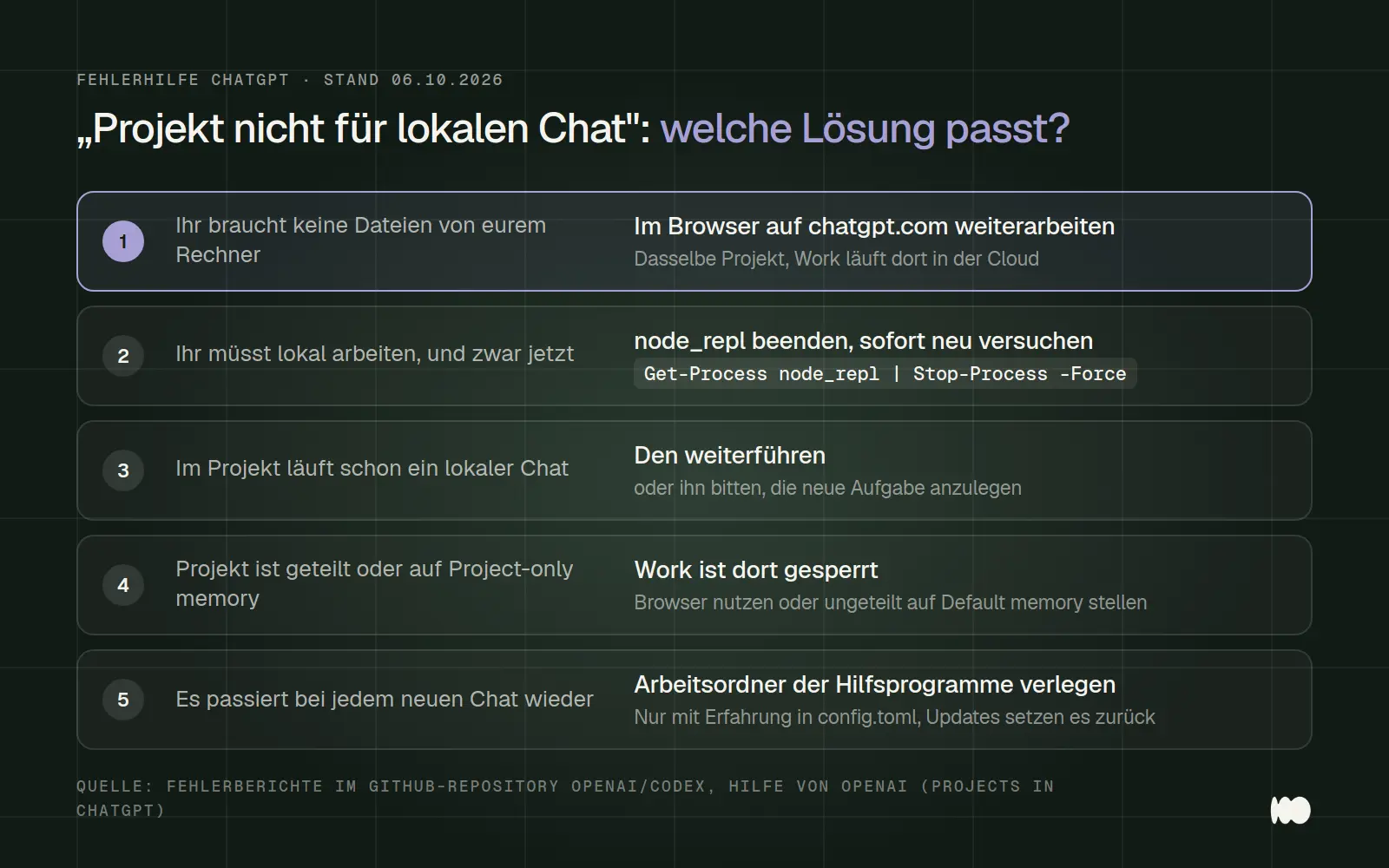
Which solution is right for your situation. The order is based on the amount of effort required: at the top are the tasks that can be completed in a minute.
Where exactly the message appears
The notification appears only in the new desktop app for Windows—not in the browser or in the mobile apps. The new app combines Chat, Work, and Codex. According to OpenAI, your previous ChatGPT projects will appear there under "Projects," and from within a project, you can select "Chat" for a regular chat or "Work" for a work-related chat that draws on the project’s knowledge. Work can also run locally in the desktop app, meaning it has access to files and programs on your computer.
This exact process fails: Open the project, select "Work," and start locally. Instead of the new chat, a message appears that reads, in the original English, "Could not use this project for a local chat." Sometimes this is preceded by a second message stating that the project context could not be synchronized. In a report from October 5, this message also appeared next to the “Continue” button in Work —that is, when attempting to continue an existing project chat in Work.
According to consistent reports, the following still work: the same project in the browser and in the iPhone app, existing local chats within the project, and new local work chats outside of a project. Some users also report that the first local chat in a project still works, but the second one fails. This aligns with the cause we’ll explain in the next section.
Why This Happens
The app creates a copy of each project on your computer and replaces that copy every time you start a new chat. The copy is located at %USERPROFILE%\.codex\.chatgpt-projects\, with a separate subfolder for each project. These folders contain the project's instructions and files so that a local chat can work with them.
When replacing the file, the app renames the entire folder, and Windows won’t allow this as long as a program is running in that folder. Several users have independently confirmed this using tools like Process Monitor. Here’s what happens: A local chat starts, the app launches supporting programs—primarily node_repl.exe—and these programs run in the project folder. If you then start the next chat in the same project, the app attempts to rename the folder, Windows reports an access conflict, and the app displays only the brief message. It doesn’t even log the actual Windows error; the log simply states that the file system synchronization failed.
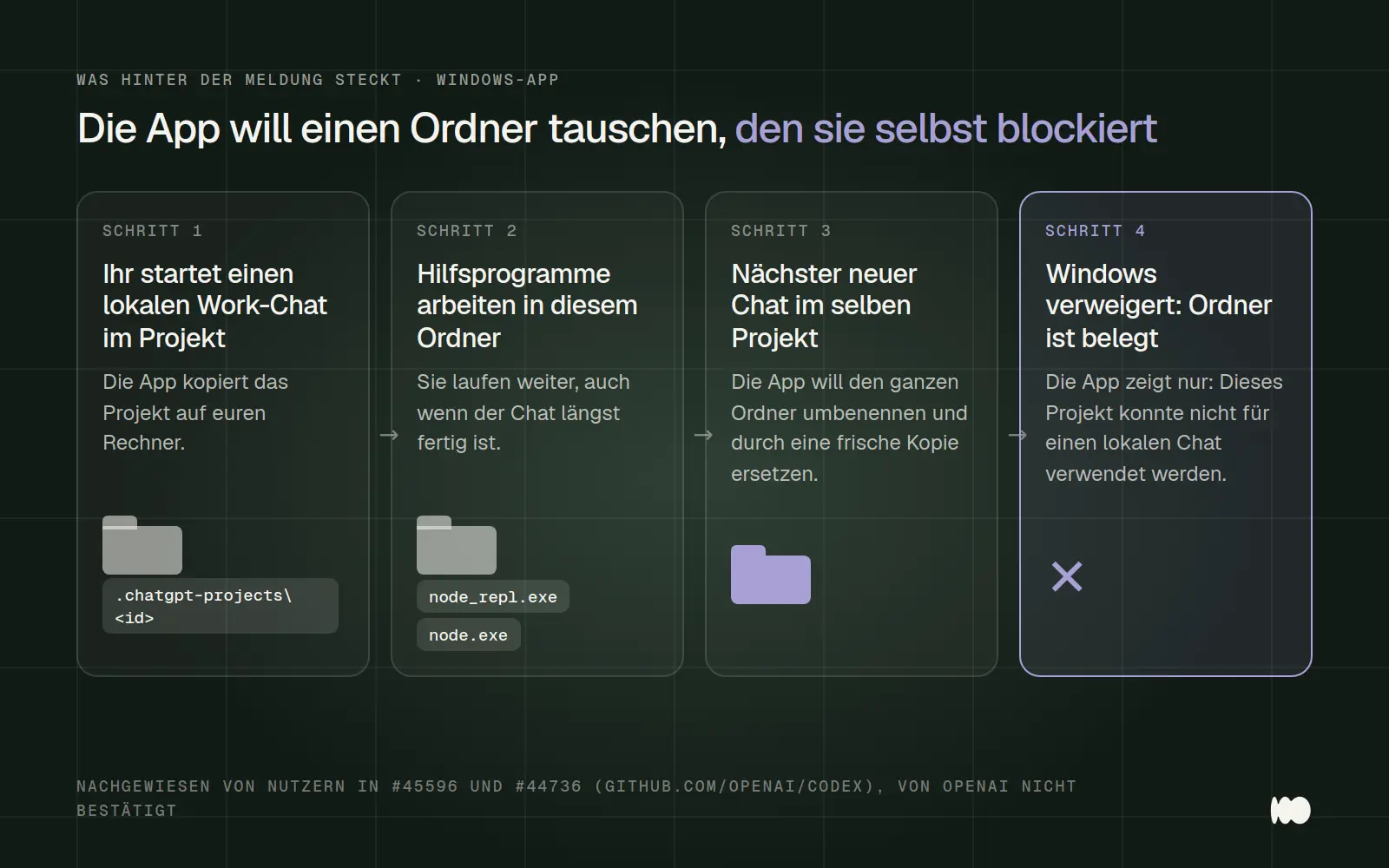
The process behind the message, as documented by users in the public bug reports #45596 and #44736. OpenAI has not officially confirmed it.
That's why reinstalling the app or resetting Windows doesn't help either. The problem lies in the way the app manages its own folders. Every new local chat restarts the support programs, and by the time the next chat starts, the lock is back.
Solution 1: Continue working in the browser or in the cloud
Open the project on chatgpt.com and start the Work chat there. Work runs in the cloud in the browser; you don't need a local copy of the project. In a report dated September 28, a user explicitly states that the same projects work normally in the browser and in the iPhone app, while the Windows app fails with every one of them. According to OpenAI, Cloud Work chats then also appear in the desktop app and can be continued there.
The catch: In the cloud, Work doesn't have access to your local files and programs. If you're currently using Work for that purpose—such as to edit files on your computer—it's not a full-fledged replacement. But it's sufficient for research, drafts, and anything else that's part of the project anyway.
Solution 2: Close the frozen utility programs
Simply terminate the processes named "node_repl" and restart the chat immediately. This is the solution with the most confirmations. One user tested it twice in a row on October 6: received a message, terminated the utilities, the next attempt worked, the following chat failed again, terminated them again, and it worked again. He had 13 of these processes running simultaneously.
The quickest way is to use two lines in PowerShell. Open the Start menu, type "PowerShell," and launch it. The first line shows whether any such processes are running; the second line terminates them:
Get-Process node_repl -ErrorAction SilentlyContinue
Get-Process node_repl -ErrorAction SilentlyContinue | Stop-Process -Force
If you don't have any commands, use Task Manager. Press Ctrl, Shift, and Esc at the same time, switch to the Details tab, sort by node_repl.exe, and end each process. Don't end any other processes just in case, and make sure no task is currently running in Work first; otherwise, it will abort.
Expect to have to repeat this every time a new chat starts in the project. The next local chat will restart the support programs, and the lock will reappear. One user also noted that, even after completely closing the app, these processes were no longer running, yet the error persisted. Solution 2 is therefore a quick fix for day-to-day use, not a permanent solution.
Solution 3: Continue existing chats or start new ones outside the project
Existing local chats in the project will continue to run—feel free to use them. The bug only affects the creation of new local chats. A tip from the OpenAI forum: Ask an existing "Work" task in the project to create the new task for you. This bypasses the process the app uses to replace the folder.
If you don't absolutely need the project context, start the local work chat outside of the project. According to several reports, this works without any issues. However, the project's instructions and files will then be missing. If you need them, copy the most important instructions into the first message and re-upload the files to the chat.
Solution 4: Check the project's save mode
Projects set to "Project-only memory" mode generally do not allow Work. This is the only officially documented reason for the restriction. OpenAI's help section briefly states that ChatGPT Work is not available in this mode. Shared projects always run in this mode and cannot be switched. In September, a user reported that such a project was rejected in the Windows app exactly as we described.
Here's how to check: Open the project, click the three-dot menu, then select "Project settings," and look under "Memory." If it says "Project-only memory" and the project isn't shared, you can reset it to "Default memory." Keep in mind that ChatGPT will then also use memories from outside the project. For shared projects, the only option is the browser.
In corporate workspaces, the admin can also restrict access. The "Work Local" setting determines whether a user is allowed to work locally in the desktop app. If this setting is missing, working locally is not possible at all, regardless of the project.
For Advanced Users: Move the Working Folder for the Utility Programs
The most permanent workaround involves setting the utilities to run in their own folder instead of within the project. To do this, use the `cwd` setting for each utility in the `config.toml ` configuration file located in the `.codex` folder; this is documented in the official configuration reference. In bug report #44736, a user described in detail how they set these settings for node_repl and other utilities, after which everything worked again.
If you've integrated your own MCP servers, check them first. On October 5, a user demonstrated that even manually added servers without a specified cwd in the project folder will start up and also lock it. By adding a cwd line for each server that points to a folder outside of .chatgpt-projects, he was able to create two chats in a row.
Stay away from this if you're not familiar with configuration files. The app rewrites some of these settings on its own when it starts up, and after updates, they disappeared four times for one user. An incorrect entry can also prevent any local tasks from starting at all. Back up the file beforehand and expect to have to fix it after every update.
What Doesn't Help
Don't bother with drastic measures—none of them have been shown to work in any report we're aware of. These include: fixing or reinstalling the app, resetting Windows, signing out and back in, creating a new project, and deleting or renaming the .chatgpt-projects folder. One user tested this with a newly created, empty project and confirmed that the error occurs there as well.
Even the update alone hasn't fixed the issue yet. OpenAI generally recommends updating the app via Menu > Check for Updates if features are missing. That makes sense, but according to reports, the bug has been occurring in all reported builds since July, most recently on October 5 in build 26.930.3930.0.
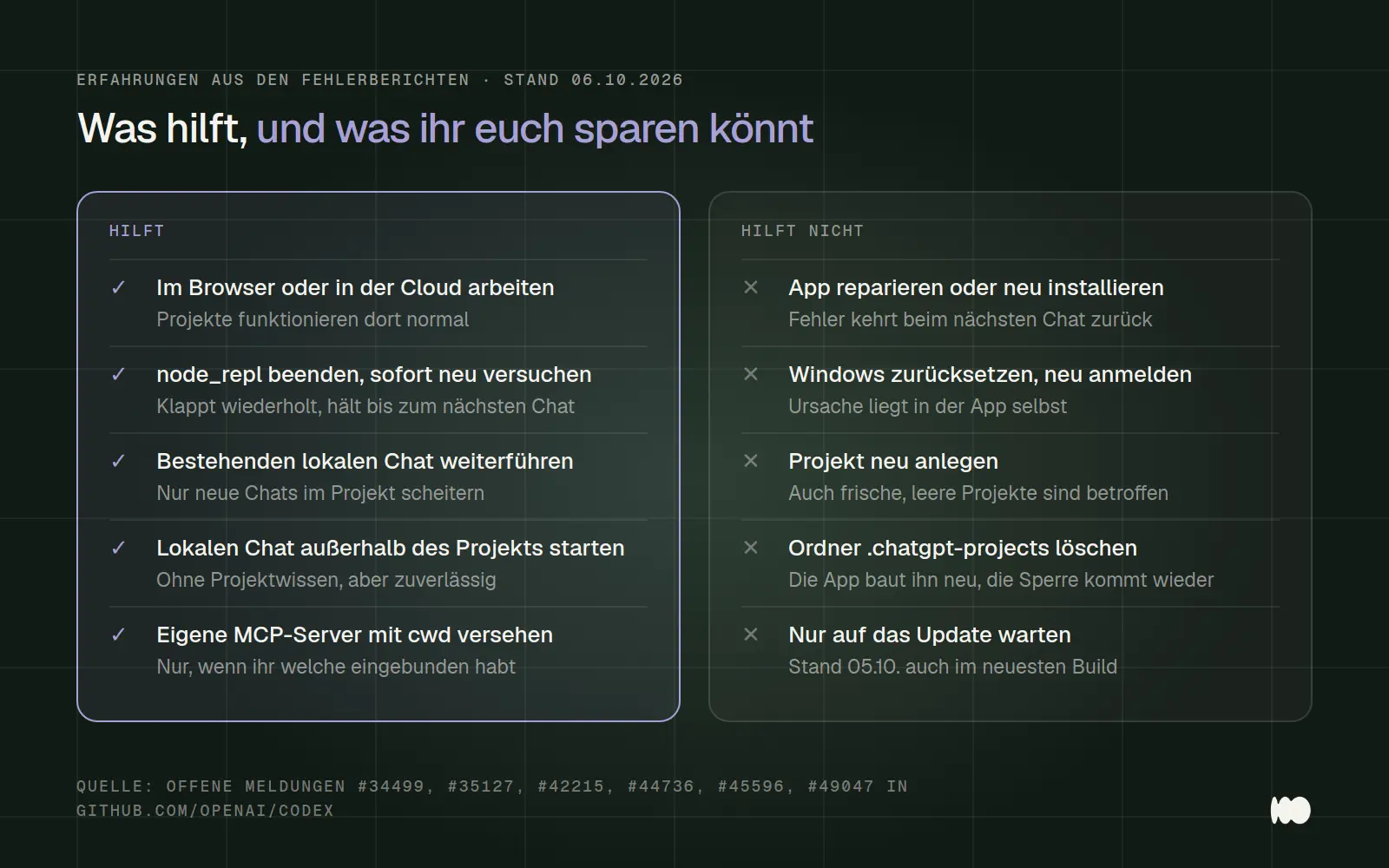
What helps and what doesn't, according to the bug reports. This is based on the open issues #34499, #35127, #42215, #44736, #45596, and #49047 in the GitHub repository openai/codex, as of October 6, 2026.
Does this also apply to the Mac?
Based on what is publicly known, no. All error reports with this message in OpenAI's GitHub repository come from Windows computers; the cause is related to the way Windows locks folders. The Mac app has its own quirks when it comes to projects—such as project files that don't sync—but this isn't one of them.
Has the error been fixed?
No, as of October 6, 2026, it is still open. The oldest report dates from July 21, 2026; there are now more than a dozen reports on this issue, all of which are open. OpenAI has not responded to any of them. At least one of the reports now bears the label “Papercuts 2026,” indicating that it has been classified as a minor but annoying bug. It is not known if or when this will be fixed.
How to tell if the fix has worked: After updating the app, start two local work chats in a row within the same project without closing any processes first. If the second one works, the issue has been resolved for you. We check the status regularly and update this page with any changes.
What Has Changed and What That Means for You
October 6, 2026: The workaround involving stopping `node_repl` has been confirmed multiple times, including repeatedly in succession. For you, this means: Solution 2 is the most reliable option if you need to work locally.
October 5, 2026: The error continues to occur in build 26.930.3930.0, which was the latest version at the time. New information: Custom MCP servers without a specified cwd also lock the project folder. Anyone who has integrated such servers should check them first.
September 28, 2026: A report shows that even ordinary cloud projects that were never linked to a local folder are affected, and shortly thereafter, newly created, empty projects as well. For you, this means: It’s not because of your project content; cleaning up the project won’t help.
July 21, 2026: First error report from the Windows app. For you, this means: If you've been struggling with this since the summer, you're not alone.
Date of this version: October 6, 2026. For more information on working with projects, storage, and Work, see our ChatGPT guide.
AI in Action: Without Getting Stuck on Error Messages
Mistakes like these show just how quickly AI tools are changing right now—and how much time it takes to keep up. We set up AI tools and automation so they run reliably in your day-to-day operations, and we explain to your staff what they can do if something does go wrong. Related: Using ChatGPT the Right Way · Performance: AI and Automation
Let us know what you have in mind by filling out our contact form. We'll respond within 24 hours—personally and without any sales pitch.
More Articles
© Marschfahrt Studio
Practical knowledge on web design, SEO, AI, and conversion optimization. Based on real projects, without any marketing spin.

