Using ChatGPT Seriously: Instructions, Projects, Storage, Permissions, and Agent Modes
Project directives apply only within the project and override global user-defined directives; this explains most unexpected responses. The post goes through the topics one by one: the 5,000 characters of instructions, projects with their rate limits, storage and the library, the four permission levels for apps, scheduled and event-driven tasks, the transition from custom GPTs to plugins by December 11, 2026, and the discontinuation of agent modes.
Date
Category
Author

“I have ChatGPT open all day, and yet I still start from scratch every time. Every answer sounds as if we’ve never met.” This quote comes from the marketing director of a supplier company with sixty employees, who has been using the chat window daily for two years. She isn’t doing anything wrong; she’s just using the only platform that doesn’t retain anything on its own.
ChatGPT has five storage areas where context is retained: user-defined instructions, project instructions, memory, library, and connected apps. If you don’t fill any of these, you’ll have to retype your introduction every day. If you enter conflicting information in two of them, you’ll get answers that no one can explain.
This post walks through the topics in order, from instructions to agentic modes, and explains the limitations of each. This isn’t a beginner’s course—we assume you use ChatGPT on a daily basis. All information is taken from OpenAI’s documentation, accessed September 19, 2026; the companion post explains how to use Claude with projects, skills, and connectors.
In a nutshell (as of September 2026)
Your most important work instruction belongs in the project instructions, not in the global user-defined instructions. Project instructions apply only to the respective project and override the global instructions, as stated in OpenAI’s help article on projects (accessed September 19, 2026). This explains most unexpected responses: Your global rule isn’t being applied within the project, even though it’s saved. If you need a rule to apply everywhere, enter it in both places; and if you’re wondering about a particular tone, check the project instructions first and then the settings.
Chat, project, or scheduled task: where everything belongs
Before you start writing the first sentence, sort each task into one of four folders. The chat contains a question that doesn't come up again. Anything you type more than three times belongs in a project, because that project's instructions and files are included in every chat. There's no limit to the number of projects, but there is a limit to the number of files per project.
Canvas, image generation, voice conversations, and web search continue to be available in Project mode; however, Agent Mode and Deep Research require a paid subscription. Study Mode and scheduled study sessions are expressly not available in Project chats.
The third tab is the scheduled task in the "Scheduled" section: It runs at a specific time or in response to an event, even if no one has the window open. The fourth is the temporary chat, which is designed not to save anything.
Take a look at your last ten chats and mark which ones should have been part of a project. Usually, it’s more than half, and that’s exactly the half you’ll end up typing out again next week.
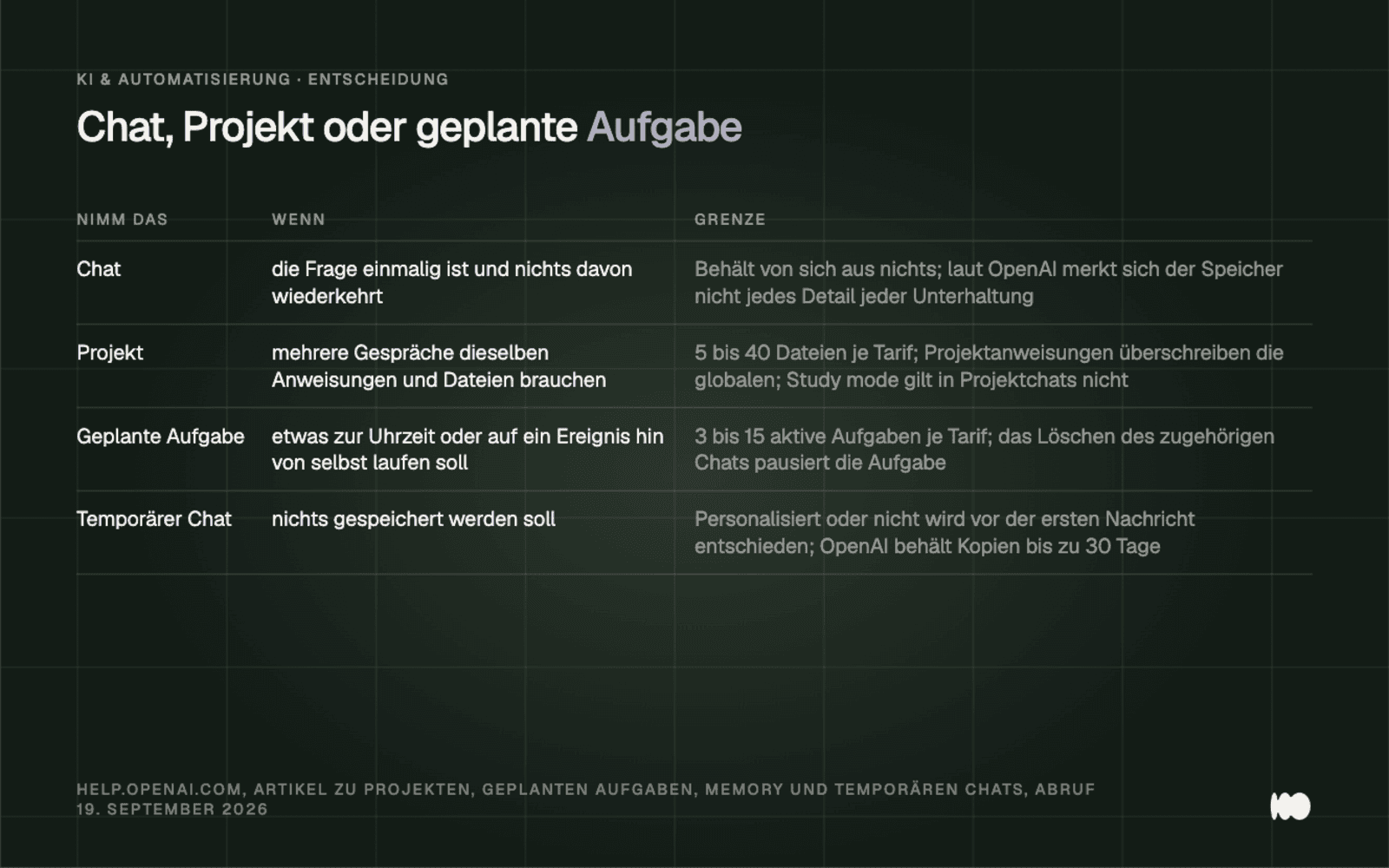
The four tabs, each with its own section, from the help articles on projects, tasks, and temporary chats (accessed September 19, 2026).
Filling in the Custom Instructions Correctly
Enter a set of instructions for a new temporary employee there—not just a list of keywords. On the web and desktop, the field is located under Settings > Personalization > Custom Instructions; on iOS and Android, it’s under Settings > Customize ChatGPT, and the toggle is labeled “Enable customization.” As of July 15, 2026, the character limit is 5,000 for Plus, Pro, Business, Enterprise, and Edu plans, and 1,500 for Free and Go plans. The help article specifies only one field and no separate sections: role, tone, format, and restrictions are all included in a single block.
Many people overlook the two sections next to it. Under Settings > Personalization, you can select a personality—such as Friendly or Pragmatic—and under Profile Picture > Personalization > Characteristics, there are four sliders ranging from more to less: Warm, Enthusiastic, Headers & Lists, and Emojis. According to OpenAI, these “work alongside your selected personality, custom instructions, and any saved memories,” so they complement your instructions rather than replacing them. If you’re annoyed by subheadings appearing in every other response, turn down “Headers & Lists” instead of prohibiting them in the text.
Our mistake in this regard cost us half a morning. Our global policy is “use informal language, no advertising clichés, no made-up numbers”—yet a client project still resulted in drafts filled with formal language and superlatives. The project instructions for that project included their own tone guidelines, which took precedence over the global rule. Since then, every project instruction we issue begins with the same three sentences.
For personal accounts, user-defined instructions are also included in model improvement, as long as you haven't opted out: That's where your workflow belongs—not client names. Take twenty minutes today and replace your cheat sheet with four sections: Role, Tone, Format, and Prohibitions.
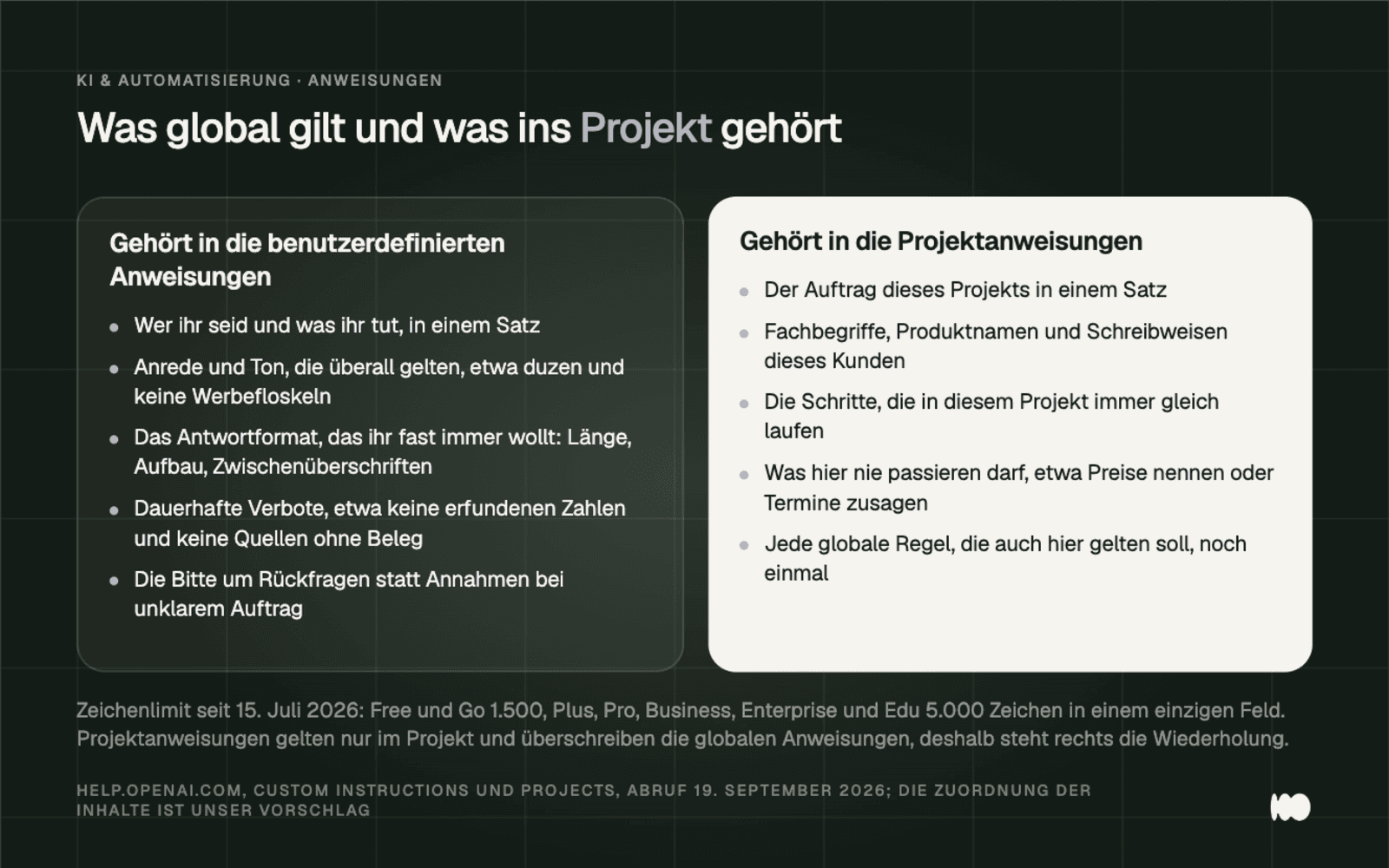
Which rule applies globally and which applies to the project, based on the character limit effective July 15, 2026 (help.openai.com).
Projects: Borders, Memory, and the Pitfalls of Sharing
Create one project per client or per recurring order, not one per topic. You can create a project in the sidebar by clicking "New project"; the instructions are then available under ••• > Project settings. The limits depend on the plan and range from 5 files and 5 collaborators per project in the Free plan to 40 and 100 in the Pro, Business, Enterprise, and Edu plans.
Project memory has two states. Default memory draws on your saved memories and chats from the same project, while Project-only memory isolates the project. Since August 14, 2026, undivided projects can be switched without restarting. Shared projects, on the other hand, must run in Project-only mode, cannot be reset, and ChatGPT Work does not function within them.
There are two levels of access when sharing: "Edit" users can modify instructions, upload, download, and invite others, but cannot remove anyone; "Chat" users can view and participate in the chat. If someone deletes a file in a shared project, it is deleted for everyone.
Our second setback lies in the fine print of the Google Drive integration: We linked a Drive folder to a project and expected new files to be added automatically. However, the Drive app doesn’t sync when added within a project, so the project ran for weeks with outdated data. You can only access the latest files through the Library or by uploading them manually.
Today, create a project for the client you write to most often, and enter the three sentences you usually include at the beginning of your emails.
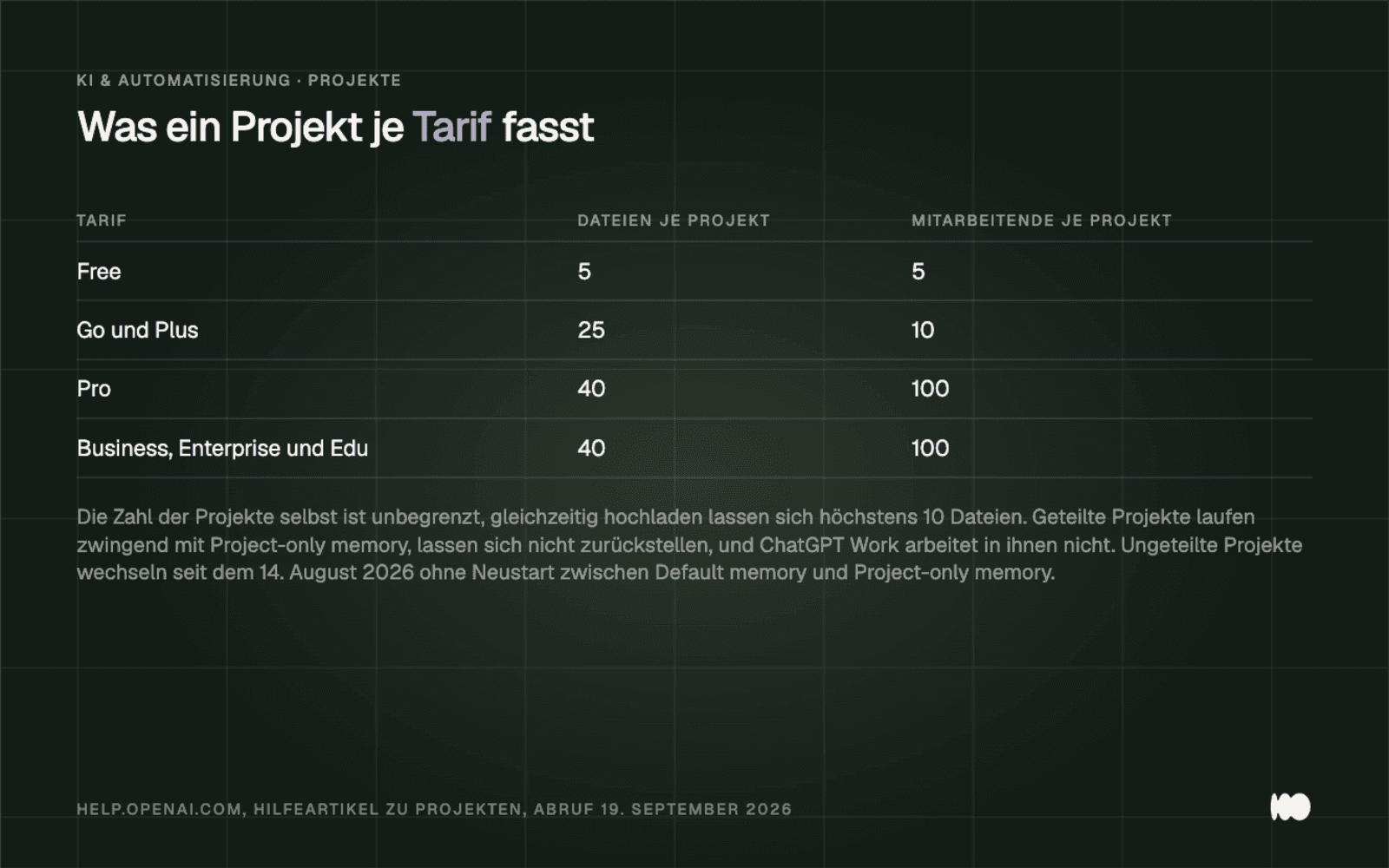
What a project includes per plan, including the rule that shared projects must run in "project-only" mode (help.openai.com).
Memory: What It Knows and How to Correct It
The memory consists of two mechanisms, and only one of them can be cleared entry by entry. Under Settings > Personalization > Memory, you'll find "Saved memories," which exist independently of chats and must be deleted separately, and "Reference chat history," which is context derived from past conversations. If you turn off chat history, OpenAI schedules the information stored from it for deletion within 30 days.
OpenAI states matter-of-factly: “Memory does not retain every detail from every conversation.” That’s exactly why it’s worth taking a look at the Memory summary: There, you can correct individual passages of text, block a topic with “Don’t mention this again,” or end everything with “Delete and turn off memory.” Turning it off does not delete existing chats.
Since May 5, 2026, “Memory Sources” has been available—the most useful feature in this section. ChatGPT shows which chats, reminders, and files influenced a response, and each entry can be edited or marked as outdated. We had an outdated price level from an old calculation stuck in memory that kept reappearing in draft quotes; it only became visible through the source list. The next time you get a strange response, check the sources first—and only then your prompt.
Anything you don't want to keep should go in the temporary chat: Select "Temporary" and choose between personalized and non-personalized before sending your first message; after that, the choice is final. “Unpersonalized” means no memories, no user-defined instructions, and no plugins. According to OpenAI, “Temporary chats do not create or update memories, even with personalization enabled.” OpenAI retains copies for up to 30 days. Make it a habit to use the temporary chat for job applications, resignations, and anything else that relates to an employee’s personnel file.
Library: Save files once instead of uploading them every time
Save your recurring documents to the Library first, then insert them instead of uploading them anew to every chat. As of August 7, 2026, you can do this via the Composer menu using “Add from library.” The limits are generous: 512 MB per file, 2 million tokens for text and document files, and 20 MB for images. Total storage ranges from 500 MB in the Free plan to 100 GB in the Pro plan.
Instead of uploading files, you can link to sources: Google Drive, Box, Dropbox, and SharePoint—the last three have been available since September 10, 2026. Linked files remain on the original service and follow that service’s permissions. There is one exception you should be aware of: From Google Drive, only “My Drive” and directly shared items are supported; “Shared Drives” are excluded.
The Settings > Personalization > Advanced > Library search toggle allows ChatGPT to search for relevant library files on its own when responding; the library search field lets you manually filter by source and file type. The sidebar search using Ctrl+K or Cmd+K finds chats, including archives, project names, file names, and associated Drive content; however, according to OpenAI: “Sidebar search finds your existing content. It does not search the web.”
As of September 9, 2026, individual library files and entire folders can be shared with viewer or editor permissions; a shared project is no longer required for this. Turn on Library Search today and save the five documents you attach most frequently.
Apps and Connections: The Four Levels of Permissions
First, set each app connection to "Allow read actions" and only increase the level if the prompts are really holding you back. The four levels are, in order: "Always ask," " Allow read actions," "Allow low-risk actions," and "Allow all actions." The highest level performs supported actions without further authorization and is referred to by OpenAI itself as "elevated risk." You can set the default under Settings > Plugins > Permissions, or for each account under Settings > Apps/Plugins > [App] > Connected accounts > Settings.
OpenAI has made one decision for you: "Allow all actions " is intentionally not available as an account- or workspace-wide default setting, but only on a per-app or per-connection basis. On top of that, there’s a statement that puts an end to any debate within the team: “App permissions do not grant an app new access.” This means a connection can only do what your account is already allowed to do in the source system.
According to OpenAI, there are “prompt-injection and unauthorized-access risks,” and testing, monitoring, and access controls “do not eliminate third-party or prompt-injection risks.” For apps you build yourself, it is explicitly stated that “Custom apps are not verified by OpenAI.” Therefore, treat third-party apps as third-party code and not as a setting.
In Enterprise and Edu, new plugins are turned off by default; in Business, apps are turned on by default. Disconnecting an app under Settings > Apps/Plugins > [App] > ••• > Disconnect does not delete chats, files, memory summaries, or saved reminders. Go through your connected apps today and lower the access level for any app that has write access to the level you actually need.
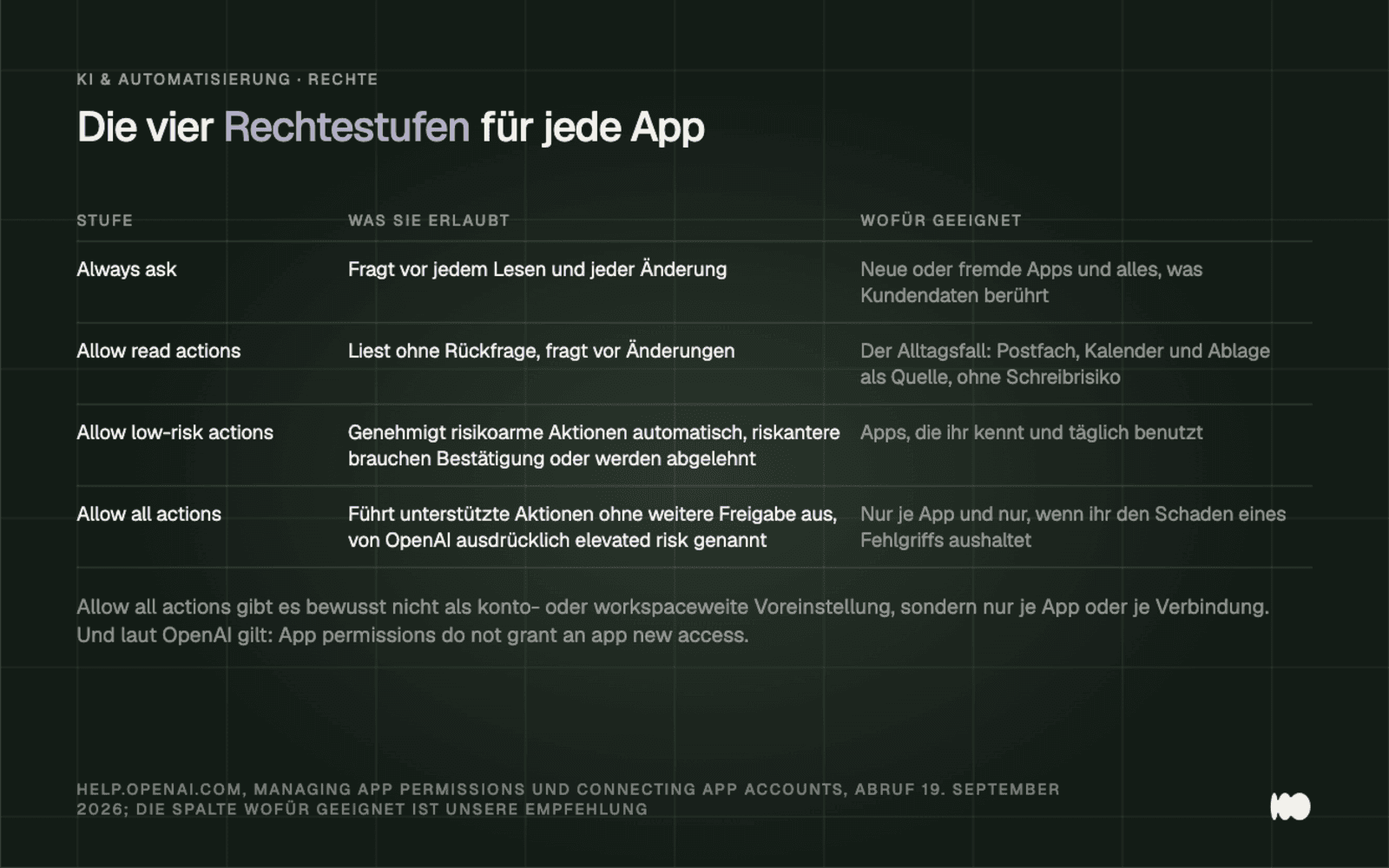
The four permission levels as stated in the documentation, along with the recommended use cases (help.openai.com).
Automatic: What Runs Based on the Time and What Waits for an Event
Set up a recurring task in the chat, specify the schedule and notifications, and then leave the chat alone. Since June 10, 2026, tasks have been collected on a separate page in the "Scheduled" section, which you can access from within a chat via ••• > See scheduled tasks. The number of tasks that can run simultaneously depends on your plan and ranges from 3 in Free and Go to 15 in Pro and Enterprise.
In addition to fixed times, there are time slots such as morning, noon, and evening, and monitoring tasks only trigger when changes occur. If you need more precision, you can specify a pattern as an RRULE according to RFC 5545, such as RRULE:FREQ=MONTHLY;BYMONTHDAY=1;BYHOUR=9;BYMINUTE=0 for the first day of the month at 9:00 a.m.
As of June 17, 2026, tasks can also be scheduled based on an event rather than a specific time. Triggers include new Gmail messages (which can be filtered by sender and subject), Slack channel messages that mention @ChatGPT, and pull request activity in authorized GitHub repositories. This feature is available in Plus, Pro, Business, Enterprise, and Edu plans, but not in Free or Go.
That mistake cost us a week’s worth of reports. We had cleaned up the chat where a weekly analysis had been generated, and the task stopped reporting. OpenAI clearly states: “Deleting a chat associated with a scheduled task pauses the task.” Since then, we’ve been archiving such chats instead of deleting them.
You can share a task using the task menu: The link includes the title, instructions, and schedule, but not the chat history or login credentials. Start by setting up the task that you do manually every Monday anyway.
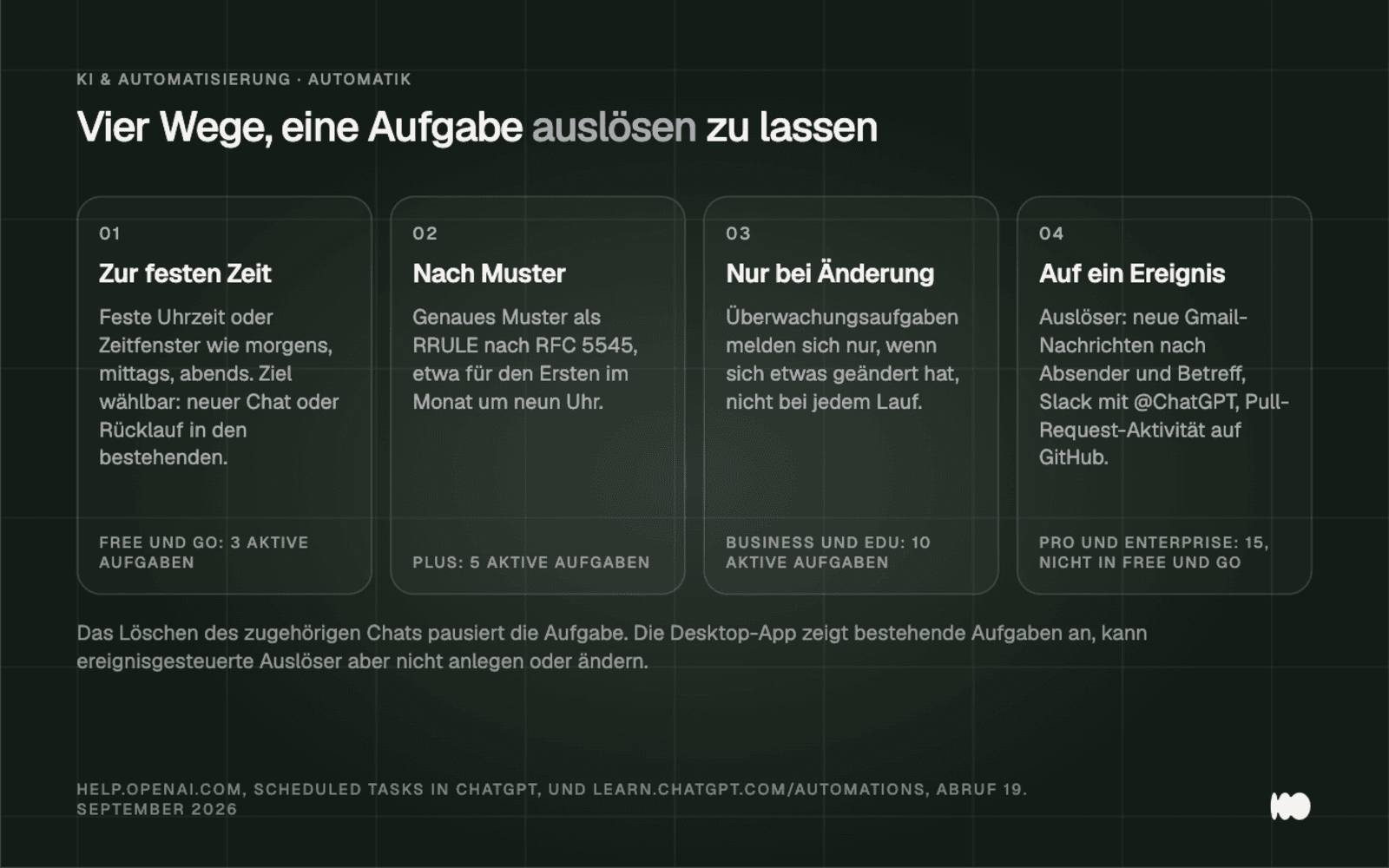
Four ways to trigger a task, one for each card with the rate limit from the help article on scheduled tasks.
From Your Own GPT to a Plugin: The Roadmap
A decision must be made regarding each custom GPT by December 11, 2026; after that, it will be gone. OpenAI announced the timeline on September 11, 2026: Starting October 26, no new custom GPTs will be created, and on December 11, the existing ones will be shut down. They will be replaced by plugins, which, according to OpenAI, bring together “reusable instructions, reference files, and connected apps.”
The process involves using " My GPTs " and the "Migrate to Plugin" feature; after that, review the details and test the results. The instructions are imported as a plugin skill, the knowledge files as reference files, and the connected apps as plugin apps. Model selection, custom actions, existing conversations, and sharing settings are not imported, and the new plugin launches in private mode. The original will remain usable until it is deactivated, but it will be read-only.
If you only need a recurring workflow, use a skill instead of a full plugin. According to OpenAI, skills are “reusable, shareable workflows” and can be found under Plugins > Plugin Directory > Skills tab. Uploaded skills are automatically scanned, and those marked as “Needs Review” require approval. They are available in the Business, Enterprise, Healthcare, and Edu plans.
A reassuring note to wrap things up: “Installing a plugin does not bypass an app’s authorization requirements or workspace permissions”—in other words, a plugin cannot grant itself permissions that the underlying app does not have. Make a list of your GPTs this week and decide for each entry whether to migrate it, rebuild it as a skill, or remove it.
Agent and ChatGPT Work: What They Can Do and Where They Draw the Line
The agent pauses at three points, and these pauses are the reason you can run it at all. It works through the task in a virtual browser and “will pause for clarification or confirmation when needed.” When logging in, it switches to takeover mode, where you type yourself, and according to OpenAI, no screenshots are taken. On certain pages, watch mode requires you to observe, and it asks for confirmation before taking actions with significant consequences.
Quotas are limited and therefore the key planning factor: Plus 40 agent messages per month, Pro 400, Business, and Enterprise 40. Agents may use connected apps as data sources, but they cannot access synchronized app data such as the Google Drive index, although Drive continues to function in Chat and Deep Research.
Since July 9, 2026, ChatGPT Work has been the mode for “longer, multi-step work and finished deliverables,” and the desktop version is allowed to “use local files and desktop apps with your permission,” while the web and mobile versions are not. The most important sentence for anyone with data protection obligations is found in the same article: “Messages and task context may be stored in the cloud, even when work runs locally.”
The cloud browser within the app reads web pages, clicks links, fills out forms, and continues to run in the background even when the app is closed. It prompts the user before taking steps that are difficult to reverse—specifically, booking confirmation and payment—and login credentials are submitted via a secure form that the model cannot see.
Start the first agent run on a task whose result you can check immediately—such as a research task with a list of sources—rather than on a booking.
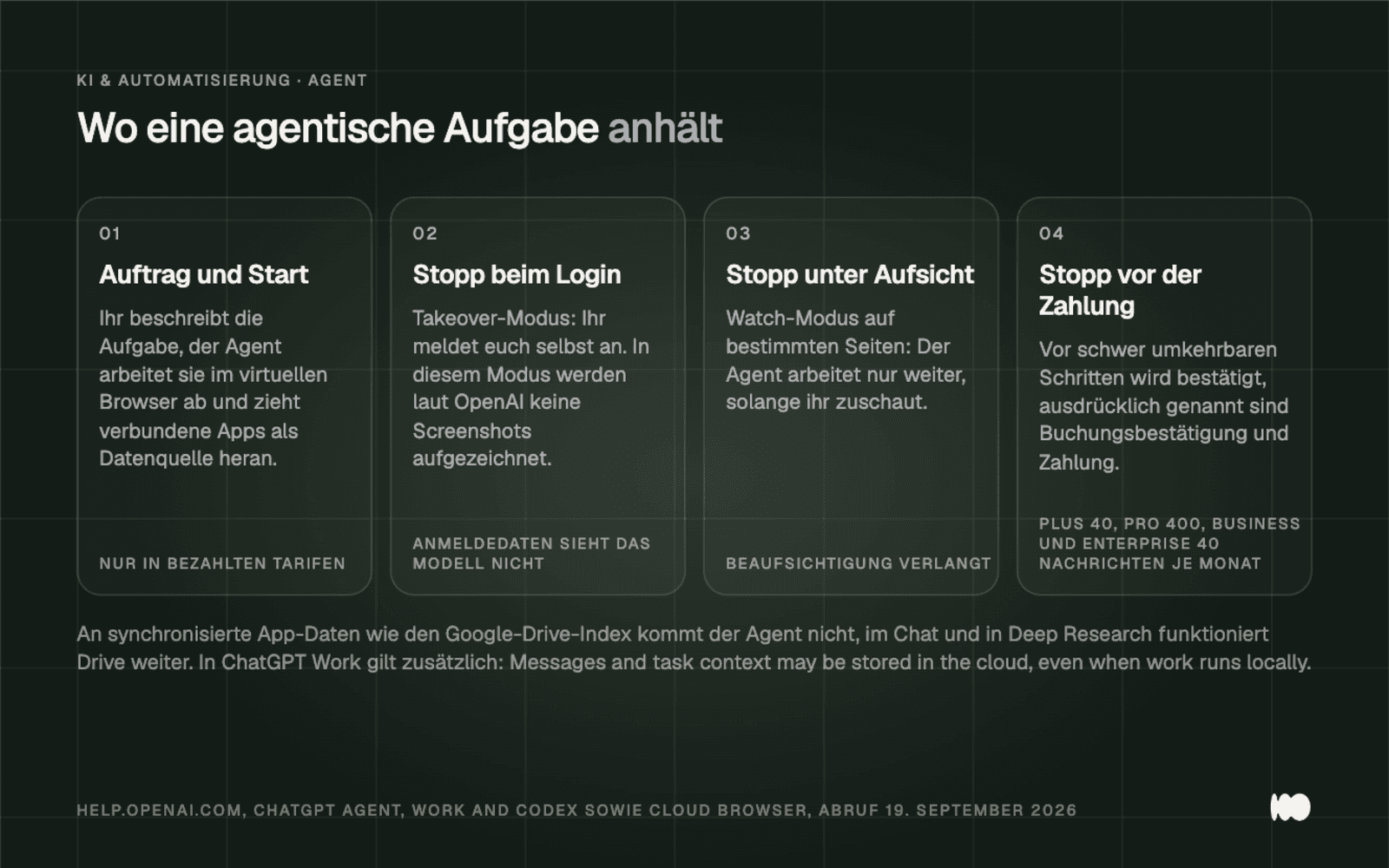
The workflow for an agent-based task with the three approval points and monthly quotas (help.openai.com).
Codex in the Terminal, in a Nutshell
Codex is the same agent with direct access to your files and commands, so the enable/disable toggles are the actual security boundary. OpenAI describes the tool as a way to “inspect code, make changes, run commands, and automate repeatable work without leaving your terminal.” To install it on macOS and Linux, use `curl -fsSL https://chatgpt.com/codex/install.sh | sh`; once installed, it operates using four commands: `/permissions`, `/init` for an ` AGENTS.md` file, `/model `, and `/memories`.
OpenAI's own recommendation is `sandbox_mode = "workspace-write" ` combined with ` approval_policy = "on-request"`, as in the command ` codex --sandbox workspace-write --ask-for-approval on-request`. A stricter option is `--sandbox read-only`, while `--sandbox danger-full-access `—also known as `--yolo` —disables the sandbox and approval prompts and has no place on a machine containing customer data. The previous value `untrusted ` for ` approval_policy ` has been deprecated and must be removed from old configurations.
The configuration is located in ~/.codex/config.toml, in the project directory at .codex/config.toml, or system-wide at /etc/codex/config.toml. Codex stores memories locally in ~/.codex/memories/, and OpenAI advises, “Don’t store secrets in memories,” as well as recommending that you write binding rules in AGENTS.md. If you’ve never worked with the command line before, be sure to read our guide to the command line for non-developers first.
Limits, Credits, and What Happens When You Reach the Limit
When a limit is reached, the feature remains visible but is simply disabled. OpenAI’s advice on this is straightforward: “If it says you’ve reached a limit or shows a reset time, wait until that time and try again, or choose another available option.” Since September 14, 2026, ChatGPT also no longer automatically switches from “Instant” to “Thinking” mode; users who want a thorough answer must select the model themselves.
In the personal plans, some features continue to run using credits once the included quota has been used up; according to OpenAI, “usage draws from your credit balance.” This applies to Codex, ChatGPT Work, and the add-ins for Word, Excel, Google Sheets, and PowerPoint; you can view your current balance under Settings > Usage. Important for accounting purposes: Credits expire 12 months after purchase, so be sure to buy more as needed rather than stocking up.
For every 1 million input tokens, GPT-5.6 Luna costs 5 credits, GPT-5.6 Sol costs 100, and GPT-6 Astra costs 250; an Excel message typically costs 5 to 20 credits, and a PowerPoint message costs 10 to 50.
The strictest threshold isn't a number. OpenAI explains in "Why language models hallucinate" that "standard training and evaluation procedures reward guessing over acknowledging uncertainty." In the SimpleQA test, the model with the lower accuracy rate—22 percent instead of 24 percent—had a significantly lower error rate—26 percent instead of 75 percent—because it didn’t respond at all in 52 percent of cases. An assistant that rarely says “I don’t know” isn’t actually good; rather, it’s been trained to be overconfident: it checks numbers, names, and quotes on its own.
Privacy: Personal Account vs. Business Account
In a personal account, you must opt out of the training; in a business account, it is turned off by default. The toggle in a personal account is located under Settings > Data Controls > Improve the model for everyone and also applies to Codex tasks. For business accounts, OpenAI states: “We do not train our models on your data by default.”
When it comes to data retention, things differ. In the Personal plan, content remains until it is deleted; deleted content disappears within 30 days. In the Enterprise, Edu, and Healthcare plans, the policy is “You control how long your data is retained”; in the Business plan, the admin determines this. This creates tension within the team: Business admins can “view, access, export, and delete” user conversations but, according to OpenAI, do not automatically have access to ordinary private chats. If this isn’t clarified upfront, the debate will unfold under less favorable circumstances later on.
Technically, the data is encrypted using AES-256, and we also have SOC 2 Type 2 certification and a data processing agreement in place for the GDPR. Caution is advised whenever people share information: Anyone with a link from a personal account can open it, and these links are snapshots. Workspace links remain within the workspace but automatically include any subsequent messages. You can revoke both under Settings > Data controls > Manage; copies that have already been saved will remain.
Before a sensitive meeting, Lockdown Mode—which has been available to everyone since June 4, 2026—can help by turning off browsing, deep research, and agent mode with the flick of a switch. In addition, there are the labeling requirements under the EU regulation—we’ve explained these simply in a separate article. Before entering your first customer record, clarify two questions: Which account are you working in, and who is authorized to view it?
Eight Tips for Advanced Users That Really Save Time in Everyday Life
These eight steps are all listed in OpenAI’s documentation but aren’t covered in any introductory guide. We’ve included only what’s documented in a help article or on the developer pages, saves you from having to repeat the process in your daily routine, and isn’t something everyone already knows. Each tip either saves you from having to do something you’d otherwise repeat every week or prevents a loss you wouldn’t notice until weeks later. Date accessed, as with the rest of this post: September 19, 2026.
Start sensitive conversations in a temporary chat and decide at the end whether to keep any of it. Since August 27, 2026, you can save a temporary chat to your chat history after the fact, so you no longer have to make that decision in advance or on a whim. One limitation remains: Files from temporary chats don’t end up in the Library; if you want to keep something, download it before closing the chat.
Large, long-term documents belong in the Library because their storage doesn't count toward your daily quota. According to OpenAI, Library storage is separate from the daily chat and attachment limits. There is one limit you should be aware of, though: CSV files and spreadsheets take up about 50 MB, which is significantly less than other individual files. By the way, that’s also where the documents, spreadsheets, and presentations generated by ChatGPT are stored—not just your uploads.
It pulls content from Gmail and Drive via the connection instead of copying it into the chat. OpenAI states: “We do not train our generalized models on data directly from connected Google apps,” even when “Improve the model for everyone” is turned on. Content copied in manually and conversations submitted as feedback are explicitly excluded. So the same paragraph appears differently when accessed via the connection than when pasted using Ctrl+V.
Send the finished draft directly from the chat instead of copying it to your inbox. Starting June 8, 2026, this feature is available in Gmail and Outlook (Platinum and above). This eliminates the need to switch to your inbox for rejections, appointment confirmations, and follow-up emails. This is one of those rare cases where a writing-enabled legal plan is worth it—though only for this one connection.
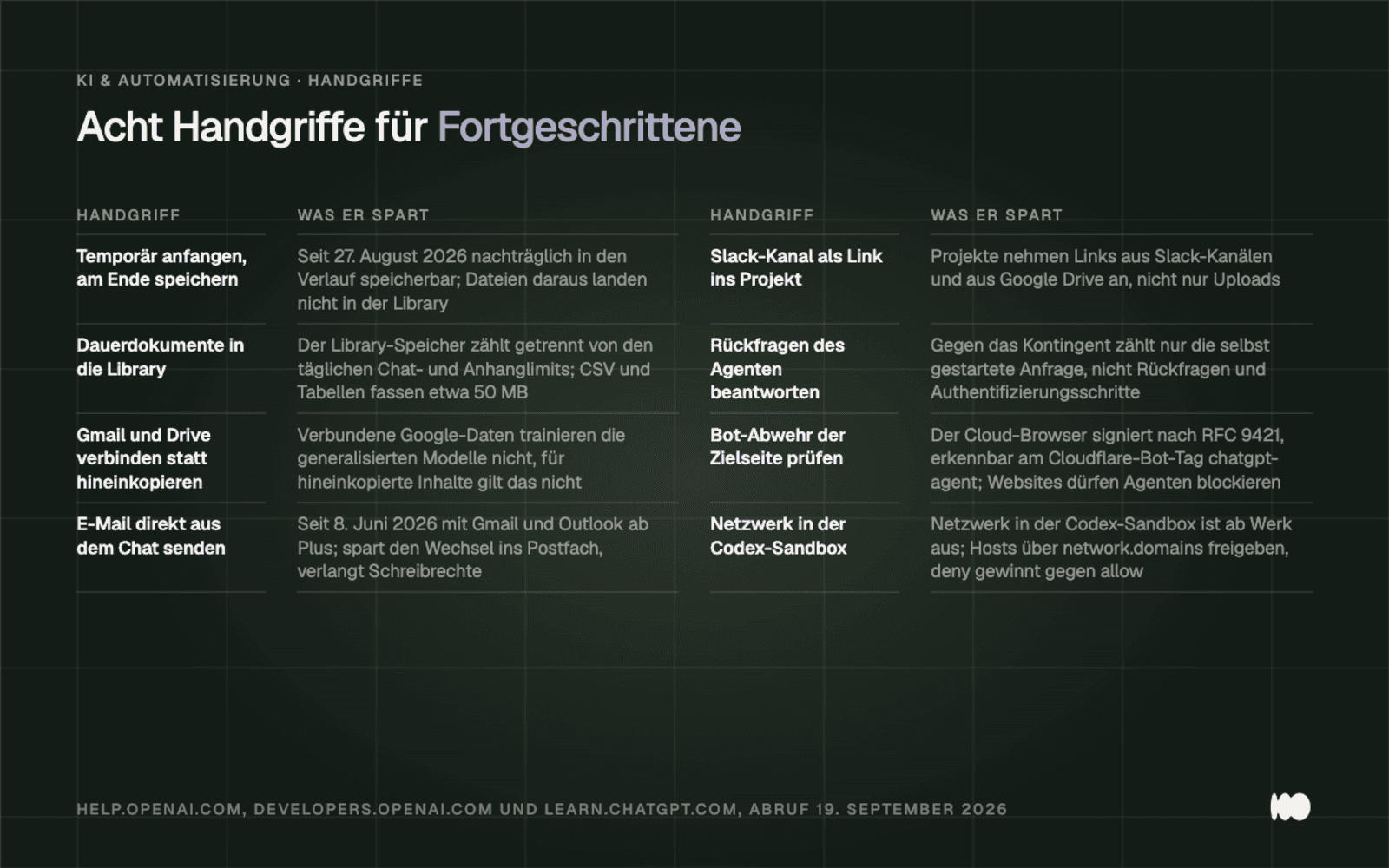
Eight quick tips from help articles, release notes, and developer documentation, with each line listing what they save (help.openai.com, developers.openai.com, and learn.chatgpt.com, accessed September 19, 2026).
Add a Slack channel as a link to the project instead of copying and pasting chat histories. In addition to uploads, projects can also accept links—to files and folders from Google Drive, and to entire channels from Slack. For anything that’s being discussed in the channel anyway, this saves you the hassle of using a shared document that no one ever updates.
Answer the agent’s follow-up questions instead of canceling a run and starting it over. According to OpenAI, only the request you initiated counts toward your monthly quota; follow-up questions and authentication steps do not count. So, restarting a run uses up one of your 40 agent messages in the Plus plan, while three clarifications in the middle of a run cost nothing. If you need the same run regularly, set it to repeat daily, weekly, or monthly instead of submitting a new request each time.
If the agent gets stuck on a page, it first checks the site’s bot defense and only then reviews your request. Websites are allowed to block agents, and OpenAI signs the Cloud Browser’s requests in accordance with RFC 9421 (Web Bot Auth), identifiable, for example, by the Cloudflare bot tag “chatgpt-agent,” which you can whitelist for your own sites. In our case, a run got stuck twice on a client’s staging site; we rewrote the prompt and used up two messages from our monthly quota until the blocked bot appeared in the site’s log.
In Codex ist das Netzwerk in der Sandbox ab Werk aus, und genau dort sucht kaum jemand den Fehler. permissions.<name>.network.enabled steht standardmäßig auf false, einzelne Hosts gebt ihr unter [permissions.<name>.network.domains] frei, wobei deny gegen allow gewinnt; auch allow_local_binding ist standardmäßig aus. Zwei Beruhigungen dazu: <writable_root>/.git, /.agents und /.codex bleiben auch in schreibbaren Sandboxes schreibgeschützt, und sandbox_mode komponiert nicht mit den Permission-Profilen, mischt beide Modelle also nicht in einer Konfiguration.
Pick the one from these eight that applies most often to your routine, and switch it over today; the other seven are listed in the table and aren't going anywhere.
Conclusion: today, this week, later
Today, twenty minutes is all it takes to complete two quick tasks. Open the project you’re working on the most and enter the three rules you usually set up first, even if they’re already configured globally. Then go through the connected apps and set any that don’t necessarily need write access to “Allow read actions.”
This week, it's time to organize your files: Move them to the Library, enable Library Search, and set up that one scheduled task you do manually every Monday anyway. If you have your own GPTs, you'll also need to decide for each one whether to migrate it or delete it.
Next, the rest follows in this order: clean up memory via " Memory sources," set up event-driven tasks, start the first agent run on a testable task, and finally configure Codex with "workspace-write " and "on-request." If you don't want to handle this yourself, we'll take a process, write the instructions, create the project and library, and set the permissions—all in half a day.
What Has Changed and What That Means for You
Six changes made in recent months affect how you work, not just the list of features. The data is taken from OpenAI's release notes and help articles, as of September 19, 2026.
September 11, 2026: OpenAI has announced that it will be shutting down Custom GPTs. As a result, a decision must be made regarding each custom GPT by December 11, 2026.
July 15, 2026: The limit for custom instructions was increased from 1,500 to 5,000 characters. Result: A complete set of work instructions now fits within the limit, not just a few keywords.
July 9, 2026: The App Directory became the Plugin Directory; ChatGPT Work was added; and Skills became generally available. Result: You build reusable workflows as plugins or skills.
June 18, 2026: App permissions have become more granular. As a result, it has since been possible to grant read access and deny write access, rather than granting all or none.
June 17, 2026: Tasks can be triggered from Gmail, Slack, and GitHub. Result: Automation becomes reactive rather than just scheduled.
May 5, 2026: Memory sources show which chats, reminders, and files influenced a response. Result: You no longer have to guess what a false assumption might be—you can correct it right at the source.
We keep this post up to date. Date of this version: September 21, 2026. We will update this post to reflect any changes that occur since then.
Which of these steps should you try first?
Write us a few sentences describing the process you repeat every week and the programs you use. We’ll let you know whether this should go in the project instructions, the library, a scheduled task, or behind a link, and what permission level is required. Please use the contact form. We’ll respond within 24 hours—personally and without any sales pitch.
More Articles
© Marschfahrt Studio
Practical knowledge on web design, SEO, AI, and conversion optimization. Based on real projects, without any marketing spin.