How to Use Google Search Console Effectively: Filters, Indexing, and the Numbers That Can Be Misleading
The average position is an average of all top rankings, and when there are two status reasons listed in the indexing report, Google explicitly advises against taking any action. This guide outlines the steps that actually make a difference, using Google’s own wording.
Date
Category
Author

"I log into Search Console every few weeks, look at the graph, and then do nothing. What am I actually supposed to do there?" The question came from the CEO of an electrical contractor who has had the tool set up for years. He’s not doing anything wrong. He’s just looking at the one view that provides the least insight.
Search Console isn't a visitor counter; rather, it's the only place where Google shows you which search queries lead people to your site and which pages aren't even in the index. Neither of these is visible on the tool's home page—you have to click twice to find them.
This post walks you through the features that are truly worth using, in the order you’ll need them in your business. This isn’t a beginner’s guide: We assume you already have an account. All information is taken from Google’s own documentation, accessed on September 28, 2026.
In a nutshell (as of September 2026)
First, check whether your property covers the entire website. A URL prefix property covers exactly one protocol and exactly one subdomain, whereas a domain property covers “all subdomains (m, www, etc.) as well as multiple protocols (http, https, ftp).” Anyone who created their property before switching to HTTPS has been tracking only a subset of the site ever since and may not even realize it. The change takes ten minutes and is a prerequisite for everything else in this post to work correctly.
Domain property or URL prefix: the error that makes half the website invisible
Create a domain property, not a URL prefix property. The difference may seem minor, but it determines exactly what you see. Google describes the domain property as “a domain-level property that includes all subdomains (m, www, etc.) as well as multiple protocols (http, https, ftp).” A URL prefix property, on the other hand, covers exactly one protocol and exactly one subdomain.
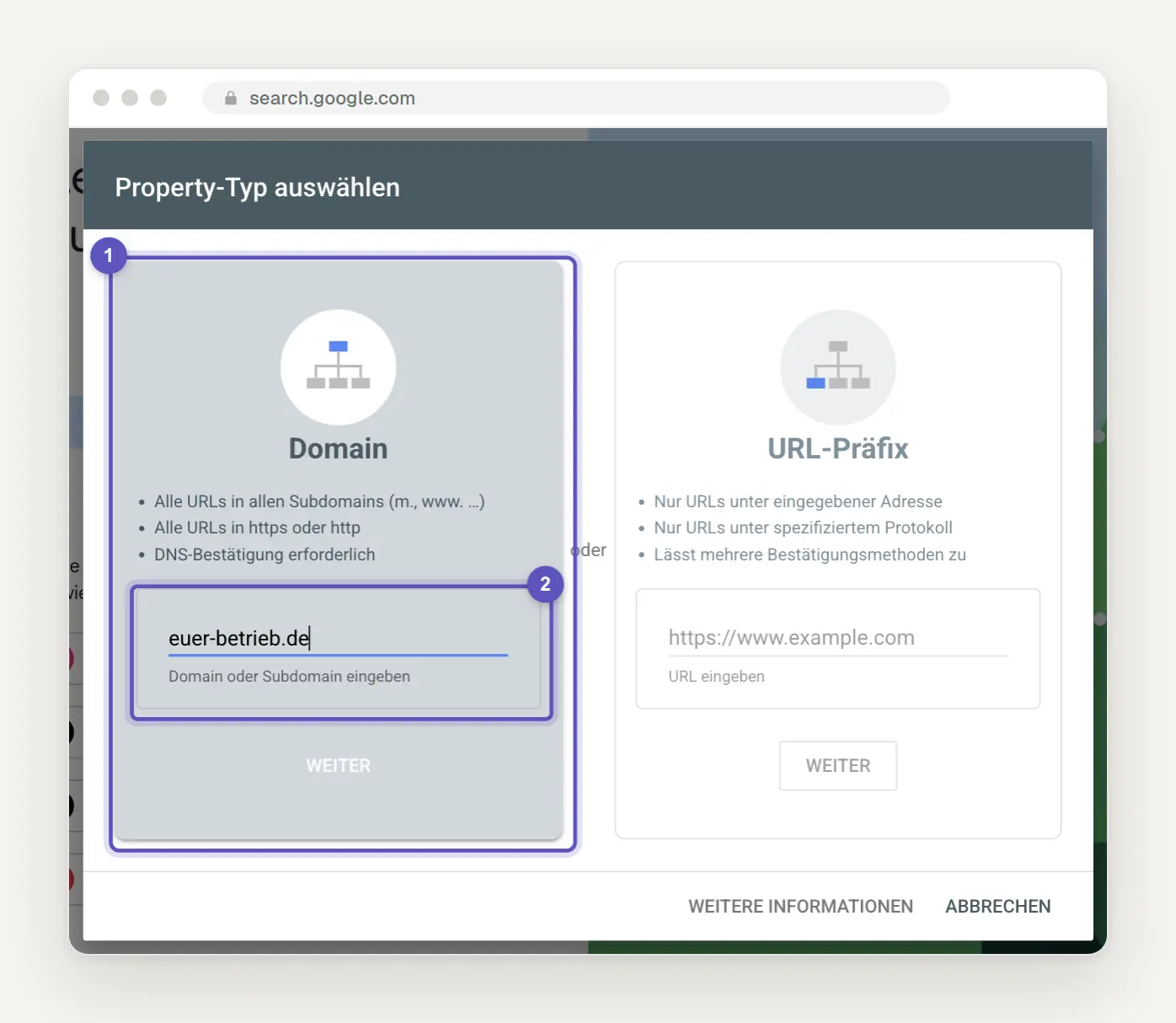
To get started via " Add Website: Links," select the domain property (1), and enter only the domain name in the field (2)—without "https://" and without "www." Screenshot from Search Console, September 2026.
Google itself indicates just how often this goes wrong by listing it as a common cause of errors: “You entered the wrong URL (e.g., http instead of https for URL prefix properties).” Anyone who created their property before switching to https and hasn’t changed anything since is now looking at a property where almost nothing is happening anymore.
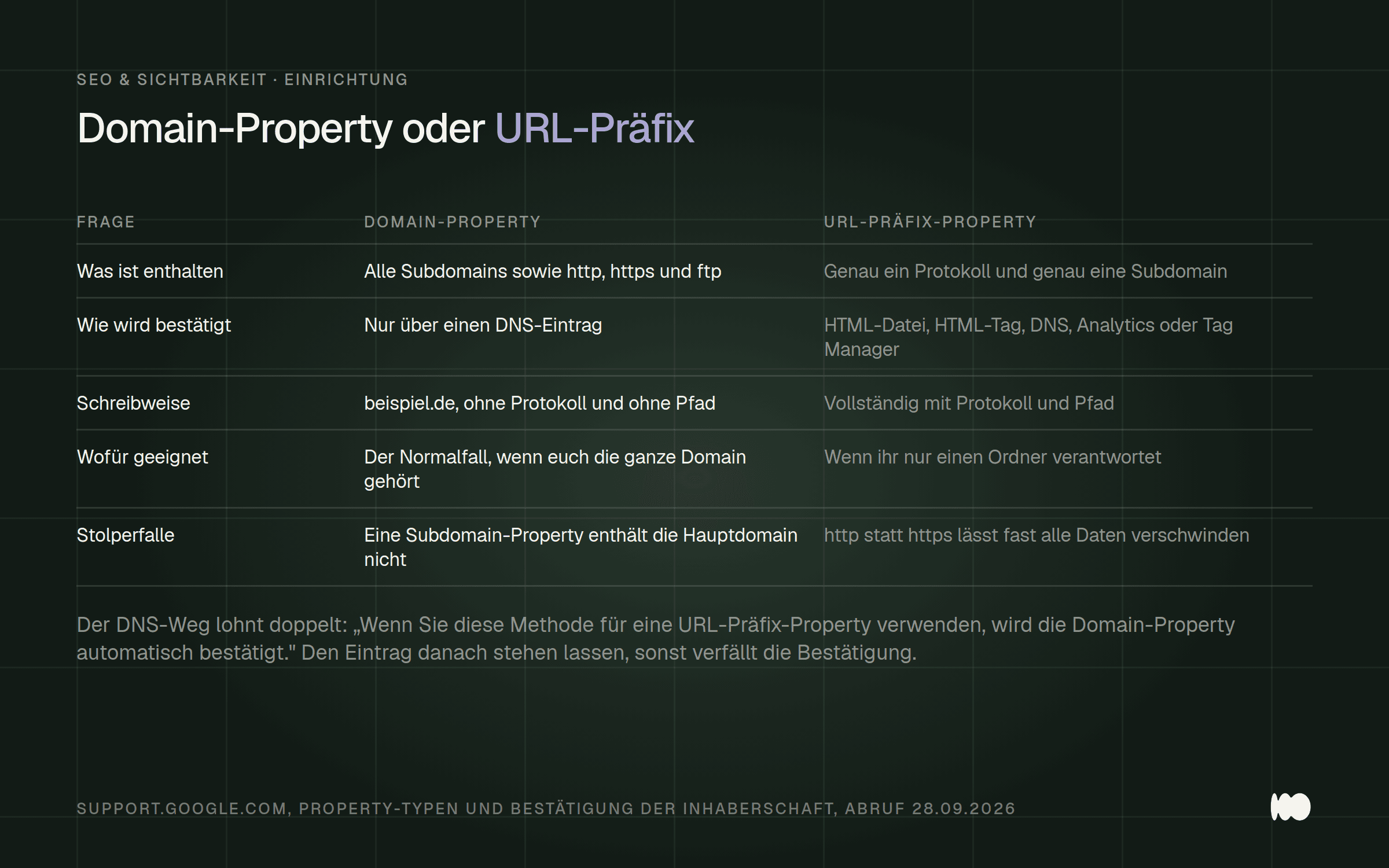
What each of these two property types covers, and why going through the DNS entry is the fastest way to obtain the complete data set.
Here’s a trick that hardly anyone knows about. The domain property can only be verified via a DNS record, and this method gives you both: “If you use this method for a URL prefix property, the domain property is automatically verified.” So if you’re setting the DNS record anyway, you get the clean property for free and can keep the old one if you want.
Two things about syntax that cause requests to fail: Neither the protocol nor the path should be included in the definition, and you should omit the “www.” Google reshapes it anyway: “So, for example, if you specify ‘www.beispiel.de’ as your property URL, the property will be created as ‘example.de.’” And subdomains do not inherit from higher-level domains: A property for shop.example.de does not contain any data about example.de.
Three pitfalls in the verification process itself that take up a lot of time. The DNS record must remain in place permanently: “Do not remove the DNS record even after successful verification, so that the verification remains valid.” Google does not follow redirects in the HTML file. And in Tag Manager, the ` noscript` section must appear immediately after the opening `body` tag of the page; otherwise, the confirmation will fail.
Here’s a tip from Google’s own help center that we now implement for every client at our studio: “It may be a good idea to add multiple verification methods in case one of your existing verification methods fails.” Setting up two methods at the same time takes five minutes and prevents a relaunch from disrupting access.
The Four Numbers, and Why the Average Position Misleads You
Stop thinking of the average position as a ranking—it’s an average of all your best results. Google defines it as “the average position of your website’s highest result.” If your site appears at positions 2, 4, and 6 for a search query, only the 2 counts. Google’s own example combines two search queries with best positions of 2 and 3 to calculate an average position of 2.5.
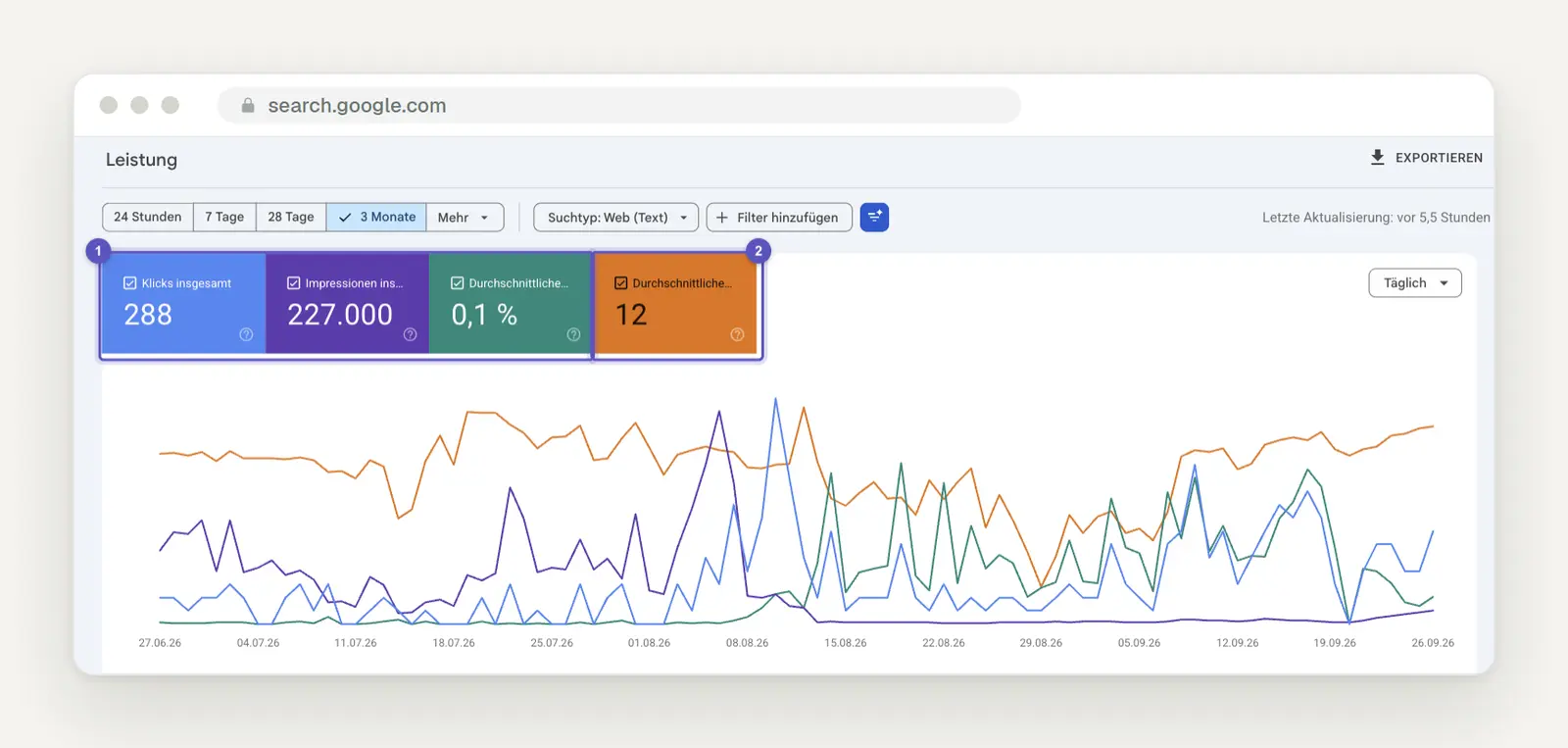
The performance report for our own website, covering the last three months. The chart will only display all the values once you click on all four tiles (1). The position (2) is listed as 12, even though the most common search query averages 1.3: this is an average, not a ranking.
Even more important is what doesn’t count at all: “A link must generate an impression for its position to be recorded.” Anything on page three that has never been seen is left out of the calculation. So your ranking may improve simply because poorly placed results have disappeared. Google itself draws the conclusion: “In general, it’s advisable to focus more on trends in impressions and clicks than on ranking.”
The second pitfall explains almost every number that doesn't add up. There are two ways to count—by property and by page—and the chart "always" uses the count by property, regardless of the selected dimension. The table, on the other hand, switches to the count by page as soon as you go to the Pages or View tab in the search.
Google illustrates the impact of this with an example of its own: Three URLs from the same website appear in search results for a query, and someone clicks on all three. When viewed by property, this results in a 100 percent click-through rate and position 1. When viewed by page, it’s 33 percent per URL and position 2. The same reality, two sets of numbers. Comparing click-through rates from the “Page” tab with those from the chart is like comparing two different units of measurement.
And as soon as you apply a filter, the totals are, in principle, no longer accurate. The table contains “a maximum of 1,000 rows”; rare search queries are omitted for data protection reasons; and Google explicitly states that “matches” and “does not match” together do not necessarily add up to the unfiltered total. So treat the filtered numbers as a rough guide, not as precise accounting figures.
Regular Expressions: The Tool Almost No One Uses
Set up three or four regex filters, and you'll get results that the default view doesn't show. Here's how: In the filter bar, click "+ Add Filter," then select "Search Query " or " Page," and then " Custom (Regex)." It's the same report, but with a question you ask yourself.
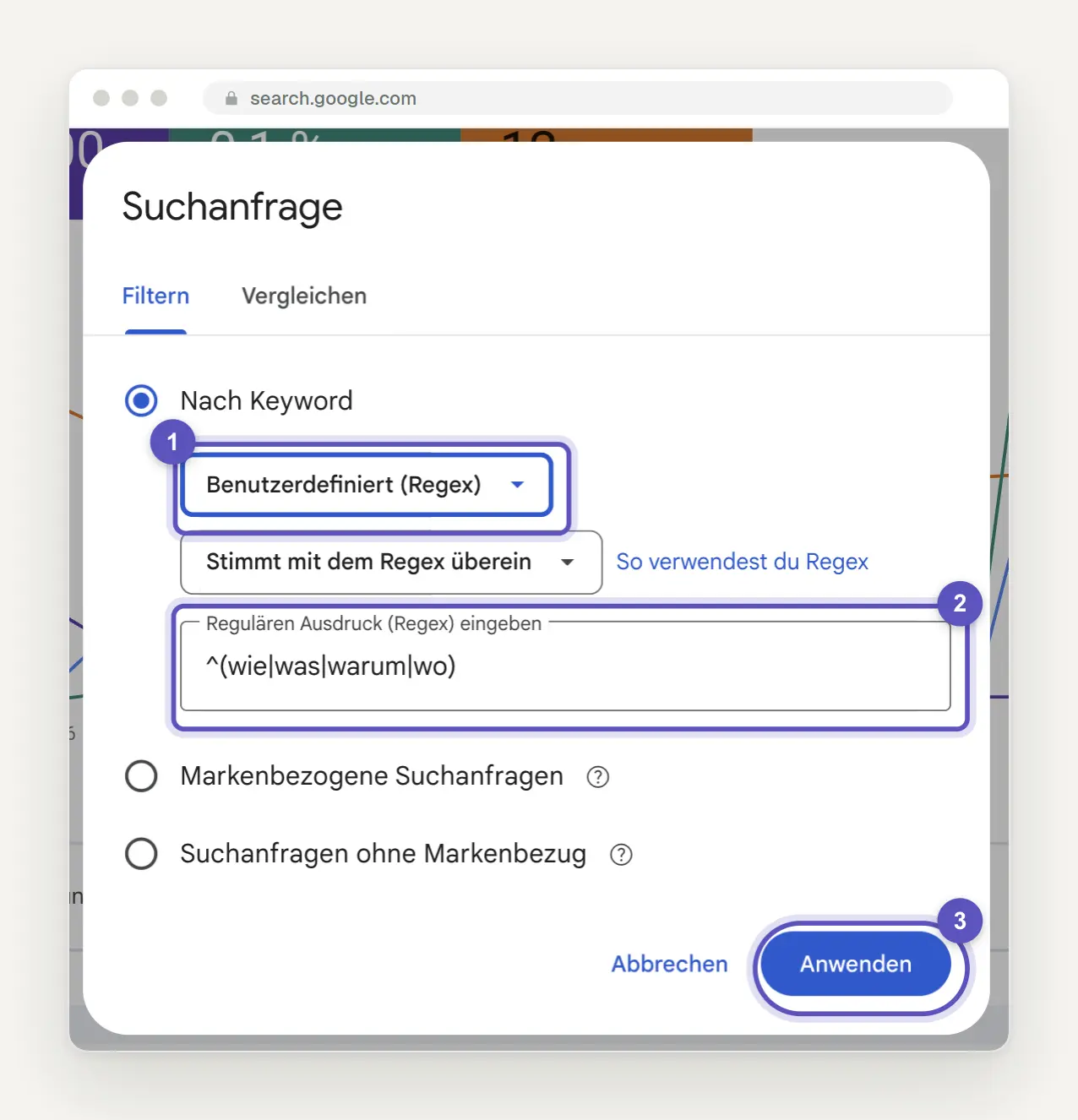
The Regex filter in three steps: Select "Custom (Regex) " (1), enter a pattern (2), and click " Apply" (3). The example ^(how|what|why|where) shows only search queries that begin with an interrogative word. Below that are the two filters for search queries with and without brand references.
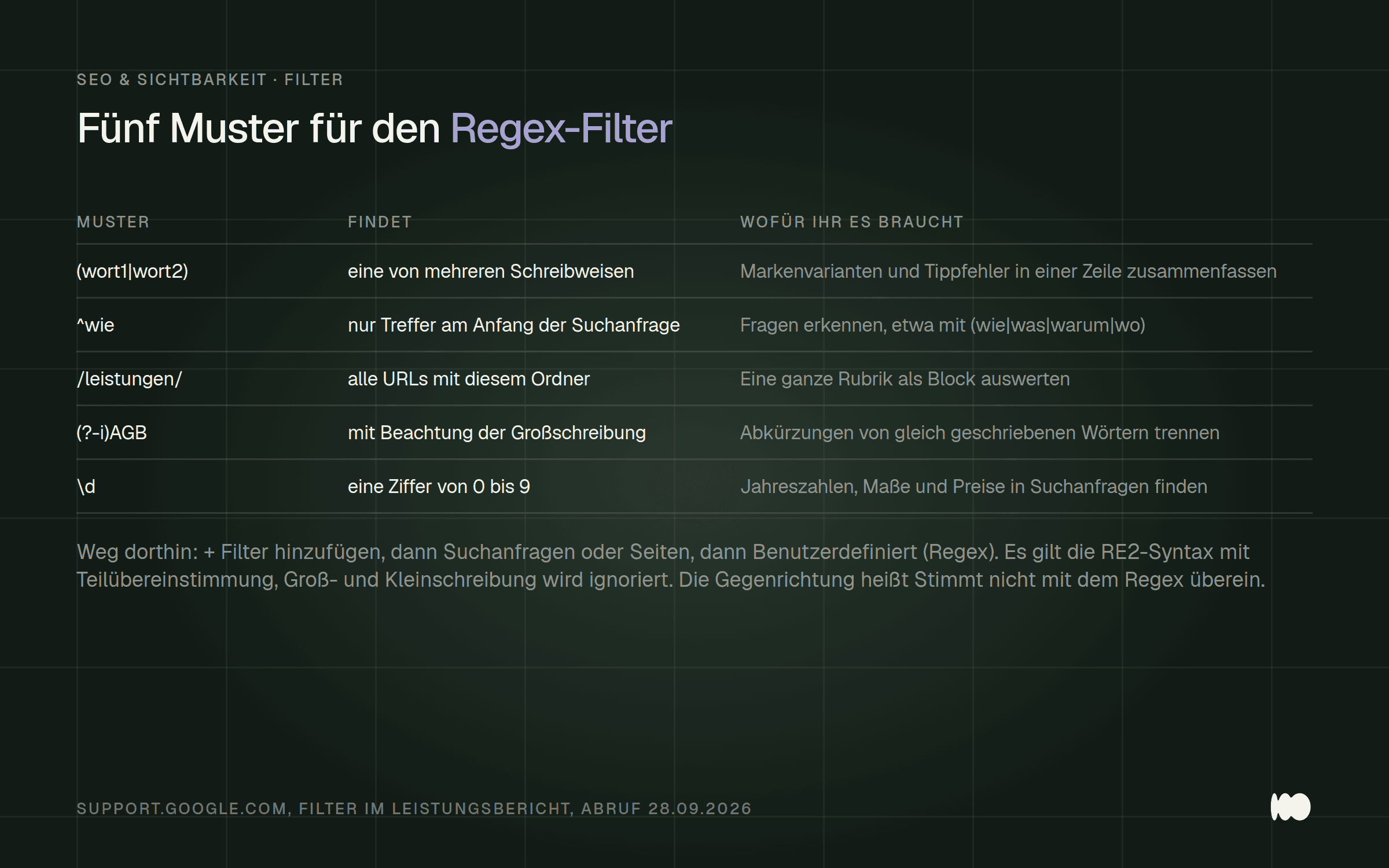
Four patterns that deliver immediate results in a business setting, each accompanied by the question they answer. The syntax is taken from Google's own sample table.
There are three rules you need to know for this to work. Google uses the RE2 syntax. The match is a partial match: "Your regular expression can match any part of the target string, unless you use ^ (start of the string) or $ (end of the string)." And case is ignored by default; if you want to make it case-sensitive, prefix it with (?-i).
Separate multiple terms with a vertical bar and enclose the whole thing in parentheses, like this : (value1|value2|value3). For the opposite scenario, there’s the option “Doesn’t match the regex,” and that’s often the more useful one in everyday use: It hides your tag and lets you see what comes through without the name being mentioned.
There is now a built-in feature for this: the filter for search queries with and without brand references. There are two things you should know about this. It explicitly does not use keyword lists, but rather an internal, AI-powered system, and Google itself acknowledges that individual search queries are occasionally misclassified. Additionally, it is only available for top-level properties, not for subfolders or subdomains. For everything below that level, the regex filter remains the method of choice.
Find pages that appear just before the first page of results
Don't look for what's missing, but for what's almost there. Search queries where you appear in positions 8 through 20 have already done the hard work: Google knows the page, considers it relevant, and displays it. There's very little missing, and that little bit is usually text on the page itself—not a new project.
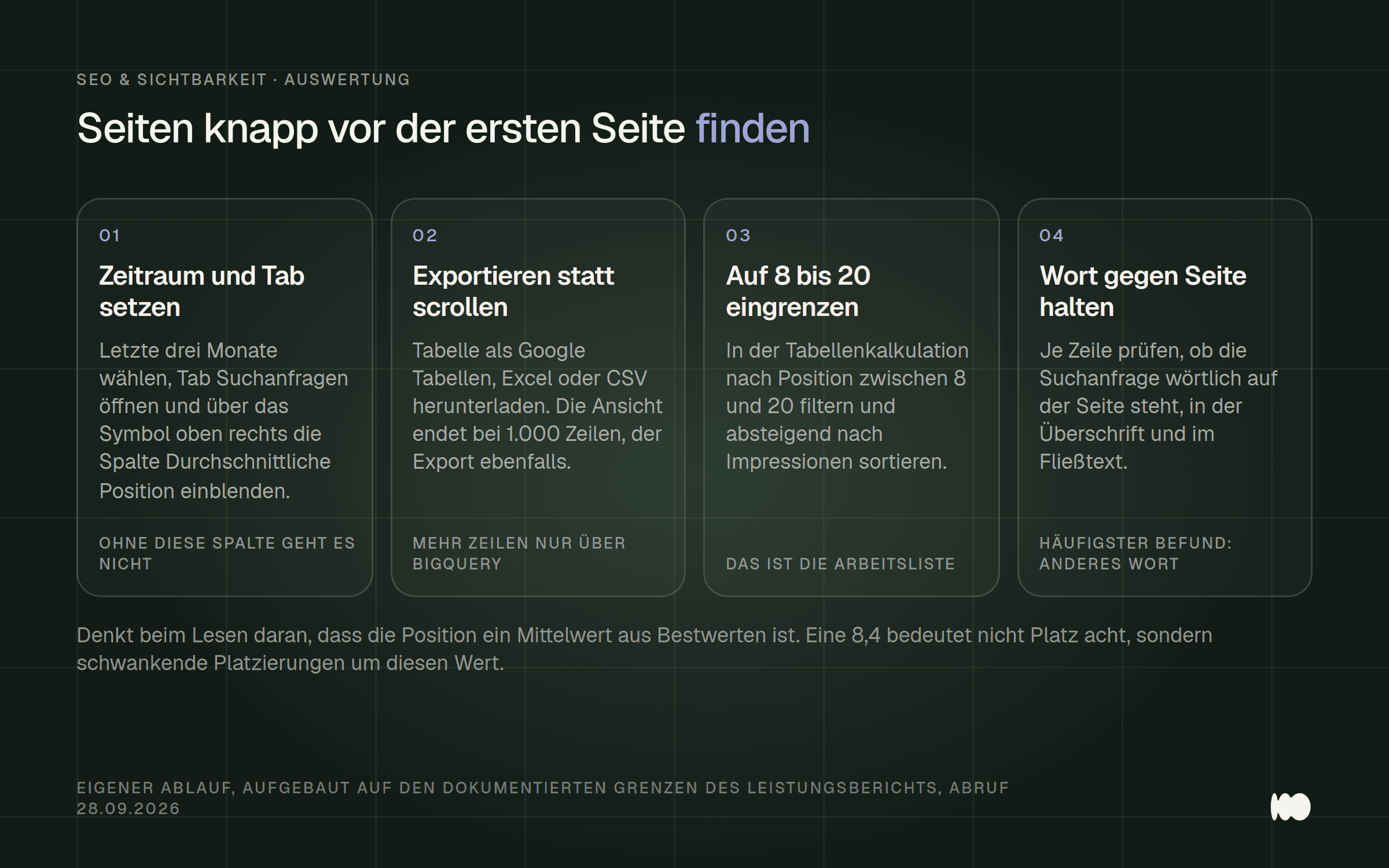
The analysis in four steps. It doesn't require any additional tools, but it does need to be exported because the table ends at 1,000 rows.
Here’s how to set it up in the tool: Set the time range to the last three months, go to the “Search Queries” tab, and use the icon in the top-right corner to display the “Average Position” column. For a quick overview, just use the filter icon in the “Position” column and set it to “Greater than 8.” For your actual worklist, you’ll still need to export the data, since the table is capped at 1,000 rows. If you regularly need more data, set up bulk export to BigQuery.
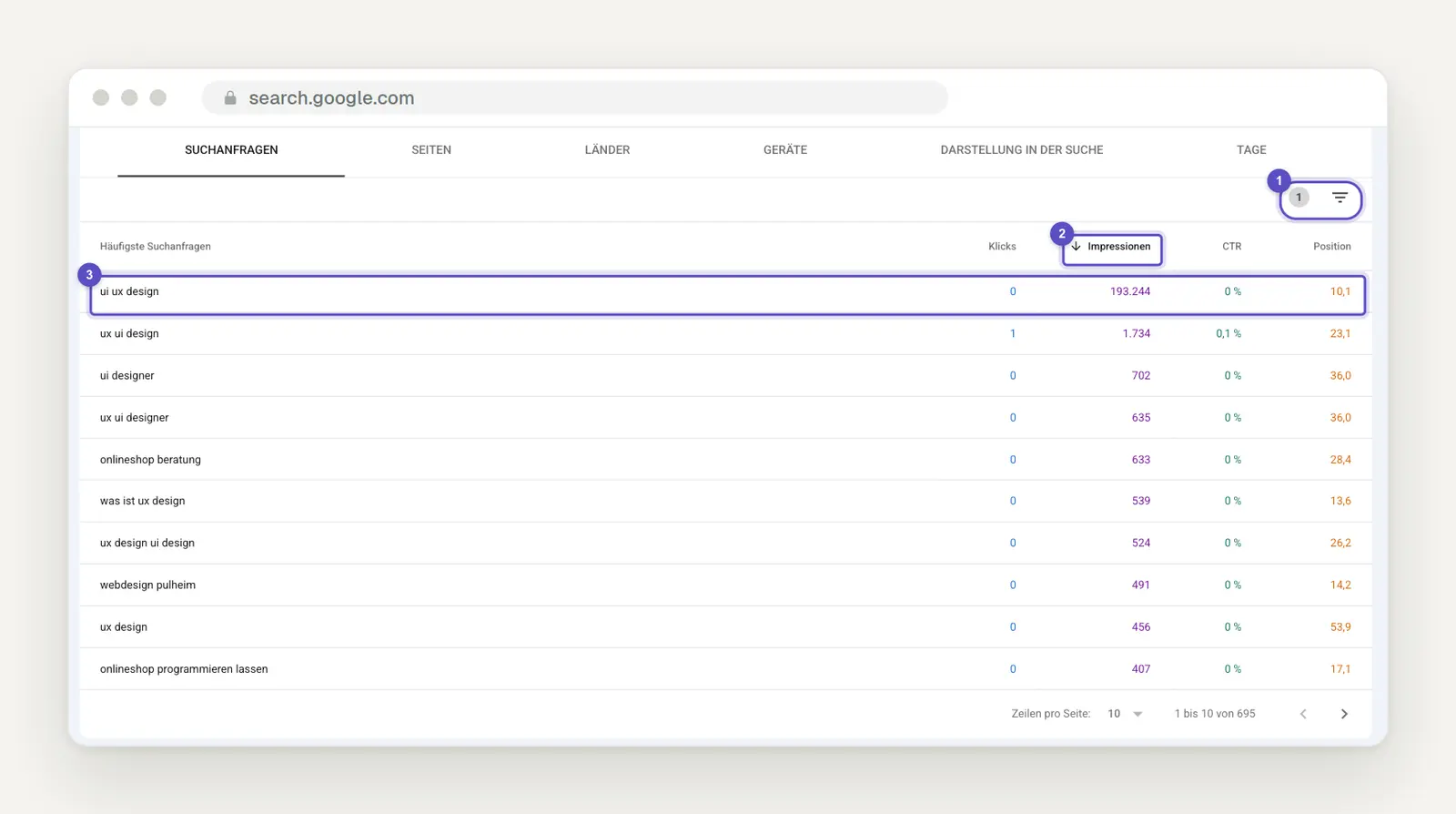
Use the filter icon in the table (1) to limit the results to positions greater than 8, and then sort by impressions (2). At the very top of our list is “ui ux design” (3): over 193,000 impressions at position 10.1 and not a single click. This is what a result just off the first page looks like.
In the spreadsheet, select the rows with a position between 8 and 20 and at least a handful of impressions. What remains is your worklist, sorted by impressions. As you review it, keep in mind that the position is an average of the best rankings: an 8.4 does not mean eighth place, but rather fluctuating rankings around that value.
Here’s something we see regularly at the studio: The search query doesn’t appear in any of the page’s headings—and often not even in the body text—because the company uses a different term internally than it does externally. The plumbing business writes “plumbing installation,” but people are searching for “bathroom renovation.” This isn’t an SEO problem; it’s a vocabulary problem, and it can be fixed in an afternoon.
When two of your own pages compete for the same search query
Filter by a single search query and then switch to the "Pages" tab; that way, you'll see if you're competing against yourself. This is the fastest way to find a problem that would otherwise go unnoticed: two similar pages, the same search query, and Google sometimes favors one and sometimes the other. Both pages accumulate impressions, but neither one comes out on top.
Don't be surprised by the numbers. When you switch to the page view, the way the numbers are counted also changes, which is why the click-through rate and position are lower than in the chart view. This isn't an error; it's exactly the effect described in the first section.
The second half of the picture comes from the indexing report. If you see the status "Duplicate—not marked as canonical by the user," Google has already made the decision. Google explicitly states that this is "not an error, but entirely intentional" and offers you two solutions: specify the canonical page yourself, or ensure "that the content on the two pages differs significantly."
Here’s a detail that can help with cleanup: Google attributes clicks, impressions, and position to “the canonical URL” that it has selected itself. This means a page can accumulate data that actually comes from a different URL. You can find out which one it is in the URL Inspection Tool under “Indexing.”
Page Indexing: The Two Status Reasons Why Almost Everyone Gets It Wrong
Read the status reasons verbatim before you fix anything, because half of them don’t require any repairs at all. Google prefaces the entire category with a sentence that hardly anyone takes seriously: “These pages were not indexed. However, the reason was not necessarily an error.” So a red number in the report is, first and foremost, a count—not a list of issues.
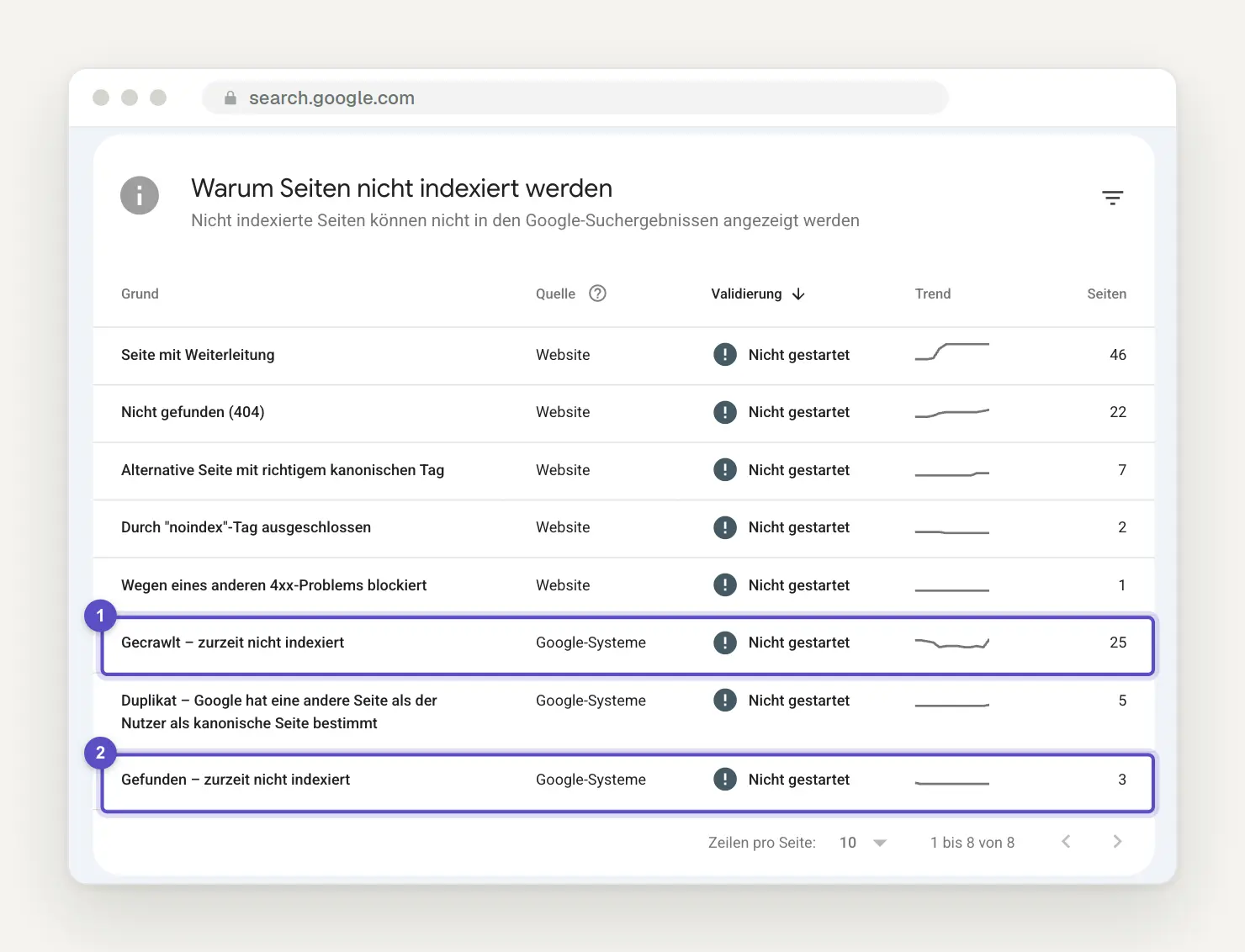
The "Page Indexing " report for our website. The "Source" column distinguishes between what the website generates and what Google's systems have determined. The two status reasons from this section are highlighted (1, 2).
The first status that businesses tend to get hung up on is “Crawled—not currently indexed.” Google explains: “The page has been crawled by Google but not indexed. However, it may be indexed in the future. You do not need to resubmit this URL for crawling.” That last sentence is an explicit rejection of resubmission. Anyone who resubmits the page every week anyway is just wasting their daily quota.
The second is the real "aha" moment. Under " Found—not currently indexed, " Google states: "If this reason is given, Google has usually tried to crawl the URL, but doing so would have overloaded the website. Therefore, Google has rescheduled the crawl." So the identified cause is your server, not your text. Any advice to improve the content at this point misses the point; the answer lies in response times and hosting.
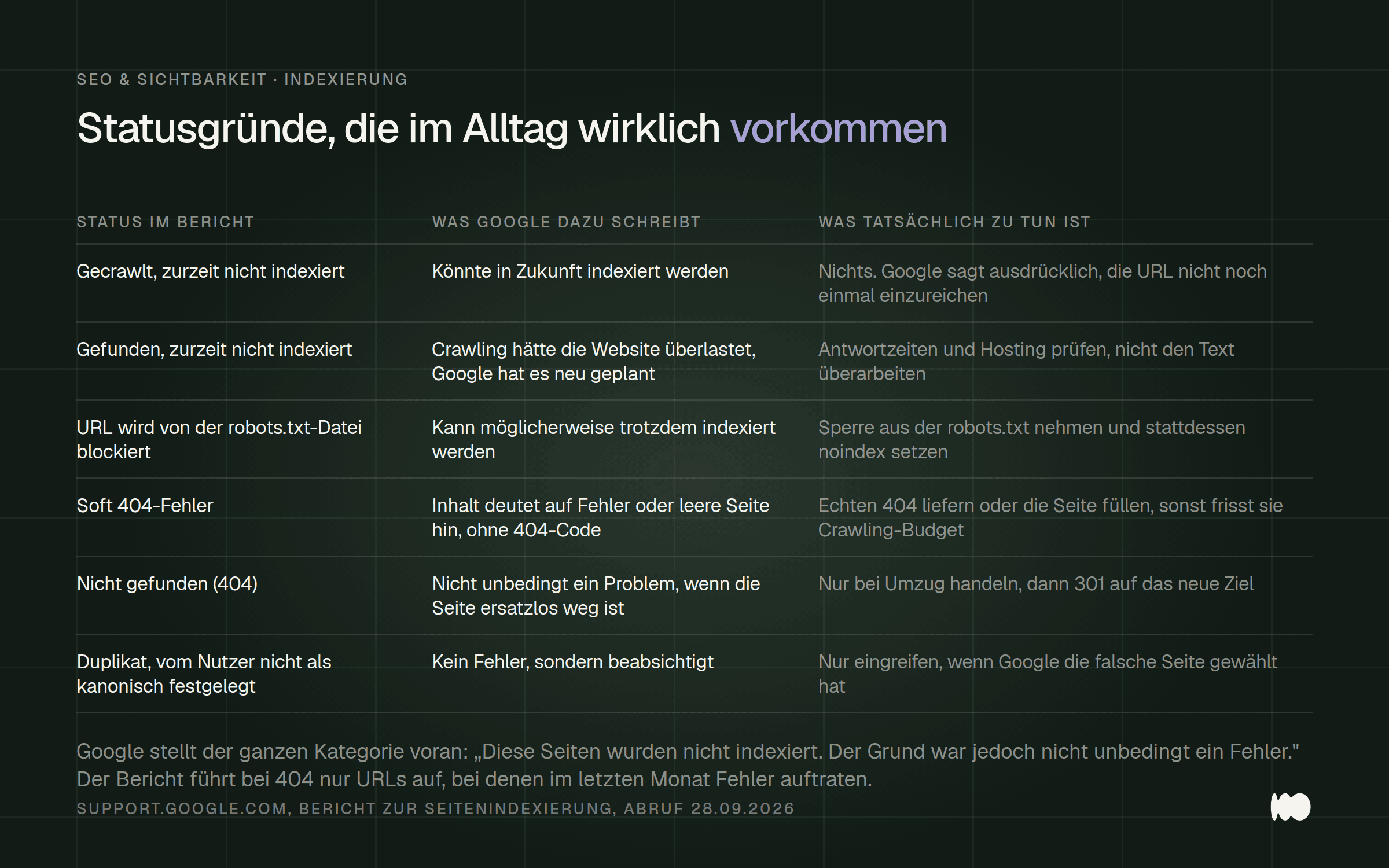
The status reasons that actually occur in everyday life, along with Google's own classification and what you actually need to do.
There are two other points that have been misunderstood and are circulating. Just because a URL is blocked by the robots.txt file doesn’t mean the page won’t be indexed: “Note that your page may still be indexed via another method.” According to Google, if you want to keep a page out of the index for sure, you should use the noindex directive and remove the block in the robots.txt file. Doing both at the same time is a classic case of shooting yourself in the foot, because Google then can’t read the noindex directive at all.
And soft 404 errors don’t just affect broken pages. It’s enough for a page that responds normally to appear as if it were an error: “If the content suggests an error for Google Search—such as a blank page or an error message—Search Console will display a soft 404 error.” This regularly affects empty category and search results pages in online stores. It becomes costly for a reason that Google clearly states: “Pages with soft 404 errors continue to be crawled, thereby wasting your crawl budget.”
If you see a "Page Not Found" (404) error, it's worth taking a look at two sentences that can save you a lot of work: "404 responses aren't necessarily a problem if the page has been removed without replacement" and "There's no way to instruct Googlebot to permanently ignore a URL. However, Googlebot will crawl the URL less and less frequently." In any case, the report only shows URLs “for which 404 errors occurred in the last month.”
URL Validation: The default view is not a live test, and that changes everything
Keep in mind that the view you see first comes from the archive. Google makes this explicitly clear in the URL Inspection Tool: “This is not a live test. The results shown come from the most recently indexed version of a page, not the live version on the web.” If you’ve just fixed something and then check the standard view, you’re looking at the status from the day before yesterday.
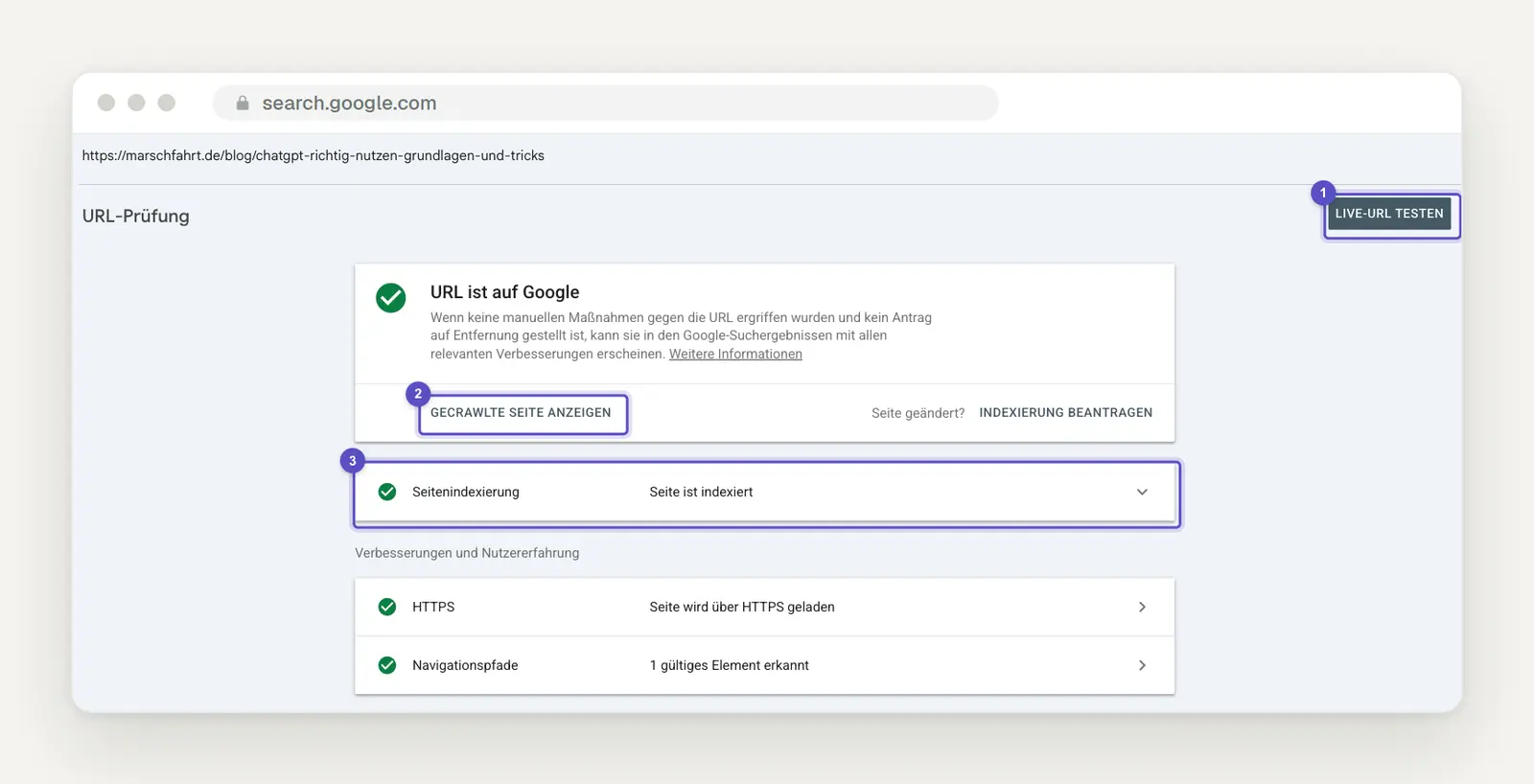
The URL check first displays the indexed version. You can start the live test in the upper-right corner (1). "View crawled page " (2) shows what Google has saved, and when expanded, "Page indexing " (3) lists the canonical URL that Google has chosen.
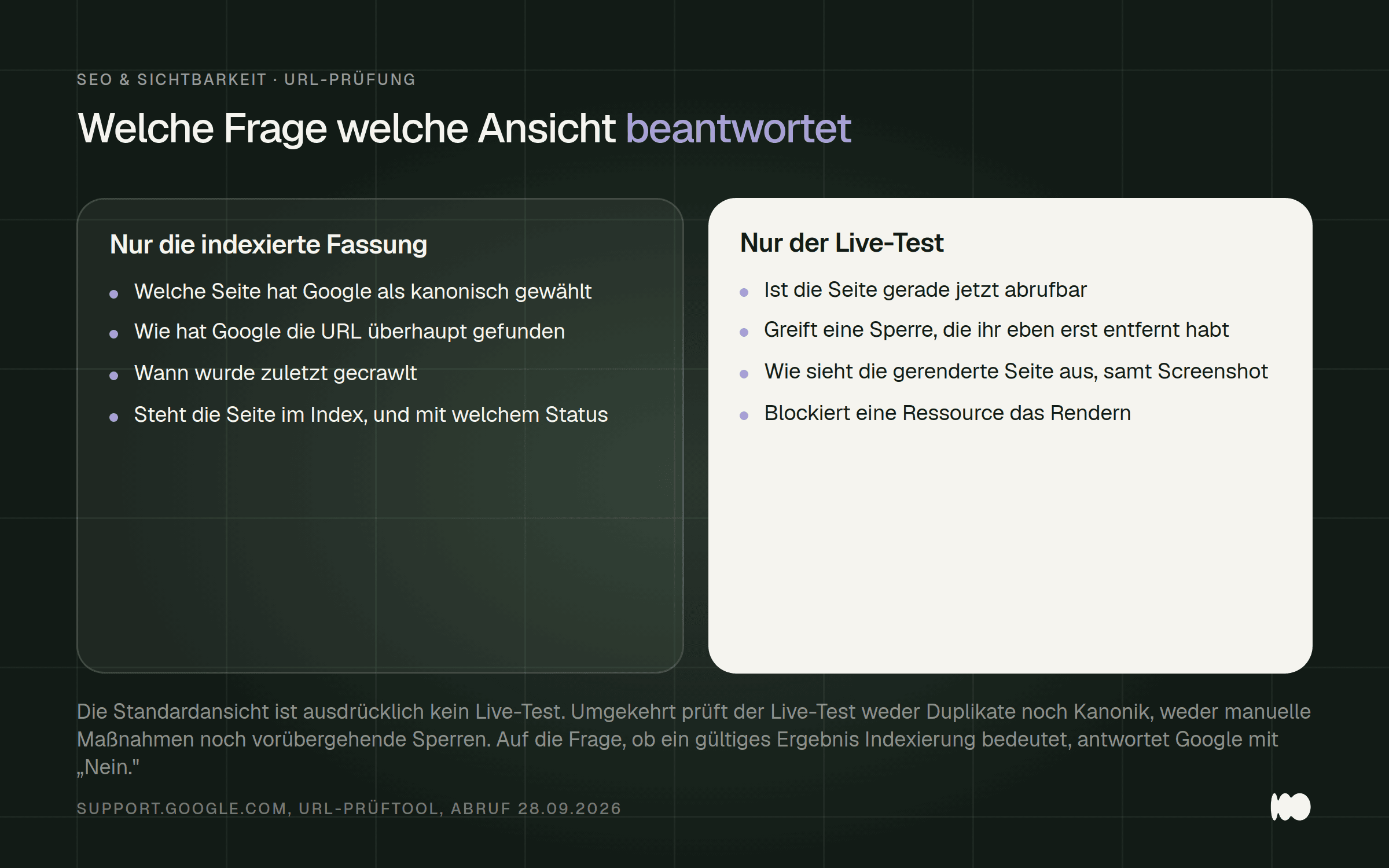
What the indexed version shows and what the live test can do, along with the questions that only the other view answers.
Conversely, the Live Test can do less than its green result suggests. Google itself lists what it does not check: quality and security guidelines, manual actions, legally mandated removals, and temporary suspensions. Added to this is the sentence that clears up most misunderstandings: “The Live Test does not check for all possible indexing issues, such as whether a page is a duplicate or an alternate page.”
This leads to a tip you should keep in mind: The canonical page chosen by Google is only available in the indexed version. Google states: “You can only determine the canonical version in the indexed data. The live test cannot predict whether the version being tested will be considered canonical.” So if you want to know which of your three similar pages Google considers the original, check the indexing data —not the live test.
Google answers the most obvious question with a single word. To the question, “Does a valid result mean that my page will be indexed?” the answer is: “No.” Similarly, the “URL is on Google ” status is not a guarantee: “‘URL is on Google’ does not mean that your page will appear in the search results.”
The "Request Indexing " button involves three established facts. It guarantees nothing: "Submitting a request does not guarantee that the page will appear in the Google index." It is subject to a quota, though Google does not specify the number, stating only: "There is a limit on the number of indexing requests you can submit per day." And for many sites, it’s the wrong tool, as Google recommends using a sitemap with the ` lastmod` tag instead.
Sitemaps and the Removal Tool: Two Tools, Two Common Misconceptions
A sitemap is a suggestion, not a requirement. Google states this in three places, most clearly as follows: “Note that submitting a sitemap is only a suggestion: there is no guarantee that Google will download the sitemap or use it to crawl URLs on the website.” And for small websites, Google immediately puts the benefit into perspective: By “small,” Google means “a website with approximately 500 pages or fewer,” for which good internal linking is sufficient.
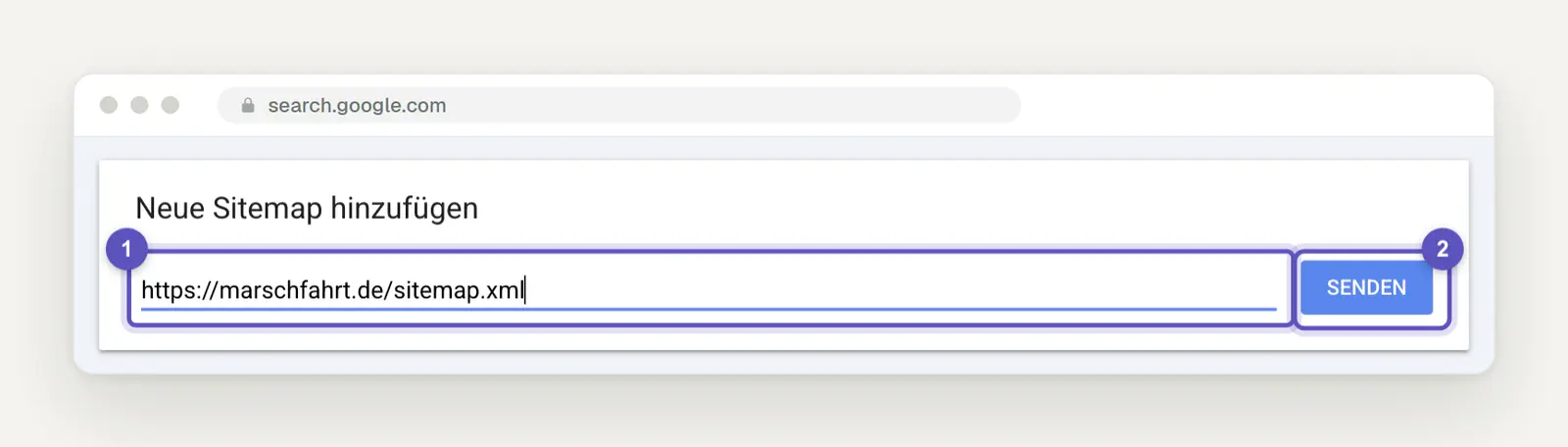
Submit under "Indexing" > "Sitemaps": For a domain property, enter the full address of the sitemap (1), then click "Submit" (2).
The strict limits, in case you do need one: “For all formats, there is a maximum size of 50 MB (uncompressed) or 50,000 URLs per sitemap.” The file must be in UTF-8, the URLs must be absolute, and Google doesn’t care about the order. One error that often goes unnoticed for a long time is “URL not allowed,” which occurs when URLs are located at a higher level or in a different variant than the sitemap itself; this includes the protocol and “www.”
There are two things you should know about this report. It only shows what you’ve submitted yourself: “Sitemaps found via a robots.txt reference or other detection methods are not listed here.” And deleting a sitemap only affects this report: “When you delete a sitemap, it is removed from this report, but Google does not forget the sitemap or the URLs listed in it.”
With the removal tool, the mistake has even more serious consequences. The tool for removing SafeSearch notifications does not permanently remove anything: “A successful exclusion is valid for only about six months.” It also does not prevent crawling: “If you exclude a URL, this does not prevent the page from being crawled. It simply no longer appears in search results.”
This leads to a sequence of steps that’s easy to get wrong. If you delete the page at the same time, you’ll revoke the exclusion: If the URL returns a 404, 502, or 503 error when the request is made, Google assumes the page no longer exists, and “the exclusion expires.” According to Google, one of three conditions must be met for a page to be considered permanently removed: the content is gone (with a 404 or 410 status), it’s password-protected, or it has a “noindex” tag. Here’s an explicit warning: “Do not use robots.txt to block pages.”
Core Web Vitals: Why the Report Never Matches PageSpeed Insights
Don't even bother comparing the two tools—they measure different things. According to Google, the numbers in Search Console come “from the CrUX report,” which states: “It collects anonymized metrics on page performance from actual users who visit your URL.” That's field data. PageSpeed Insights, on the other hand, shows a lab test, which measures a single, artificial load.
The thresholds are clear and worth remembering: LCP up to 2.5 seconds is considered good; 4 seconds or more is considered poor. INP up to 200 milliseconds is good; 500 milliseconds or more is considered poor. CLS up to 0.1 is good; 0.25 or higher is considered poor. The benchmark here is not the average, but the 75th percentile: a status is considered good if three-quarters of page views meet it.
The key difference, however, is the grouping. Search Console groups URLs into sets with similar user experiences, and the status “applies to the entire group.” Google itself explains the reasoning behind this: These groups share “a common framework,” so the causes are likely the same. PageSpeed Insights, on the other hand, shows individual URLs, and one of them may be an outlier within its group.
On top of that, there’s a small detail with a big impact: Search Console treats URLs with parameters as separate URLs, while PageSpeed Insights ignores parameters and bases its calculations on the bare URL. So if you run an online store with filtered URLs, you’ll inevitably get two different results.
Google draws its own conclusion: “It is not the primary purpose of this report to make statements about the status of individual URLs.” So use the report to identify patterns across many pages, and an external tool to examine a single page. Two additional peculiarities explain these misinterpretations: Data from all countries is combined, and unlike in most reports, it is “assigned to the actual URL, not the canonical URL.” We measured the extent of these differences across systems using 736 websites.
The New Reports on AI Responses: What They Show—and What They Don't
As of August 31, 2026, you can analyze your visibility in AI-generated responses separately, but only as impressions. Google rolled out the performance report for generative AI features on that date “for all websites worldwide.” It includes two features that Google refers to as “AI Overviews ” and “AI Mode.”
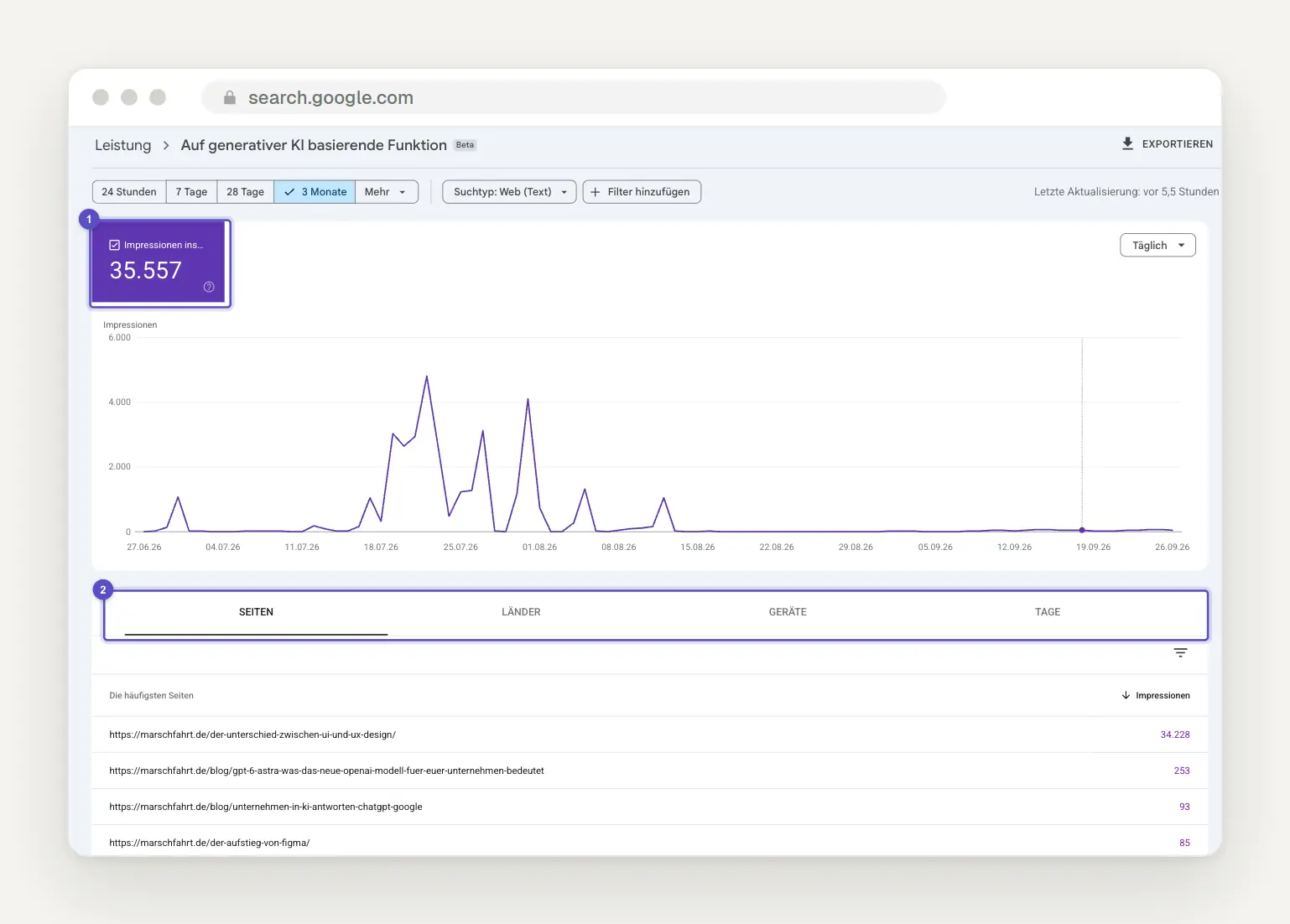
The new report under Performance > Generative AI, here on our website. There is only one tile, Impressions (1), and the tabs (2) are labeled Pages, Countries, Devices, and Days. There is no tab for search queries.
The most important limitation is stated in the documentation itself: It provides only impressions—no clicks, no click-through rate, and no position. So if you want to know whether AI responses are bringing you visitors, you won’t get an answer to that question; you’ll only find out how often your content appeared there at all. The usual limits also continue to apply, specifically “1,000 lines, time period.”
To help you understand this, here’s a rule from the standard performance report: An AI-generated overview “occupies a single position in the search results,” and a click on a link within it “counts as a click.” AI responses are therefore already included in your standard graph; the new report simply isolates them.
Rights and Tokens: Why Revoking Them Isn't Enough When Switching Agencies
Simply revoking an old agency’s rights doesn’t lock them out. This is the most problematic part of the entire tool, and Google states it plainly: “If you remove an owner from a Search Console property, they can no longer access the property, but their verification tokens are neither deleted nor revoked.” In plain language: The file on your server or the tag in the source code is still there, and that person can use it to re-verify at any time.
You'll need to clean this up in a location that you have to know about, because no one can find it on their own: Settings, then Users and Permissions, and from there, the "Unused Owner Tokens" section. Depending on the method you use, you may also need to delete the uploaded HTML file, remove the meta tag from the source code, or delete the DNS entry.
Google has issued a warning to help you avoid a costly mistake: “Be careful when removing tokens. The same verification token can be used for different services to verify ownership.” So if you delete the token, you may inadvertently remove the verification in Merchant Center or Google Workspace. Check first, then delete.
Two features help with cleanup and with determining who actually has access. The ownership history shows added and removed owners, along with successful and failed confirmation attempts. And if a previously removed owner reconfirms their ownership, “all current owners are notified.” This email should end up in your inbox, not in the inbox of a former service provider.
For day-to-day use, selecting a role is sufficient: A Full User can view all data and is authorized to take certain actions, while a Limited User can view most of the data. Both roles can be revoked at any time, and the change “typically takes effect immediately.” This is precisely why an agency belongs at this level and not at the Owner level. Incidentally, a Property can include up to 100 users who are not Owners.
Six simple steps that hardly anyone takes
First: On the day of a relaunch, switch to the 24-hour view. It “includes data from the last available 24 hours and is displayed with a delay of only a few hours,” whereas the normal view takes days. If you also want to see the current day (even if it has already started), turn off the option for full days in the date selection.
Second: Compare instead of filtering. The filter dialog includes a "Compare" option, and the results table will then include a "Difference" column. When comparing time periods, Google explicitly recommends "Weekly" or "Monthly" because daily values are too volatile. Note: Only one comparison can be displayed at a time; a new one overwrites the old one.
Third: Share the report via a link instead of granting access. When you click the "Share" button, the recipient sees only the current view—nothing else. This is the best approach for tax advisors, advisory board members, or clients, and no one has to become a user to do so.
Fourth: Take a look at the crawling statistics, especially the host status. The report is tucked away under the property settings and, according to Google, is “intended for advanced users.” You’ll rarely need it for websites with fewer than 1,000 pages, but the three lines— robots.txt request, DNS resolution, and server connection —are always worth checking out.
The reason is summed up in a single sentence that cuts short any discussion about indexing issues: “If your robots.txt file is unavailable for a day, Google will stop crawling.” No crawling takes place at all during the first twelve hours; after that, Google continues to use the last successfully retrieved version until the thirtieth day. A maintenance period during which the file returns an error will therefore cost you crawling time without anyone else noticing.
Fifth: Also include the sitemap in the robots.txt file. Google states: “This report only shows sitemaps that you have submitted via this report or the API.” This means the report does not detect sitemaps specified in robots.txt. Conversely, submitting via robots.txt does not require ownership rights, and for many clients, this is the only method their agency cannot block.
Sixth: If you have a lot of updated pages, use the sitemap instead of the button. Google says so itself: “If you want to request that many new or updated pages be indexed, you should submit a sitemap in which the updated pages are marked with ‘lastmod.’” That’s the difference between an hour of clicking and two minutes using the generator.
And one more quick note for anyone who exports data: Values that appear as tildes or hyphens in the report will show up as zeros in the downloaded file. Otherwise, if you calculate averages in a spreadsheet, you’ll be using zeros that are actually missing values.
Conclusion: today, this week, later
Today, you’re checking just one thing: whether your property covers the entire website. If there’s a URL with “http” in it, or if a subdomain is missing, then you’ve been working with an incomplete view for years. The DNS record for the domain property takes just ten minutes to set up and provides more insight than any analysis you could perform on the old database.
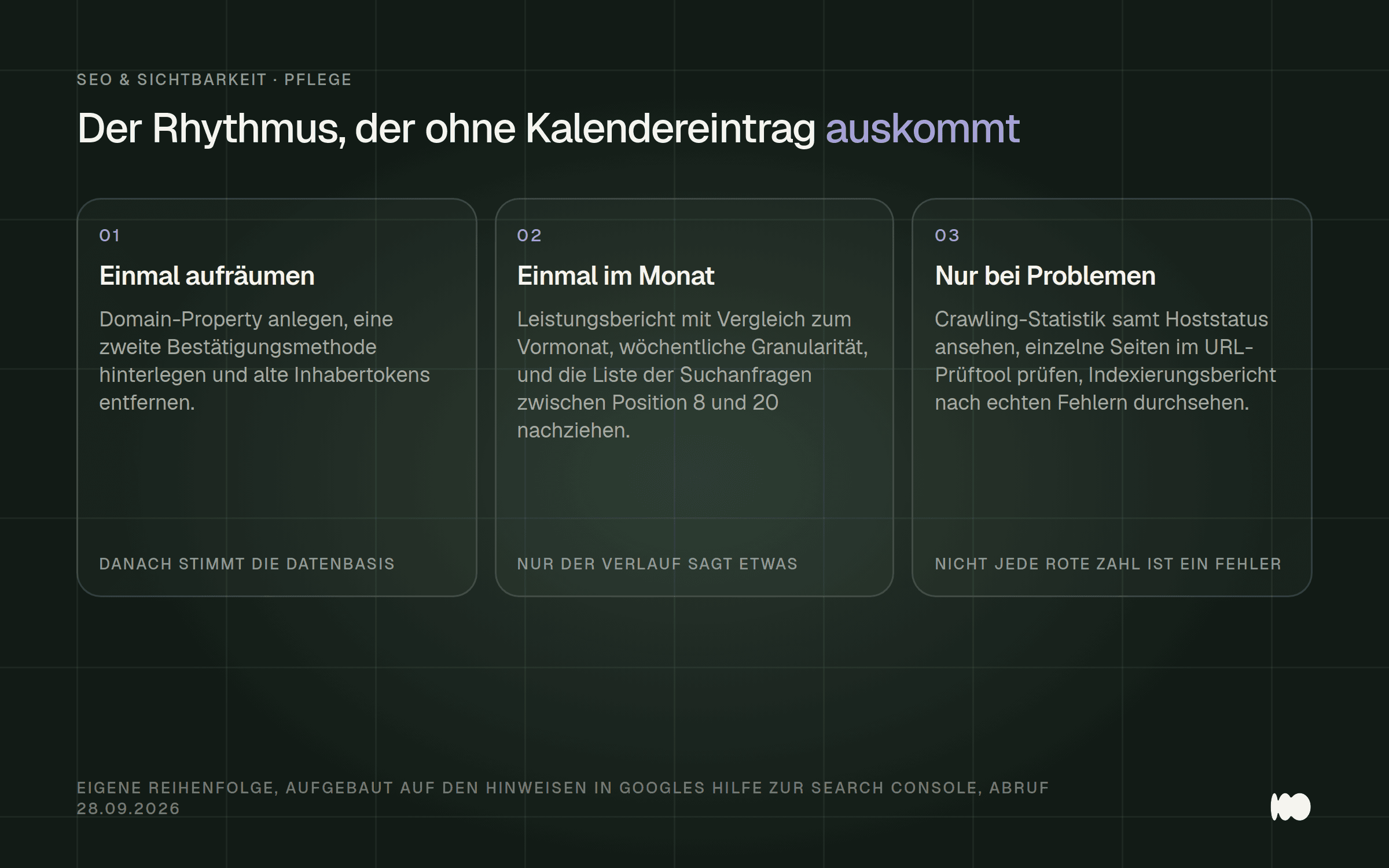
A routine that doesn't require a calendar entry: tidy up once, review once a month, and only check in if there are problems.
This week, focus on the three analyses that yield results: the list of search queries ranked between positions 8 and 20, checking for two of your own pages for the same search query, and going through the status reasons in the indexing report, leaving everything as is that Google explicitly identifies as unproblematic.
Later on—and on an ongoing basis—three habits are all it takes. Once a month, generate a performance report comparing the current month to the previous one, because only the trend tells the whole story. With every relaunch, add a note directly to the chart. And when switching service providers, clean up the tokens—don’t just revoke the permissions.
What we've stopped doing at the studio: drawing conclusions based on individual weeks. Google itself says it's difficult to determine whether a specific change directly led to better search performance. If you revamp a page and look at the graph three days later, you'll see noise and mistake it for a result.
What Has Changed and What That Means for You
August 31, 2026: The reports on generative AI features will apply to all websites worldwide. For you, this means you can finally see how often you appear in AI-generated summaries and in AI mode, instead of just guessing. But don’t expect click counts—only impressions are shown there.
July 29, 2026: Platform properties are available worldwide. Instagram, TikTok, X, and YouTube can be set up as their own property types—and this is explicitly available even to people “without their own website.” For you, this means: If part of your visibility comes from social media channels, you can now measure it without using third-party tools.
March 11, 2026: The filter for brand search queries is available to all eligible websites. For you, this means that you can distinguish between searches for your name and genuine new customer searches without a regex list. Just keep in mind that it only works at the top-level property level and that Google itself acknowledges that misclassifications can occur.
November 17, 2025: You can add your own notes directly to the chart. Right-click on the curve, enter the date and up to 120 characters. For you, this means that information about a relaunch, system change, or company vacation will be right where you’ll look for it six months later. Keep in mind that anyone with access to the property can read these notes.
October 1, 2025: Obsolete fields in bulk exports to BigQuery return NULL instead of FALSE. This only matters to you if you use this export—but if you do, it matters a lot: Queries using NOT is_typ have been silently returning incorrect results ever since. Google recommends using is_typ IS NOT TRUE instead.
June 30, 2025: The Statistics Report has been fully integrated into Search Console. For you, this means that the former standalone beta version is no longer available; instead, the report now appears alongside the others and groups similar search queries, which makes it easier to navigate than the raw list, especially for many long-tail queries.
Date of this version: September 29, 2026.
Do you want to know what's currently being overlooked in your Search Console?
Write to us, and we’ll take a look and let you know which three steps will make the biggest difference for you. Most of the time, it’s the same three: a property that covers only half the website, a stack of pages with an indexing status that no one has read, and a dozen search queries just outside the first results page that have been stuck there for months.
Just send us a quick message through our contact form —your domain name is all we need to get started. We’ll respond within 24 hours, personally and without any sales pitch.
More Articles
© Marschfahrt Studio
Practical knowledge on web design, SEO, AI, and conversion optimization. Based on real projects, without any marketing spin.

