ChatGPT Updates in October 2026: Dots, Space, GPT-6.1 Sol, and What You Can Expect
At DevDay, OpenAI unveiled over 20 new features, including Dots, ChatGPT Space, and GPT-6.1 Sol. Using official images and screenshots from our Plus account, we’ll show you who gets which features and what you should do next.
Date
Category
Author

On September 29, OpenAI unveiled more than 20 new features for ChatGPT, Codex, and its models at DevDay in San Francisco. Since then, many people have been asking the same questions: What are these dots, where is Space, and why does my account look completely different from the images in the news? The honest answer is: You’re not getting a lot of these features right now, but you are getting some of them without even realizing it.
In this post, we’ll go over all the major updates from the past few weeks, featuring official images from OpenAI and screenshots from our own ChatGPT account. Our account is on the Plus plan, which is the one most small businesses use. This way, you can see for each feature what’s actually available in Germany today. All information is taken from OpenAI’s release notes, help section, and announcements, accessed on October 6, 2026.
In a nutshell (as of October 6, 2026)
The major features—Dots and Space—are not included in the Plus plan, and Dots will not be available to Pro customers in the EU at launch. Dots are agents that run continuously; Space is a shared workspace where people and AI collaborate on documents. A lot has changed for Plus accounts nonetheless: GPT-6.1 Sol now runs in Work mode, plugins and skills have their own page, and there’s a Privacy Center. The most important step this week: Check your scheduled tasks under “Plan,” because GPT-5.5 will be shut down on October 14.
The Keynote on September 29: What Sam Altman and His Team Showed
Take a look at the overview first so you can get a sense of the new features before you try anything out. The opening keynote for DevDay 2026 took place on September 29 at Fort Mason in San Francisco. Sam Altman, Romain Huet, Tejal Patwardhan, and Holly Li took the stage, according to the description of OpenAI’s official keynote video on YouTube. In its summary, OpenAI itself refers to “more than 20 major announcements across ChatGPT, Codex, our models, and entirely new ways of working with AI.”

The official graphic for the opening keynote featuring Sam Altman, Romain Huet, Tejal Patwardhan, and Holly Li. Image: OpenAI, Source: openai.com/devday/2026
The new features can be divided into five groups, which is exactly how OpenAI structures its own summary: new ways of working (Dots, GPT-6.1 Sol, Ultrafast), Codex and the programming interface, plugins, collaboration (Space, Pages, Teams), and updates to the subscription. For businesses without their own software development teams, Dots, Space, Work, and the plugins are of particular interest. We’ll explain the topics for developers—namely Codex and the new APIs—in two separate sections below, as they’ll also be important for businesses with their own websites or online stores.
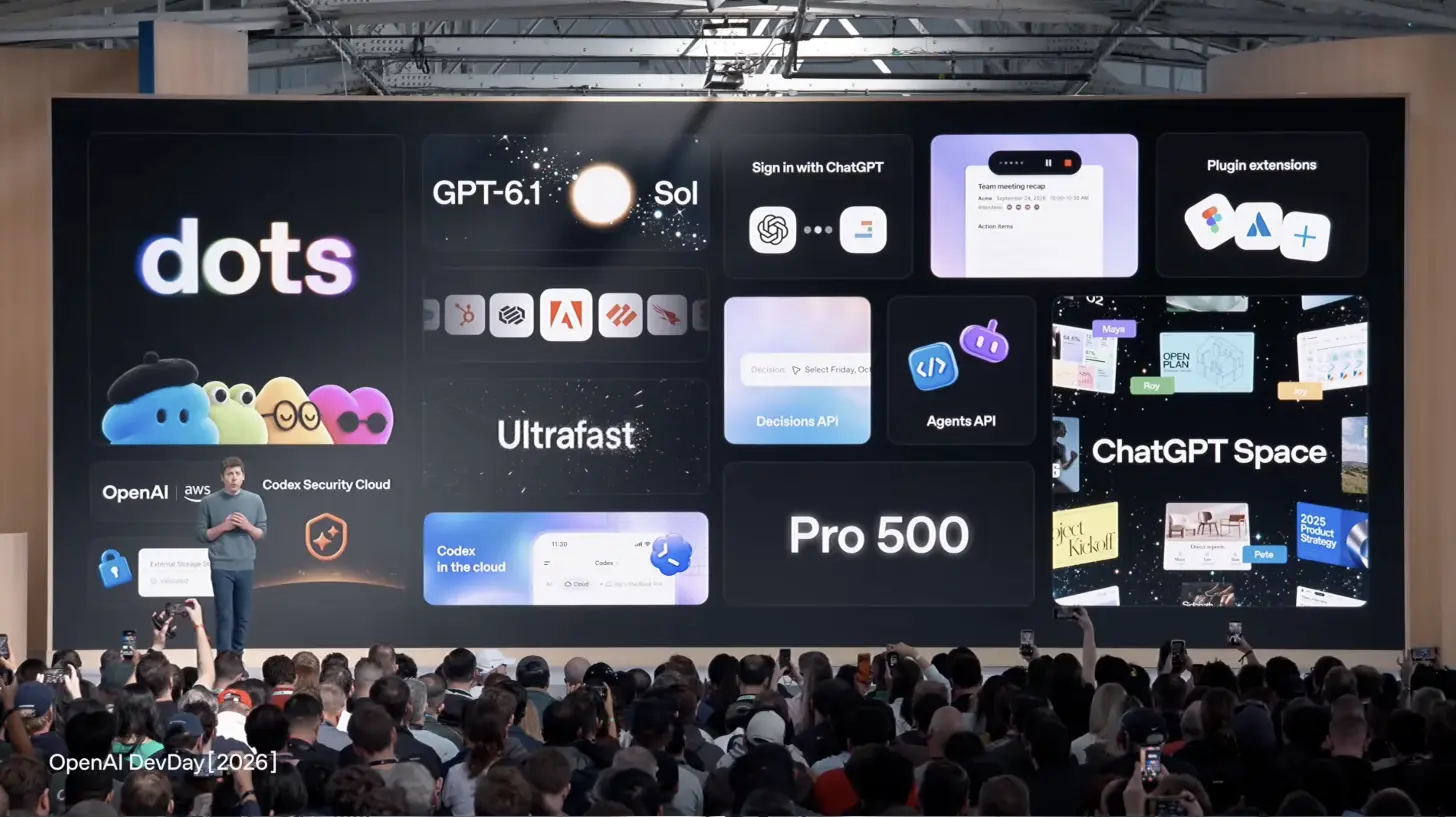
The image that sums it all up at the end of the keynote: Sam Altman in front of the screen displaying all the new features, from Dots to GPT-6.1 Sol and Ultrafast to ChatGPT Space. Image: OpenAI, still from the video “OpenAI DevDay 2026 Keynote (FULL)” on YouTube
To help you find each tile on the screen, we've listed them again below in a clear, easy-to-read format. On stage, some of the new features are shown only as icons, such as the partner logos for "Sign in with ChatGPT" or the sign for Codex Security Cloud. Our overview lists all 25 announcements by name, color-coded by group.
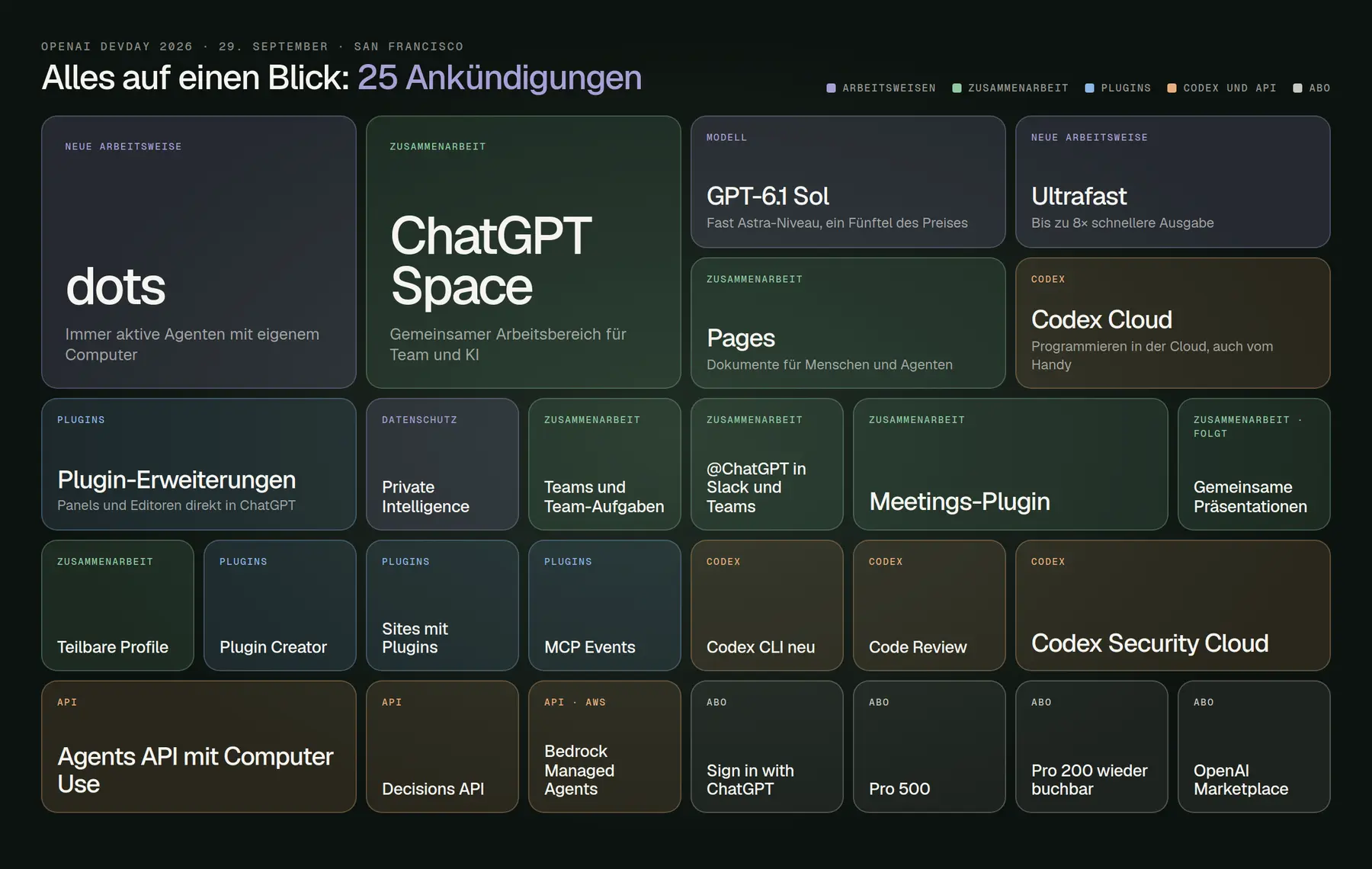
All 25 announcements from DevDay 2026 at a glance, color-coded by group. Custom visualization based on OpenAI's official summary, "DevDay 2026 Recap."
Altman primarily touted Dots as a major step forward. According to CNBC’s live blog, he said on stage: “Dots are remarkably capable, always-on agents built to handle really anything you can think of.” And on a more personal note: “I feel like I’ve finally gotten some of my attention back.” Finally, he described the goal this way: “AI should be about giving people more power over their own lives.” These quotes are taken from press coverage; OpenAI has not published an official transcript of the keynote. If you want to know exactly what was said, watch the video “OpenAI DevDay 2026 Keynote (FULL)” on OpenAI’s YouTube channel—it’s 53 minutes long.
Dots: an agent that keeps working even after you close the chat
Give a Dot a task, not just a single question—that’s exactly what it’s built for. OpenAI describes Dots in the release notes as “always-on agents in ChatGPT that can take on ongoing work and keep making progress between conversations.” A Dot runs on the GPT-6 Astra model, has its own computer in the cloud with its own browser, and, according to OpenAI, can be connected to more than 4,000 apps via plugins. You can reach it in the ChatGPT chat, via voice call, in Slack, and in Microsoft Teams—though Teams is initially only available in an invitation-only beta.
This is how OpenAI announced Dots on X on the day of the keynote. The post, which included a short video, was the most shared of the evening, with about 38,000 likes on October 7.
OpenAI (@OpenAI) on X · September 29, 2026
"Introducing dots, powered by GPT-6 Astra. Remarkably capable, always-on agents built to handle everything."
The difference from a regular chat: Dot keeps track of the goal and follows up on its own. The official documentation provides examples such as keeping an offer up to date when license numbers change, adapting launch materials to product changes, or reviewing software feedback from Slack and preparing a fix. An example task from the documentation goes something like this: Keep track of our team trip, read the itinerary and emails from the venue, list decisions and deadlines, and draft responses—but don’t send them. That last half-sentence is the key: You determine what Dot is allowed to do on its own.
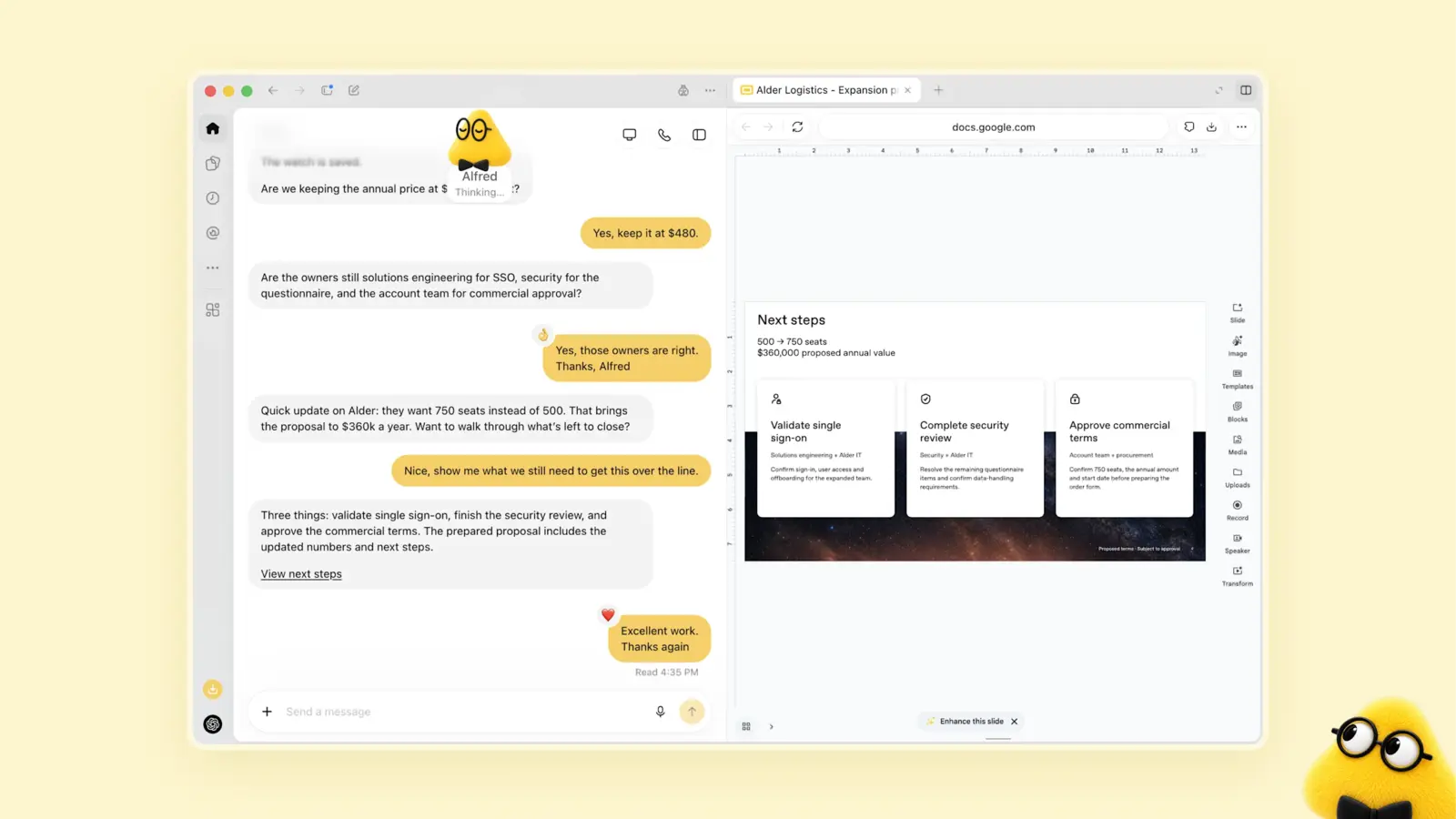
The Dot named “Alfred” is comparing an offer for a corporate client; on the right is the corresponding document. Each Dot is given a name and its own unique appearance. Image: OpenAI, Source: openai.com/index/introducing-dots
An example from OpenAI illustrates the benefits. In the announcement, OpenAI writes that an early tester’s Dot noticed he had forgotten to send an invoice to a magazine, prepared the invoice, and sent it after he approved it. For a small business with many loose ends, that’s the real promise: not faster responses, but fewer forgotten tasks. We can’t say yet whether this holds up in everyday use, because Dots aren’t available in our account—more on that in a moment.
Three days after the launch on X, Altman himself is raving about his Dot. His argument isn’t about the technology, but about the relief it provides: The Dot takes care of exactly the things you’d otherwise put off. Of course, this is self-promotion, but it does a good job of describing what Dots are designed to do.
Sam Altman (@sama) on X · October 2, 2026
"dot is my favorite OpenAI product so far! It's amazing to me that it gets noticeably better every day as it learns more about my workflow and style. Having it do the things I don't like doing—which usually just pile up into a gravity well of dread—makes me very happy."
Here's how to set up a Dot and stay in control
Set up the Dot on your computer and start by enabling read-only access. According to the help section, setup is only possible in the ChatGPT desktop app for macOS and Windows or in ChatGPT in your computer’s browser—not on your phone. You’ll specify a destination for the Dot, connect your email, calendar, and files, or skip that step, and then decide in the desktop app whether to allow it to access your own computer. The terms in this section are taken from OpenAI’s English documentation. Local access is turned off by default and can be enabled under “Computers,” “Your computer,” “Allow access.” After that, you can also use the Dot in the app on your phone.
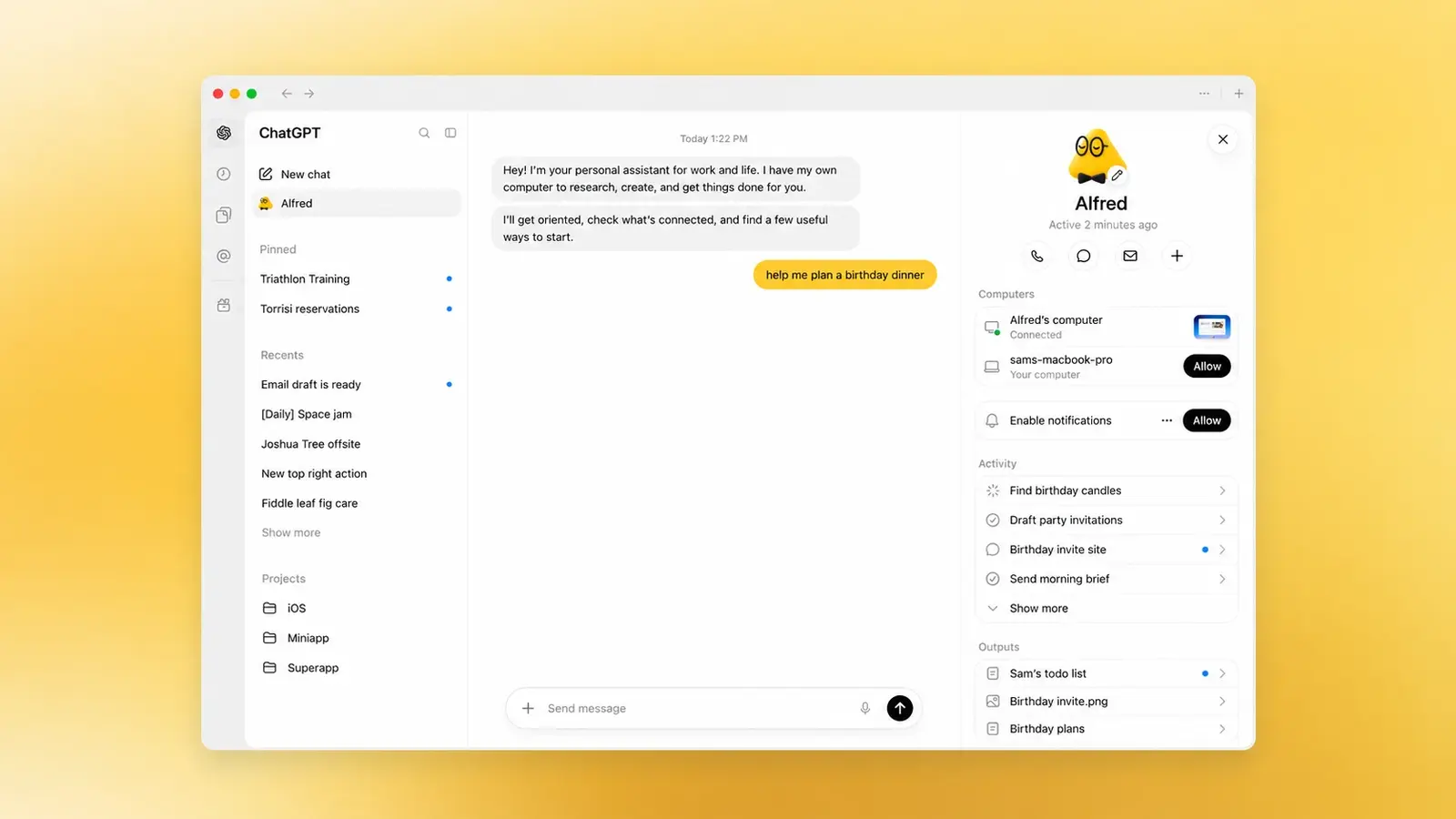
A Dot's profile in the desktop app: calls, chat, and email at the top; below that, its computers, running tasks under "Activity," and results under "Outputs." Image: OpenAI, Source: openai.com/index/how-we-build-safety-security-and-privacy-into-dots
Create a separate rule for everything that goes out. Under Settings, Personalization, Custom rules , you can describe an action and choose one of four levels: Take action without asking, Take action when you say so, Ask before taking action, or Hand off to you. The Help section sometimes still refers to the second level as “Take action if pre-approved,” but it means the same thing. Our advice for getting started: Always set “Ask before taking action” for sending emails, accepting appointments, and deleting files.
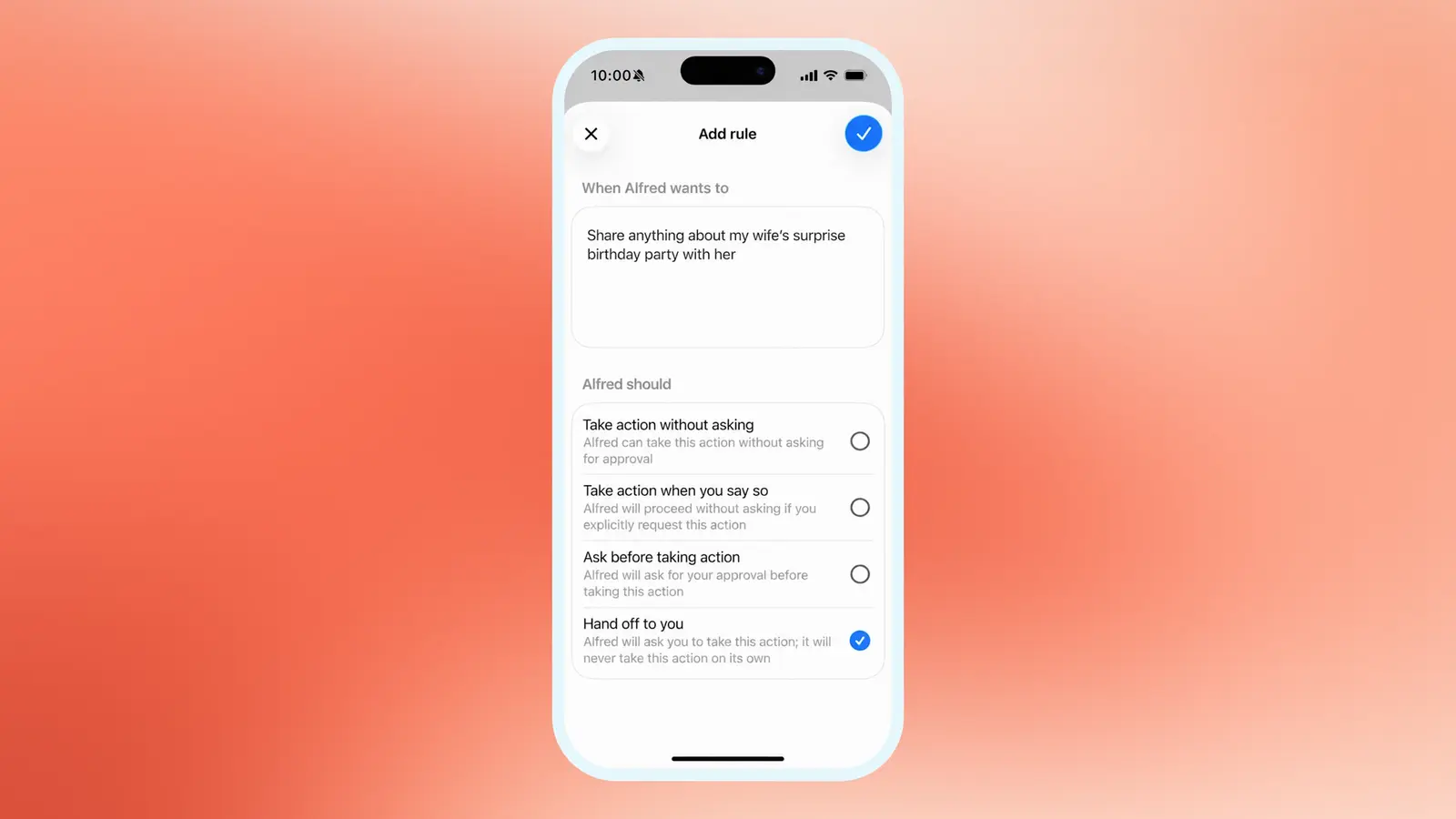
Custom rules for Dot on your phone: For each action, you decide whether he acts on his own, waits for your instructions, asks first, or hands it over to you. Image: OpenAI, Source: openai.com/index/how-we-build-safety-security-and-privacy-into-dots
OpenAI sets a few limits itself, and you should be aware of them. According to OpenAI, users must always change passwords and transfer money themselves. Permanent deletion, software installation, and new security-related access permissions require confirmation every time, and scheduled actions are additionally reviewed by a separate system called Auto-review. According to the Help section, you can’t selectively delete individual Dot memories—only the entire Dot. And even though the Dot uses your computer, conversations and task context run through OpenAI’s cloud.
Dots in Germany: Why Pro Customers Are Coming Up Empty at Launch
If you want to use Dots in Germany, you’ll need to use Business Premium, not Pro. According to the documentation, the eligible plans are Pro 100, Pro 200, and Pro 500, as well as Business Premium and Enterprise—though Enterprise is available only as a trial that the admin must enable. This restriction is stated in the release notes: “Pro access excludes the European Economic Area, Switzerland, and the UK at launch.” Business Premium, on the other hand, is being rolled out in all supported regions, according to the help section. Free, Go, Plus, and standard Business are not mentioned in any source.
Expect some teething problems before you base your customer workflows on it. Since September 30, OpenAI’s public issue tracker on GitHub has received over 200 reports tagged with “dots.” Users report, for example, that tasks initiated by Dot have no computer access on Windows, tasks fail with the message “UNKNOWN,” or voice calls don’t go through. These are user reports, not statements from OpenAI, but they show that a tool that’s only been available for a week isn’t ready for invoicing yet.
For companies with strict data protection requirements, there is an additional restriction. According to the documentation, during the Enterprise trial phase, Dots do not support data residency, meaning there is no guarantee that data will be processed in a specific region. For Business, Enterprise, and Edu plans, OpenAI does not train its models using your data by default. For personal plans, the "Improve the model for everyone" setting applies, and according to the Help section, this also includes actions performed by Dots and data from connected apps.
ChatGPT Space: Shared Documents Instead of Scattered Chats
Use Space for anything that requires multiple people to work on together, and continue using Projects for your chats. Space is officially called “ChatGPT Space” (in the singular) and replaces the previous Library. In a Space, you can collect Pages—documents that you, your colleagues, ChatGPT, and your Dot can all edit at the same time—as well as files, websites, and Google Drive. The release notes explicitly state: “Your existing Projects remain separate.” So you won’t lose anything—a new section is simply being added.
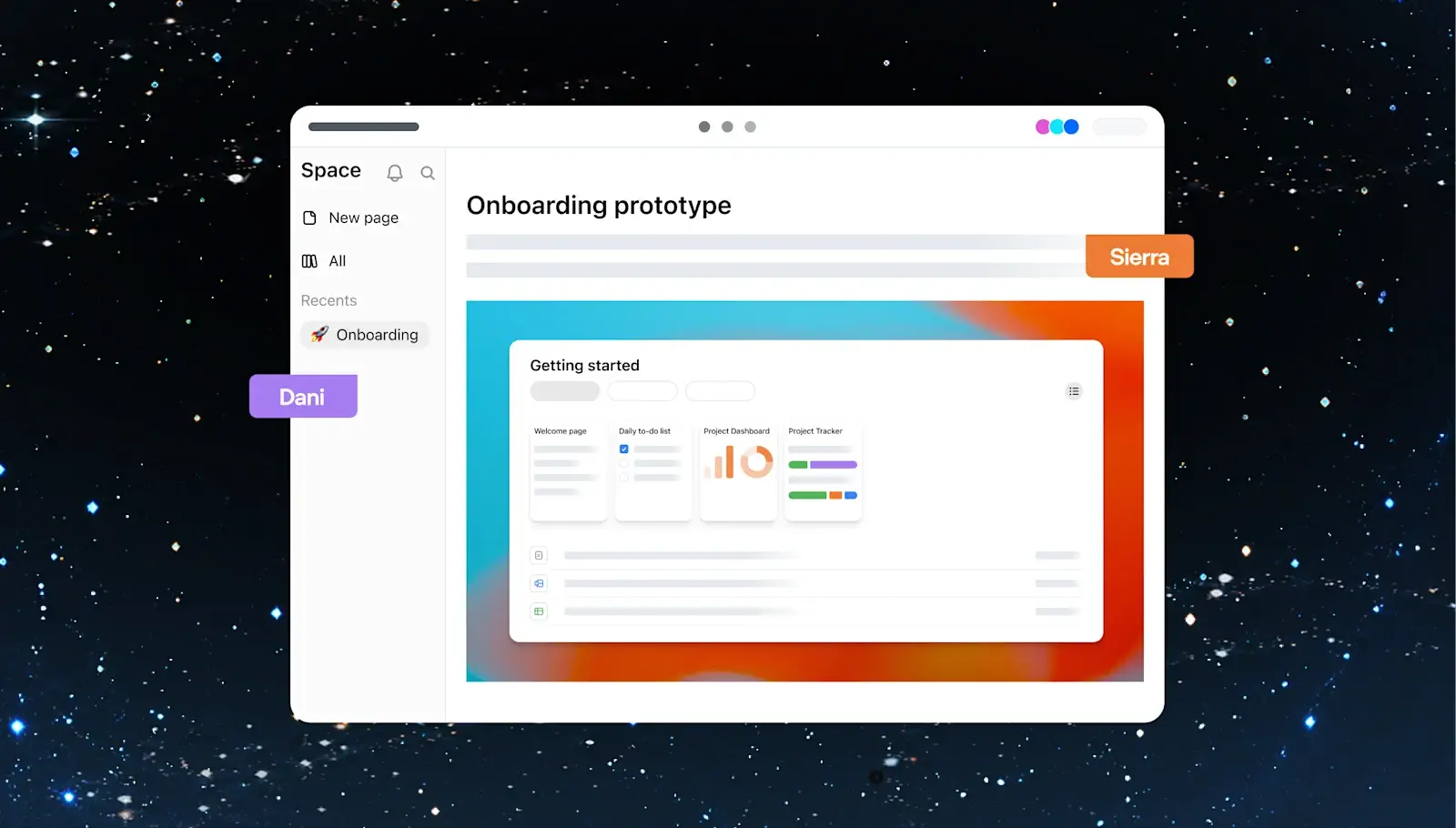
A page in Space: on the left, the sidebar with all pages; on the right, an onboarding prototype that ChatGPT built directly into the document. Two people are working on it at the same time. Image: OpenAI, Source: chatgpt.com/features/space
Check your plan first before adding Space to your team. According to the release notes, Space is available for Pro, Business, and Enterprise plans, both on the web and in the desktop app; for Enterprise, sharing is currently in preview and must be enabled. On mobile, you can only find, read, and share pages—editing will come later. That’s why our Plus account still shows “Library” in the sidebar. Unlike with Dots, OpenAI doesn’t mention any country restrictions for Space.
Using Pages: Slash, @ChatGPT, and @dot
Type a slash on a page to insert everything you need. According to the documentation, the menu includes options such as Generate for text drafts, Visualize for interactive calculators, diagrams, and screen designs, Image, Table, Page for subpages, and Task. When you select text, a bar appears with Ask for change and Comment. Use @ChatGPT or @dot to issue a command directly in the text or in a comment.
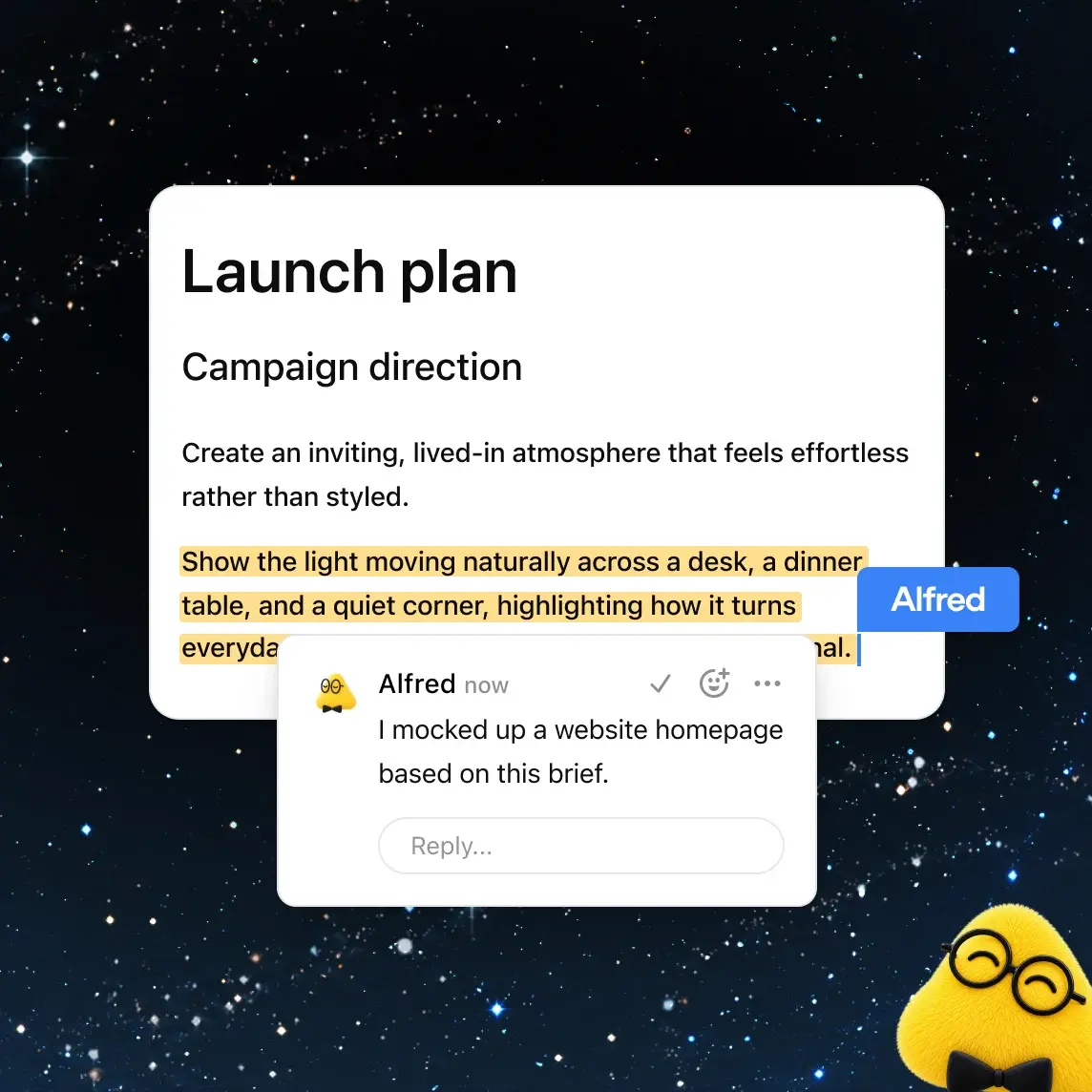
A Dot comments on a launch plan and has already created a draft of the homepage based on the text. Image: OpenAI, Source: chatgpt.com/features/space
Grant permissions at the Space level, not for each page individually. There are three levels: View, Comment, and Edit. Anyone with access to a Space can see all of its pages, and anyone with access to a page can also see its subpages. Important for data protection: According to the documentation, sharing a page does not share private chats or reminders. However, anything you copy from a file into the page will be visible to everyone with access.
Don't expect everything the ads promise right at launch. The product page advertises pages that update automatically from connected tools, but the documentation states: "Keep Updated isn't available at launch." Shared slides and spreadsheets are listed as "coming soon." And OpenAI itself warns against so-called “prompt injections”—hidden instructions in pages or files designed to trick an agent into doing something. Therefore, only share Pages with agents from sources you trust.
Work and GPT-6.1 Sol: What's Different in Your Plus Account Now
Switch to "Work" at the top if you want ChatGPT to complete a task instead of just responding. The "Chat" and "Work" toggle is located in the center above the input field; when you hover over it, ChatGPT describes "Work" as "Complete tasks with your files and apps." In Work, you can select a project, files, and plugins right below the input field, and at the bottom, ChatGPT suggests tasks, such as a schedule overview or an editorial skill.
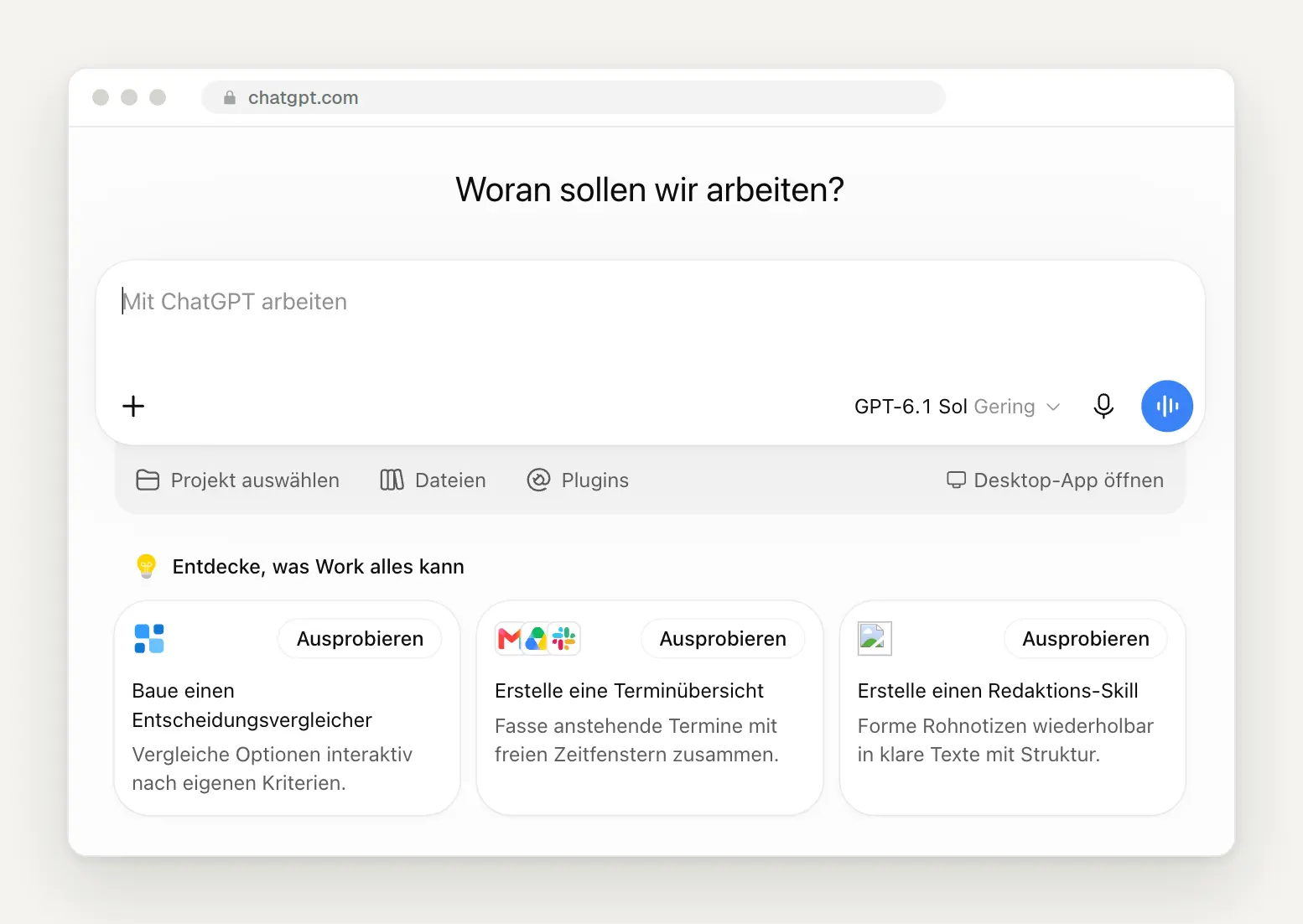
Work mode in our Plus account on October 6: The default setting is GPT-6.1 Sol with minimal cognitive effort, including projects, files, and plugins.
In Work, leave the model selection set to "Standard" unless a task is really difficult. On September 29, GPT-6.1 Sol was released—according to OpenAI, a model that “nearly matches GPT-6 Astra’s intelligence in agentic coding, computer use, and professional work at one-fifth of Astra’s standard input and output token prices.” For you, this means more tasks from the same quota. As of October 6, our account offered the following options: Standard, GPT-6.1 Sol, GPT-6 Astra, GPT-6 Sol, GPT-6 Luna, as well as GPT-5.6 Sol, Terra, and Luna.
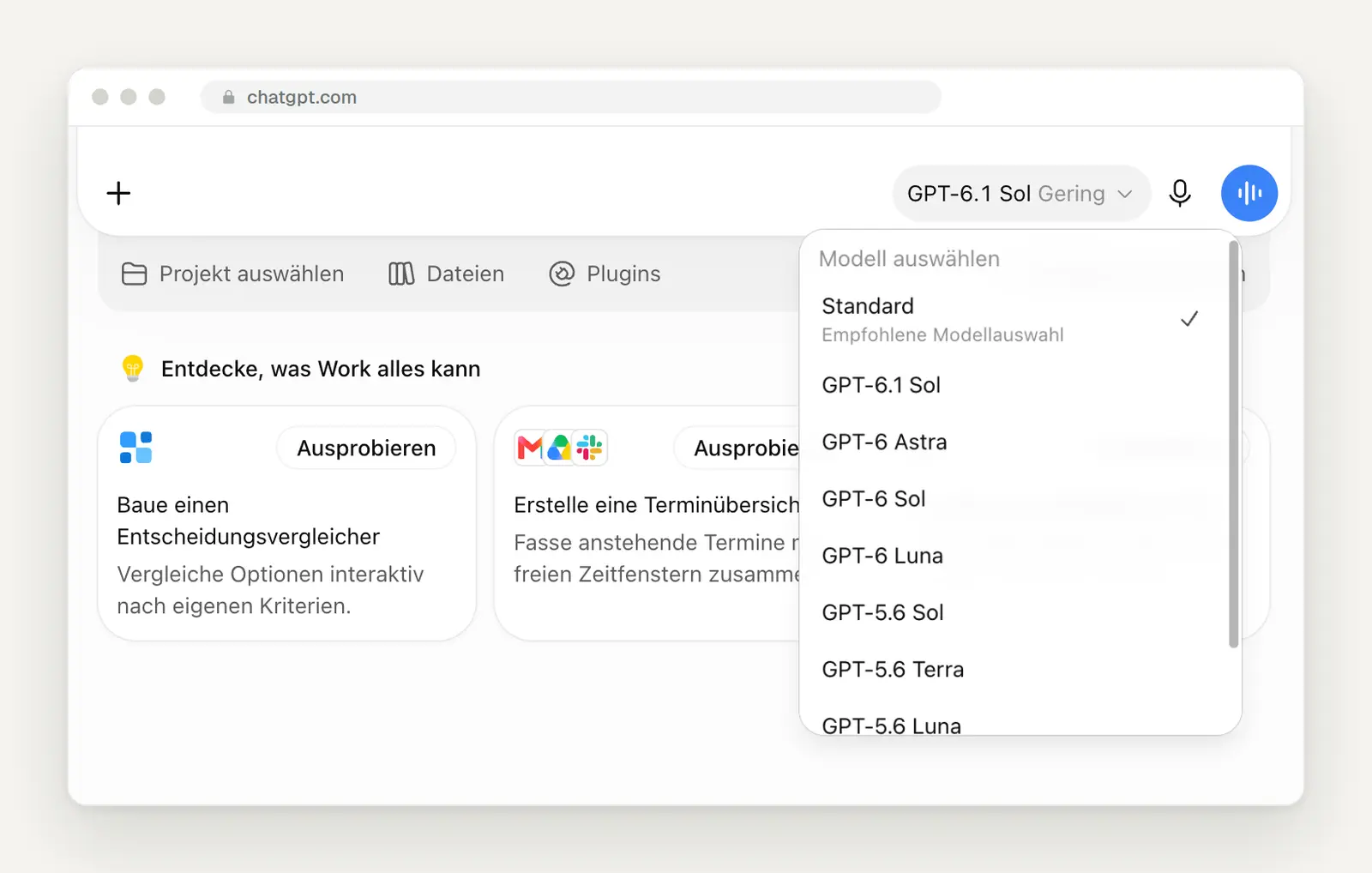
Model selection in Work, Tarif Plus. “Standard” is the recommended selection; the GPT-6 Astra is the most powerful but also the most expensive model.
Use Astra only when necessary, because it uses up your quota quickly. OpenAI provides the following rough estimates for Plus: for every five hours, GPT-6.1 Sol generates 15 to 160 local news articles, but GPT-6 Astra generates only 5 to 45, and GPT-6 Luna generates 350 to 3,000. According to OpenAI, Luna is suitable for clearly defined, repeatable tasks, while Sol is better suited for more complex work. A small observation from our daily experience: A banner ad promoting GPT-6.1 Sol as “almost as powerful as Astra, but more affordable” was there when we first opened the app, but was gone the next time we loaded it. The interface is changing frequently right now.
Ultrafast: the same answer, only up to eight times faster
Only book Ultrafast if waiting time is actually costing you money, because the speed comes at a high price. Ultrafast is a new speed tier for GPT-6 Astra. According to the documentation, Astra generates text in Codex “up to 8x faster” than at the normal level; OpenAI cites up to 300 tokens per second in the summary and up to six times faster output in the programming interface. This doesn’t make the model any smarter—it just responds faster. According to CNBC, Altman said, “We think you are really going to love this and not want to go back.”
OpenAI (@OpenAI) on X · September 29, 2026
"This is Ultrafast. Our premium speed tier, Ultrafast, offers up to 8x faster token generation (300 tokens per second) in Codex and up to 6x faster in the API."
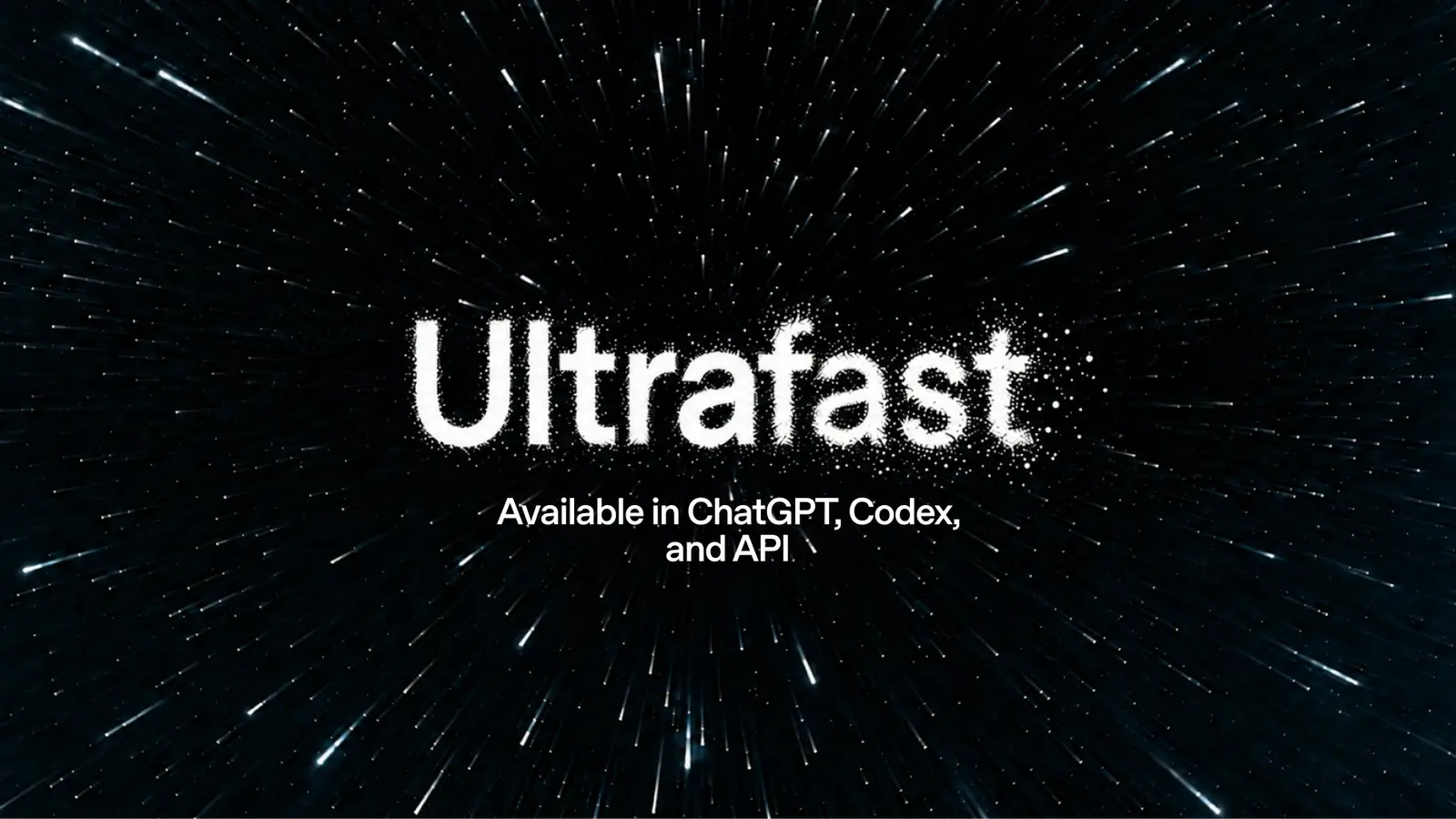
According to OpenAI, Ultrafast is available in ChatGPT, Codex, and the programming interface. Image: OpenAI, Source: openai.com/index/devday-2026-recap
Expect Ultrafast to use eight times as much data. In ChatGPT Work and Codex, Ultrafast is only available in the Pro 500 plan and in eligible Enterprise and Edu workspaces; for Enterprise, it is disabled by default. According to the documentation, Ultrafast consumes the quota included in the subscription “at 8x the standard rate”; purchased credits are billed at six times the standard rate. According to the release notes, credits in the Pro 100 or Pro 200 plans do not unlock Ultrafast. There is also the less intensive “Fast” tier, which consumes the quota 2.5 times as quickly.
For data from the EU, Ultrafast is not an option at this time. According to the changelog, Ultrafast runs in the programming interface with “global processing and US data residency”; processing within the EU is not supported. Enterprise workspaces that require processing outside the U.S. are also excluded, according to the documentation. OpenAI has announced an Ultrafast tier for GPT-6.1 Sol as “coming soon.”
In normal chat, GPT-5.6 remains the same—you just control the level of effort required
Don't expect to see the new GPT-6 models in regular chat—nothing is changing there right now. OpenAI states: “GPT-6.1 Sol, GPT-6 Sol, and GPT-6 Luna are models for ChatGPT Work and Codex. They are not available in regular ChatGPT conversations.” In the chat, GPT-5.6 Sol continues to be used in paid plans, while GPT-5.6 Luna is used in the Free and Go plans. Astra is only available in the chat as “GPT-6 Pro,” and only for Pro, Business, and Enterprise plans.
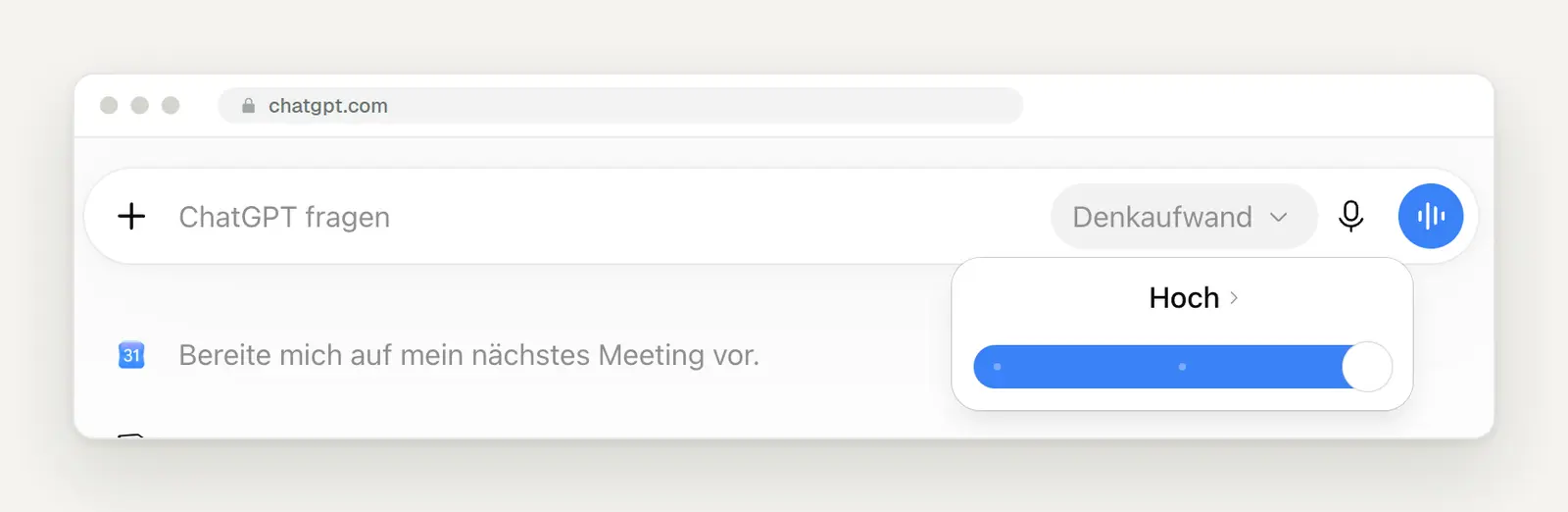
In the chat, instead of selecting a model, you simply choose the level of complexity. In Plus, “High” is the highest level.
Set the slider to "High" when an answer needs to be correct, and leave it lower otherwise. In the German interface, the slider is called " Denkaufwand" (mental effort). A higher setting results in longer answers that require more thought, while a lower setting results in quicker ones. For price research, contract questions, or numbers, we always use the highest setting in the studio; for phrasing and short texts, a lower setting is sufficient.
Through October 14: Prompt GPT-5.5 with planned tasks
Open your plans today and review every recurring task. According to OpenAI, GPT-5.5 will be disabled in ChatGPT, Work, and Codex across all pricing plans on October 14, 2026; the API is not affected. OpenAI strongly advises replacing “gpt-5.5” in saved model settings, custom agents, scheduled tasks, and scripts. OpenAI does not specify what will happen to tasks that are still set to GPT-5.5 after that date, which is exactly why you shouldn’t take any chances.
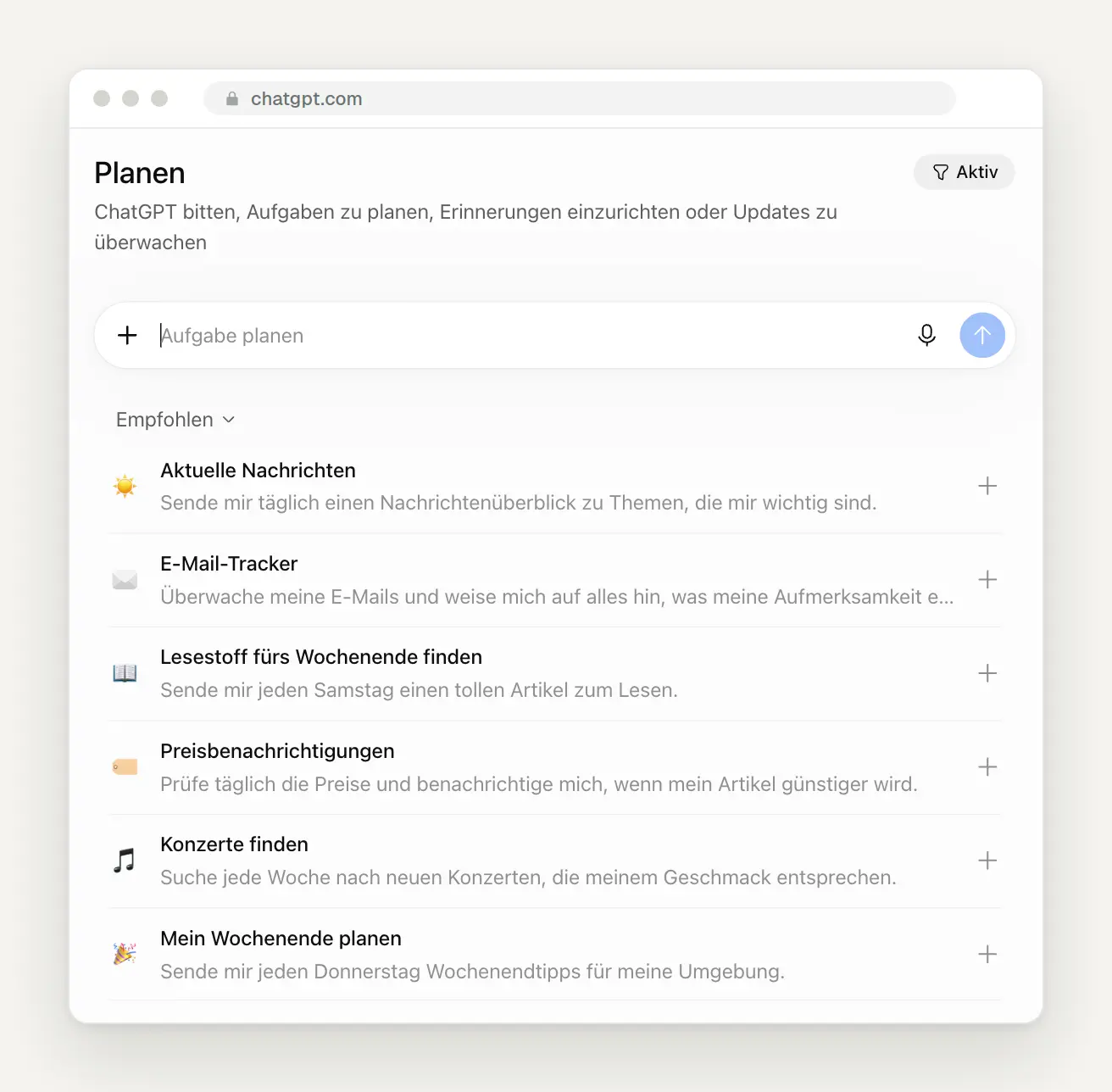
Under "Plan," you'll find your scheduled tasks, with the "Active" filter in the upper right corner. Below that, ChatGPT suggests tasks such as a daily news roundup or price alerts.
Take this opportunity to create a new, meaningful task. The “Planning” section in the sidebar explains itself: “Ask ChatGPT to plan tasks, set reminders, or monitor updates.” For example, a weekly overview of new calls for proposals or grant programs in your industry—every Monday at 8 a.m.—works well in practice. Be specific about what you want, and leave the model on its default settings.
Plugins and Skills: The New Toolbox
Connect only the plugins you actually need every week. Plugins now have their own page in the sidebar, with the subtitle: “Connect plugins so ChatGPT can work across tools.” Under “Popular,” we have Gmail, Google Drive, Supabase, Health, GitHub, and Sales; under “New and Notable,” we have Adobe, Canva, Shopify, tldraw, Figma, and MagicPath. Each plugin is granted only the permissions you authorize when connecting it, and according to OpenAI, these permissions apply across Chat, Work, Codex, and Dots.
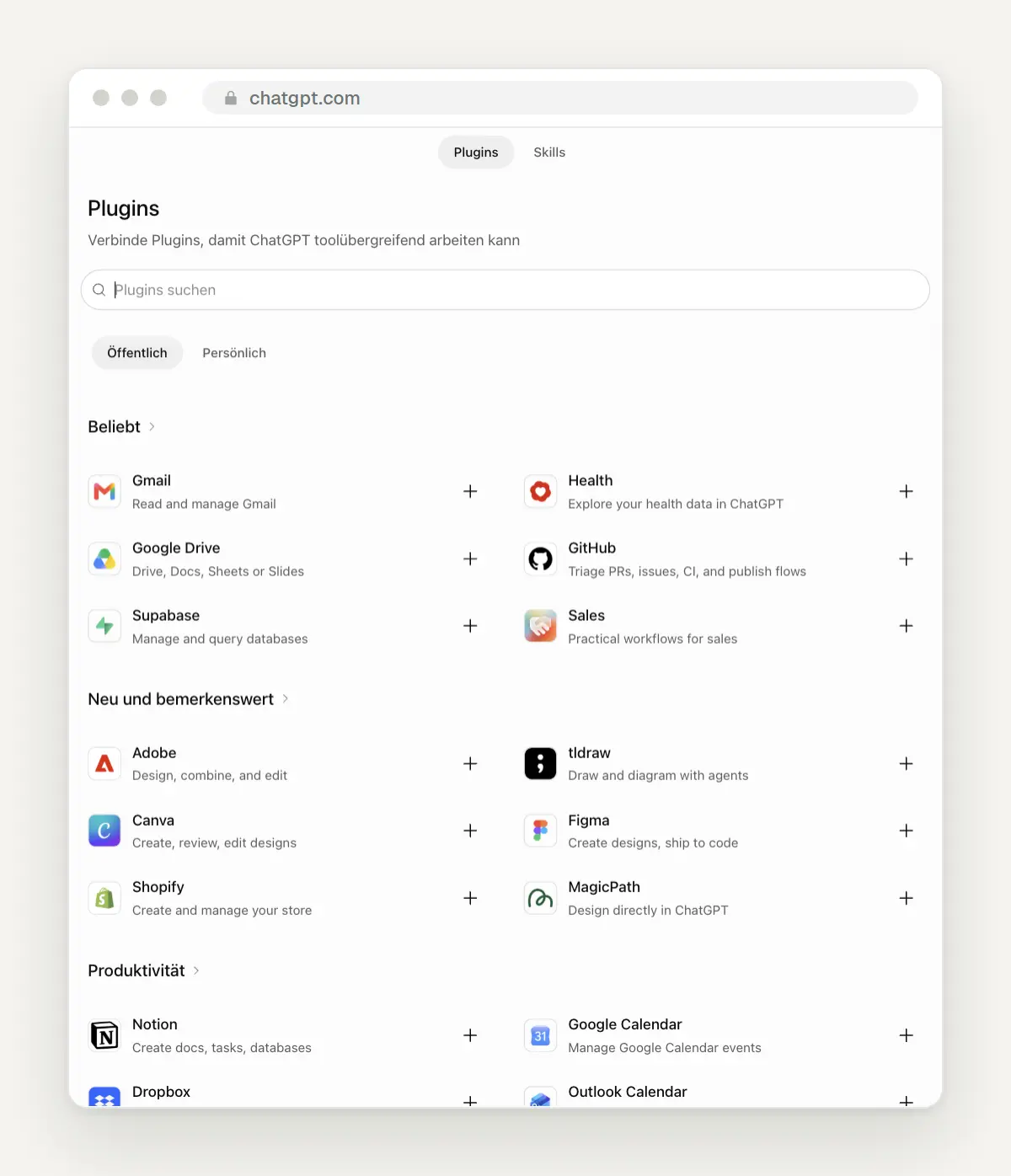
The Plugins page in our account, under the "Public" tab. At the top, you can switch between plugins and skills.
Keep an eye out for the new plugin extensions—they’ll change the way you work with other programs. Since DevDay, plugins have been able to bring their own control panels, sidebars, and file editors directly into ChatGPT. According to CNBC, Altman said on stage: “With plugin extensions, you can build an editor, a dashboard, a whole workspace directly into ChatGPT and Codex.” The best-known example is Canva, which appears as a panel next to the chat. According to OpenAI, this applies to all plans; it’s still coming to the Free and Go plans in the browser.
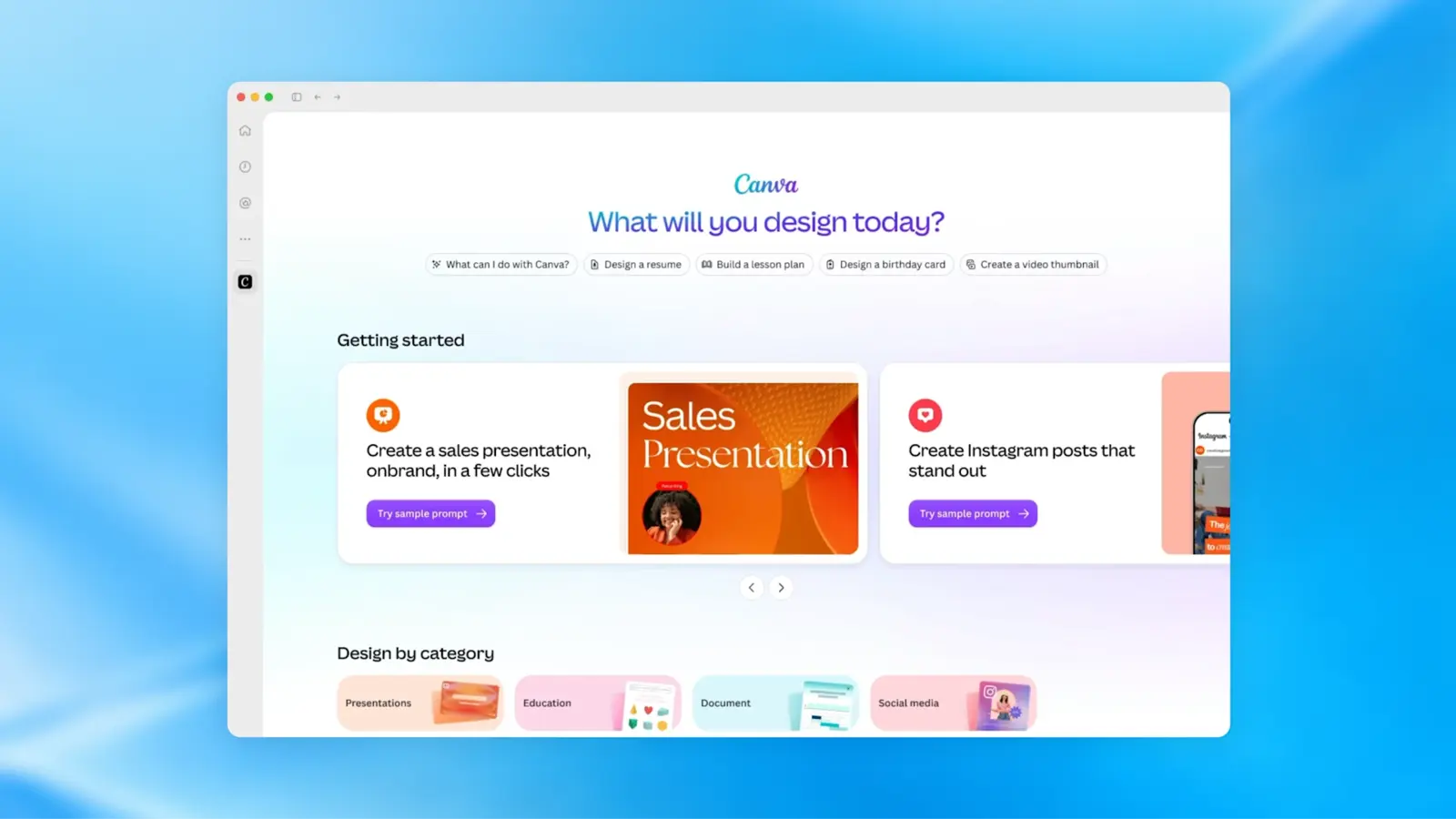
Canva as a plugin extension in the ChatGPT sidebar. Image: OpenAI, Source: openai.com/index/devday-2026-recap
Create a skill for recurring tasks instead of typing the same long set of instructions every time. ChatGPT describes skills as “instructions for expanding ChatGPT’s functionality”; you can add new ones by clicking “Add” in the top-right corner. So far, only the “skill-creator” is installed in our account; it helps you write your own skills. A good first skill for a business: quote texts in your own voice, with fixed building blocks for services, price, and process.
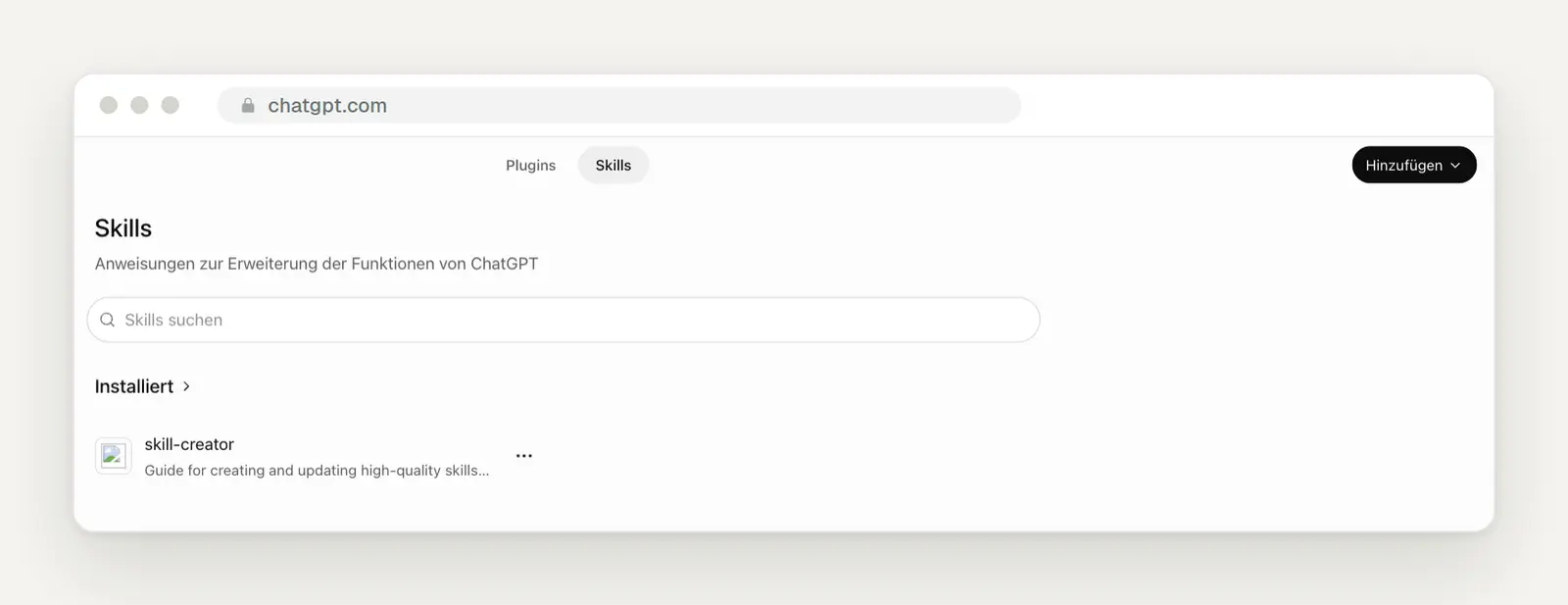
The "Skills" tab with the "Add" button in the upper right corner.
Plan to say goodbye to your own GPTs now, not in December. According to OpenAI, custom GPTs will be shut down on December 11, 2026, and migrated to plugins via “My GPTs ” and “Migrate to plugin.” The instructions will become a skill, and knowledge files will become reference files; however, so-called “Custom Actions”—that is, connections to external services—will not be transferred. Anyone using a GPT with such connections will have to rebuild them.
Teams, Team Tasks, and ChatGPT in Slack and Teams
If you're using Business, assign recurring teamwork tasks to a team rather than to an individual. In Business and Enterprise plans, you can group colleagues into teams and create team tasks that run on a schedule or in response to an event—such as a weekly project update in a Slack channel. There are also workspace integrations: An admin connects a company account once, rather than having each employee do it themselves. According to OpenAI, team membership does not share personal chats or app integrations.
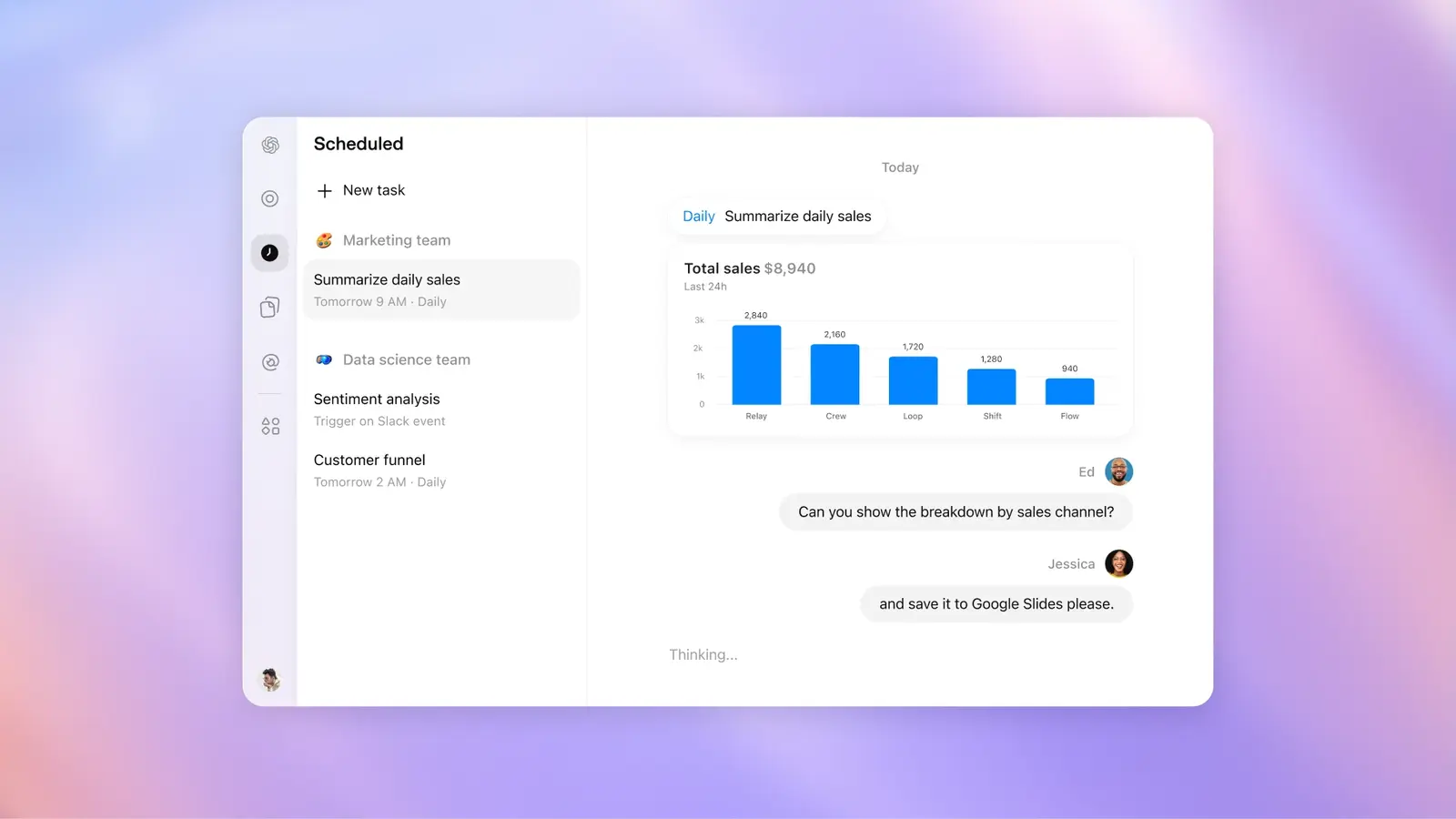
A planned team task involving team selection; in this example, a daily sales summary. Image: OpenAI, Source: openai.com/index/devday-2026-recap
Bring ChatGPT into your team chat if a poll is already underway there. According to OpenAI, with @ChatGPT in Slack and Microsoft Teams, you can have it summarize discussions or design slides—even for colleagues who don’t have their own license. Prerequisites: Business or Enterprise, and the organization must first install and enable @ChatGPT.
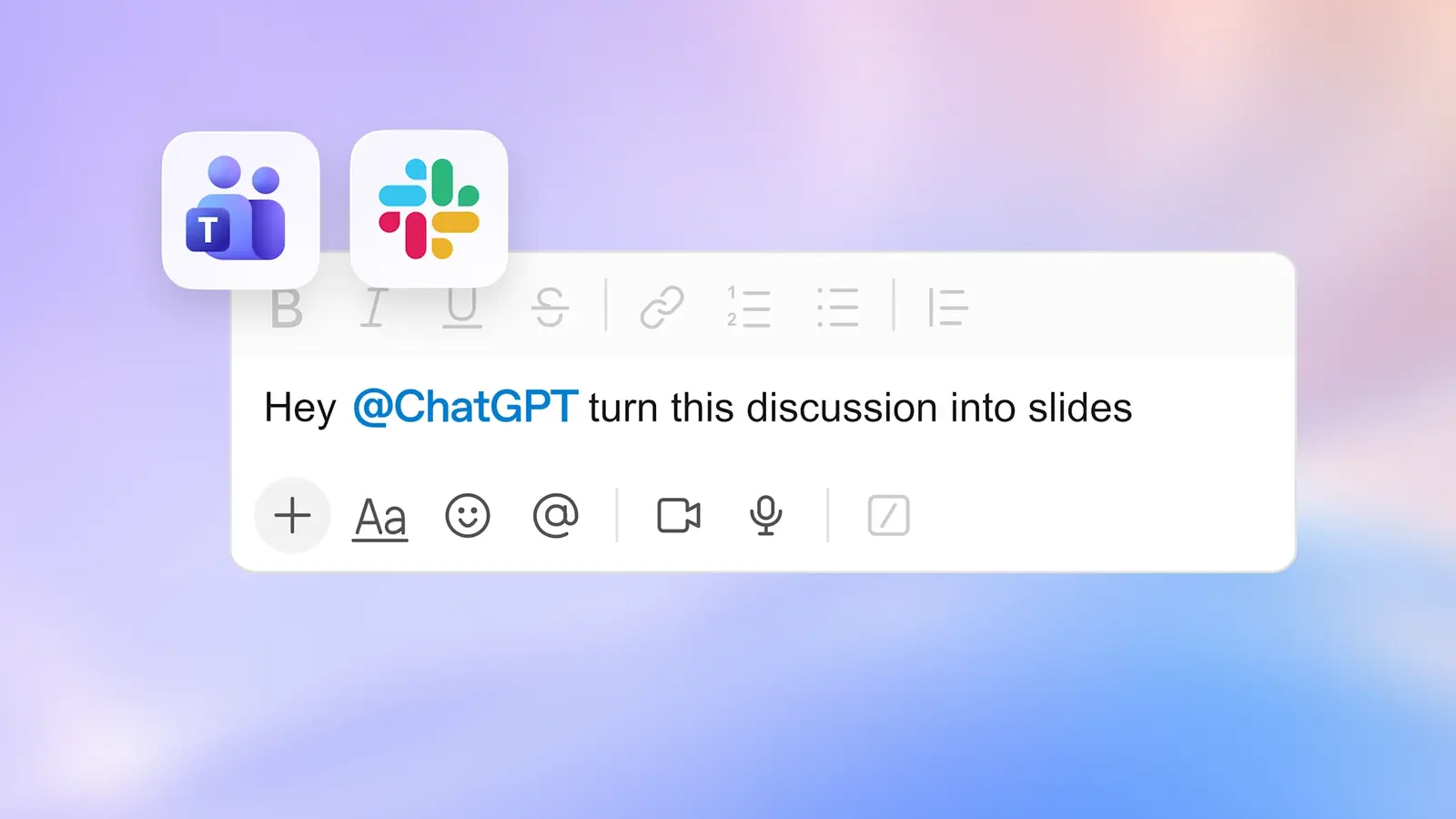
"Hey @ChatGPT, turn this discussion into slides": ChatGPT as a participant in Slack and Microsoft Teams. Image: OpenAI, Source: openai.com/index/devday-2026-recap
Make sure to obtain consent before enabling the new Meetings plugin during client meetings. The plugin creates notes and summaries that include tasks and saves them to Space; according to OpenAI, the audio is deleted as soon as the notes are complete. It’s currently available as a beta version only in the macOS desktop app, for Pro and Business plans. OpenAI does not address the other participants’ consent to the recording in its guidelines; that remains your responsibility.
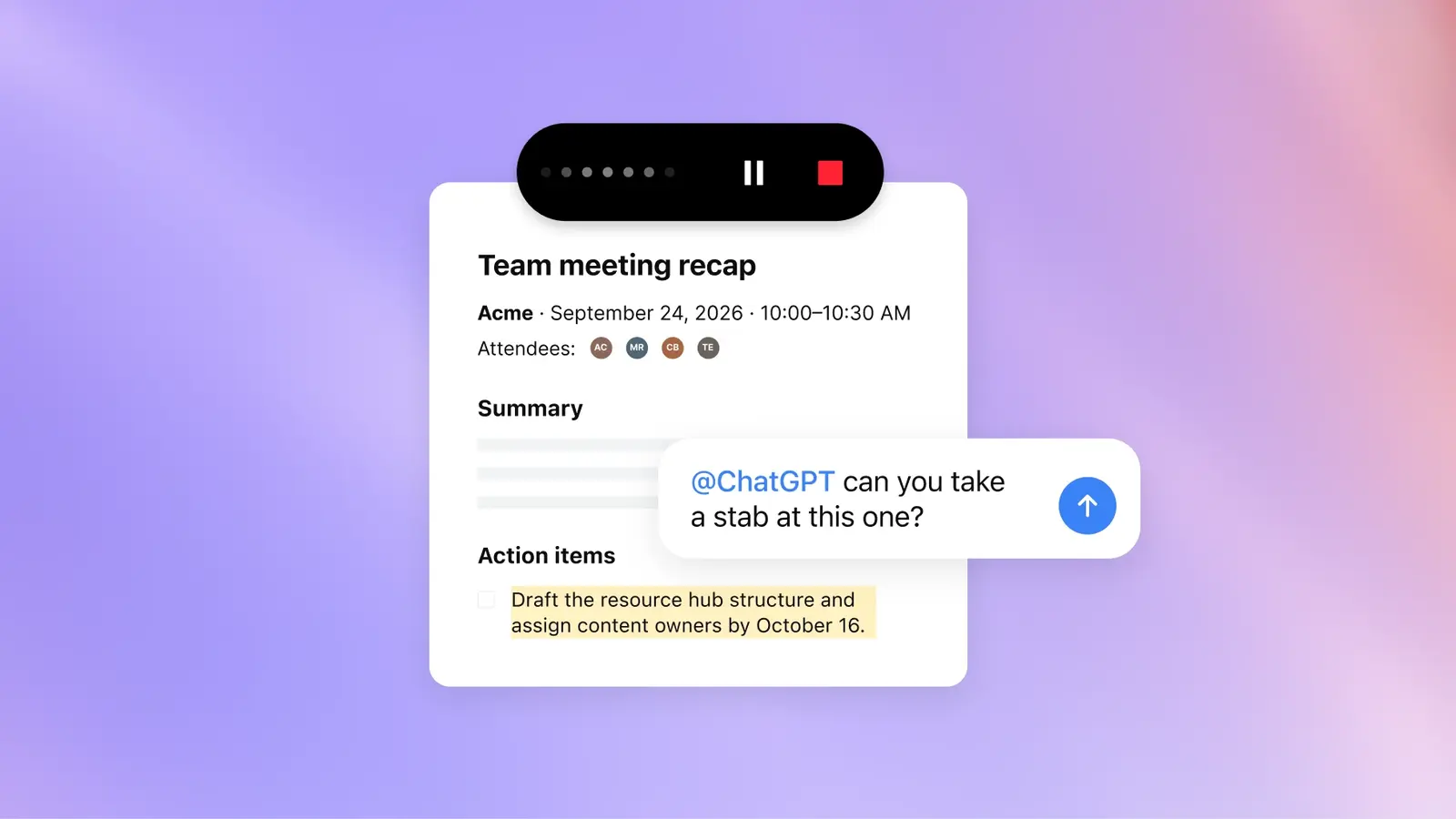
A meeting summary from the Meetings plugin with a task for @ChatGPT. Image: OpenAI, Source: openai.com/index/devday-2026-recap
Sign in with ChatGPT: Use Your Subscription in Other Programs
Set a limit per app before you grant other programs access to your ChatGPT quota. With “Sign in with ChatGPT,” you can log in to other services using your ChatGPT account—according to OpenAI, this is available worldwide, with partners including Airtable, GitLab, HubSpot, Notion, Supabase, and Vercel. According to the help section, only your name, email address, and profile picture are shared—no chats or reminders. Another new feature is that Plus and Pro users can use their quota in participating apps without creating an API key.

Sign in to a partner app with ChatGPT using the "Use your ChatGPT plan" button. Image: OpenAI, Source: openai.com/index/devday-2026-recap
You can set the limit under Settings, Usage, App limits. Usage in partner apps counts toward your Work and Codex quotas. The Help section warns that charges may apply if automatic credit purchases are enabled. Incidentally, sources disagree on who is allowed to use this feature: The release notes mention Plus and Pro, while the help article also mentions Go.
Codex in the Cloud, Code Review, and Security Cloud: for anyone with their own website software
If your website or online store is hosted in a GitHub repository, Codex Cloud is worth checking out. Codex is OpenAI’s programming agent, and according to OpenAI, since DevDay it has been running “on a computer, remotely from a phone, or in the cloud from any device.” You set up a cloud environment with your repositories once; Codex reviews the project, installs dependencies, and tests the workflow, after which you deploy the environment. Each new task then starts in its own workspace and, according to the documentation, continues to run “while your computer is asleep.” Codex Cloud is available starting with the Plus plan, as well as in Pro, Business, Enterprise, Edu, and Healthcare.
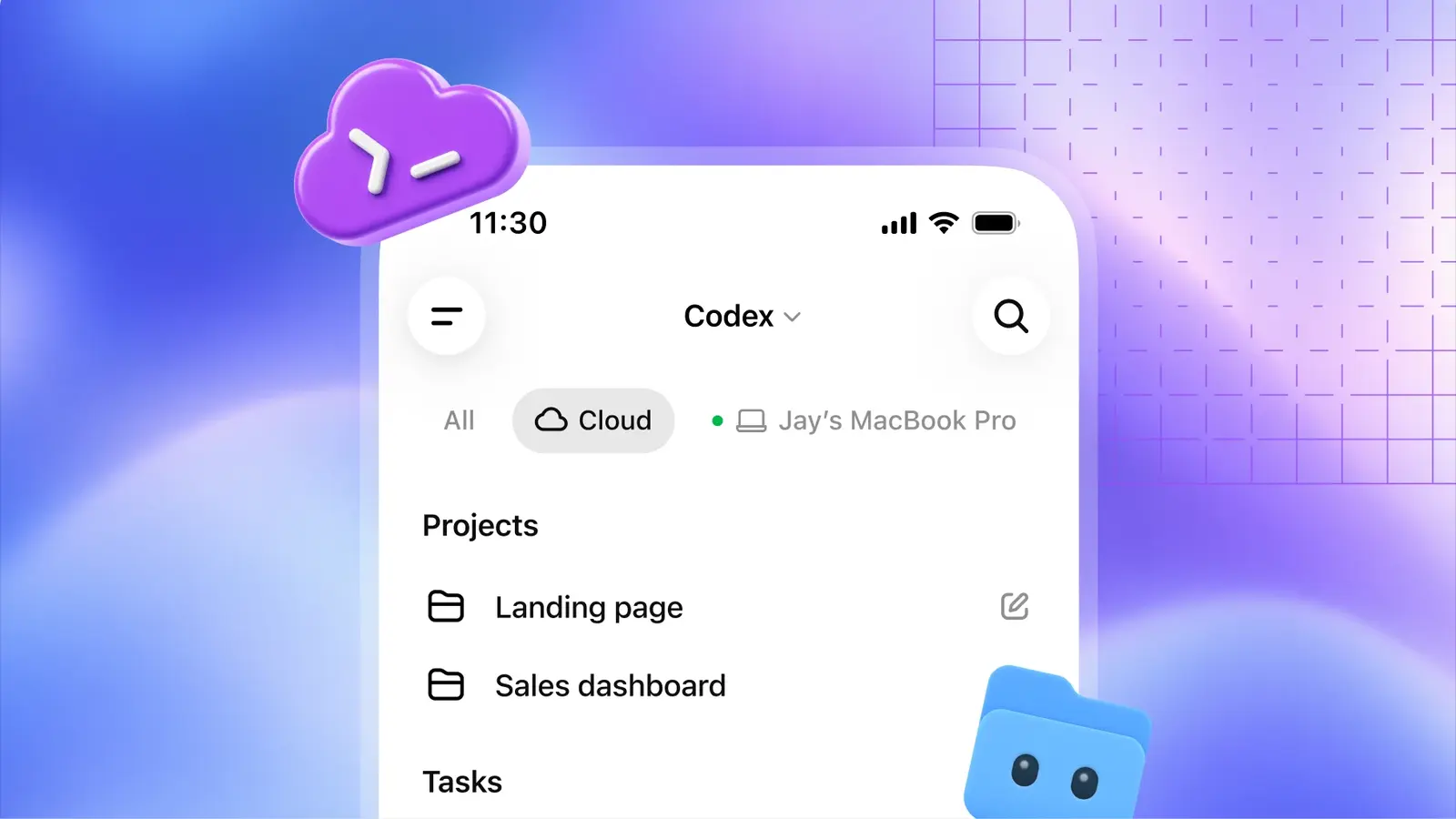
Codex in the mobile app, featuring the "Cloud" tab, projects, and your own computer. Image: OpenAI, Source: openai.com/index/devday-2026-recap
Launch Codex Cloud via Work > In > Cloud > Select Environment. That’s the procedure outlined in the documentation for the web and desktop apps; on your phone, you can open Codex directly. After a task is completed, review the modified files and test results, request revisions, and either accept the changes or open a pull request—that is, a proposed change in the repository. For minor adjustments to a self-built website, this is often sufficient without anyone having to open their laptop.
Let Codex review every change before it goes live. With Code Review, you’ll get summaries, code differences, and automatic checks in the cloud—for GitHub and GitLab—in the ChatGPT desktop app, according to OpenAI, across all pricing plans. In addition, there’s a revamped Codex CLI for the terminal, featuring voice control and a new /agents overview for running agents.
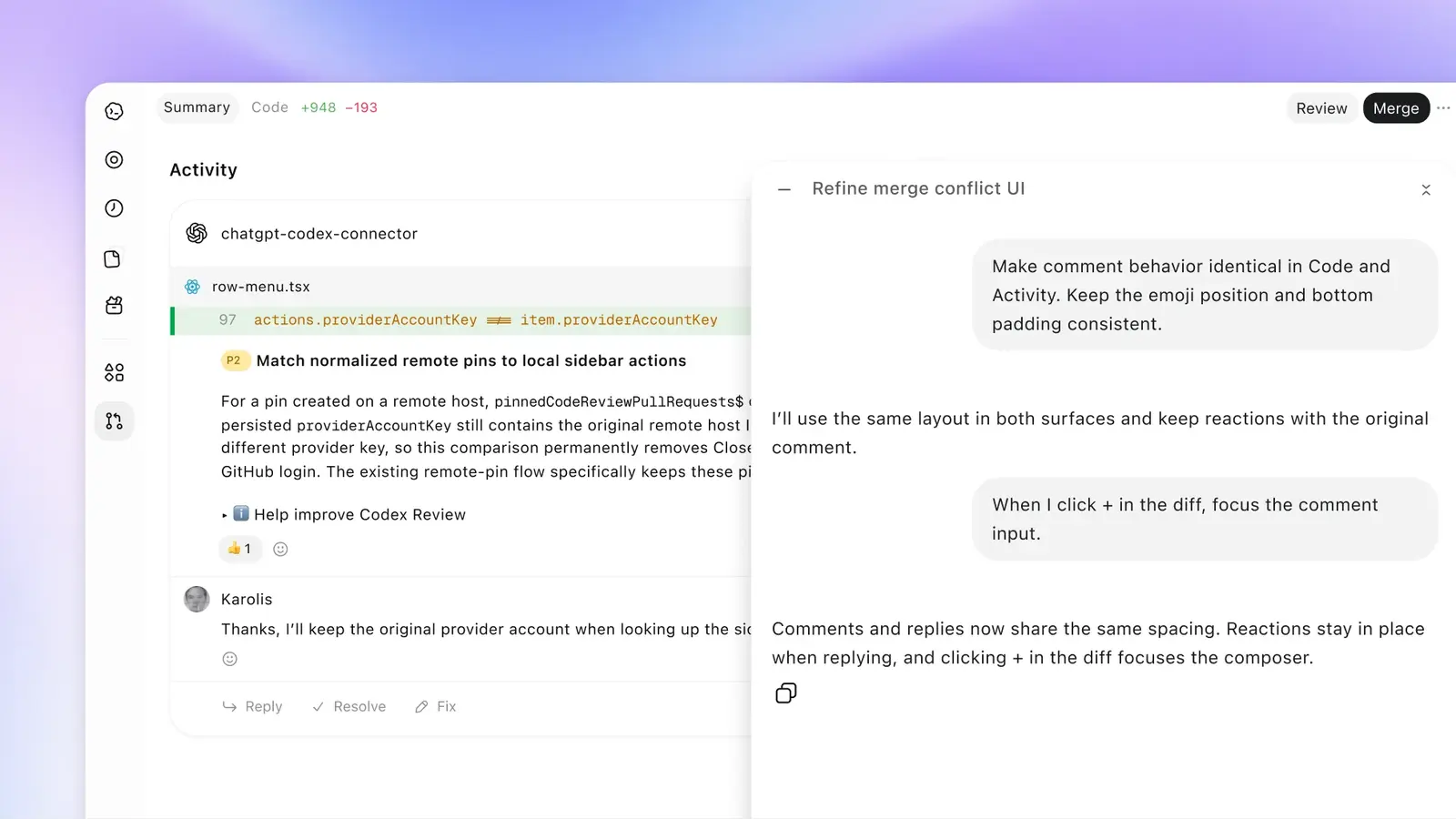
Code Review in the Desktop App: Codex summarizes a change and discusses it as if it were a colleague. Image: OpenAI, Source: openai.com/index/devday-2026-recap
If you’re running your own code, have your repositories scanned regularly for security vulnerabilities. Codex Security Cloud checks connected GitHub repositories on demand or on a schedule, monitors new commits, and prepares fixes—even when your laptop is closed. According to the documentation, you’ll see findings, evidence supporting them, and patches before they’re turned into a draft pull request. This feature is available as a preview for Pro, Business, Enterprise, and Edu plans, both on the web and in the desktop app.
OpenAI (@OpenAI) on X · September 29, 2026
"Codex Security Cloud is getting a major upgrade, with access to cyber-capable models through Daybreak Blue included by default. It scans entire GitHub repositories, continuously reviews new commits, investigates and deduplicates findings, and prepares fixes for review […]"
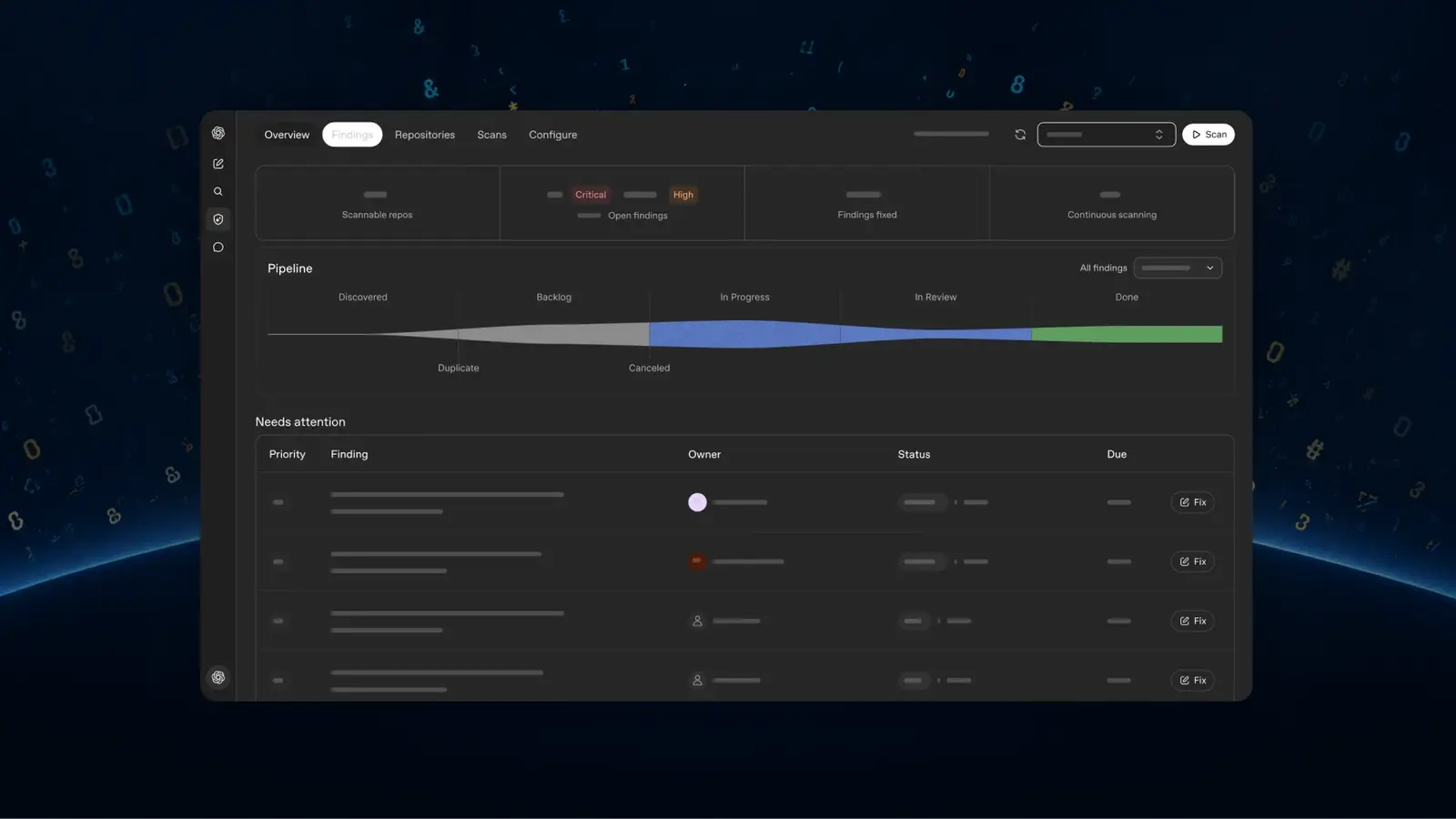
The Codex Security Cloud overview showing detected issues and their resolution status. Image: OpenAI, Source: openai.com/index/devday-2026-recap
Agents API, Decisions API, and OpenAI on AWS: What Developers Can Build Now
Anyone who wants to integrate their own agents into software no longer has to manage the underlying technology themselves. The Agents API has been available as a public beta since September 10. According to the changelog, this allows you to build agents on the same foundation as Codex, while OpenAI handles “session orchestration, context compaction, and recovery”—that is, managing long sessions, compressing conversation histories, and resuming after errors. You can integrate your own tools and MCP servers, and the agents run in OpenAI sandboxes or on your own infrastructure.
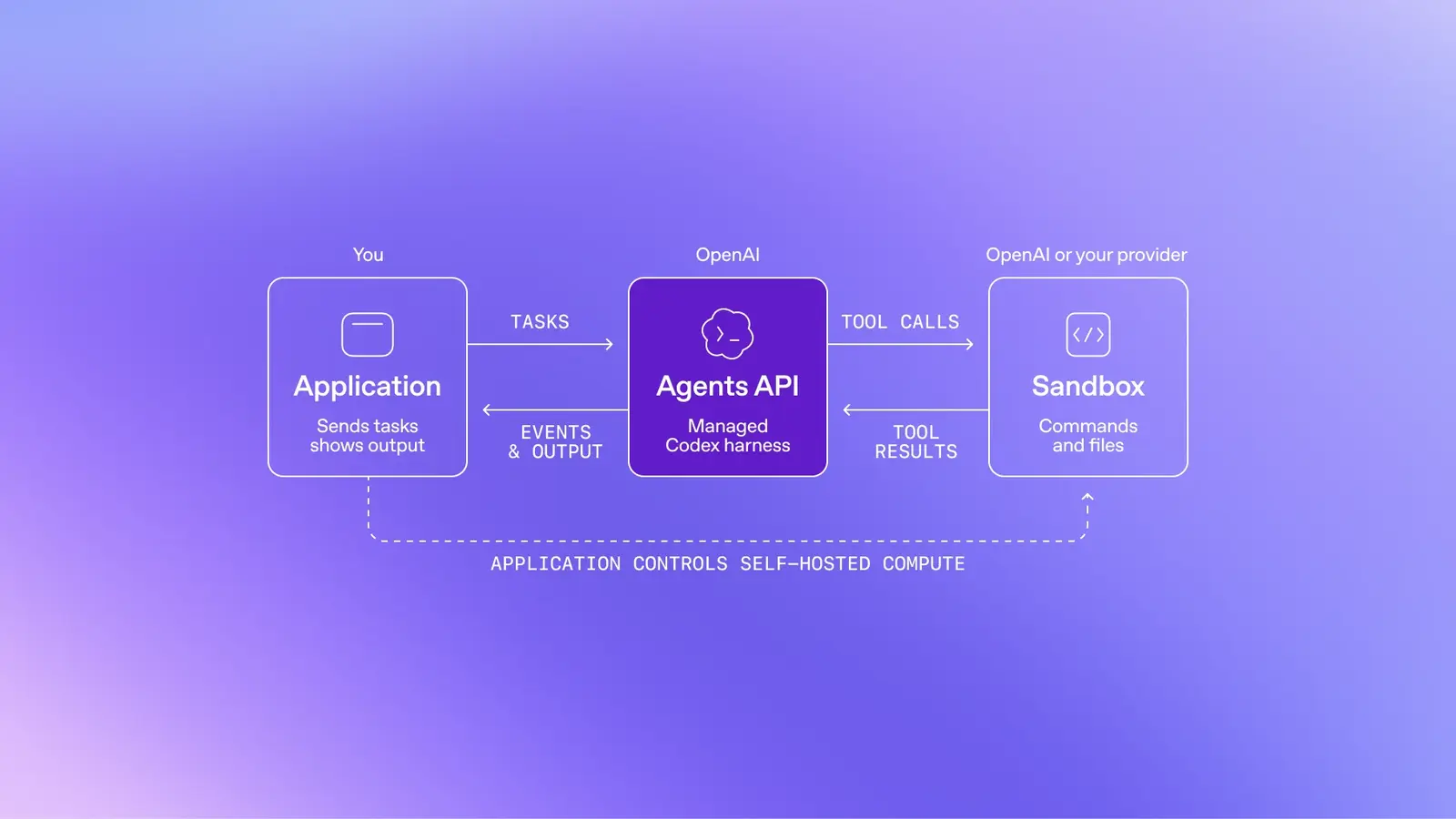
Here's how the Agents API works: Your application sends tasks, the Agents API controls the agent, and the work is performed in a sandbox provided by OpenAI or a third-party provider. Image: OpenAI, Source: openai.com/index/devday-2026-recap
With Computer Use, these agents can now also interact with websites. Since September 29, agents in the Agents API have been performing tasks in a browser operated by OpenAI, while your own application handles website authorizations and logins. Here’s an example from our perspective: an agent that retrieves orders from a supplier portal without an API interface. Until now, such processes could only be carried out using custom, complex browser automation.
There is now a dedicated, significantly faster interface for quick yes-or-no decisions. The Decisions API has been available in beta since October 6 and, according to OpenAI, delivers “typed answers about 10 times faster than the Responses API.” It answers three types of questions: whether a condition is true, with a probability; which of several fixed answers is correct; or how something ranks on a scale. Typical use cases, according to the documentation, include categorizing content, forwarding requests, and prioritizing work—such as determining whether a product photo shows visible damage. For businesses, this means that automatically routing incoming requests to the right department becomes faster and more cost-effective, thanks to the small GPT-6 Luna model.
Anyone who hosts their IT on Amazon can now access OpenAI agents directly there. According to the summary, “Bedrock Managed Agents, powered by OpenAI” run entirely on AWS. OpenAI models have been available via Amazon Bedrock since June, with AWS managing access, regional availability, billing, and operations, according to the documentation. For companies whose data is already hosted on AWS, this eliminates the need for a detour. According to OpenAI, the features available in each AWS region vary by region.
Pricing Plans Reorganized: What a Small Business Really Needs
Stick with Plus or Business unless you work with agents for hours every day. On September 29, Pro 500 was added for $500 a month, offering the highest quota and the Ultrafast feature described above. Pro 200 is available for sign-up again, but with a smaller quota than before; those who previously had Pro 200 will retain their old quota until October 29. OpenAI lists prices in dollars; euro prices are not listed in the sources.
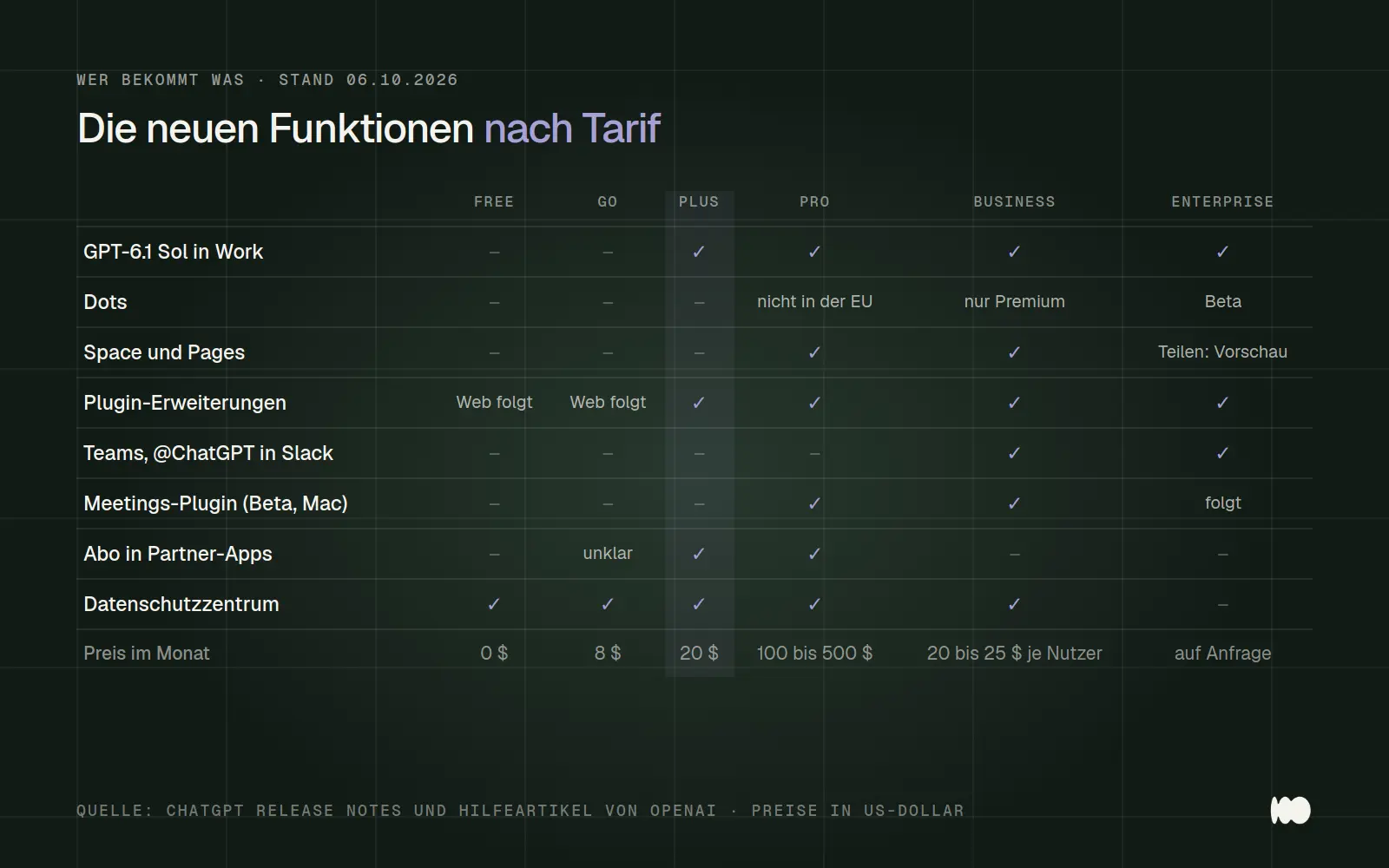
What new features are available in each pricing plan, as of October 6, 2026. Created by us based on OpenAI's release notes and help articles.
Sign up for the Business plan if more than one person on your team uses ChatGPT for work. According to OpenAI, the Business plan costs $20 per user per month with annual billing, or $25 per user per month with monthly billing, for teams of two or more users. The advantage lies less in new features than in the permissions: By default, OpenAI does not train on Business data; admins manage plugins and permissions centrally; and anyone who wants to use Dots in Germany needs Business Premium anyway. A shared Plus account for multiple employees, on the other hand, is not a solution—this becomes apparent, if not sooner, then certainly when the new security update rolls out.
Data Protection: Data Protection Center, Security History, and Watermarks in the EU
Take ten minutes to check out the new Privacy Center. Since September 21, there’s been a central hub that explains and provides links to all settings related to storage, advertising, connected apps, model training, and account security. You can find it by going to the account menu in the bottom-left corner, then selecting “Help” and “Privacy Center.” According to OpenAI, opening it won’t change your settings, so you’ll need to click through them yourself. This does not apply to Enterprise and Edu accounts.
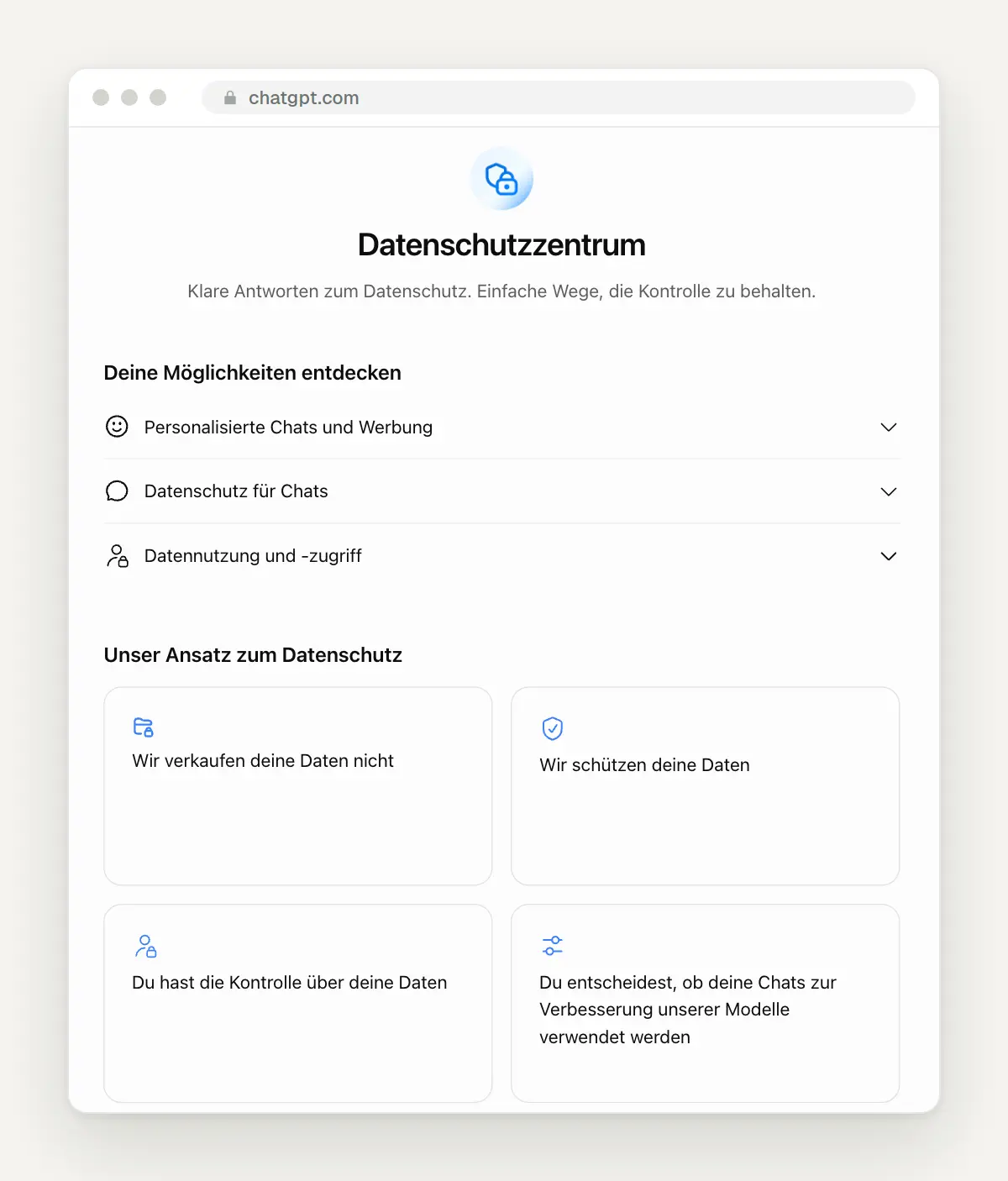
The Privacy Center in our account, which includes three sections on personalized chats and ads, chat privacy, and data usage.
Check your security history to see who has logged into your account. Since September 25, ChatGPT has been displaying all logins, logouts, and changes to two-factor authentication under Settings> Security and Login> Security History, along with the time, location, and device for each. If you see a device there that you don't recognize, change your password immediately and enable two-factor authentication.
Expect texts generated by ChatGPT in the EU to soon carry an invisible watermark. On October 5, OpenAI announced that it would introduce a text watermark for ChatGPT and Codex “over the coming weeks,” exclusively in the EU, as a result of the EU AI Act. According to OpenAI, the watermark does not reveal who created the text, and for now, only authorized researchers will have access to the detection service. OpenAI states that rephrasing just 10 percent of the words reduces the detection rate from about 92 percent to 66 percent. For your website, this means you should always edit your texts—if only for quality reasons.
For companies handling sensitive data, OpenAI has also introduced Private Intelligence. According to the summary, this includes, on the one hand, a version with no data storage—“Zero Data Retention”—featuring “Private Safety Processing”: The security check runs automatically without OpenAI employees viewing the content. Second, OpenAI has announced “Private Inference,” which is designed to keep data protected even during processing; a preview is slated for “this fall.” Both offerings are available to companies upon request, not to subscription customers.
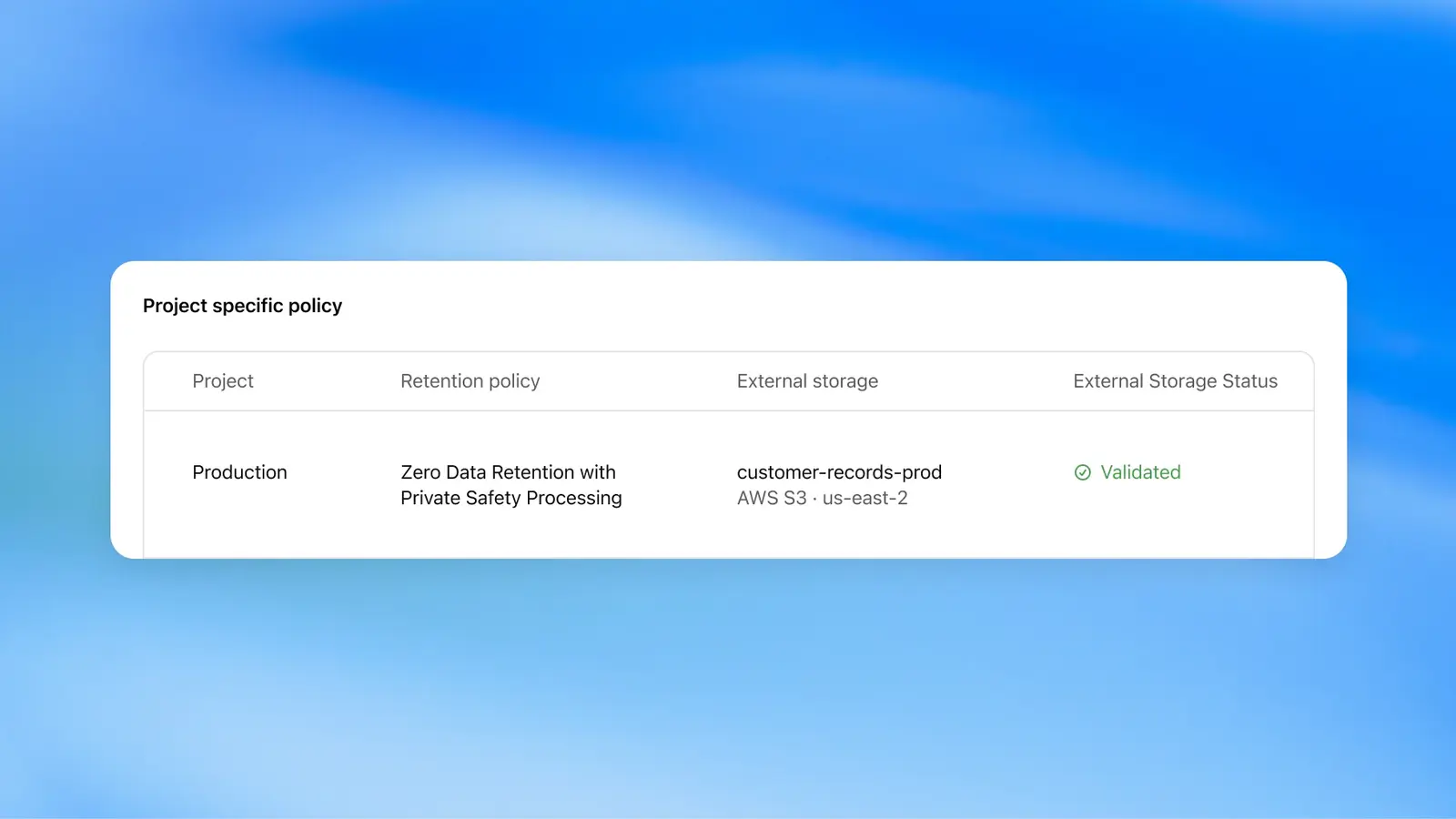
A project guideline featuring zero data retention, private safety processing, and audited external storage. Image: OpenAI, Source: openai.com/index/devday-2026-recap
Which of these are really worth it for a small business?
Start with Work and a skill, not with Dots. Work with GPT-6.1 Sol is available to you in Plus today and handles tasks involving files and plugins without requiring you to switch plans. A well-written skill for your recurring texts saves you time every week. Dots are exciting, but they’re not available for Plus, are blocked for Pro users in the EU, and are still prone to errors one week after launch.
Don't plan to use Space until you're switching to Business anyway. Shared documents with AI are a real step forward for teams, but they're only available in Pro, Business, and Enterprise, and features like self-updating pages are still missing. If you're already working well with Google Docs or Notion, you won't miss out on anything by waiting a few months. On the other hand, if you're planning to switch to Business anyway, you should include Space in your plans right away.
Complete this week's two mandatory tasks. Check the scheduled tasks on GPT-5.5 before it shuts down on October 14, and plan the migration of your own GPTs before December 11. Also, review the Privacy Center and Security History once. Everything else can wait until it's running smoothly and has been enabled for your plan.
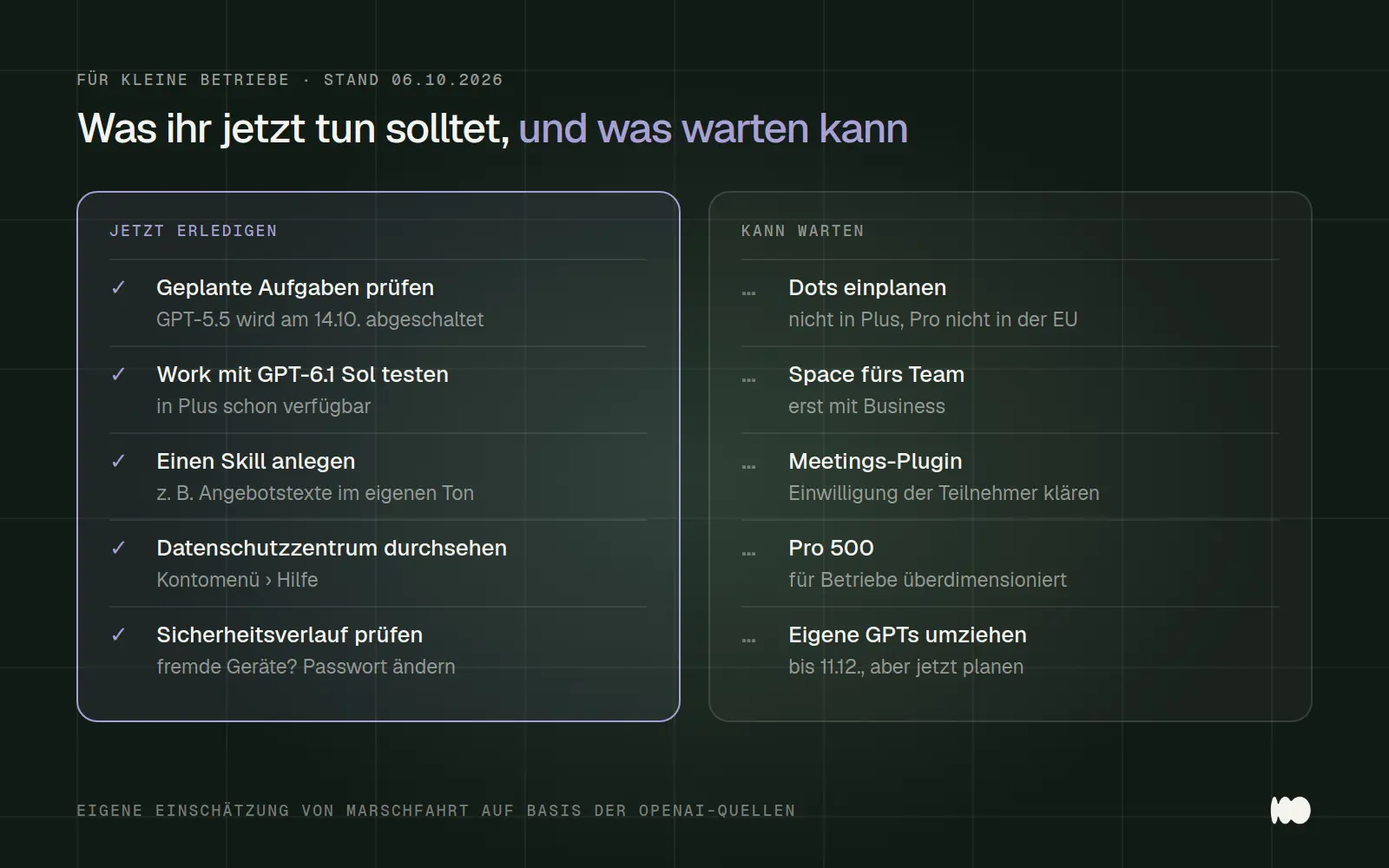
What you should do now and what can wait. Based on our own analysis, as of October 6, 2026.
What Has Changed and What That Means for You
October 14, 2026: GPT-5.5 will be disabled in ChatGPT, Work, and Codex. For you, this means: switch over any scheduled tasks and your own agents beforehand.
October 6, 2026: The Decisions API launches in beta. For you, this means that automatically categorizing requests will be faster and more cost-effective if you have your own application.
October 5, 2026: OpenAI announces a text watermark exclusively for the EU, set to launch in the coming weeks. For you, this means: Edit AI-generated text before publishing it.
October 1, 2026: Virtual try-on while shopping in ChatGPT and scanning multiple pages into a single PDF on the iPhone. OpenAI does not specify whether the try-on feature is available in Germany. For fashion retailers, this means that product data for ChatGPT is becoming more important.
September 29, 2026: DevDay featuring Dots, Space, Pages, GPT-6.1 Sol, Ultrafast, Pro 500, plugin extensions, Teams, the Meetings plugin, Sign in with ChatGPT, Codex Cloud, Codex Security Cloud, and Computer Use in the Agents API. For you, this means: In the Plus plan, GPT-6.1 Sol will be available in Work above all else; the rest depends on your plan.
September 25, 2026: Security log showing all logins. For you, this means: check once to see who has logged in.
September 23, 2026: Plugins in voice mode and voice control in Work. For you, this means you can create documents using voice commands on the go, but approvals will always be handled on the screen.
September 22, 2026: GPT-6 Sol and GPT-6 Luna in Work and Codex. For you, this means more tasks per quota in Work.
September 21, 2026: Privacy Center for Free, Go, Plus, Pro, and Business. For you, this means you can review all your privacy settings in one place.
Date of this version: October 6, 2026. For more information on instructions, projects, storage, and permissions, see our ChatGPT guide. For help with a common error message in the Windows app, see our article titled “This project could not be used for a local chat.”
Which new feature do you think is worth it?
There’s usually a lot of work involved between the initial announcement and actually putting it to use in your own business: Which tasks are suitable for Work, which skill really saves time, and when is Business worth it? That’s exactly what we set up with businesses—from the first skill to the automation of entire workflows. Related: How to Use ChatGPT Effectively · Services: AI and Automation
Let us know what you have in mind by filling out our contact form. We'll respond within 24 hours—personally and without any sales pitch.
More Articles
© Marschfahrt Studio
Practical knowledge on web design, SEO, AI, and conversion optimization. Based on real projects, without any marketing spin.