Transferring a Domain Without Downtime: A Step-by-Step Guide for Strato, IONOS, Jimdo, and Others
How to transfer a domain to a new provider without disrupting your website or email service: with menu paths for Strato, IONOS, and Jimdo, commands to copy, and a checklist.
Date
Category
Author

From a technical standpoint, transferring a domain often takes only a few minutes. However, the problems that arise afterward can keep businesses busy for days: Emails stop arriving, old messages are lost, the website displays an error page, or the domain is suddenly canceled instead of transferred. Almost always, the problem lies not with the transfer itself, but with the preparation.
This guide shows you, step by step, how to transfer a domain to a new provider without any downtime. It includes the exact menu paths on Strato, IONOS, and Jimdo from their help pages, real test commands using our own domain as an example, and the pitfalls you won’t find in any quick guide. We verified all information on October 12, 2026, with DENIC and the providers.
In a nutshell (as of October 12, 2026)
You’ll need an auth code from your old provider; enter it with your new provider, and the domain will be transferred. Before doing so, back up your emails, write down all DNS records, and set up your email accounts with the new provider. Never simply cancel the domain just to re-register it elsewhere—otherwise, someone else might end up with it. With Strato, you’ll only receive the auth code after canceling your account using the “Switch Providers” option; with IONOS, you don’t need to cancel. Plan for a week during which the old and new providers will run in parallel.
The Basics: What Actually Happens During a Move
When you switch providers, only the administrator of your domain changes—not the owner. Technically, this is called a provider change. A domain ending in .de is managed by the registry DENIC; your provider is simply the intermediary service provider. If you switch providers, the domain remains yours. If, on the other hand, you change the registrant, ownership changes. According to DENIC, both can be done in a single step.
The key is a password—the auth code. DENIC calls it “AuthInfo,” while other providers refer to it as an “auth code,” “authorization code,” or “transfer code.” Your previous provider generates it, and you enter it with the new one. According to DENIC, it is 8 to 16 characters long and expires after 30 days. If it’s valid, the domain will transfer immediately. If your old provider no longer exists, DENIC will send you the code by certified mail to the registrant’s address.
A brief outage is possible, which is why a transition period is necessary. DENIC itself states, in response to the question of whether the domain might be temporarily unavailable during the transfer: “This is certainly possible.” The recommendation: plan for a period during which you can be reached through both providers, ideally one week. So don’t cancel the old contract so that it ends on the day of the transfer.
Never cancel the domain just to re-register it. DENIC expressly warns against this approach: After a deletion, the previous owner has priority for only 30 days; after that, anyone can register the domain. Even canceling a contract without securing a new provider is risky. The domain then enters what’s known as “transit” at DENIC, and you have one month to respond; otherwise, it will be deleted.
Before the move: seven things you need to secure
When you transfer the domain, only the name changes—nothing else. This is the case with Strato, IONOS, Jimdo, and all-inkl: website content, email accounts, subdomains, databases, and your DNS settings remain with the original provider. Therefore, you should complete these steps before requesting the auth code.
1. Check who owns the domain and what email address is on file. With most providers, the auth code is sent to the domain owner’s email address. If the domain is still registered to a former agency or a former employee, clarify this first. At DENIC, you can look up your domain at webwhois.denic.de and request a link to your own data via “Domain Owner Information” using your ZIP code or email address.
2. Make a note of all DNS records. They tell the world where your website is located, where your emails go, and which services you’ve verified. You’ll need to set them up again with your new provider. Here’s what that looks like using our own domain as an example: the nameservers, Google’s mail servers, the website address, and the TXT records for email delivery and Search Console.
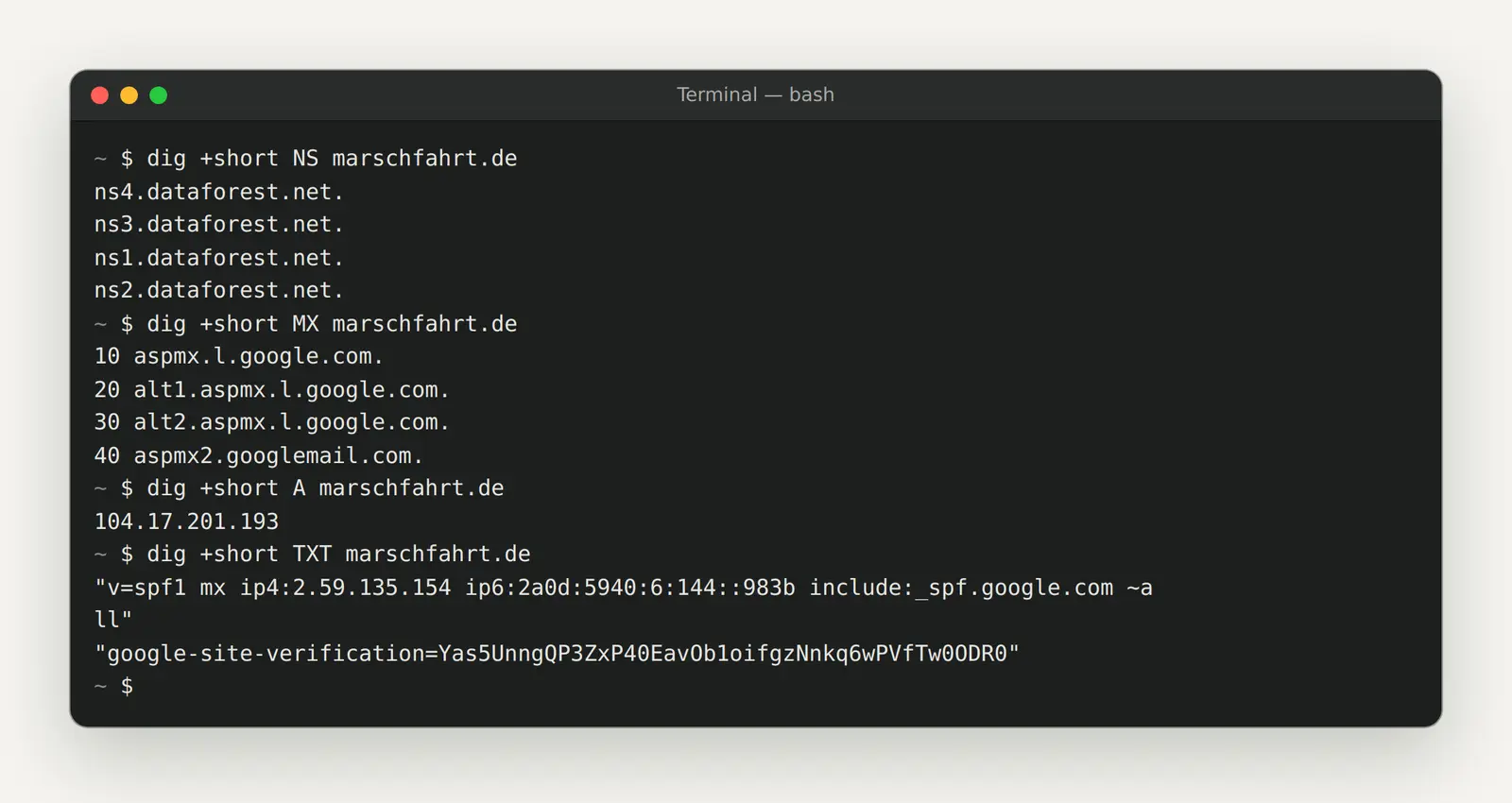
The DNS records for marschfahrt.de, queried using dig: name servers (NS), mail servers (MX), website address (A), and text records (TXT).
On a Mac in Terminal, enter each line one at a time, replacing "example.de" with your domain:
In Windows, at the command prompt or in PowerShell:
If you don't want to open a terminal, use the Google Admin Toolbox. Go to toolbox.googleapps.com/apps/dig, enter your domain and entry type, and you'll get the same result in your browser. Take a screenshot of each query or copy the result to a file. If this is your first time opening the terminal, you can find the basics in our guide to the terminal.
3. Lower the TTL one to two days in advance. The TTL determines how long other servers will cache your entries. According to Google, changes take up to 24 hours to take effect with a TTL of 86,400 seconds. If you set it to 300 seconds beforehand, changes made on the day of the move will take effect within minutes. Important: The shorter TTL won’t take effect until the old one has expired, so make sure to do this in advance. After the move, Google recommends setting it back to 86,400.
4. Back up your emails before the mailbox disappears. Jimdo puts it most clearly: After the transfer, you will no longer have access to your old messages and contacts. Set up each mailbox in Outlook, Apple Mail, or Thunderbird using IMAP, wait until all folders are synced, and then export them. According to Jimdo, IMAP alone does not create an independent backup.
5. Set up your email accounts with the new provider in advance. Strato and all-inkl strongly recommend this to ensure that no emails are lost during the transfer. As soon as the domain is transferred to the new provider, new emails will go directly to your new email accounts.
6. Back up your website and databases. If your website is hosted on your old provider’s web space, download the files via FTP and export the database as described in the IONOS checklist. With website builders like Jimdo or Wix, the website won’t transfer anyway—you’ll need to create a new one there.
7. Use an email address on a different domain for the transfer. Strato and Jimdo advise against using an address associated with the domain being transferred as your contact address. Otherwise, if info@eurefirma.de stops receiving emails in the middle of the transfer, you’ll miss the very confirmation you’re waiting for.
Transfer a domain away from Strato
With Strato, you won't receive the auth code until you cancel your service. Strato states explicitly: "You cannot request an AuthInfo code for active domains that have not been canceled." This is the most common pitfall, because the cancellation must be set up exactly right.
When canceling, select “Switch Providers”; never select “Cancel Domain.” In the Strato customer login, go to your contract, then “Cancellation and Termination,” and click “Cancel” in the row for the domain. In the “Follow-up Process” column, there are two options. According to Strato, “Cancel Domain” initiates the deletion process with the registrar. “Switch Providers” is the provider change you want.
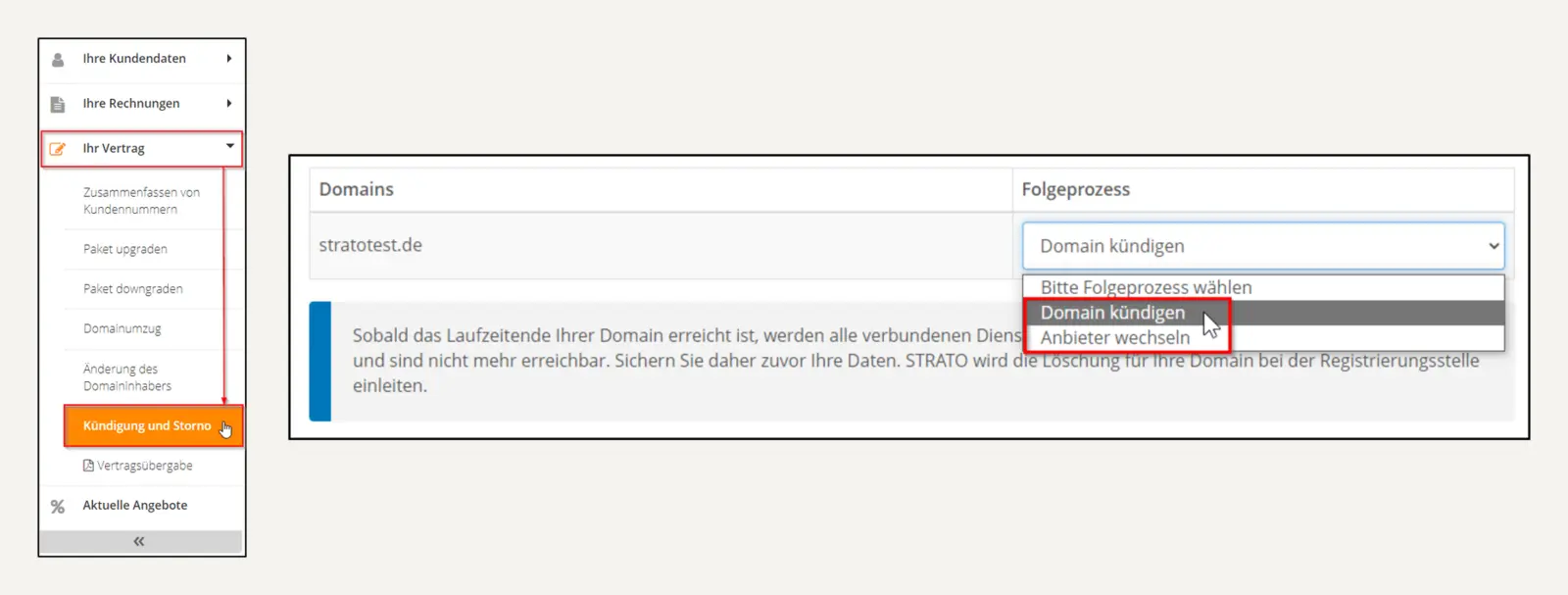
On the left, the path from “Your Contract” to “Termination and Cancellation”; on the right, the selection in the subsequent process: “Switch Providers” instead of “Cancel Domain.” Images: STRATO, Source: strato.de/faq/vertrag/wie-kann-ich-kuendigen
Pay attention to the deadline and your package. According to Strato, the cancellation must be received no later than one month before the end of the term. If the domain is the last or only one in your package, you will continue to be billed for the package, so you’ll need to cancel it separately. You can revoke a cancellation up to 30 days before the cancellation date under “Cancellation and Termination.”
You can request the code in the Domain Management section. After canceling your subscription via “Switch Providers,” Strato will automatically send the code no earlier than 30 days before the cancellation date. You can get it faster by requesting it manually: In the customer login, under “Domains”> “Domain Management,” you’ll see “Request Auth Code” to the right of each domain. According to Strato, the code will be sent to the domain owner’s email address within 24 hours.
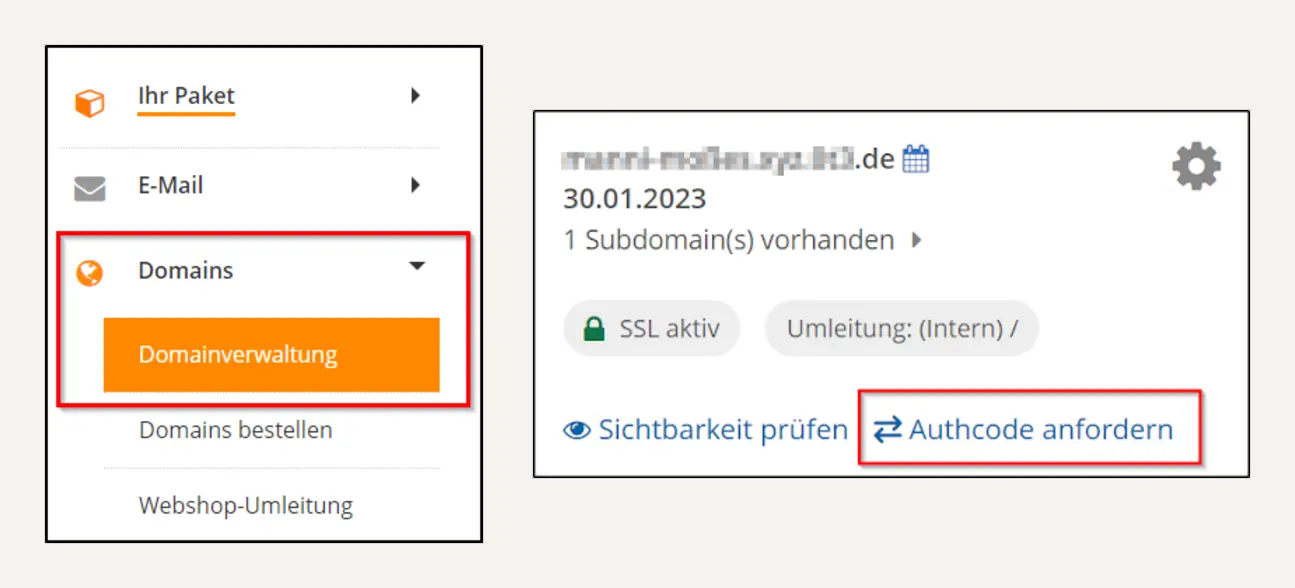
The path through "Domains" and "Domain Management" to the "Request Authcode" link. Images: STRATO, Source: strato.de/faq/domains/authinfo-code
Transfer a domain to Strato
The transfer to Strato is free; you only pay for the domain included in your package. If your package includes a free domain, Strato states that there are no additional costs; otherwise, you’ll be charged the monthly fee for an additional domain. In the customer login, select “Order Domains,” enter the domain, confirm that you are the owner, and enter the auth code. Strato recommends disabling the DNSSEC security feature with your old provider beforehand to avoid additional downtime. A .de domain usually transfers within 24 to 48 hours; according to Strato, transfers for extensions like .com or .net can take several days.
Transfer a domain away from IONOS
With IONOS, you can get the code without canceling your service—in just three clicks. In the Domains section, open the Transfer & Renewal page, select your domain, and click “Show Authorization Code” in the “Change Provider” row. According to IONOS, it may take a few minutes for the code to be available. The help section doesn’t specify whether you’ll need to cancel your IONOS contract separately afterward—check your contract to find out.
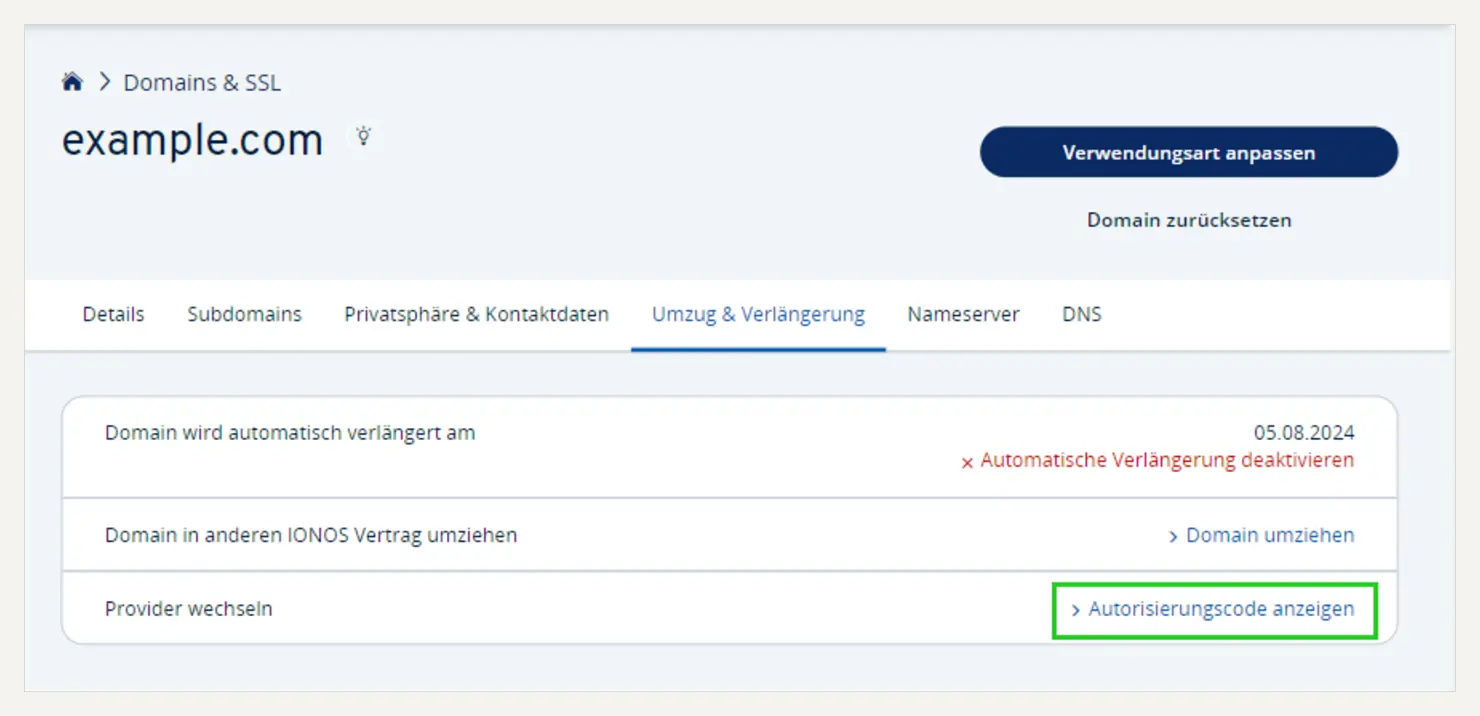
On IONOS, the authorization code is located in the "Transfer & Renewal" tab, in the "Change Provider" row. Image: IONOS, Source: ionos.de/hilfe
For .com, .net, and similar domains, you must first disable the transfer lock. These domain extensions are protected by a transfer lock by default at IONOS. You’ll find the “Domain Transfer Lock” toggle on the same page. According to IONOS, you must also disable private registration beforehand.
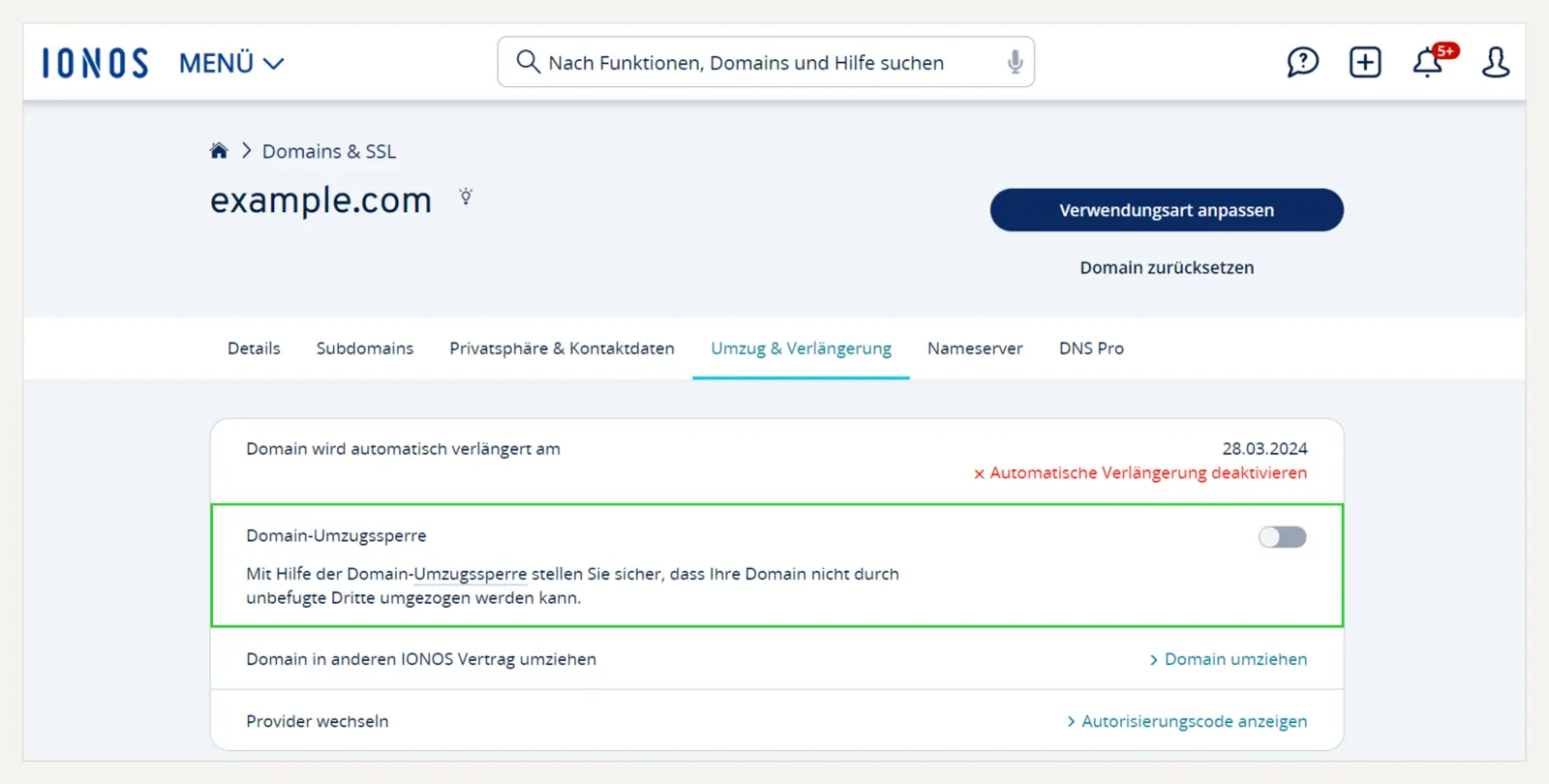
The "Domain Transfer Lock" button on the Transfer & Renewal page. Image: IONOS, Source: ionos.de/hilfe
Transfer a domain to IONOS
IONOS will credit the term you’ve already paid for. According to the help section, no paid term is lost; the remaining term is added to the new term. As a new customer, start by going to “Domains & SSL” and selecting “Transfer Domain”; as an existing customer, go to “Domains & SSL” and select “Transfer Domain to IONOS” in the “Portfolio” section. According to IONOS, a .de domain transfer takes a maximum of 48 hours, plus an additional 24 to 48 hours for the DNS changes to propagate everywhere.
Choose carefully which nameservers you use. IONOS offers two options: switch the domain to the IONOS nameservers after the transfer, or keep the existing ones. IONOS itself points out that downtime may occur during the switch if the domain is currently being used for email or web hosting. If you’ve already set up your DNS records with the new provider beforehand, the switch will go smoothly.
Transfer a domain away from Jimdo or bring it to Jimdo
With Jimdo Creator, you request the code in edit mode. According to Jimdo: Select your website, click" Edit," go to the " Domains and Email" menu, select " Domains," click on the domain, and request the transfer code. The code will be sent via email to the address used to register the domain. We haven't found any specific instructions for the newer Jimdo Website Builder.
Requesting the code doesn't cancel your account, but it will delete your emails. Jimdo emphasizes that requesting the code does not automatically cancel your contract. Since Jimdo doesn't offer domain hosting alone, you'll need to transfer your domain to another provider if you cancel your contract. The notice period is one month prior to the next payment date. Your email accounts won't be transferred, so be sure to back them up beforehand.
If you’re switching to Jimdo and want to keep your email address, you should set up a connection rather than migrate. In this case, Jimdo recommends creating a CNAME record for the www address pointing to web.jimdo.com with your current provider. This way, everything related to email stays with your current provider, and only your website runs on Jimdo. Please note: If you come across older instructions, the Jimdo nameservers ns1 and ns2 were deactivated on January 7, 2026; the current nameservers are ns13.jimdo.com and ns14.jimdo.com.
Other Providers and Domain Extensions
At united-domains, check the renewal status well in advance. You can start the transfer there using the Transfer Wizard; after that, the domain will appear as “approved” in the list. If the transfer is not completed at least 14 days before the end of the annual period, the domain will automatically renew for one year, according to united-domains, with no refund.
With Hetzner and all-inkl, it's quick and easy. With Hetzner, you generate the code in the control panel under " Domains": click on the domain, then go to the "Auth Code" tab. For all-inkl, it's best to do this after you've created the mailboxes in advance in the KAS customer menu—that's what all-inkl itself recommends.
Separate time limits apply to .com, .net, and .eu. Following a new registration, a transfer, or a change of ownership, the international registry ICANN blocks domain extensions such as .com from being transferred again for 60 days. For .eu, according to the registry EURid, the code is 16 characters long and valid for 40 days.
After the move: Check to see if everything has arrived
Compare what the name servers return with what the Internet sees. Use `dig` to query a specific server: your new provider’s name server and a public one, such as Google’s. If both match, the migration is complete. The number in the first line at the bottom is the TTL in seconds, so you can also see if your reduced TTL is taking effect.
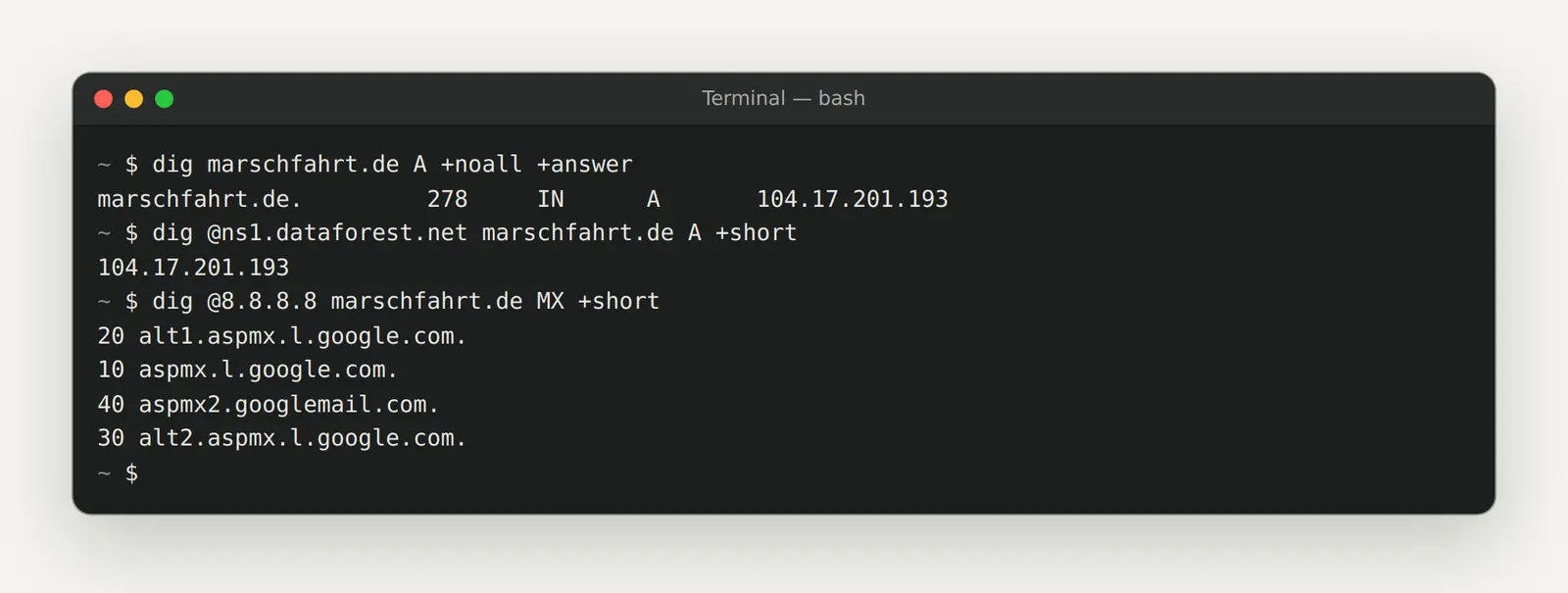
The TTL for the website address (278 seconds), the same address queried directly from the nameserver, and the mail servers on Google's public DNS server 8.8.8.8.
Give emails up to three days to take effect. According to Google, it can take up to 72 hours for new mail server entries to be recognized everywhere. Hetzner recommends deleting the old DNS entries no sooner than 24 hours after the change. During this time, send yourself test emails from a different address and check whether you receive replies.
Don't delete the Search Console verification. If you've verified your domain with Google via a TXT record, that record must also be present with your new provider. Google regularly checks to see if it's still there, and will revoke your access after a grace period if it isn't. For more information on how to use Search Console, see our guide, " How to Use Google Search Console Effectively."
Access your website using https, both with and without www. Check whether the page loads without a warning, whether the address without www redirects, and whether the contact form sends emails. Then set the TTL back to 86,400 seconds.
The Checklist for Your Move
Print them out or copy them into your to-do list. If you work through them from top to bottom, you won't miss any emails:
Date of this version: October 12, 2026. Menu paths and deadlines may change from time to time; we check them regularly.
Would you rather have someone else handle the move?
We migrate domains, email accounts, and websites for businesses—with a transition period, testing, and no lost emails—and continue to handle updates, security, and availability afterward. Related services: Website hosting in Europe · Services: Website management
Let us know what you have in mind by filling out our contact form. We'll respond within 24 hours—personally and without any sales pitch.
More Articles
© Marschfahrt Studio
Practical knowledge on web design, SEO, AI, and conversion optimization. Based on real projects, without any marketing spin.