Deleting, Reporting, and Responding to Google Reviews: What You Can Actually Do and How to Get More
Google only removes reviews in cases of policy violations or through legal action, and even agencies aren't allowed to simply report them on your behalf. Using our own profile—which has 30 unanswered reviews—we'll show you how to report reviews, file an appeal, respond to them, and get new, genuine reviews.
Date
Category
Author

“Someone gave us a star rating even though they were never our customer. Can you delete it?” That’s more or less the kind of question we regularly get in our inbox, usually accompanied by a screenshot and a fair amount of frustration between the lines. The honest answer: Only Google can delete it—and only in certain cases—and we’re not even allowed to report the review on your behalf.
First, a confession. Of the 35 Google reviews that marschfahrt had as of September 30, 2026, 30 were unanswered. As the saying goes, the cobbler’s children have the worst shoes—but at least we have good reviews that we don’t bother to respond to.
This article walks you through the process in the order you’ll need it: finding, checking, reporting, appealing, taking legal action, responding, and getting new, genuine reviews. The screenshots are from our own company profile as of September 30, 2026; the reviewers’ names have been redacted. We cite sources within the text, and we accessed Google’s help pages on the same day. This is a guide and not legal advice.
In a nutshell (as of September 2026)
Whenever you receive an upsetting review, first open the "Report" dialog and read the seven reasons before doing anything else. If one of them applies, report the review and track it in the "Manage Google Business Reviews" tool, where you have exactly one opportunity to file an appeal. If none of them apply—because the reviewer is simply dissatisfied—Google won’t remove the review, according to its own help center, so a calm response is your best course of action. If you can’t find the reviewer listed in any of your orders, that’s not a reason to report it—it’s a case for legal action with an attorney.
Where to Find Your Google Reviews as a Business Owner
Search for your company name while signed in to Google, and click "Read reviews" in the "My Business on Google" section. This is exactly how Google's help guide on reporting and responding begins. This section appears only for accounts that manage the profile; below it, you'll see "Visible only to profile administrators." In our case, the labels were truncated—"Request reviews" became "Request revi…," so don’t be surprised.
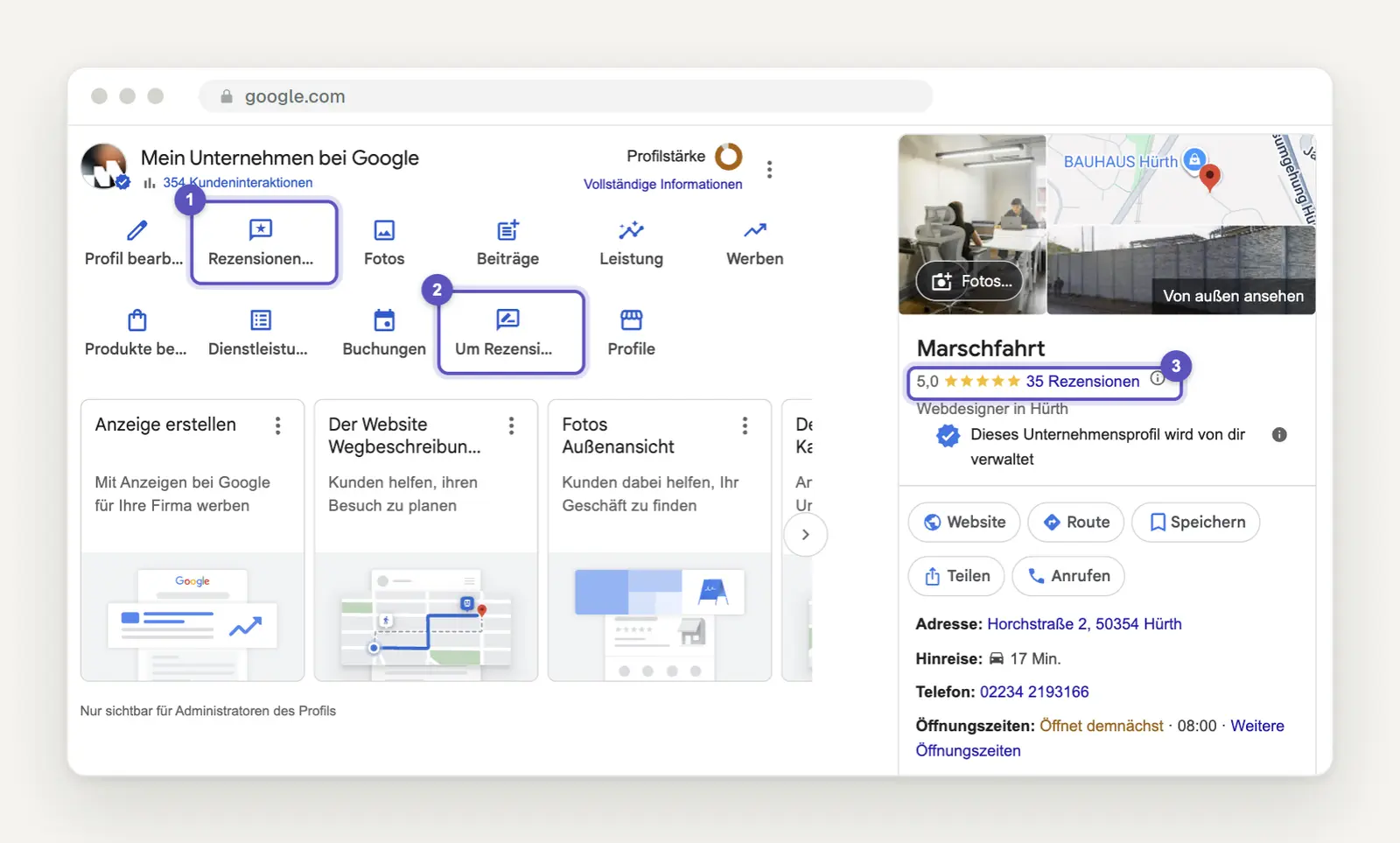
A Google search for our own name on September 30, 2026: in the “My Business on Google” section, the “Read reviews” (1) and “Request reviews” (2) buttons; on the right side of the profile, a 5.0-star rating based on 35 reviews (3).
You can’t respond until your profile is verified. Google states: “You must verify your business before you can respond to reviews.” If you’re still stuck on this step, you can find the process in our post on how to set up, verify, and maintain a Google Business Profile. According to Google’s permissions table, both owners and administrators can respond, so you can delegate the task to your office staff.
In the “Reviews” dialog box, click the “Unanswered” tab, and you’ll immediately see what’s pending. At the top are the average rating and total number of reviews, next to which are “Reply to Reviews” and “Get More Reviews”; below that are the tabs “All,” “Answered,” and “Unanswered.” Each review has a “Reply” button and an exclamation mark on the right, which hides the “Report” option.
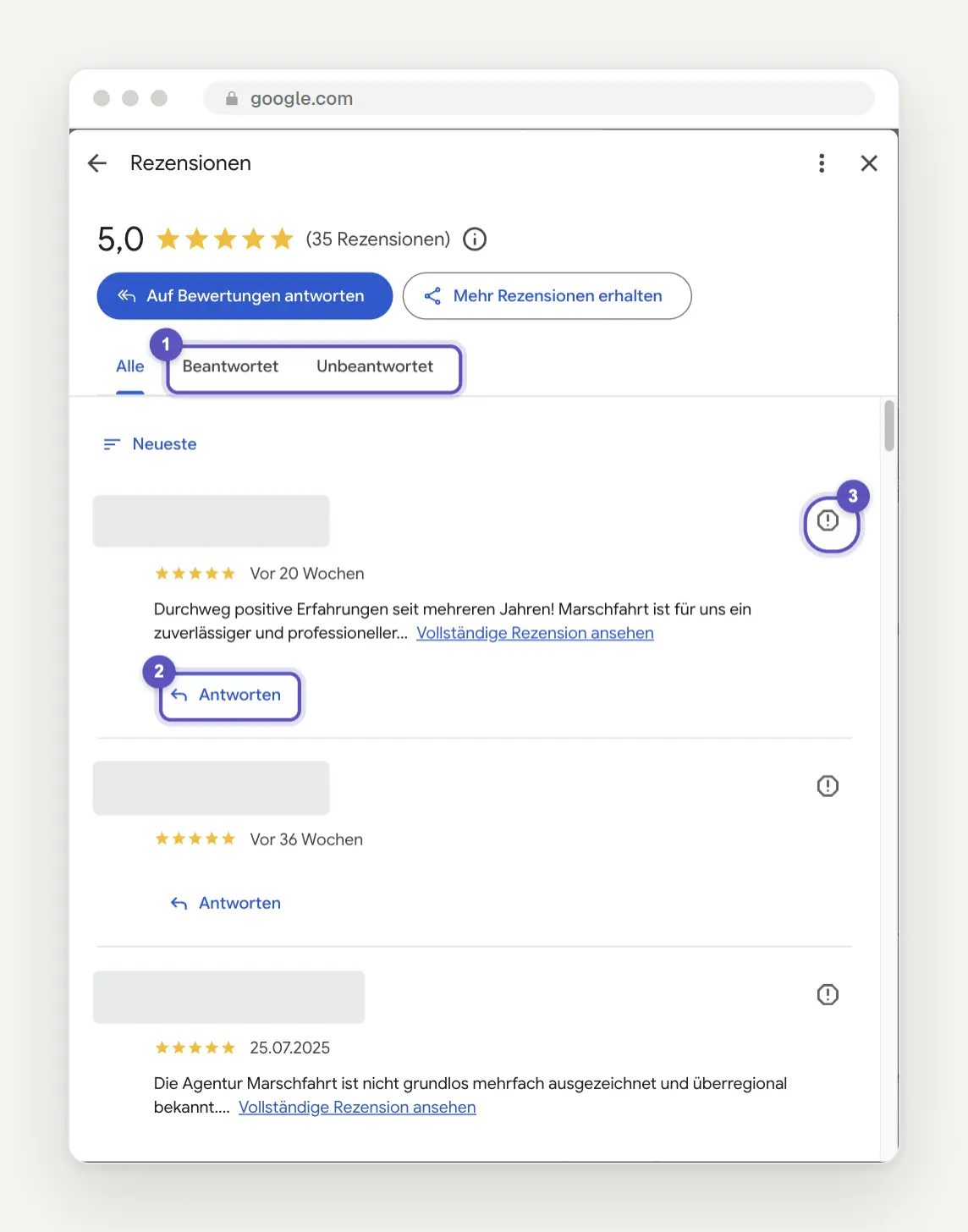
The "Reviews" dialog box, showing a rating of 5.0 and 35 reviews: the "Answered" and "Unanswered" tabs (1), the "Reply" button below each review (2), and the exclamation mark for reporting (3). We have blurred out the reviewers' names.
According to Google Help, the number at the top is “the average of all reviews published on Google” on a scale of 1 to 5 stars. According to the same page, after a new review is posted, “it may take up to two weeks for the rating to be updated.” So don’t check the average every day; instead, check the “Unanswered” tab once a week.
Which Google reviews Google deletes and which it doesn't
Assume that an unflattering but genuine review will remain. Google states in its reporting help section that you can report any review, but “only reviews … that violate Google’s policies” can be removed. It goes on to say: “Google does not mediate conflicts between businesses and customers.” The guidelines explicitly state: “Content that describes negative experiences in a respectful manner is permitted.”
The German version advises against reporting reviews that you don't like "but are factually correct"; the English version omits this restriction. We interpret this to mean: The fact that you don't like a review is never a reason. The reason must be found in the text of the review.
Check each review against the seven reasons listed in the report dialog, as these are the only options available. They are, verbatim: “Off-topic,” “Spam,” “Conflict of Interest,” “Profanity,” “Bullying or Harassment,” “Discrimination or Hate Speech,” and “Personal Information.” There is no option for “negative review” or “don’t know this customer”—we checked this in our own profile on September 30, 2026.
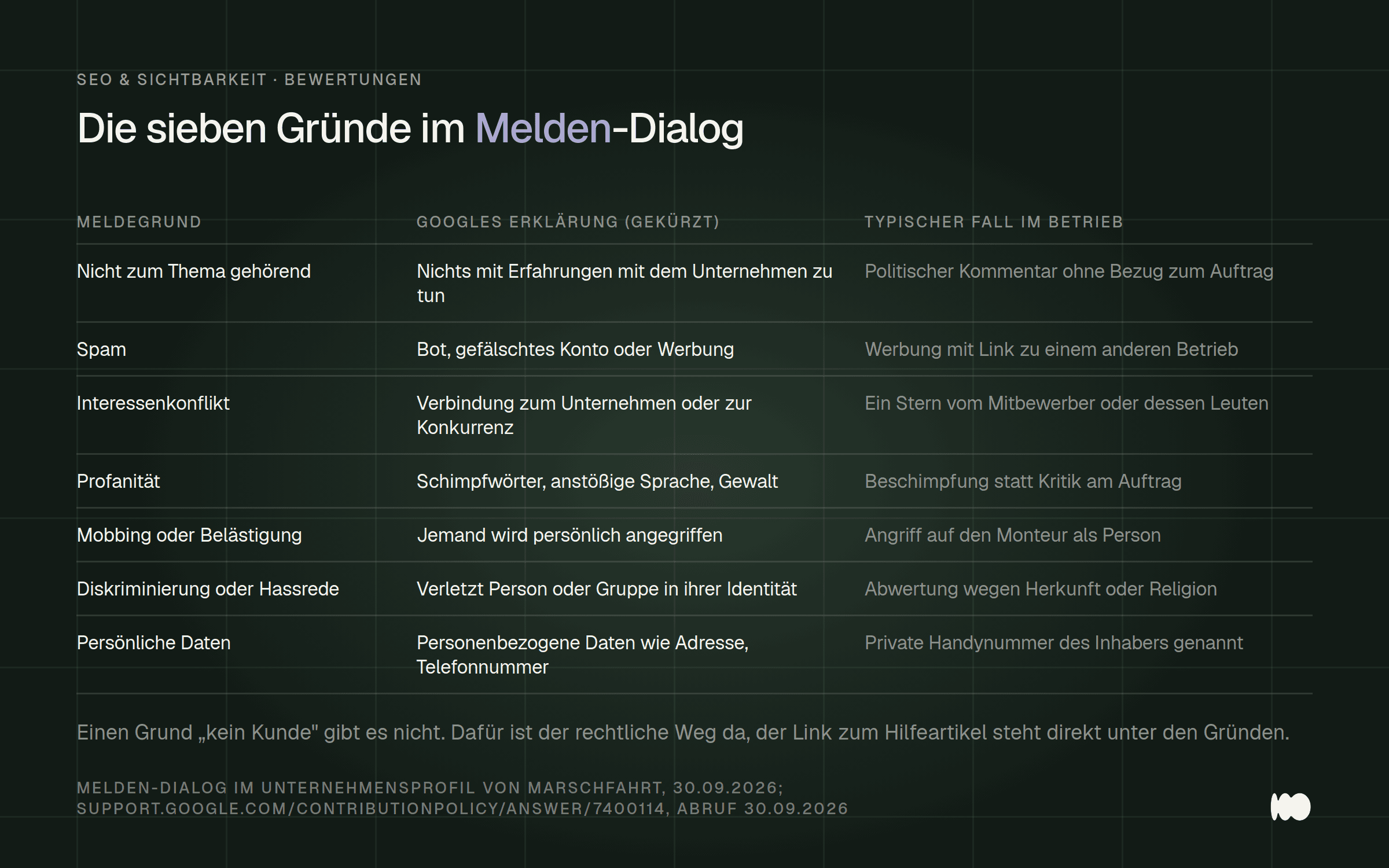
The seven reasons for reporting listed in the dialog box in our profile, each accompanied by Google's explanation and a typical real-life example from small businesses.
Pay attention to the parts of Google’s guidelines that actually help businesses. Under “Offensive Content,” Google lists “Unsubstantiated claims regarding unethical behavior or criminal activity”—such as an allegation of fraud. Under “Advertising and Solicitations,” phone numbers and links are prohibited in reviews. And according to Google Help, Google “generally removes entire posts,” even if only part of the post violates the guidelines.
Less is more—something many people consider a violation. If someone mentions your technician by name, this is permitted under the guidelines if the person “normally has contact with customers.” So, before filing any report, mentally cross out the word “unfair” and ask yourself which of the seven reasons still applies.
Report a Google Review: Step-by-Step Guide in Your Profile
Report it by clicking the exclamation mark next to the review, select exactly one reason, and click “Submit Report.” Google’s Help section describes the process as follows: Go to the business profile, click “Read Reviews,” then “Report,” select a reason, and click “Submit Report.” The Help section lists “Vulgar Language” as an example reason; in our dialog box, it said “Profanity.” What matters is what’s shown in your dialog box.
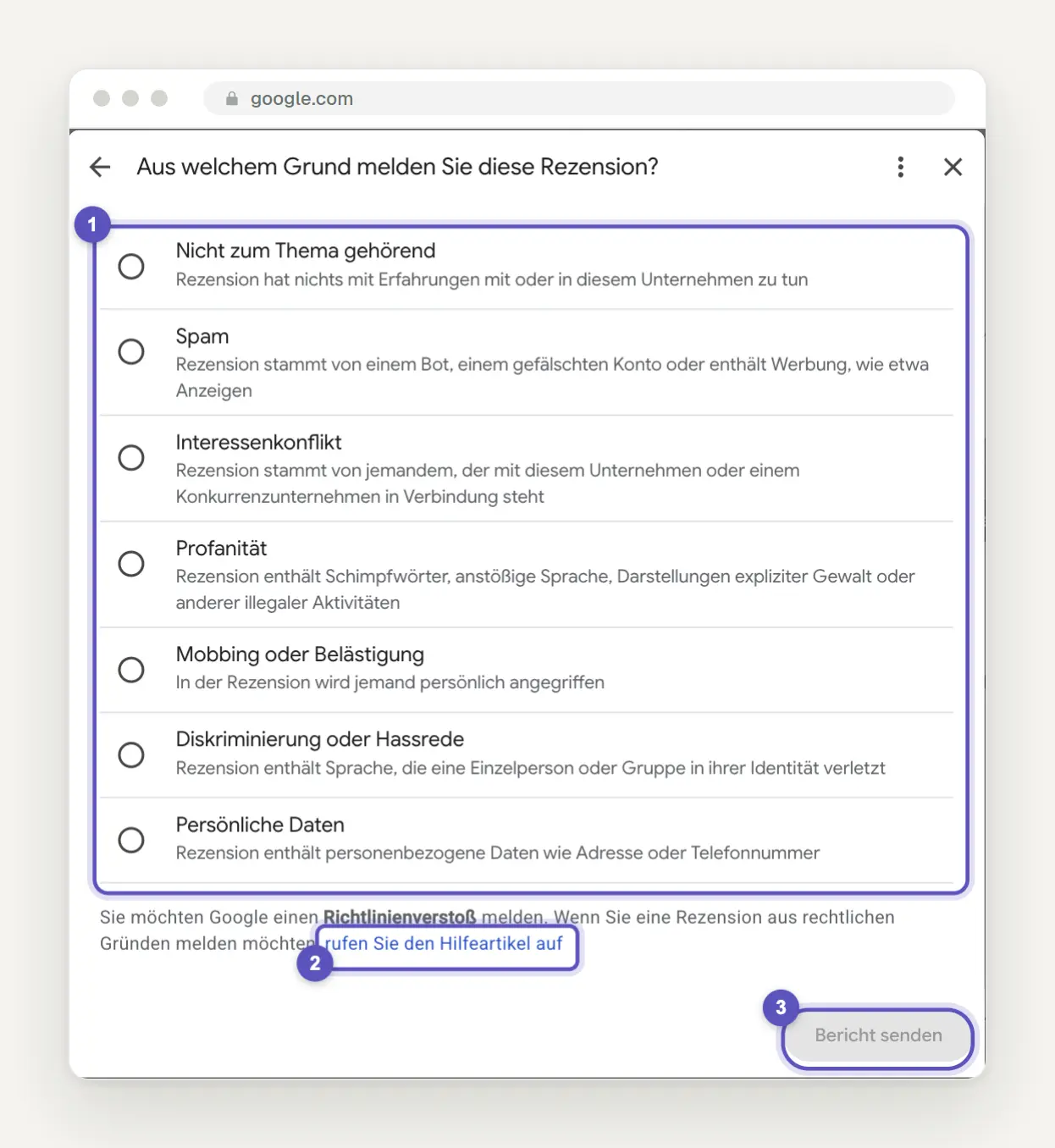
The "Why are you reporting this review?" dialog box: the seven reasons (1), including the link for legal reasons that says "See the help article" (2) and the "Submit Report" button (3), which remains grayed out until a reason is selected. We didn't submit anything.
Before reporting it, take a screenshot of the review with the date. According to Google Help, reviews removed due to a violation are not restored, and if the author changes their review, the date will be updated. Without your own screenshot, you won't have any proof of what was there afterward.
Read the short sentence under “Reasons” before you click. According to the dialog box, anyone who wants to report a review for legal reasons should access “the help article.” Google states elsewhere that a report submitted through the guidelines process is “not a substitute for reporting through legal channels” and “does not serve as a formal notice.” So if you believe the author was never a customer, clicking the exclamation mark will take you to the wrong option.
According to the help section, the review “usually takes several days.” In the Google Maps app, you can also report the reviewer’s entire profile by tapping their name and the three-dot menu—for example, by selecting “Legal issue.” This is worth doing for accounts that have been flagged multiple times. Report each review only once and make a note of the date; you can track the rest using the tool.
The "Manage Business Reviews on Google" Tool: Status, Deadline, and an Appeal
After receiving the notification, use the "Manage Business Reviews on Google" tool, because that's the only place where you can view the status and file an appeal. The subheading reads: “With this tool, you can request the removal of reviews and check the status of reviews.” You can access it via Google’s help article “Report inappropriate reviews on your business profile.” None of the competitor guides we’ve read mentioned this.
Step 1 is titled “Confirm your email address” and includes the options “Switch accounts” and “Confirm”; Step 2 is “Select a business to review.” We immediately ran into a problem with the search field—entering just the company name resulted in the error message “Enter a valid search in the format ‘prefix:value’.” So be sure to enter “name:” before the name; in our case, that would be “name:Marschfahrt.”
After that, the “Report Links for Reviews” page opened, displaying all the reviews along with a “Report” link next to each one. At the top, it says: “Most reported reviews are processed within three business days.” The help page, however, mentions “usually several days.” Plan on a week and be happy if it’s done sooner.
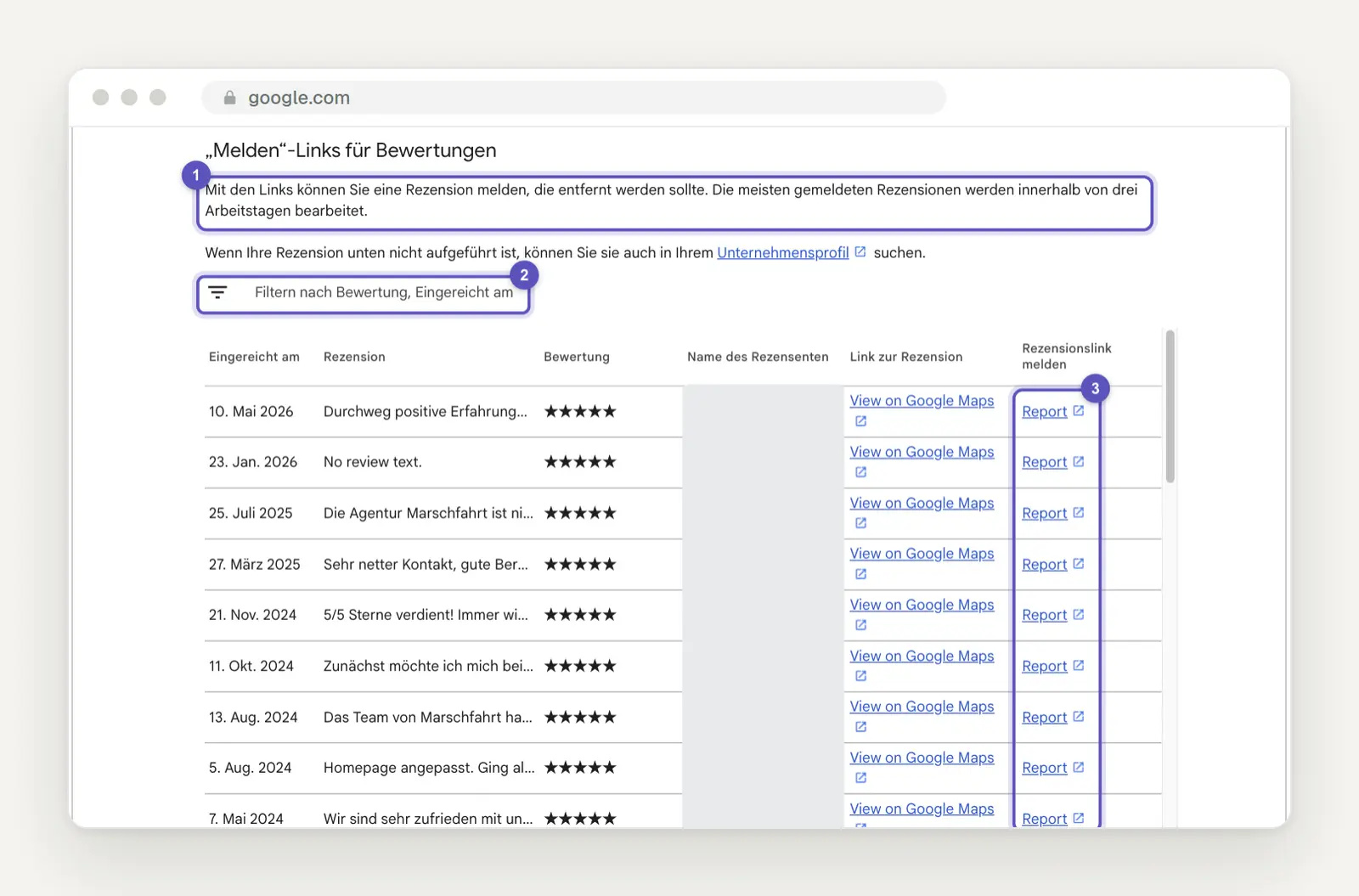
The “Report” Links for Reviews page in the tool: the note about three business days (1), the “Filter by Rating, Submitted On” filter (2), and the “Report Review Link” column with the “Report” links (3). We’ve blurred out the names.
Take the status literally, because one of them sounds better than it actually is. According to the Help section, the statuses include “Decision pending,” “Report reviewed” with the note “No policy violation, ” and “Escalated” with the note “Check your email for new messages.” According to the Help section, “Escalated” also appears if the review remains online after your appeal; in that case, the decision will be sent via email.
Think carefully before filing an appeal—you only get one chance. Google states: “If you disagree with the decision, you can file a one-time appeal.” In the tool, this is found under “Reviews eligible for appeal,” which, according to the help section, allows you to appeal “up to ten reviews” at once. In our case, the tool went straight to the list because we had never reported anything before, so we didn’t see that option ourselves.
In your appeal, don't just write "that's not correct" again; instead, state the specific reason and the part of the text that violates it.
How to Remove a Negative Google Review If Google Won't Remove It: The Legal Approach
Distinguish between a policy violation and a legal violation, because the latter requires a different approach and usually a law firm. According to Google, German law allows companies to “demand the removal of untrue factual claims or opinions that are not objectively justified and that could damage their business reputation.” Google refers to this as “defamation” and states that German courts have set the bar “low” for such cases.
The strongest argument is the lack of customer contact. According to Google, “the majority of requests to remove reviews that we receive in Germany” are based precisely on this. In its ruling VI ZR 1244/20 dated August 9, 2022, the Federal Court of Justice ruled in favor of a hotel review portal, holding that the allegation of a lack of guest contact is generally sufficient to trigger the portal’s duty to verify. According to the headnote, this allegation need only be substantiated in greater detail if the reviewer’s identity “is readily apparent from the review.”
Distinguish between opinion and fact before you spend money on a law firm. “The technician was unfriendly” is an opinion that a real customer is entitled to express. “The technician didn’t show up at all” is a statement of fact, and you can only challenge a false one in this way. A lawyer can clarify where the line is drawn in each individual case.
Google has its own form for legal proceedings; the landing page is titled “Report Content for Legal Reasons,” and in the Maps section, options such as “Defamation” and “Court Order” appear. Under Article 16 of the Digital Services Act, Google must acknowledge receipt of such reports “without delay.”
Expect that a deleted review may be reinstated. According to Google’s own help center, after receiving such a complaint, Google asks the author to provide evidence, such as “receipts, invoices, or statements” or “screenshots of order confirmations.” Anyone who was actually a customer will therefore have their review reinstated. So, before filing a complaint, be sure to thoroughly check your orders, quotes, and calendar.
Users who have a large number of reviews removed will have a public counter displayed on their profile. According to Google Help, Google displays in Germany when reviews have been removed due to defamation complaints, in ranges such as “Over 250 reviews removed due to defamation complaints,” calculated over the last 365 days, with no impact on rankings. A doctor sought to have this notice removed but failed: In its decision 15 W 55/26 of June 12, 2026, the Cologne Higher Regional Court deemed the notice permissible and found that classifying his complaints regarding a lack of patient contact as defamation was factually correct.
The legal route is therefore intended for individual reviews where you are certain that the author was never a customer or is making false claims. Take a screenshot, the date, and the order history to a law firm that specializes in defamation law.
Deleting a 1-star Google review: what to do when there's no text with the stars
Do not consider a star rating without text to be either harmless or automatically subject to deletion. In its ruling 6 U 83/22 dated December 23, 2022, the Cologne Higher Regional Court stated that star ratings on Google profiles are understood as evaluations of “a service that was actually used” and therefore contain “a core of fact.” In the case in question, an employee of a competitor had assigned a star without any text; the court prohibited this because no business relationship existed.
This results in three possible scenarios. If the star clearly comes from a competitor, select “Conflict of Interest” as the reason for reporting it. If you don’t know the author at all, your only recourse is legal action; if the reviewer was a genuine customer, the star remains and you respond. According to Google Maps Help, reviews “cannot be posted anonymously,” so check the displayed name against your calendar and order book beforehand.
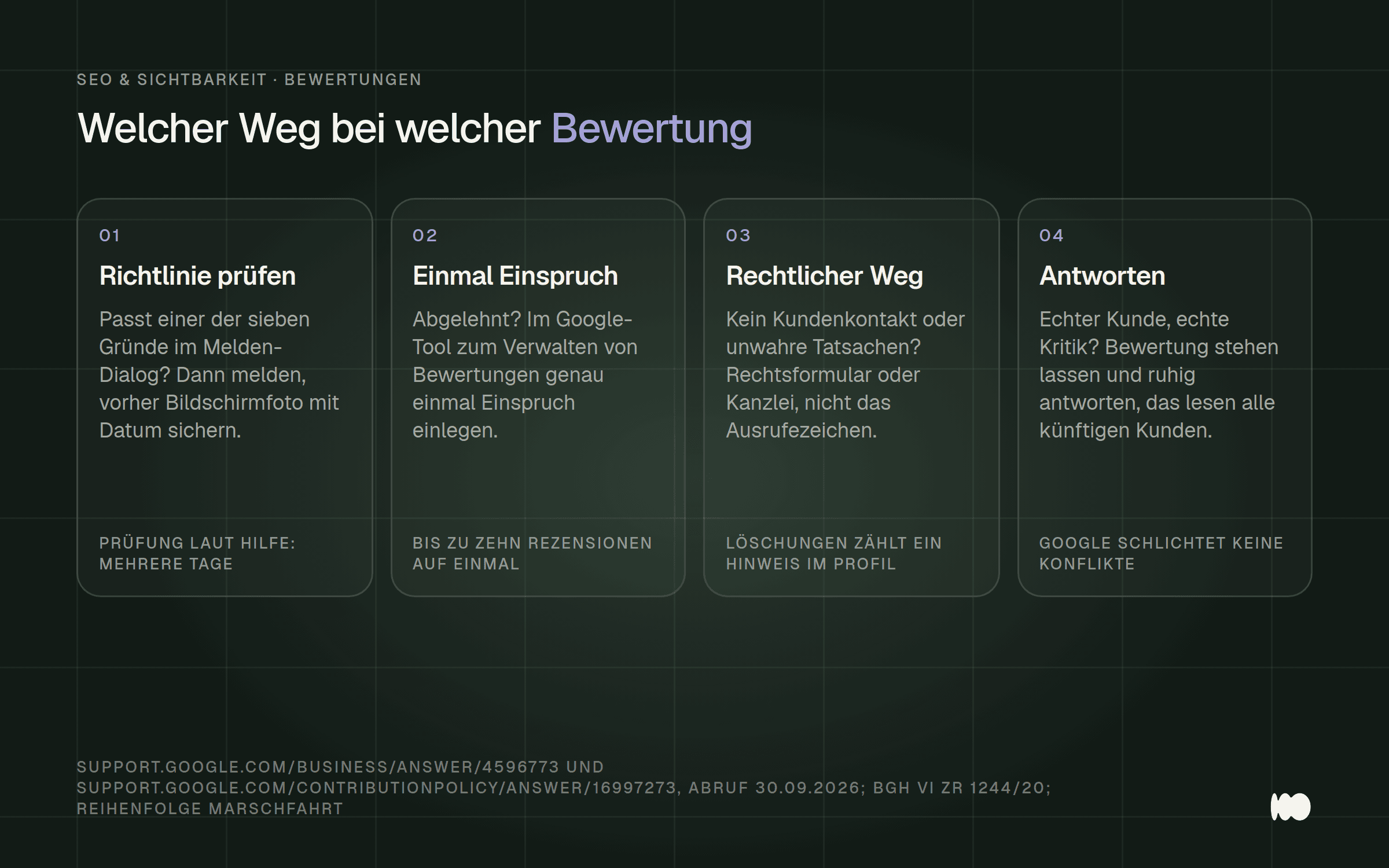
The process for addressing an unfair review: report it if it violates the guidelines; file one appeal; take legal action if there was no customer contact or if the review is untrue; otherwise, respond.
Having Google Reviews Removed: What Removal Services Promise—and Why We Can't Do It Either
Do not authorize anyone to report your reviews without permission under the Legal Services Act. On March 19, 2026, the Higher Regional Court of Frankfurt am Main ruled in Case No. 16 U 2/25: If a company offers to “take the necessary steps to report and challenge” Google reviews that violate the guidelines, this falls under the Legal Services Act. This is stated in the court’s press release dated April 13, 2026, which also notes that the ruling is not yet final. In each individual case, it must be determined whether any steps are necessary and, if so, which ones.
The lawsuit was filed, of all things, by an SEO, SEM, and web design agency—in other words, a company just like ours. Yes, we aren’t allowed to simply do that for you either, even though the list of profiles in Google’s tool is long for us because we manage company profiles for clients. This doesn’t affect your own profile; according to the press release, it concerns activities “in specific third-party matters.”
Treat promises like “90% success rate” or “pay only if successful” as advertising, not as a guarantee. We found such statements in guides published by debt collection agencies that we reviewed for this article, but we were unable to find an independent source for those figures. If you need help, consult a law firm that is authorized to advise you and file claims on your behalf, and make sure to ask in advance how they will bill you.
Fake reviews, spam campaigns, and extortion
Don’t buy reviews or have anyone write them—not even positive ones. According to Google Help, if there are instances of fake interactions, new reviews cannot be published for a certain period of time, existing reviews will disappear, and a warning will appear on the profile stating “that fake reviews have been removed.” According to Annex No. 23c of the UWG, the “submission or commissioning of fake reviews” is always considered unfair. And according to a Google blog post from April 7, 2025, Google re-evaluates reviews even months later.
In the profile, under “Reviews are not verified,” Google explains to customers: “However, Google actively searches for fake content in order to remove it.” On our site, the profile also combines sources—in addition to Google, it shows a 4.7 out of 5 star rating on Trustpilot. Take a look at your profile from a customer’s perspective.
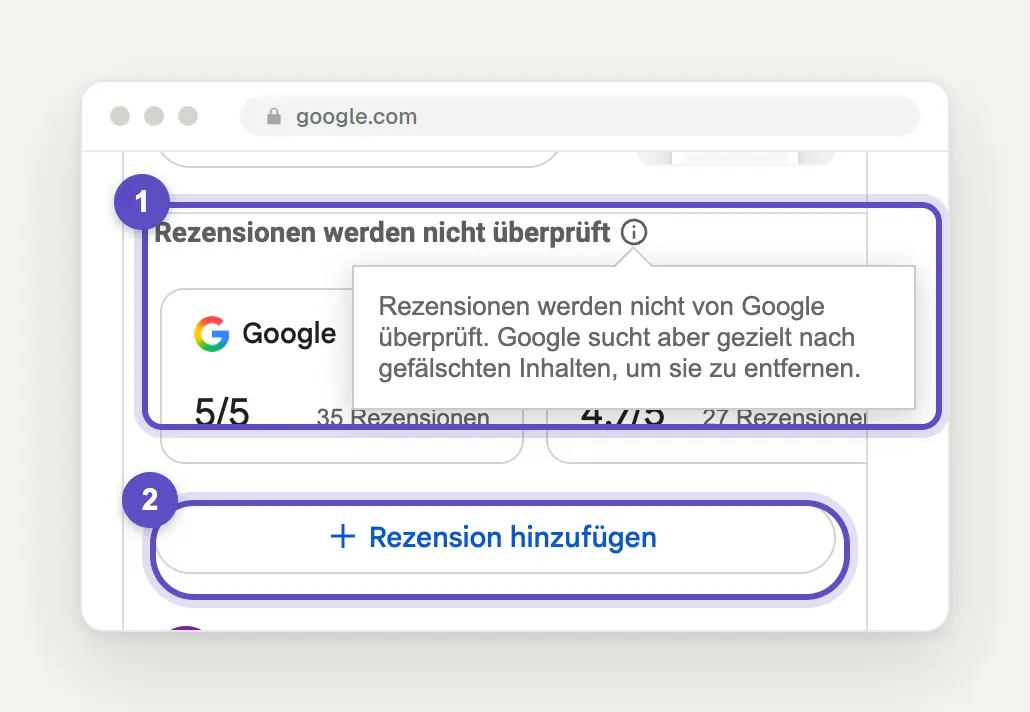
Our profile in Google Search: the note “Reviews are not verified” with the text that appears when you click the info icon, followed by the sources Google (5/5) and Trustpilot (4.7/5) (1), along with the “Add a review” button (2).
In the event of a sudden surge of negative reviews, it backs up everything and reports each one individually. On April 16, 2026, Google announced that, in the event of a spam surge, it would quickly remove the false content, pause new reviews, notify the business owner, and display a banner to customers. Such a banner serves as protection and is not a sign that you’ve done anything wrong.
Never pay if someone threatens to leave bad reviews. Google has a dedicated “Form for Reporting Blackmail Against a Merchant” and states: “Do not engage with the blackmailers or pay them.” They ask for “screenshots of the blackmail attempt” showing the date, time, and sender, so take them right away.
Responding to Google Reviews: Better Than We Do
Respond to every negative review and as many positive ones as you can honestly manage. We need to take a quick look in the mirror here: When we clicked “Reply to reviews” on September 30, 2026, Google showed “1 of 30 reviews.” We didn’t send anything that day anyway, because we had to take screenshots for this post—an excuse about as plausible as “the dog ate my homework.”
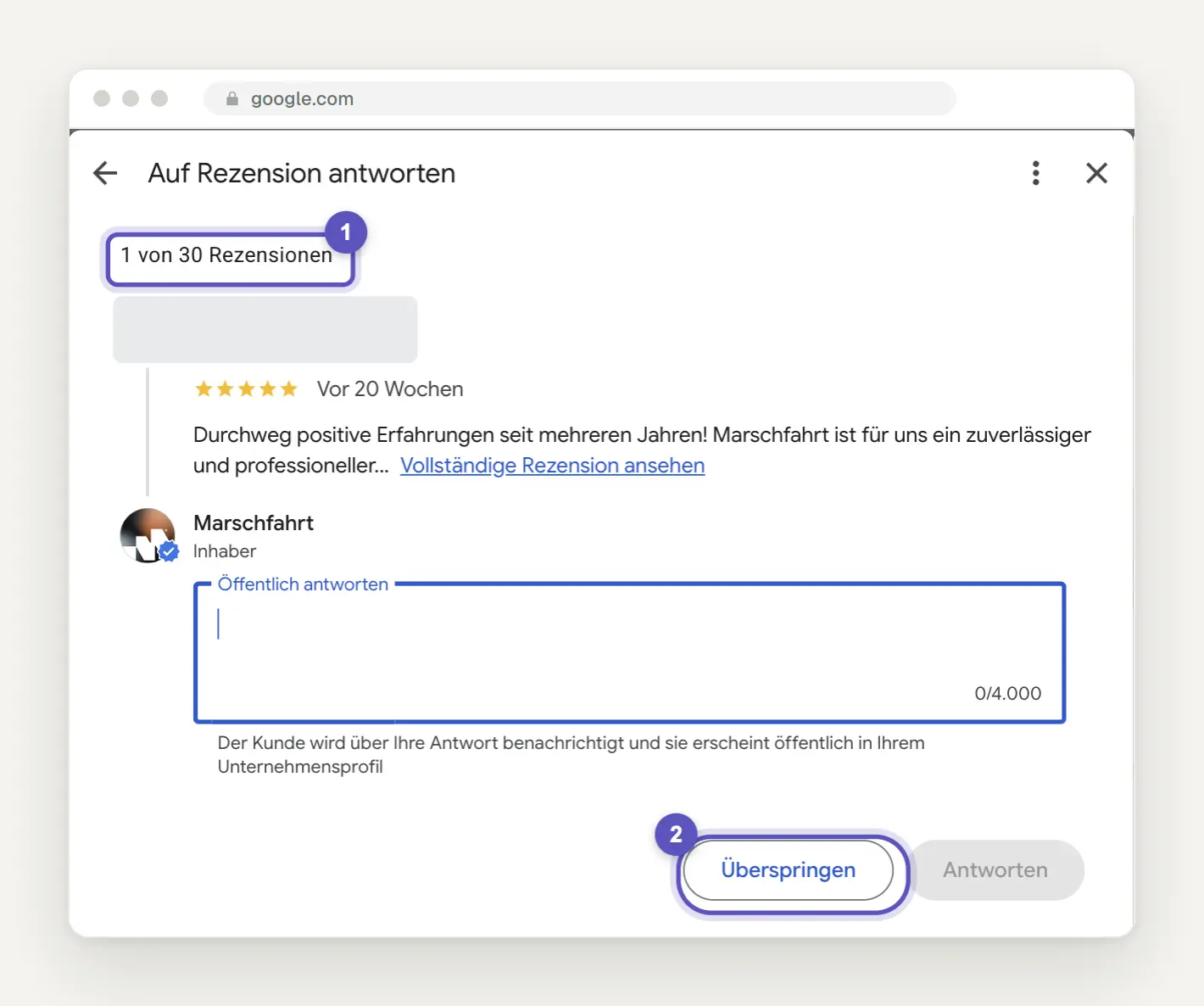
Our backlog, honestly documented: The "Reply to Review" summary view shows "1 of 30 reviews" (1); clicking "Skip" (2) takes you to the next one. We did not send a reply that day.
In our defense, we’ll quote Google: “So you don’t have to publicly thank everyone who leaves a review.” Google doesn’t specify the impact on rankings. But anyone choosing between three businesses will read carefully what’s written below that one bad review.
Click “Reply” below the review, type your message in the “Reply publicly” field, and click “Reply” to send it. The field can hold up to 4,000 characters, and the customer will be notified of your reply. According to the Help Center, it will appear as a response from the company; your own name will not be displayed. Therefore, sign your reply with your first name or initials—Google explicitly recommends this.
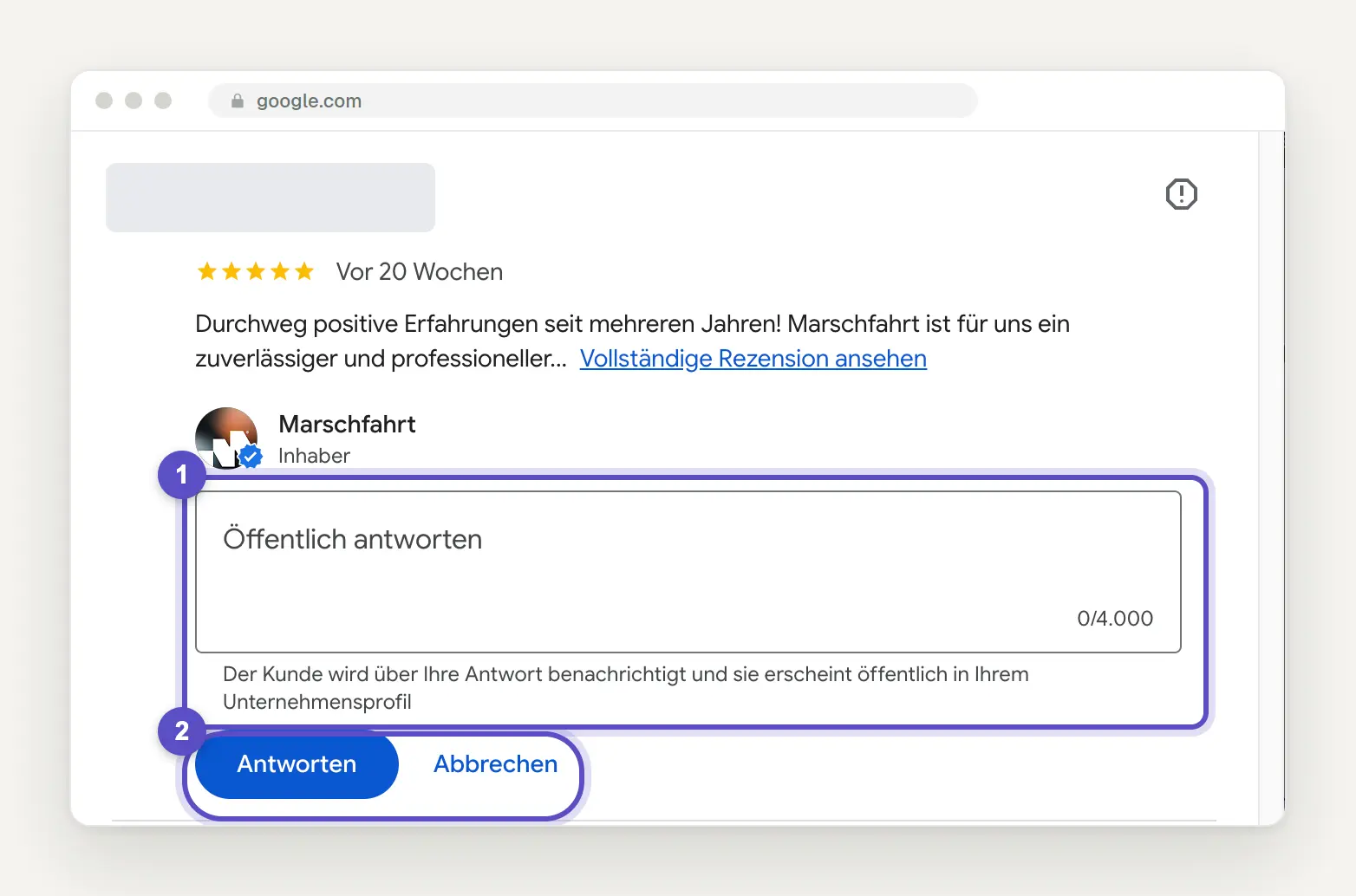
The reply field below a review: “Reply publicly” with a counter showing 0/4,000 and the note “The customer will be notified of your reply …” (1), followed by “Reply” and “Cancel” (2). We didn’t enter or send anything.
According to Google Help, it “usually takes up to 10 minutes” to review a response, though in some cases it can take “up to 30 days”; you can edit or delete it at any time. Google warns: “Never share the reviewer’s personal information or attack them personally.” Because the reviewer can change their review after you respond, it’s doubly important to provide a good response.
Work through any backlog in the summary view, which opens when you click “Reply to Reviews.” There, you’ll find a reply field for each review; click “Skip” to move on. Set aside a specific time each week for this—with 30 pending reviews, a few evenings should be enough. We’ll make a note of that right here in our to-do list.
Template Responses for Positive, Critical, and Third-Party Reviews
Structure each response in three parts: a reference to the request, an honest statement, and a next step. Google advises: “Keep it short and simple” and “Act like a friend, not a salesperson.” Replace the square brackets, and don’t copy the templates word for word under every review—otherwise, starting with the third one, they’ll sound like they’re coming from a robot.
To receive a positive review, simply say "thank you" and include a detail about the order:
Hello [Name], thank you very much for the review and for the coffee at the construction site. We’re glad the new bathroom turned out just the way you envisioned it. If the grout needs any touch-ups after the first winter, just give our office a call. Best regards, [First Name] from [Company]
When criticism is justified, follow Google's advice: "Apologize if necessary" and "Be honest and explain any limitations":
Hello [Name], you're right: We had confirmed the appointment for Tuesday, but didn't arrive until Thursday and didn't let you know in time. We're sorry about that, and since then, someone from the office has been calling the day before whenever there's a rescheduling. If there are still any outstanding issues regarding the heating, please contact me directly, and I'll take care of it personally. [First Name], Owner
Do not include a phone number or a link in your response, because according to Google Help, responses must also comply with the guidelines, and those guidelines prohibit both in reviews. When responding to a review without any apparent customer contact, remain objective and do not mention other customers' information:
Hello [Name], we've checked our orders and appointments and can't match your review to any order. If we've overlooked something, please contact our office so we can look into your concern. If you have not been a customer of ours, we ask that you remove the review. [First Name], Owner
This response does not replace a formal legal complaint, but it shows everyone reading it that you have looked into the matter. You may request that the review be removed, but you may not offer anything in exchange, as Google expressly prohibits incentives, including those for the “revision or removal of a negative review.” Do not submit it until you have thoroughly reviewed your documents.
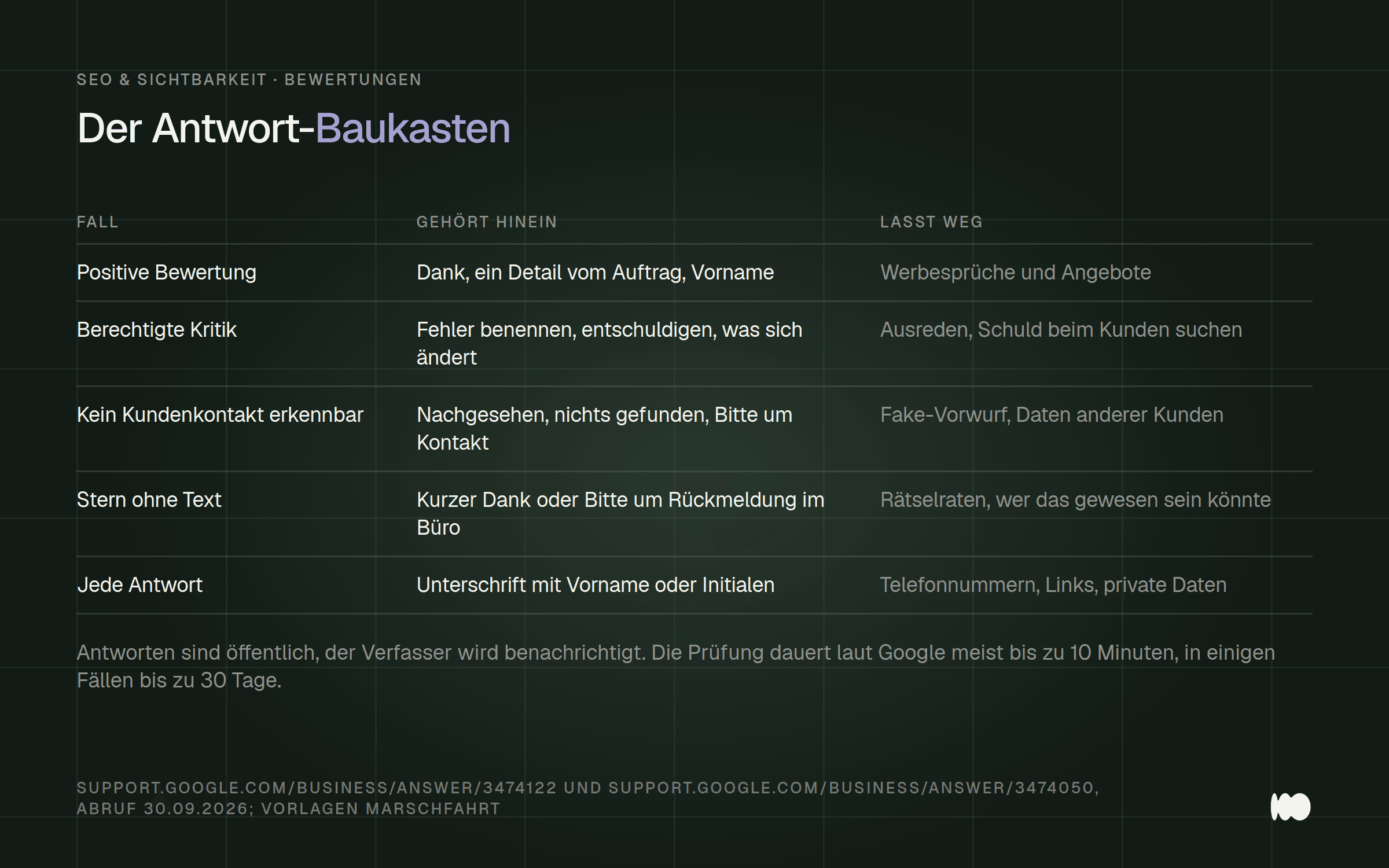
A guide to crafting responses for the most common situations: what to include in your response and what’s best to leave out.
How to Get More Google Reviews: Link, QR Code, and the Right Moment
Get the official review link via “Get More Reviews” and copy it instead of typing it out. According to Google Help, you can get there by clicking “Read Reviews” and then “Get More Reviews”; for us, clicking “Request Reviews” also opened the same dialog box. There you’ll find buttons for “Email,” “WhatsApp,” and “Facebook,” the “Review Link” field, and a QR code. Our link was in the format https://g.page/r/…/review; Google itself doesn’t specify a fixed format, so always use the one you copied.
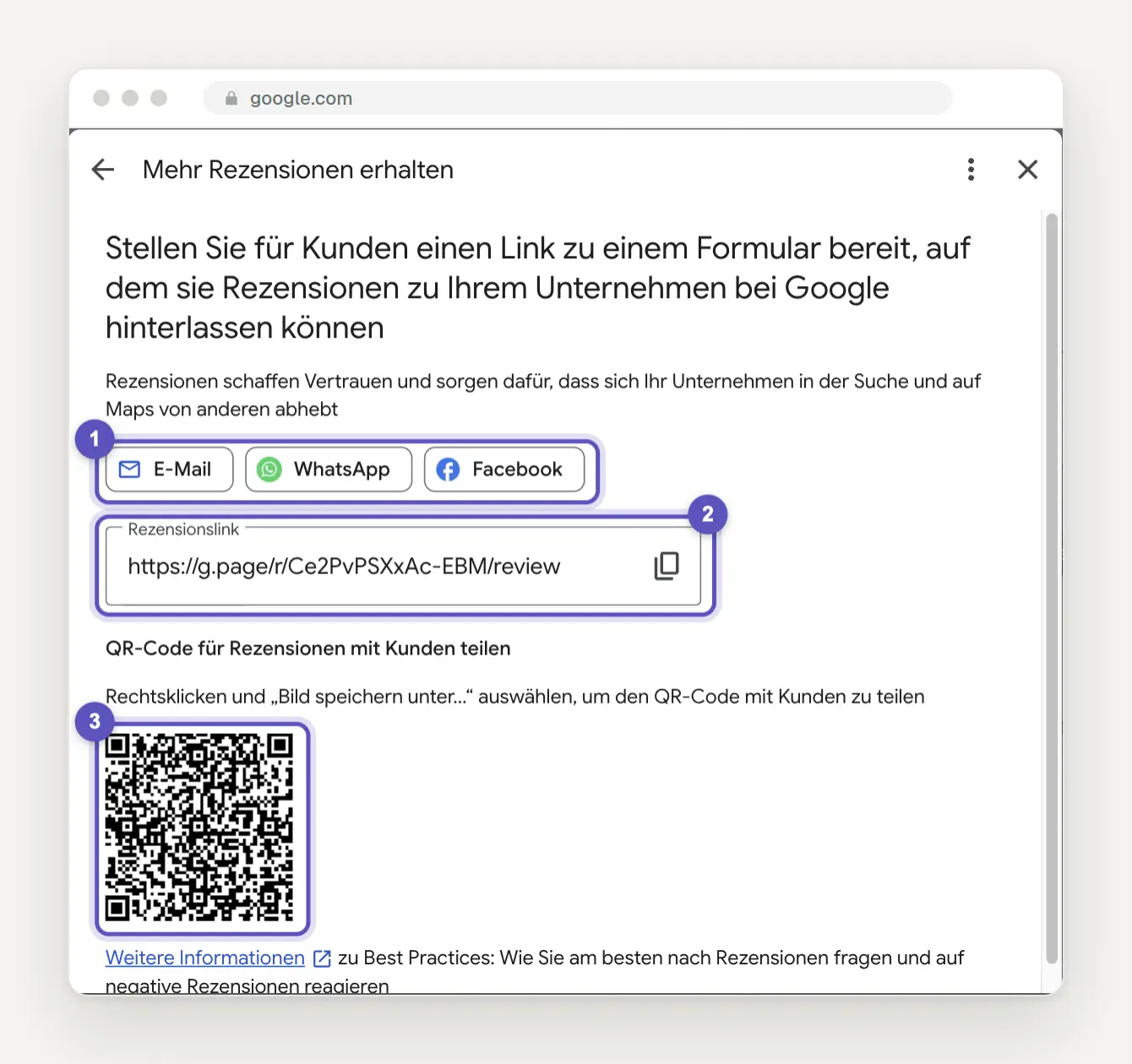
The "Get More Reviews" dialog: Share via "Email," "WhatsApp," and "Facebook" (1); the "Review Link" field with the address https://g.page/r/…/review and the copy icon (2); and the QR code for saving (3).
Generate the QR code on a computer, not on a cell phone. According to Google, QR codes for reviews can currently be generated “only in a computer browser and not on mobile devices”; to save it, right-click and select “Save Image As…”. According to Google, it is no longer possible to create short URLs following the format g.page/euername, but existing ones continue to work.
Place the link where the job ends. Google suggests receipts, thank-you emails, the end of a chat, and a printed QR code in the store. For small businesses, this means: an invoice, a completion report, and a card that you leave behind after the job is done. In our experience, the best time to do this is right after the customer has seen the finished work.
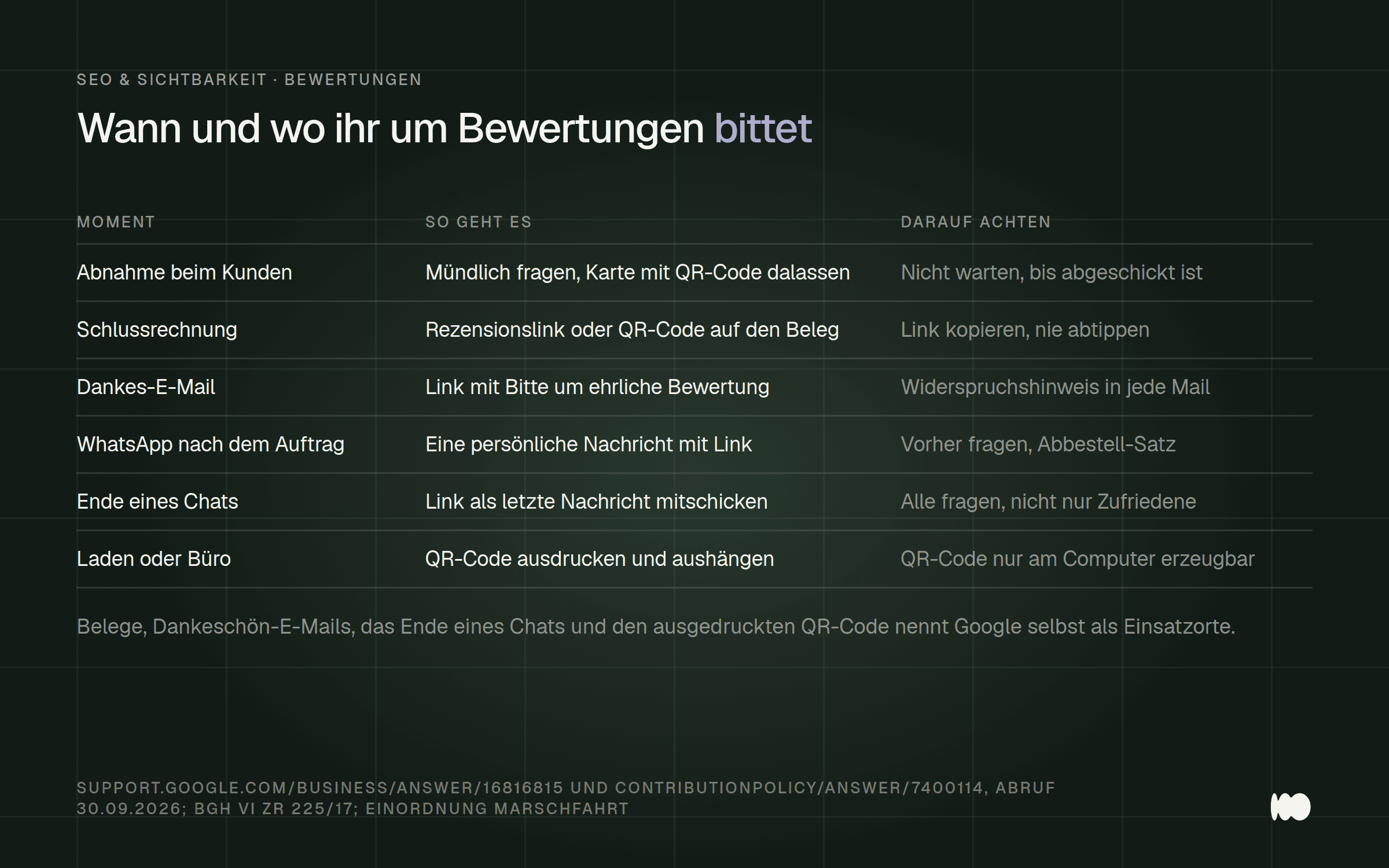
When and where to ask for a review, including the locations Google itself suggests and what you need to keep in mind in each case.
Ask verbally and hand them the link, but don't stand there waiting. Google explicitly allows you to ask for reviews, but prohibits putting customers "under pressure" "while they're still on site." Say your line, slip the card into their hand, and head to the next job site.
Explain to your customers in one sentence how to write a Google review. Open the link or scan the QR code, select a star rating, write a few sentences, submit—all while logged into a Google Account, which, according to Google, also works with an email address outside of Gmail. According to Google Maps Help, your review remains visible “until you remove it,” so you can edit or delete it later.
Please use WhatsApp only to send a single, personalized message and a single sentence to unsubscribe. Although Google lists WhatsApp as an option, German law is stricter. In its ruling VI ZR 225/17 of July 10, 2018, the Federal Court of Justice ruled that a customer satisfaction survey sent via email constitutes advertising even if it is included with an invoice, and is “generally unlawful” if it does not include a notice of the right to object. The ruling concerned a survey sent via email; we have not found a ruling specifically regarding Google reviews, and based on our research, it remains unclear whether messaging apps are treated the same as email.
We therefore recommend treating WhatsApp the same way you would email, just to be safe: ask for permission verbally first, send messages only to customers who already contact you there, and include an unsubscribe option every time. For emails, the safest approach is to obtain explicit consent or include a notice about the right to object when collecting the email address and in every email. Here’s an example of what the message might look like:
Hello [First Name], thank you again for the job—the new gutter is installed and has been inspected. If you have a couple of minutes, please rate us on Google using this link—be honest and describe your experience as you actually had it: [Review Link] If you don’t want to receive messages like this from us, just write “Stop,” and we’ll stop sending them. Best regards, [First Name] from [Company]
What Is Prohibited When Soliciting Google Reviews
Do not offer anything in exchange for a review—no discount, no coupon, and no giveaway. Google prohibits incentives such as “payments, discounts, free products, and/or services” in exchange for a review; the help article on review links states that this is considered “a fake interaction and is strictly prohibited.” This applies even if you don’t ask for five stars.
Courts also view sweepstakes with skepticism: In its ruling 6 U 270/19 of August 20, 2020, the Higher Regional Court of Frankfurt am Main took issue with advertising featuring reviews that were generated through a sweepstakes, and in its ruling 6 U 128/23 dated June 20, 2024, classified as misleading the advertising by an online store featuring reviews for which a 200-euro gift card could be won. On July 8, 2025, the Competition Center reported a case in which a real estate company raffled off Amazon gift cards for “a five-star review on Google” and issued a cease-and-desist declaration.
Ask all customers, not just the satisfied ones. Google prohibits asking customers to “specifically provide positive reviews.” Directing satisfied customers to Google and having dissatisfied customers fill out an internal form falls squarely under this prohibition. Google itself states that negative reviews are “not always a sign of poor service.”
Do not allow employees or family members to leave reviews. Google considers this a conflict of interest, caused, for example, by “current or past employment” or “family relationships.” It’s also prohibited to require employees to submit a certain number of reviews or to demand specific content, and Google considers unusual volumes or patterns to be manipulation. So, collect reviews consistently rather than during a promotional week, and remove any phrases from invoice templates and posters today that promise anything in exchange for a review.
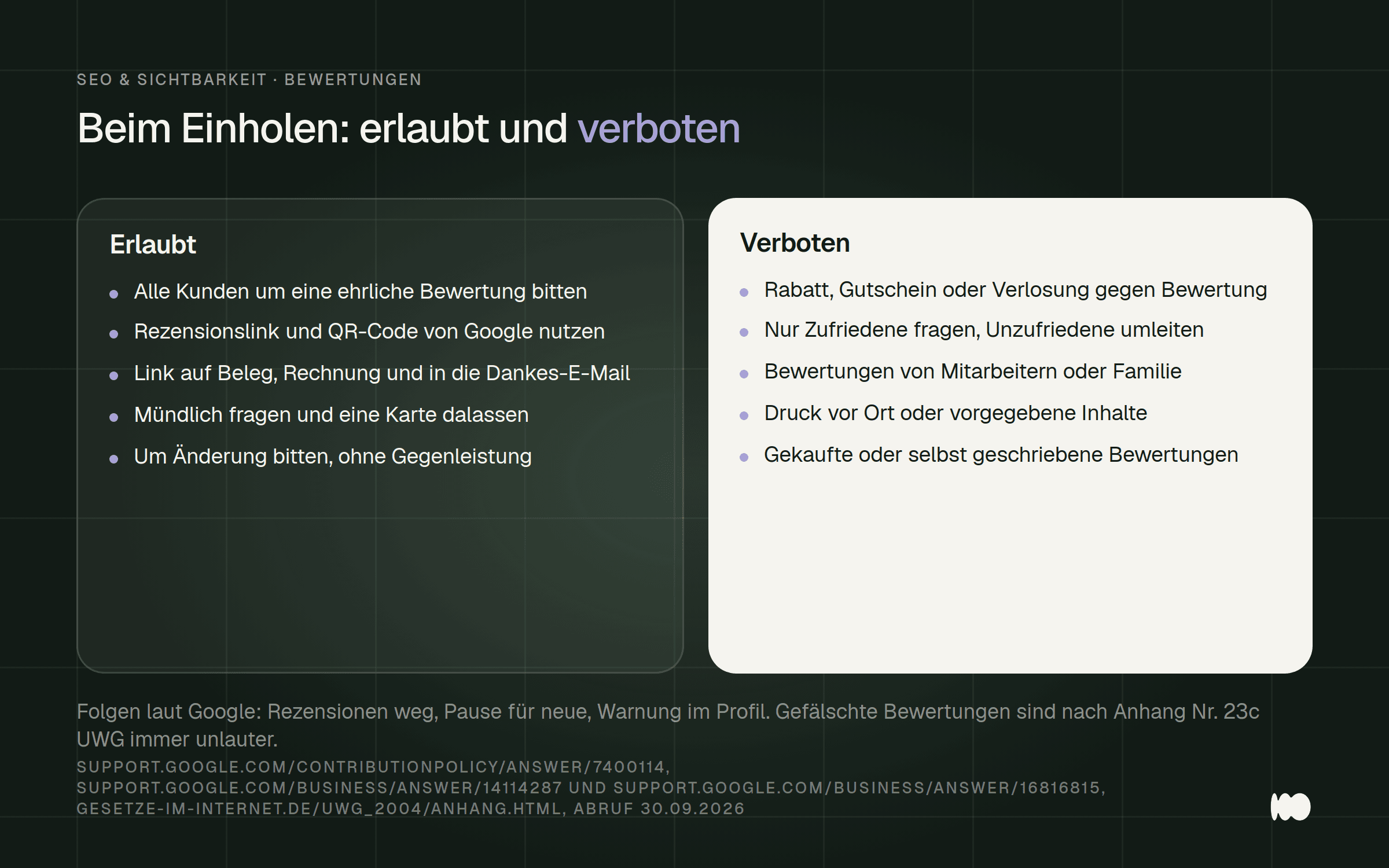
What Is Allowed and Prohibited When Soliciting Reviews: A Summary of Google's Guidelines and the UWG.
Display Google reviews on your own website
Display reviews on your website for visitors, but don’t expect to see stars in the search results. On September 16, 2019, Google announced that it would no longer display stars for LocalBusiness and Organization listings if the business controls the reviews itself, and the current documentation explicitly mentions an embedded widget such as “Business Reviews on Google.” It also states: “Do not aggregate reviews or ratings from other websites.” So don’t include your Google reviews in the markup; instead, display them as visible quotes or a widget.
Include a sentence under each review stating whether and how you verify its authenticity. According to Section 5b(3) of the German Unfair Competition Act (UWG), essential information includes “whether and how the business ensures” that reviews come from real customers. Anyone who makes such a claim without conducting an appropriate verification is always acting unfairly under Annex No. 23b to the UWG. We have not found any court ruling on whether Section 5b(3) also applies to a Google widget.
As a precaution, we therefore recommend including a statement such as “These reviews are from our Google Business Profile; we do not verify whether the reviewers were customers” directly below the ad. Place it wherever stars or customer reviews appear on your website.
Conclusion: today, this week, later
Today, open the “Unanswered” tab, check each critical review against the seven criteria, and copy the review link. If a review clearly violates one of the criteria, report it with a screenshot. Everything else should receive a polite response following the template above.
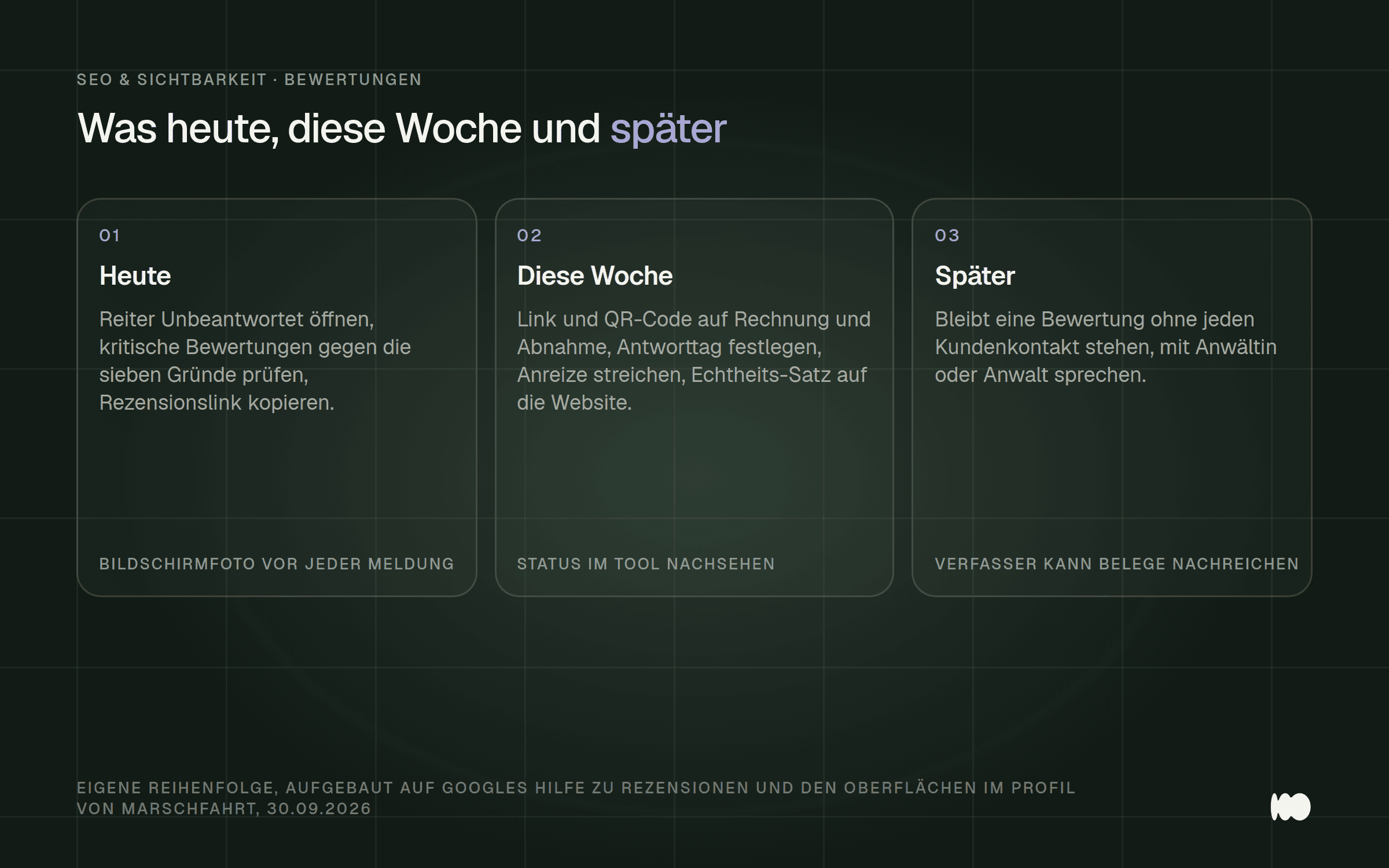
The order of steps for your profile: review and respond today; set up the process for gathering information this week; and only pursue legal action later in isolated cases.
This week, you’ll incorporate links and QR codes into invoices, acceptance reports, and email signatures, and determine who in the company will respond on which day. Remove any incentives from your documents, post the authenticity statement on the website, and check the tool to see if a report has been resolved.
Later, if a review remains posted and you're certain the author was never a customer, talk to a lawyer. If you don't want to handle the process of obtaining and responding to the review yourself, you'll find our service at the very bottom—we promise not to delete it.
What Has Changed and What That Means for You
September 16, 2019: Google no longer displays stars for Local Business and Organization listings if the business manages the reviews itself. For you, this means: A review widget is about building trust with visitors, not a trick for search engines.
No later than December 31, 2025: Google describes the official review link in the help article “Create a link or QR code to request reviews.” For you, this means: The link and QR code come directly from your profile; you don’t need any third-party link generators.
No later than March 11, 2026: In Germany, Google requires authors of removed reviews to provide proof if a business claims there was no customer contact. For you, this means: A review from a real customer may be reinstated upon submission of an invoice or appointment confirmation.
March 19, 2026: In its ruling 16 U 2/25, the Frankfurt am Main Higher Regional Court classifies the reporting and disputing of Google reviews as a service provided to others under the Legal Services Act. For you, this means: Agencies without a license are not the right place to go for having reviews deleted, even if the ruling is not yet final.
April 16, 2026: Google announces that, during spam surges, it will remove reviews, pause new ones, and display a banner. For you, this means: A banner regarding paused reviews can serve as protection and is not automatically a penalty.
No later than April 21, 2026: Google will display in Germany the number of reviews that have been removed due to defamation complaints; on June 12, 2026, the Cologne Higher Regional Court ruled in Decision 15 W 55/26 that this was permissible. For you, this means: Mass deletions will be visible to customers, and according to this ruling, you have no right to have the counter removed.
September 30, 2026: As of the time of this post. For you, this means: The tool listed three business days for most reports, “several days” for assistance, and the report dialog listed seven reasons—none of which mentioned a lack of customer contact.
Would you like us to set up your review process without any deletions?
We’ll set up the process for you so that genuine reviews come in and none are left unanswered. Specifically, this means: a review link and QR code on your invoice, website, and a sign for the construction site; a response workflow with templates in your language; and a well-maintained company profile. We don’t report or delete reviews on your behalf—you’ll need to consult a lawyer for that. We’ll handle our own 30 pending responses at the same time—we promise.
Just send us a quick message through our contact form —the name of your business is all we need to get started. We’ll respond within 24 hours, personally and without a sales pitch.
More Articles
© Marschfahrt Studio
Practical knowledge on web design, SEO, AI, and conversion optimization. Based on real projects, without any marketing spin.